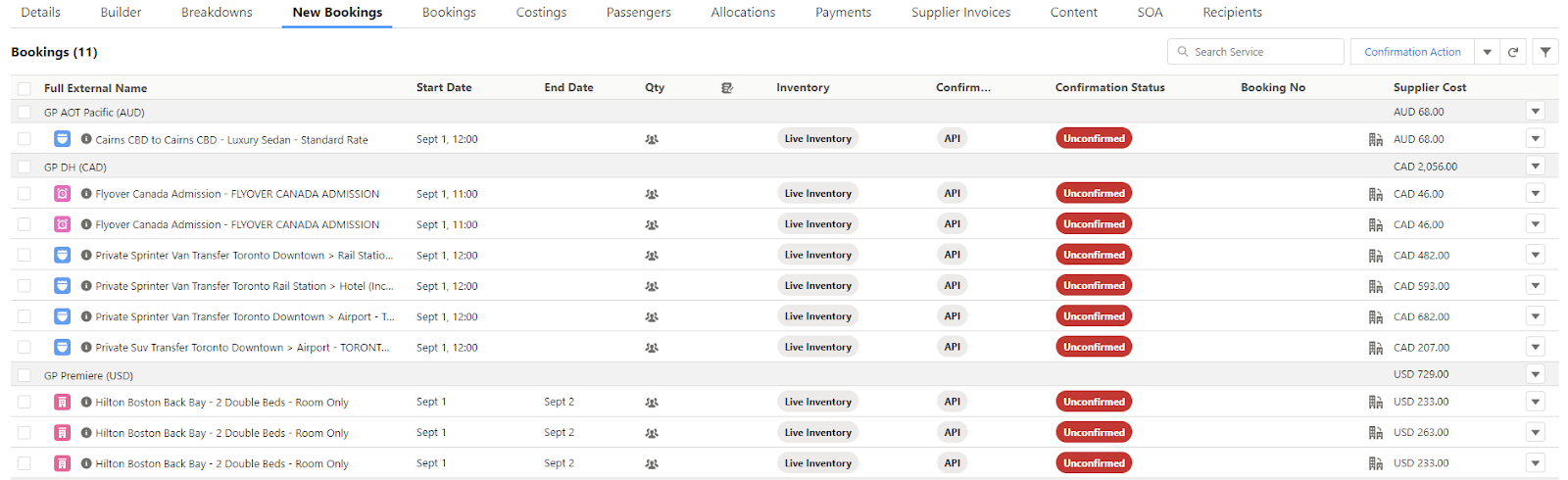
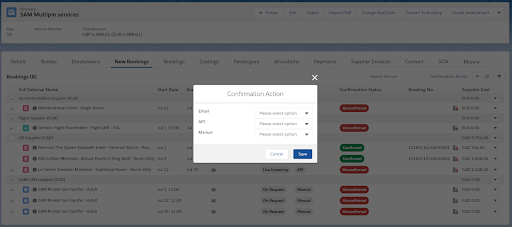
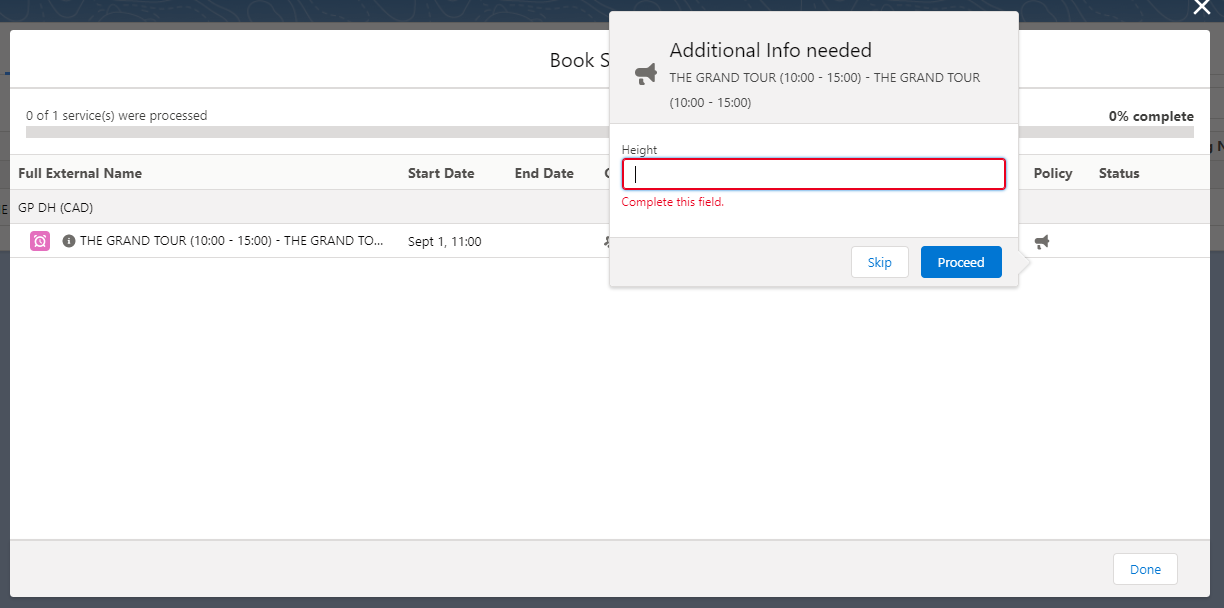
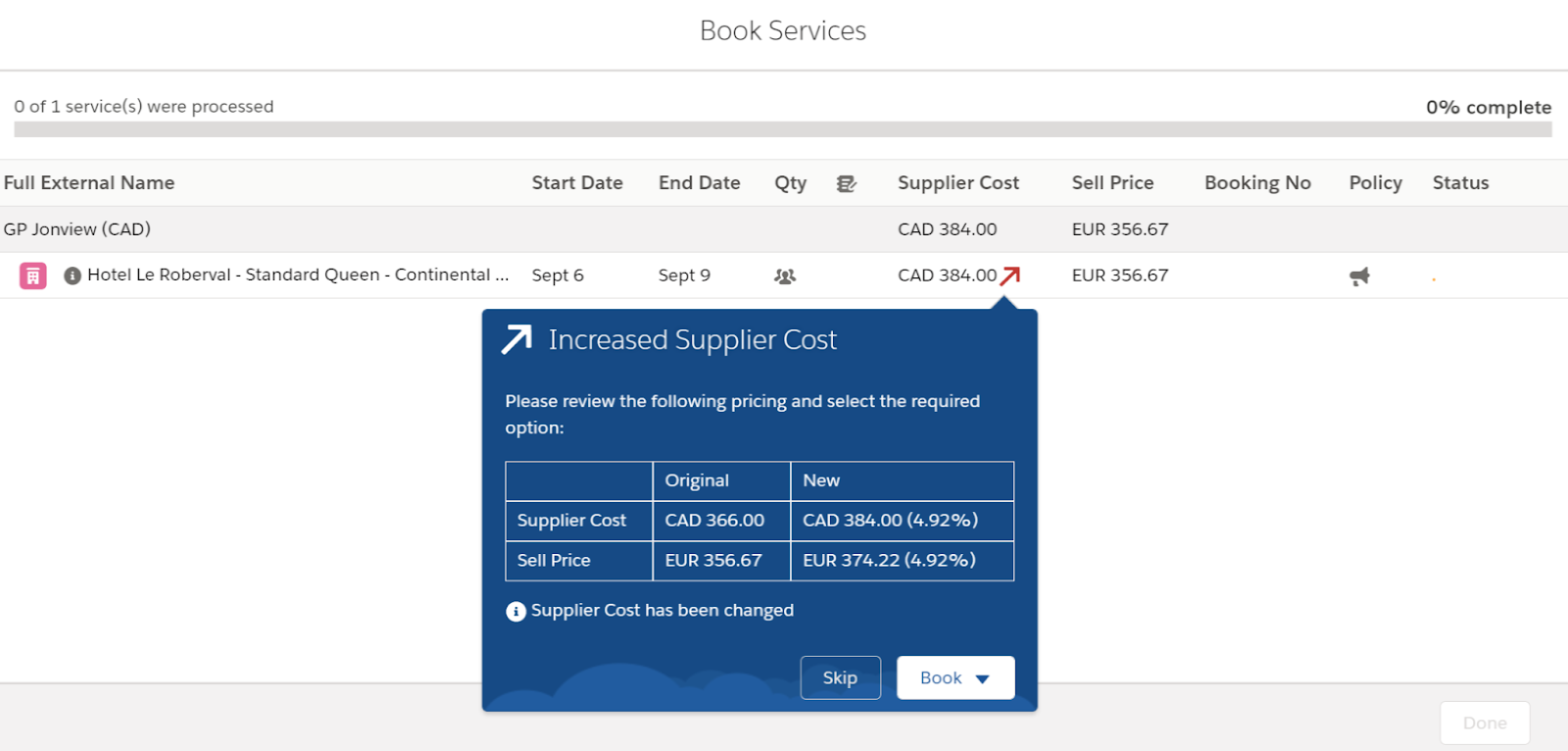
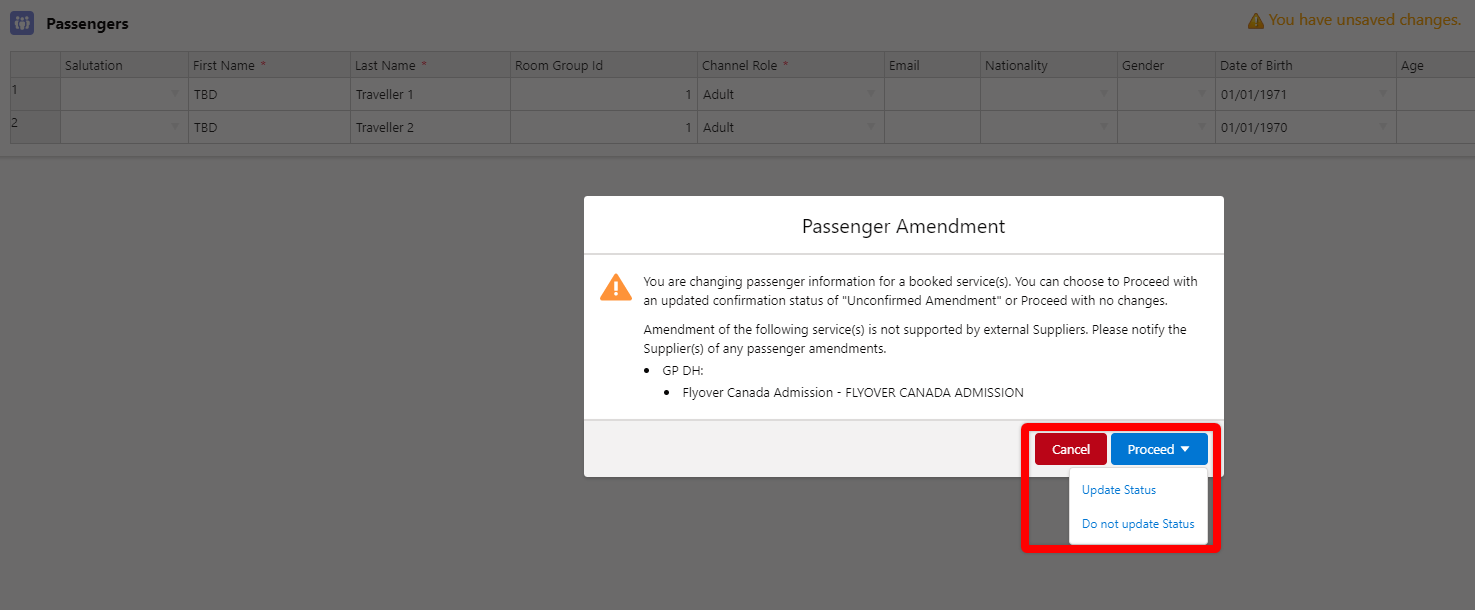
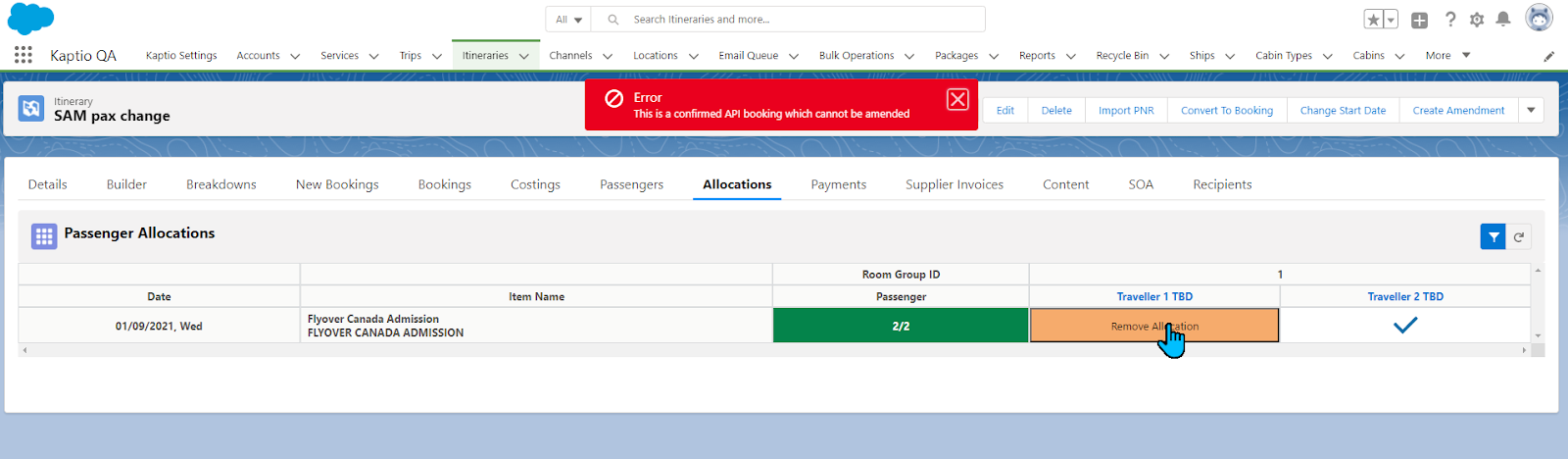
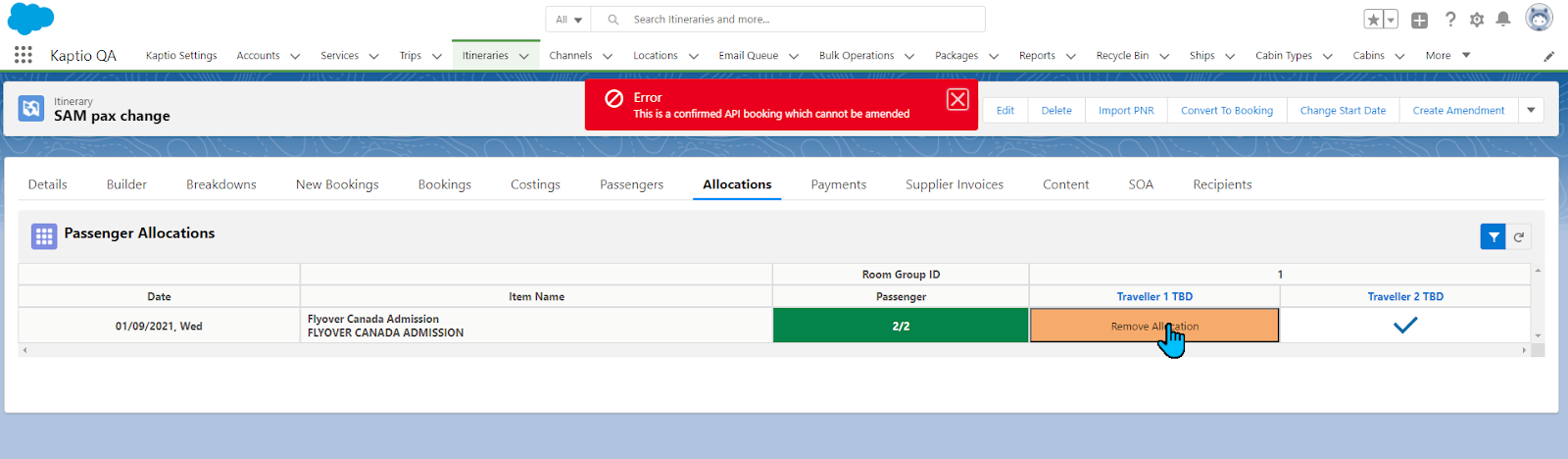
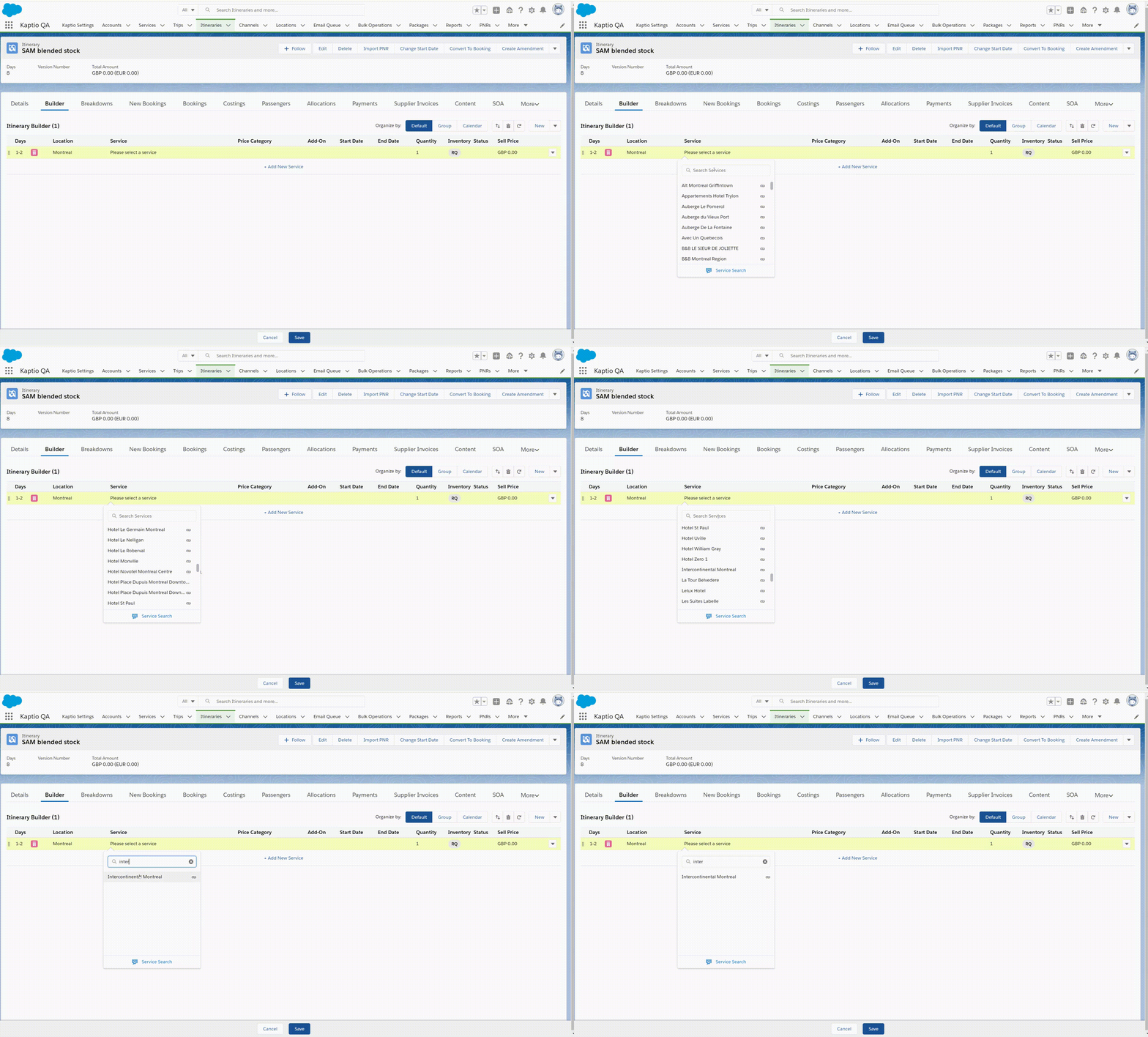
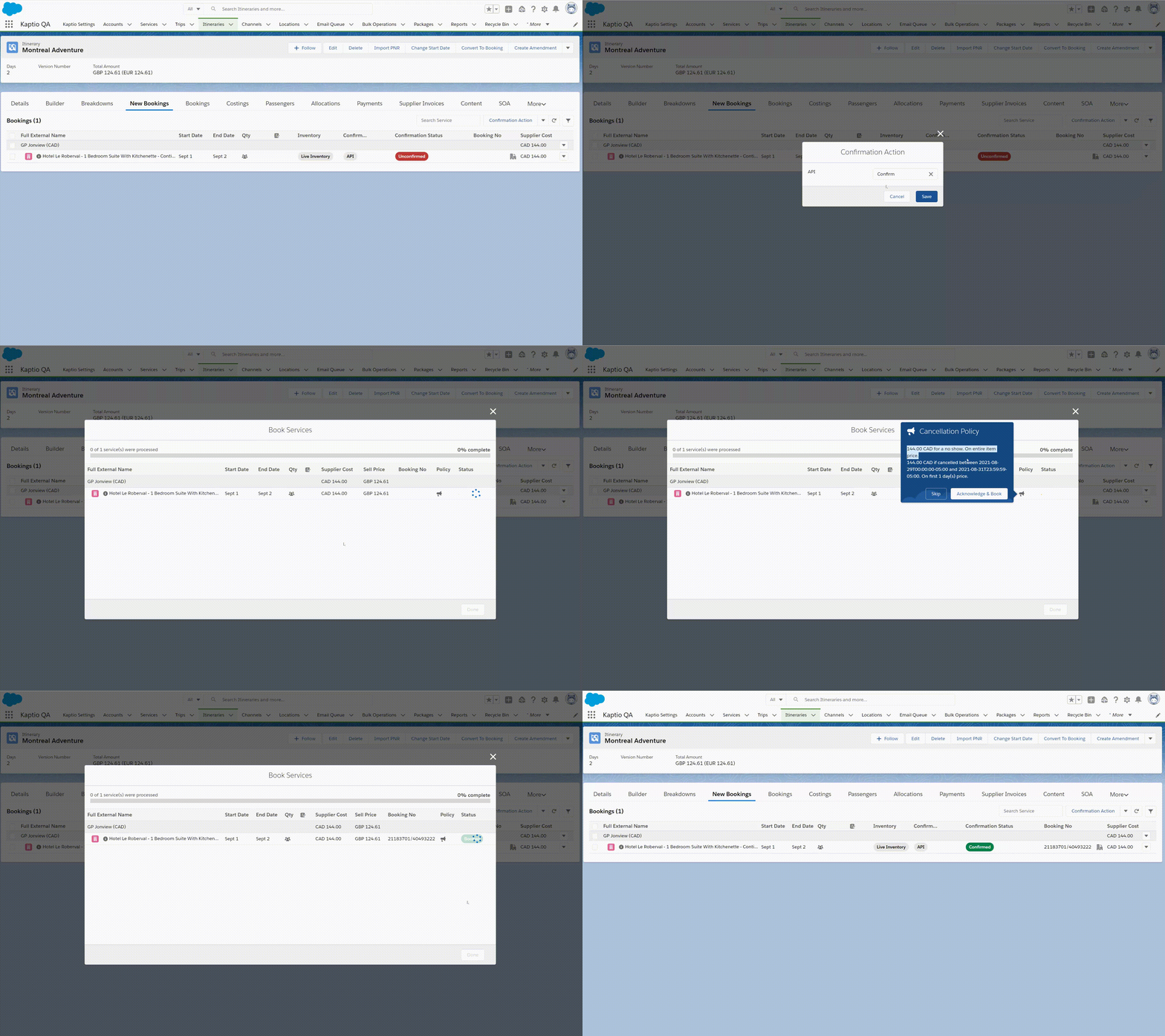
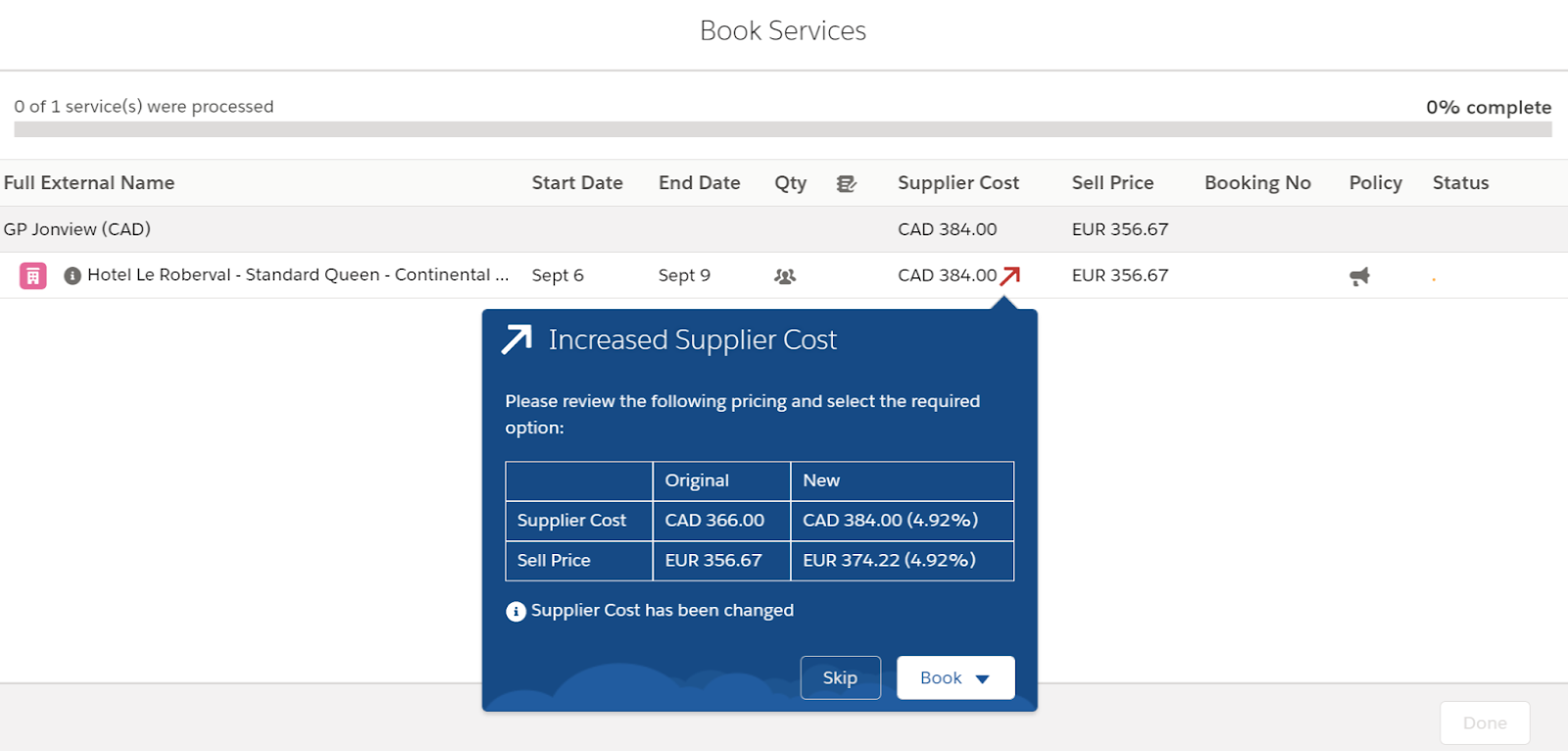
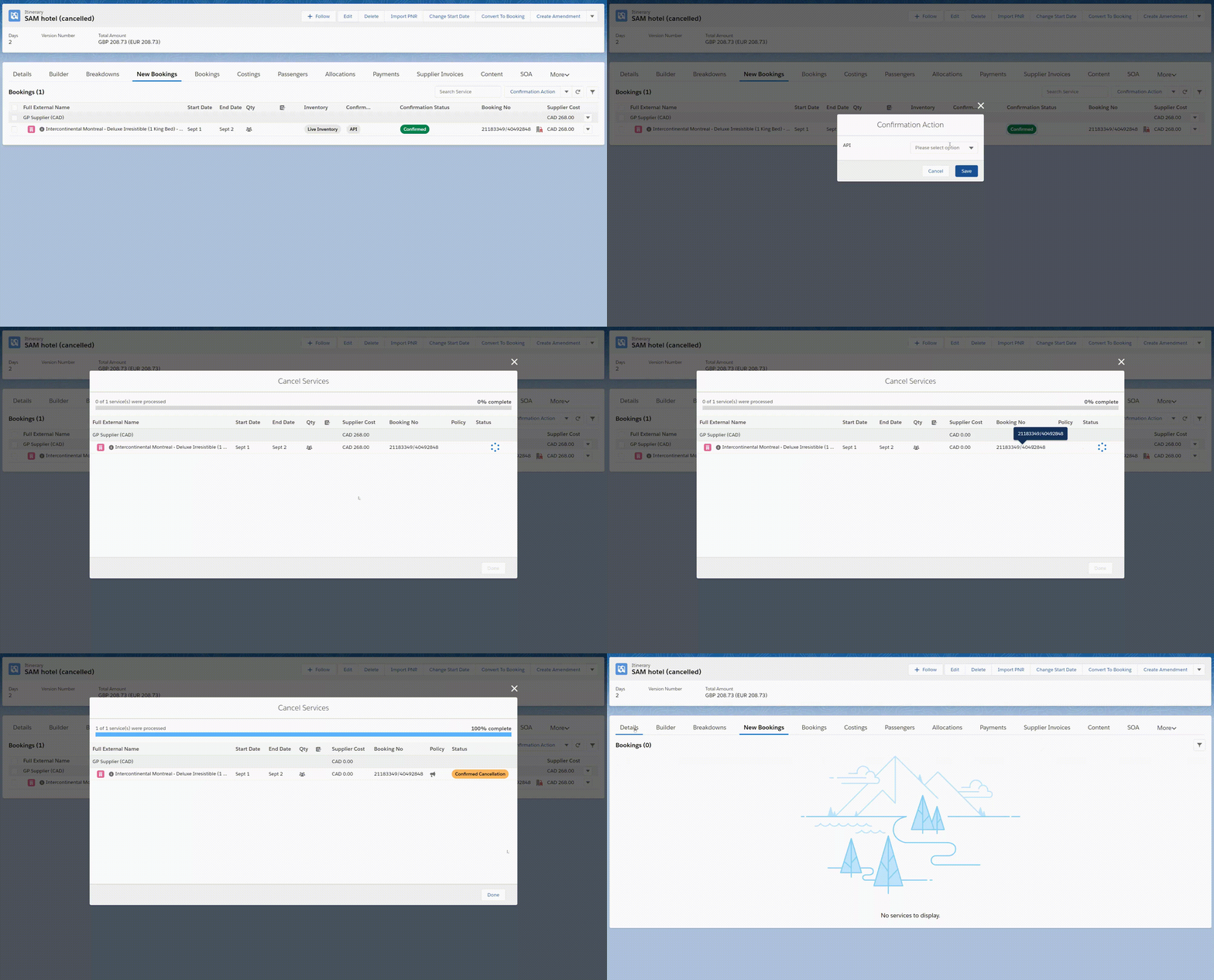
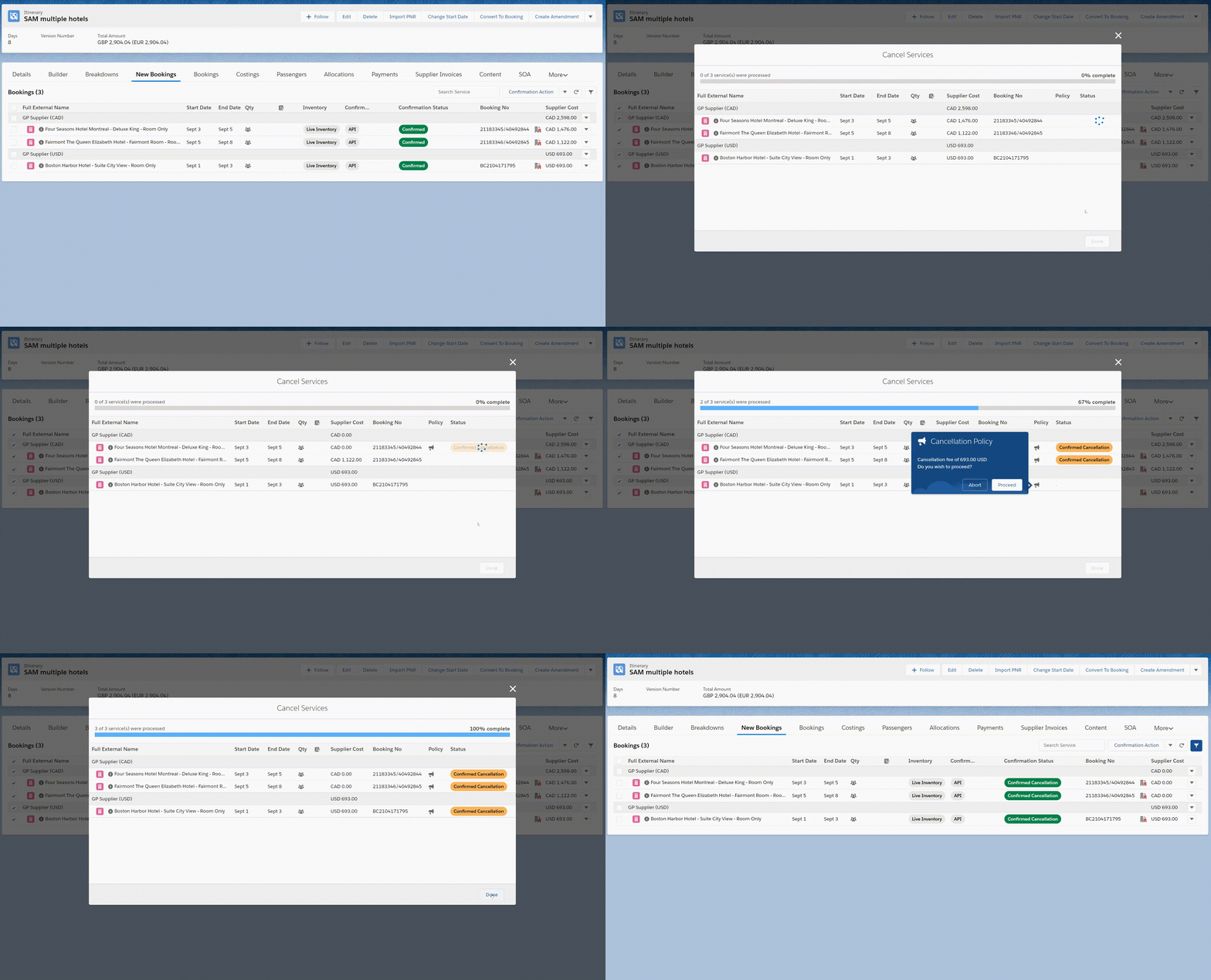
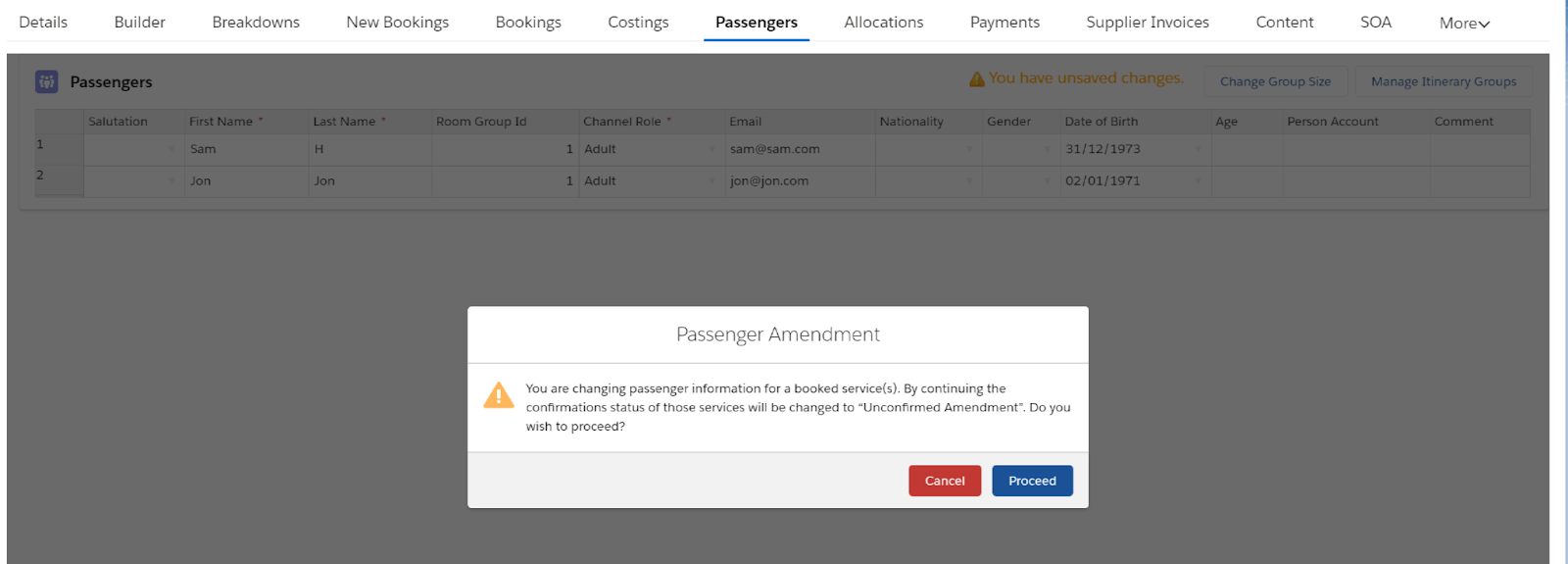
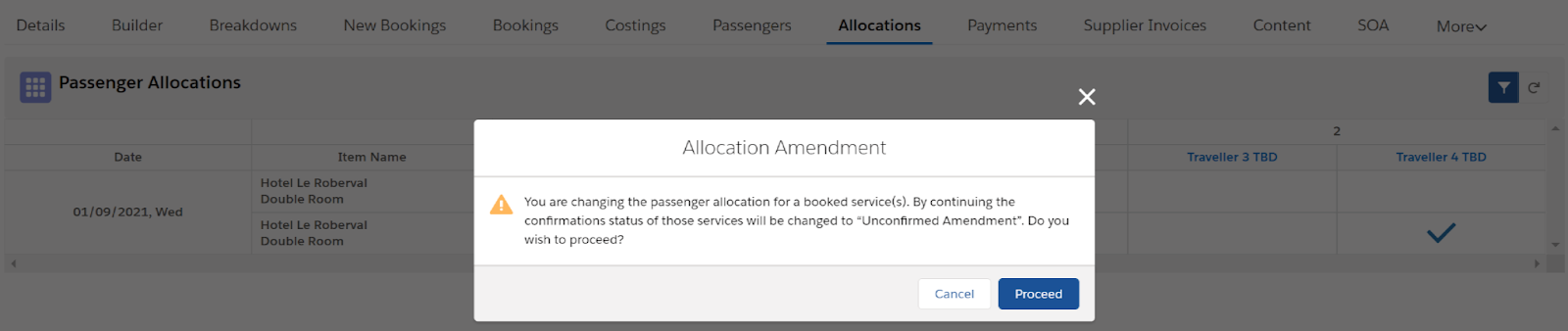
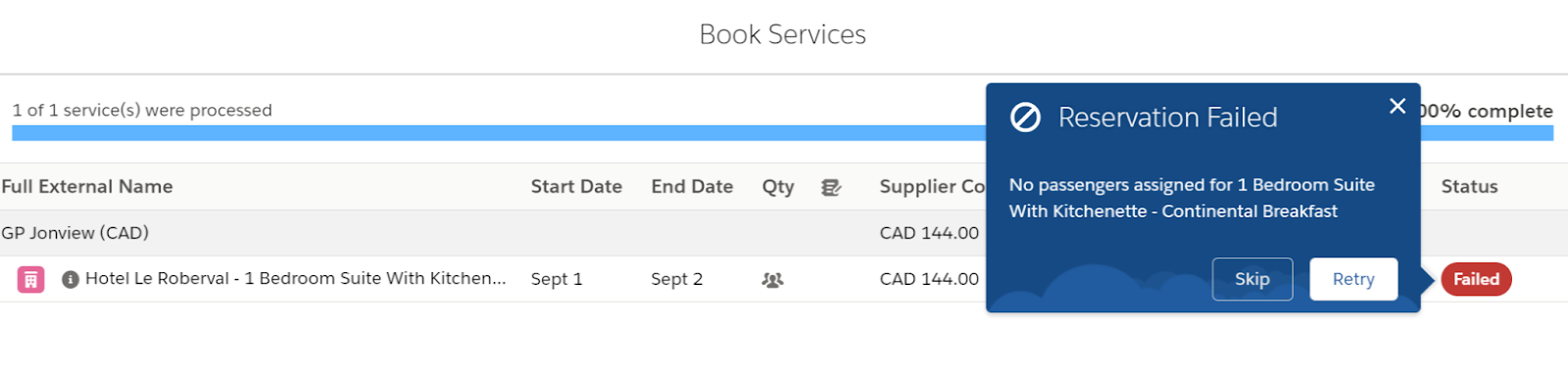
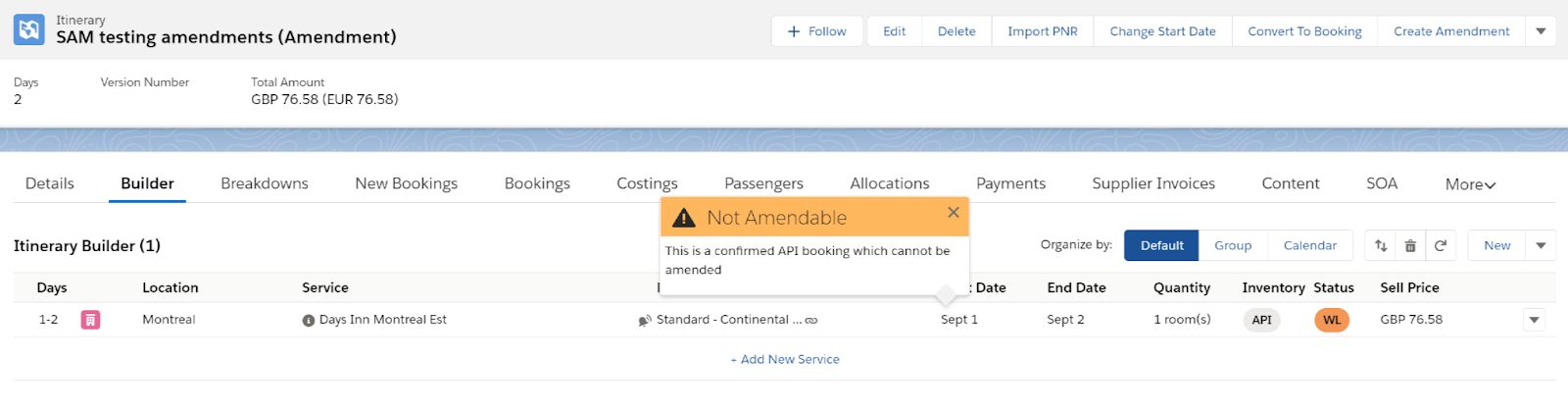
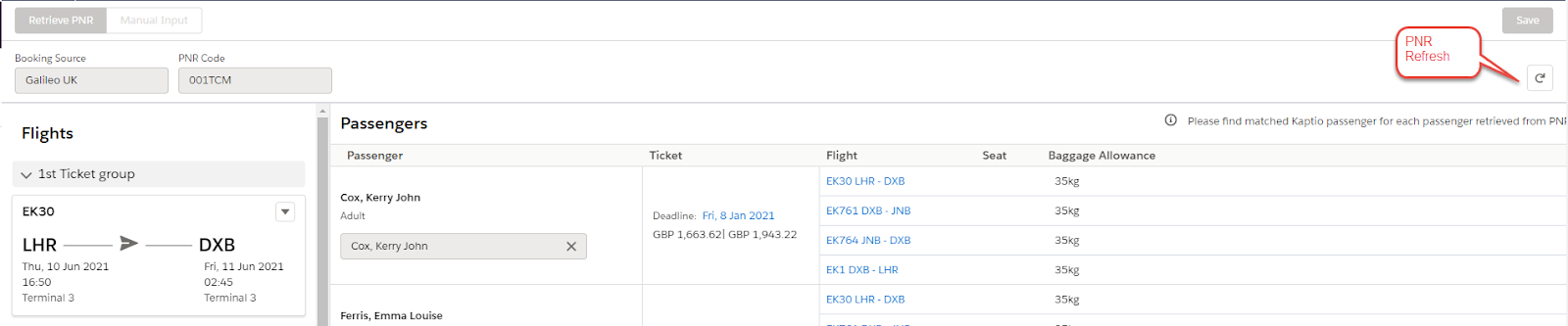
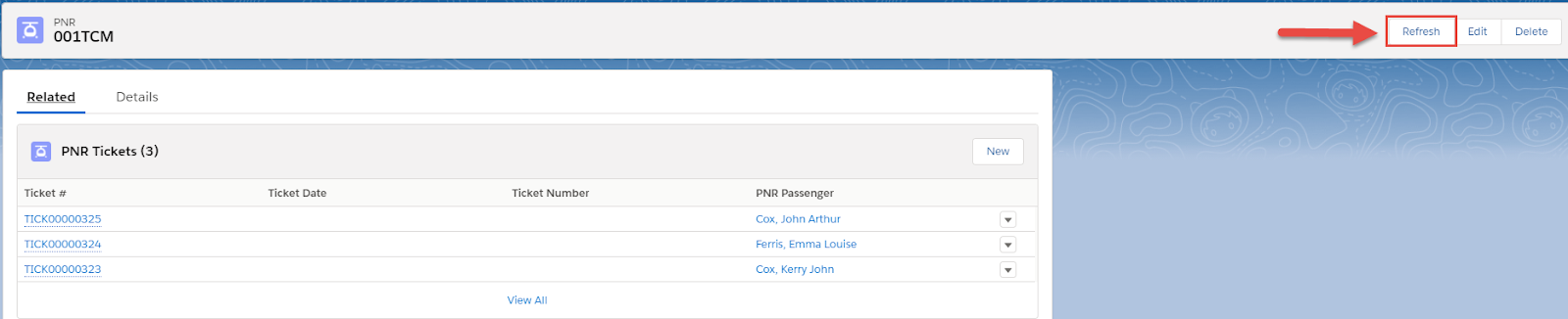
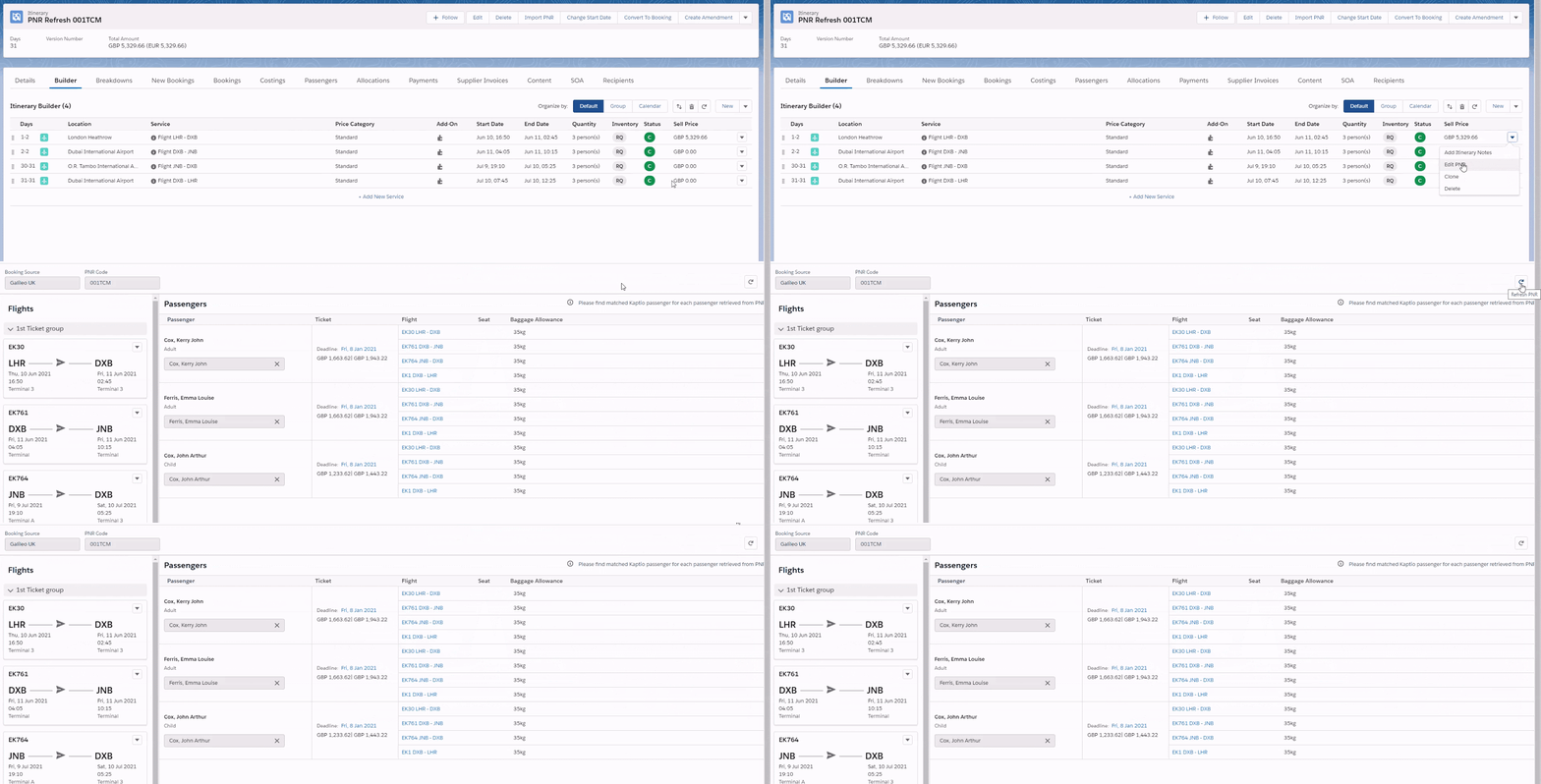
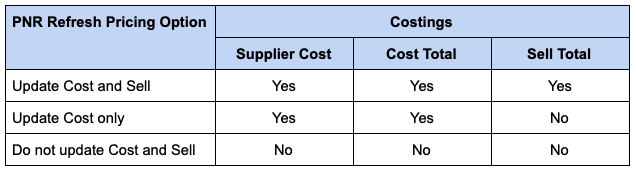
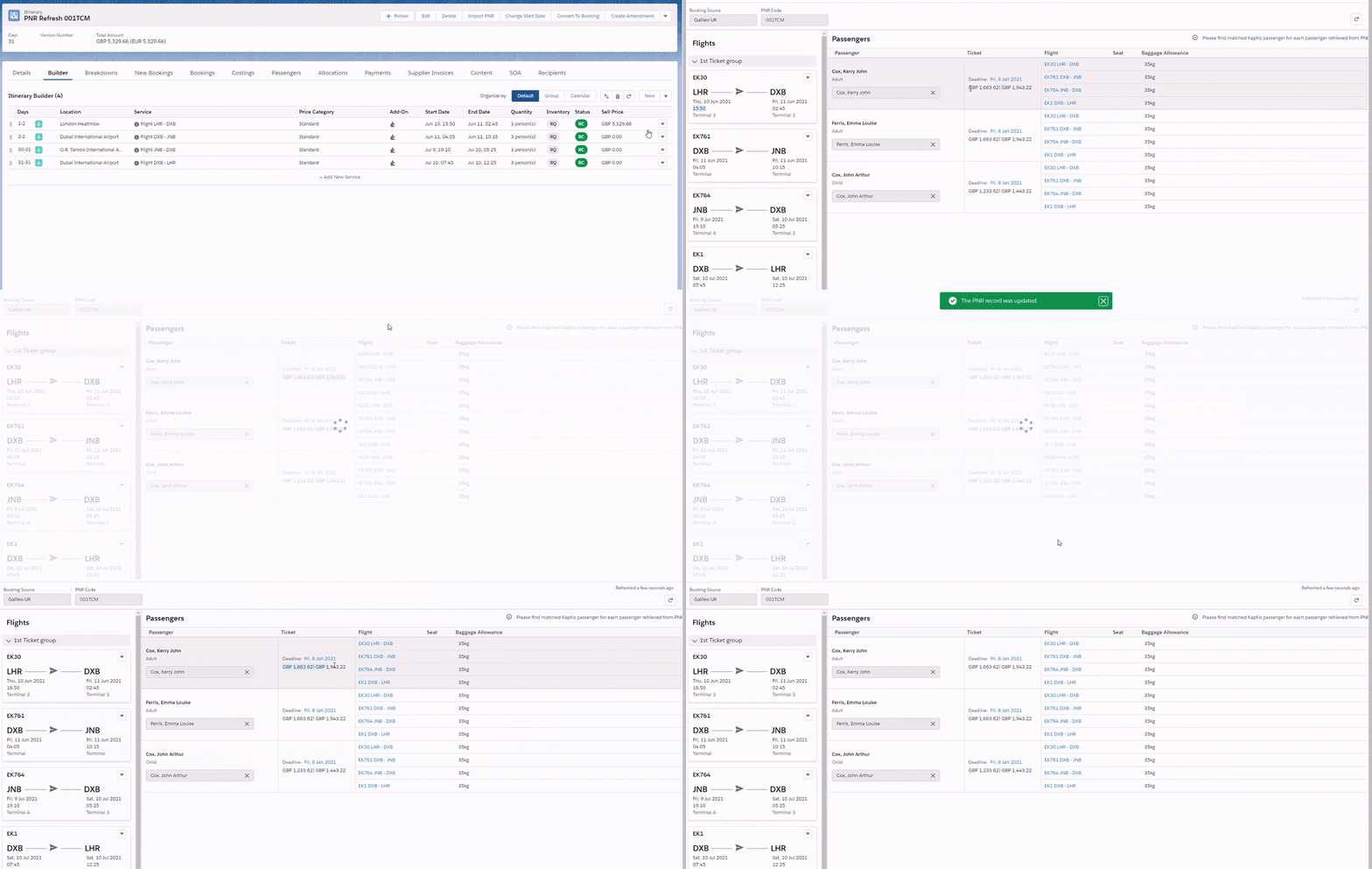
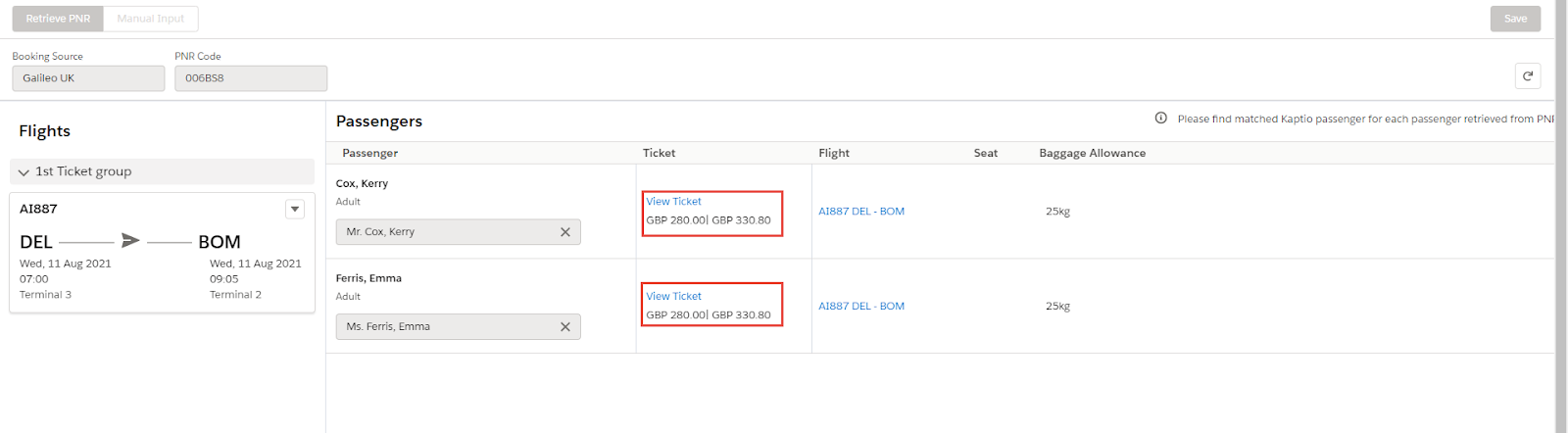
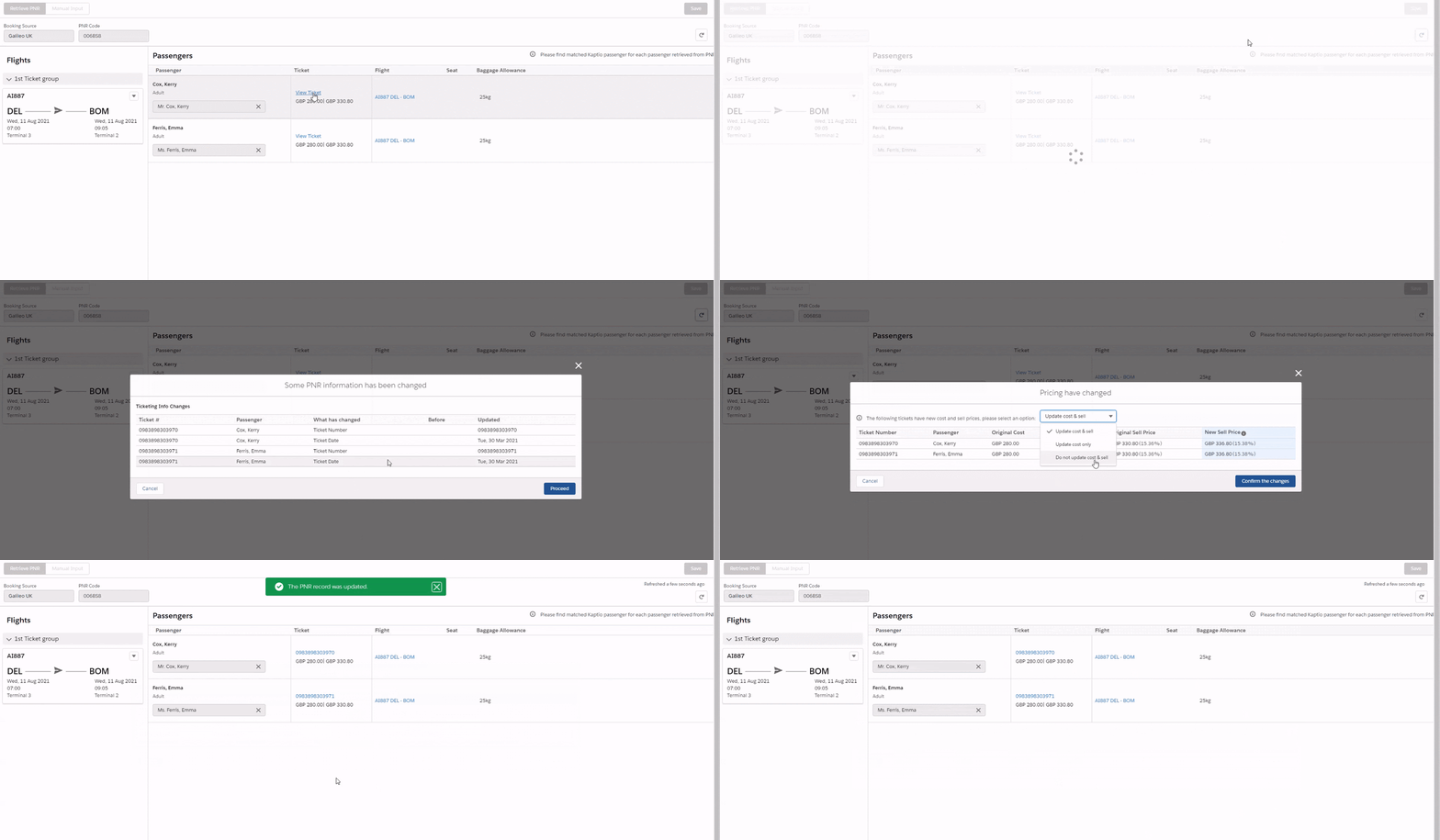
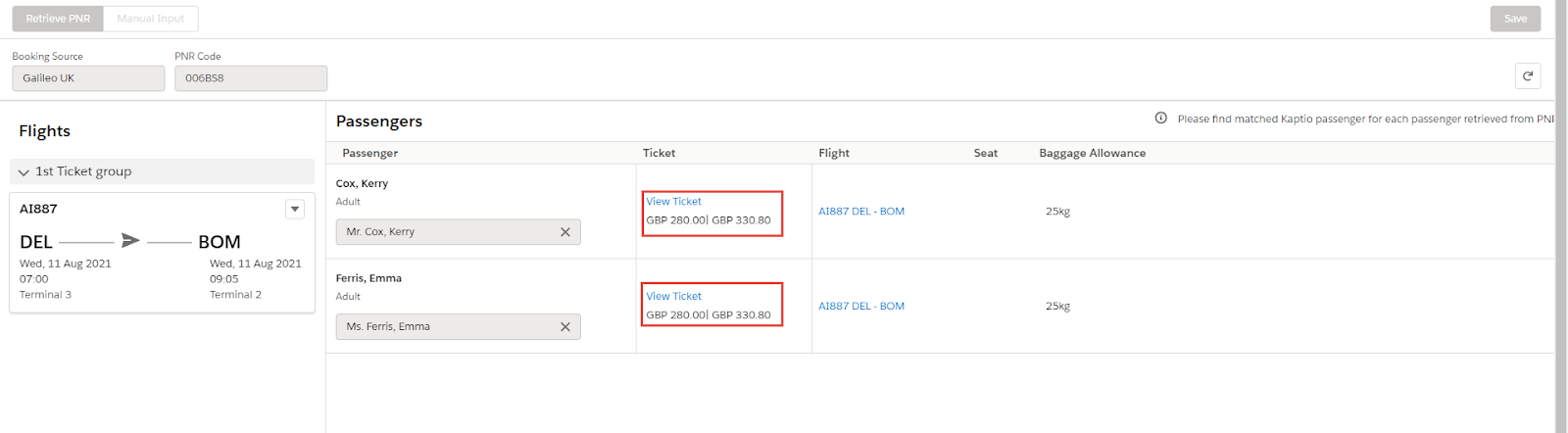
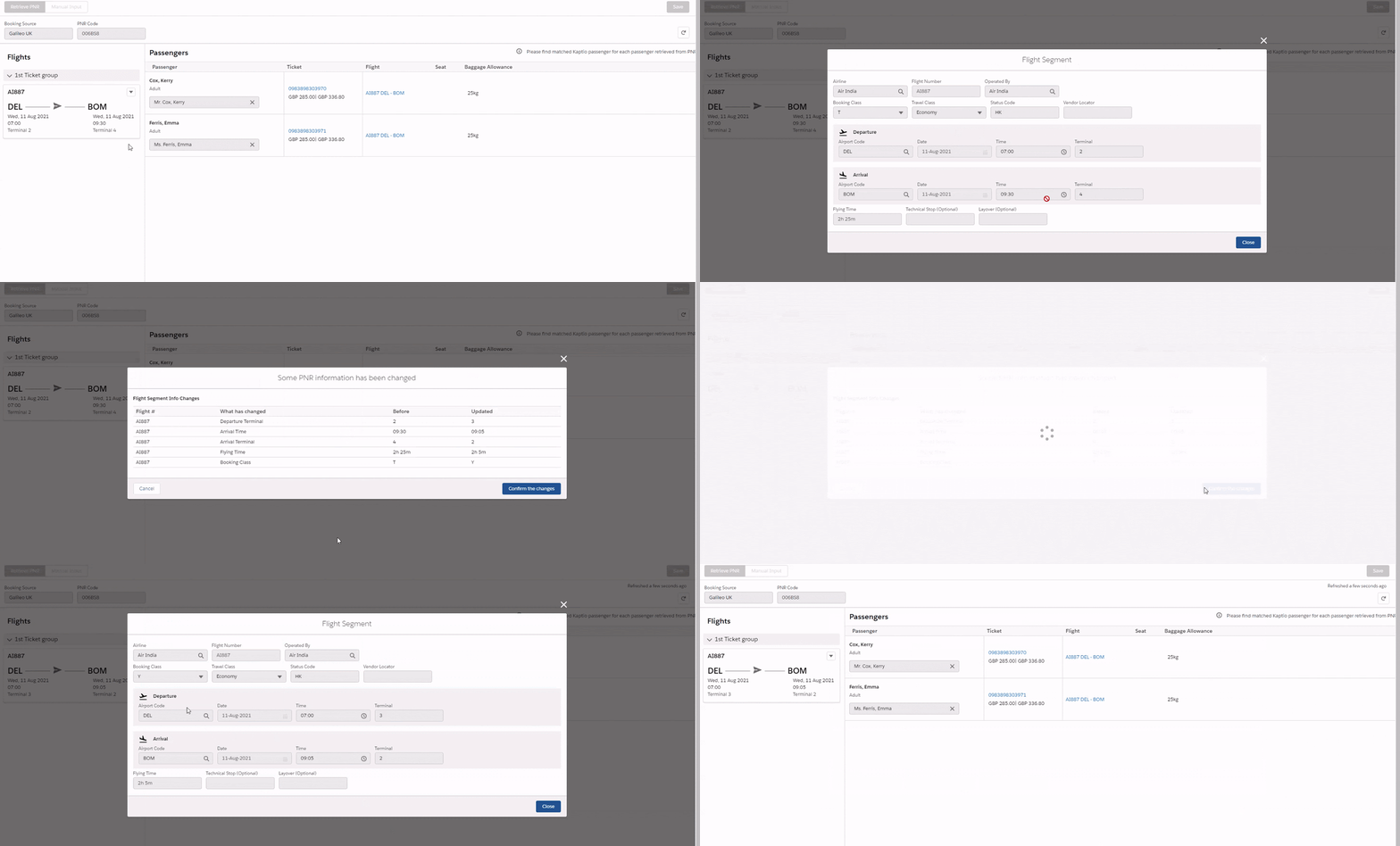
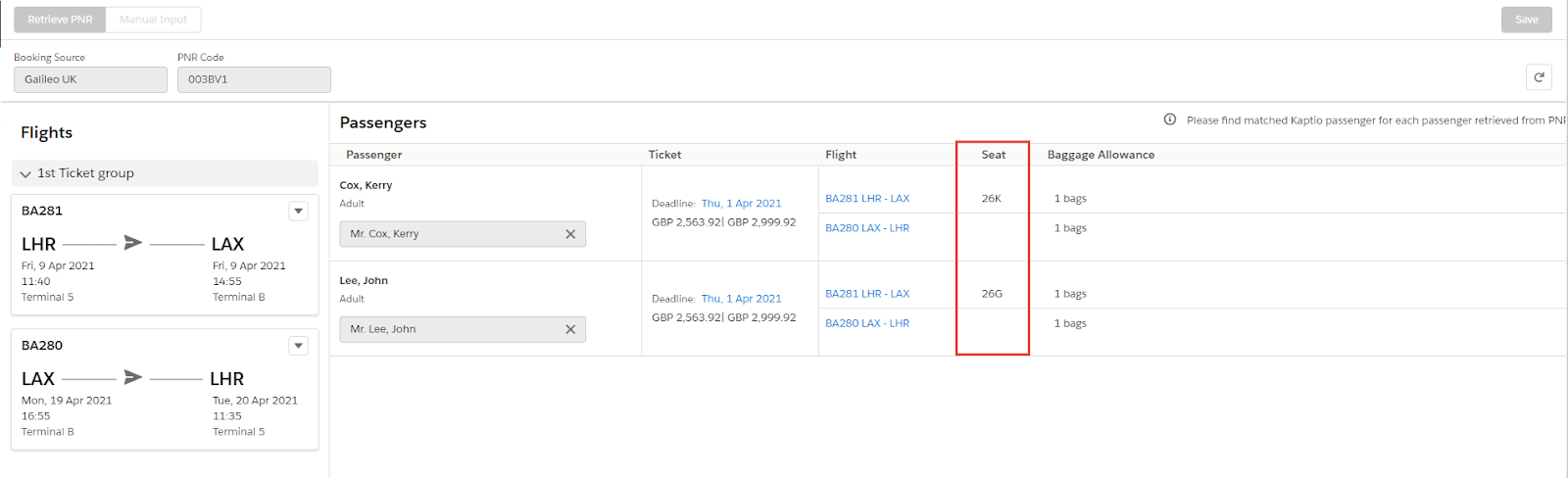
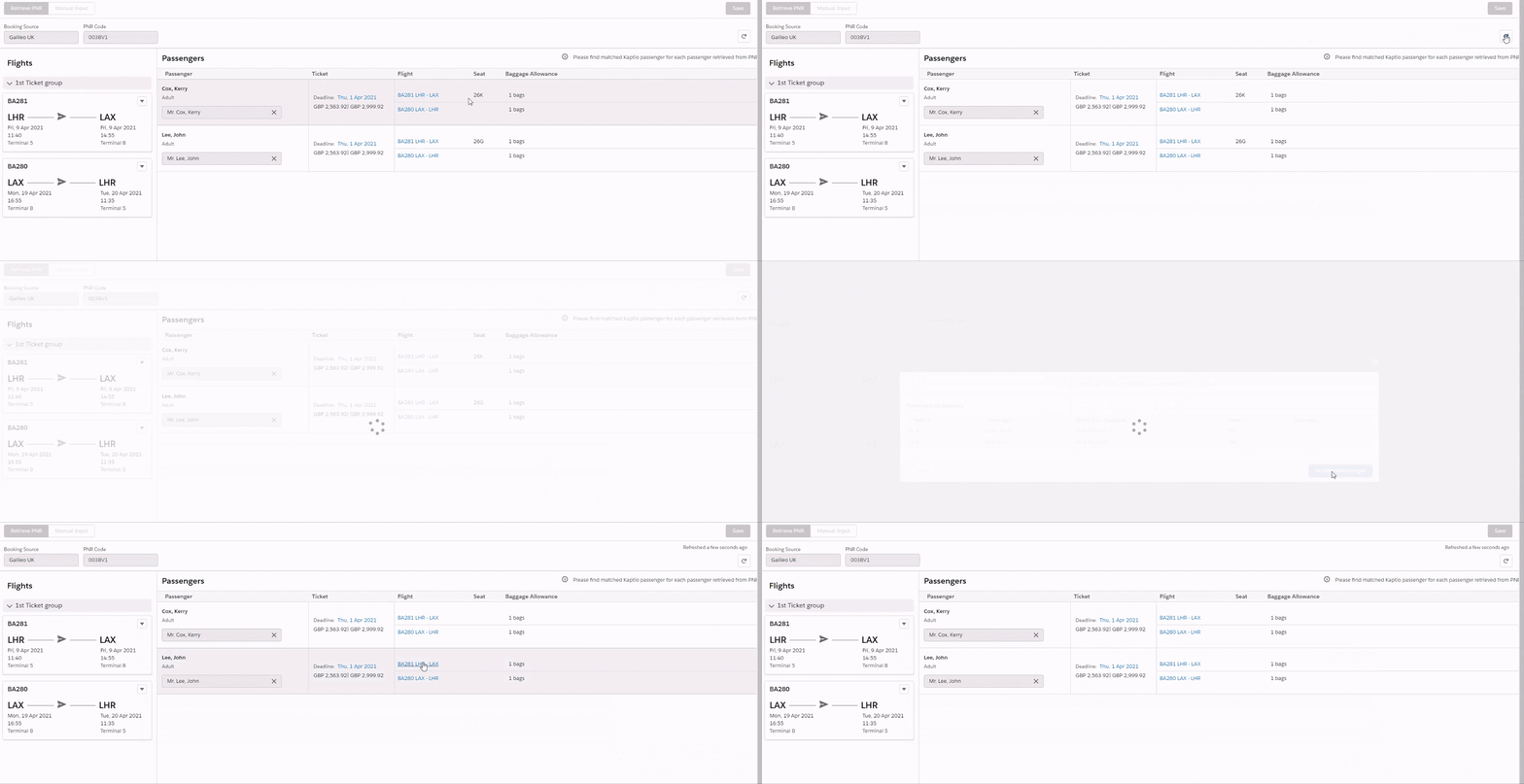
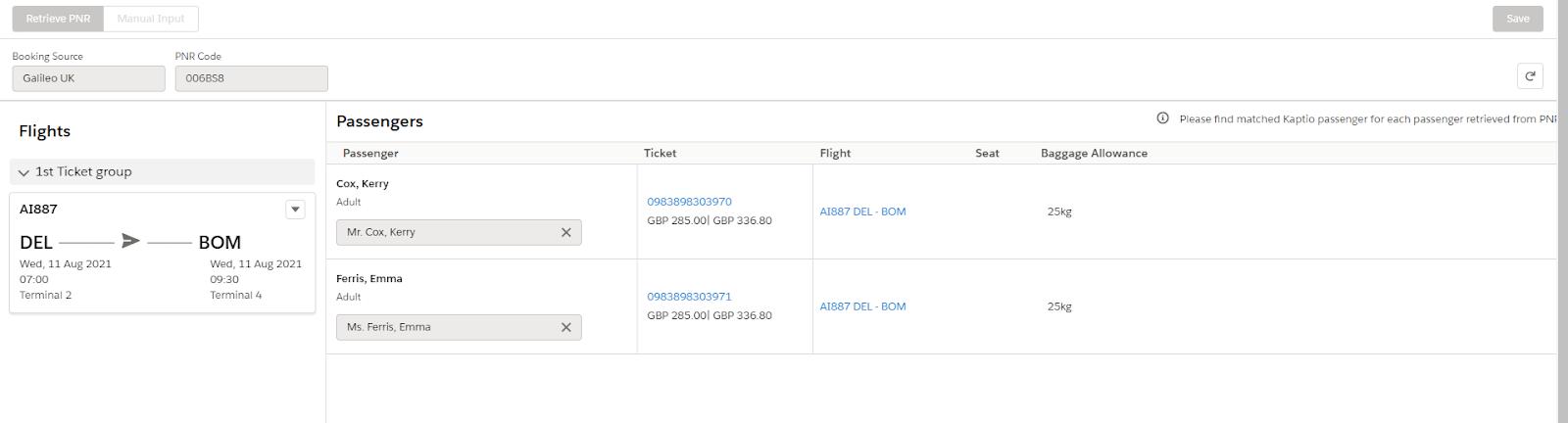
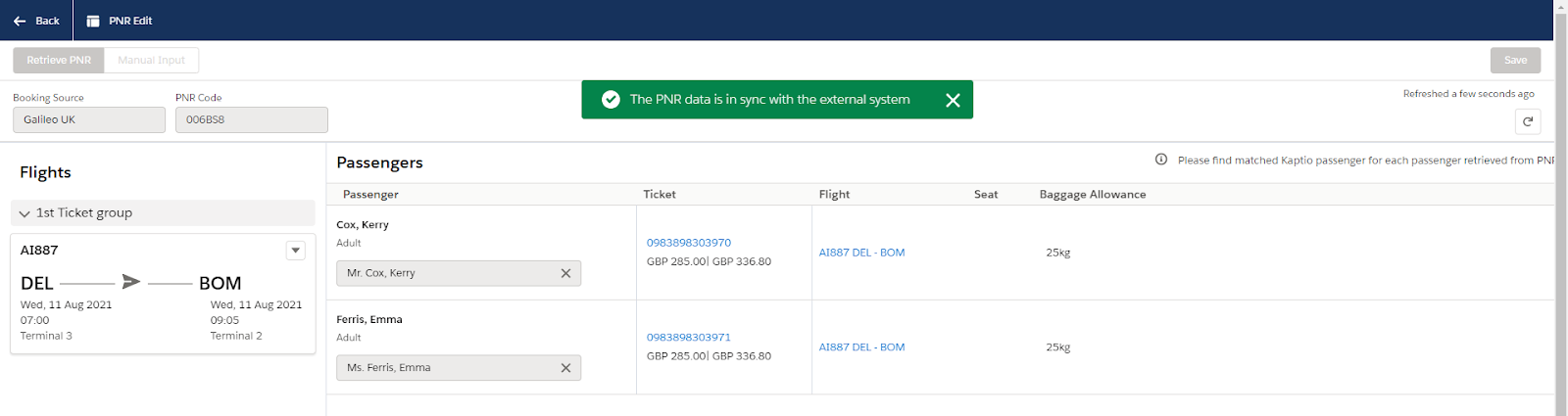
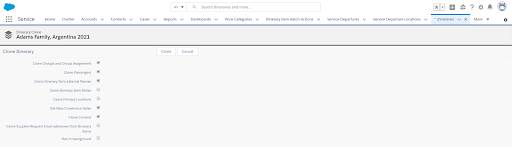
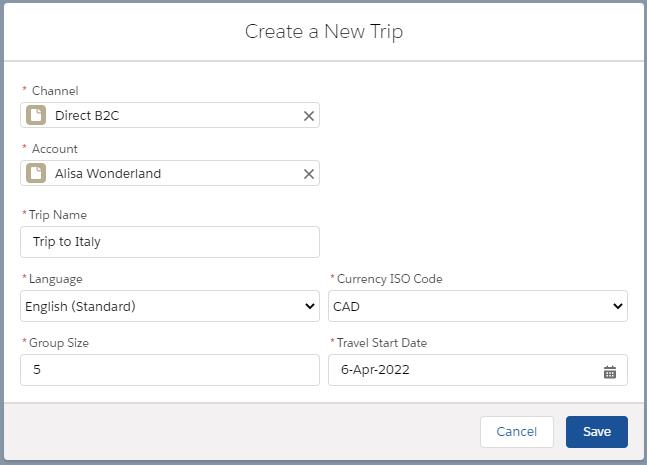
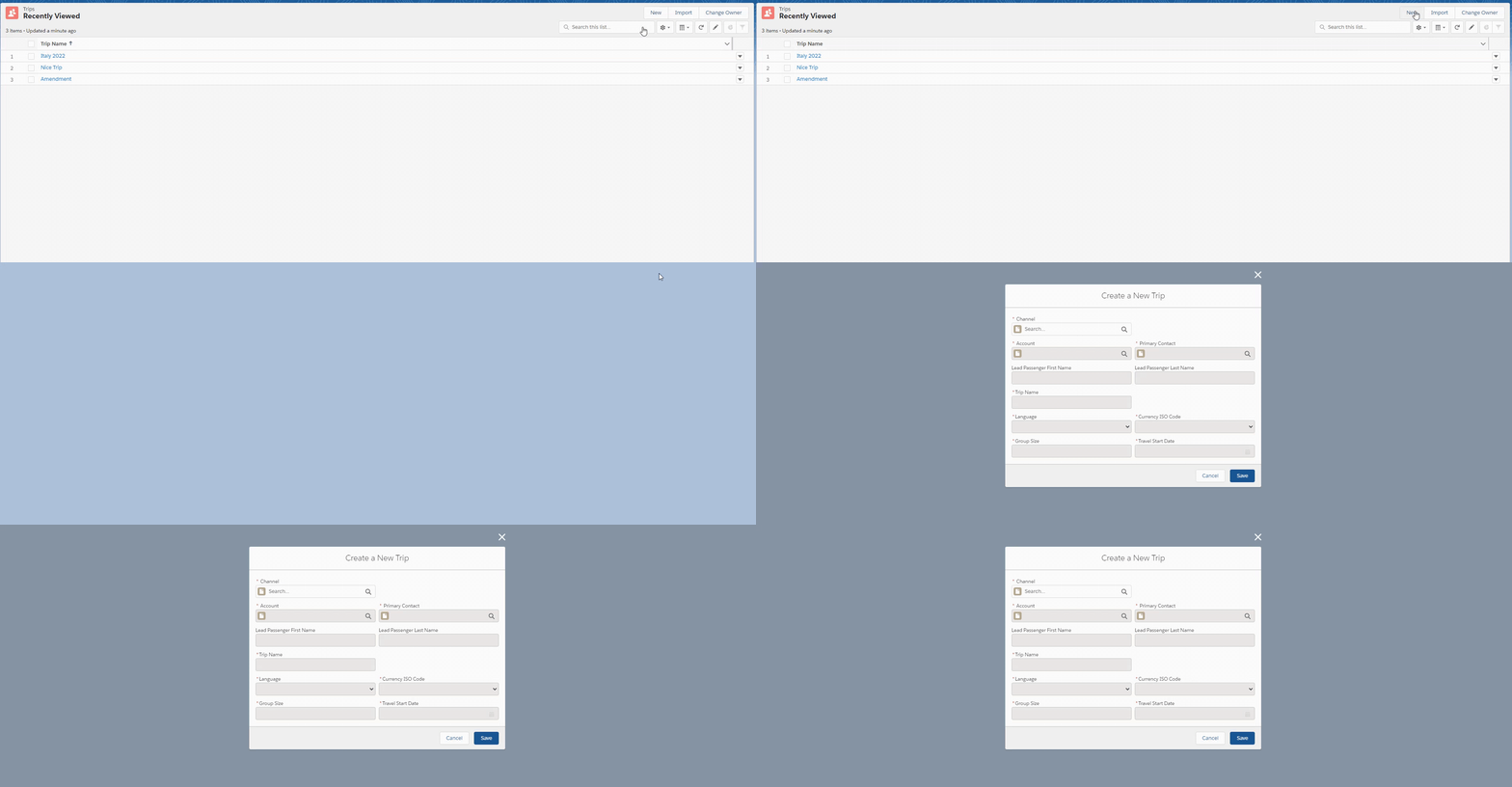
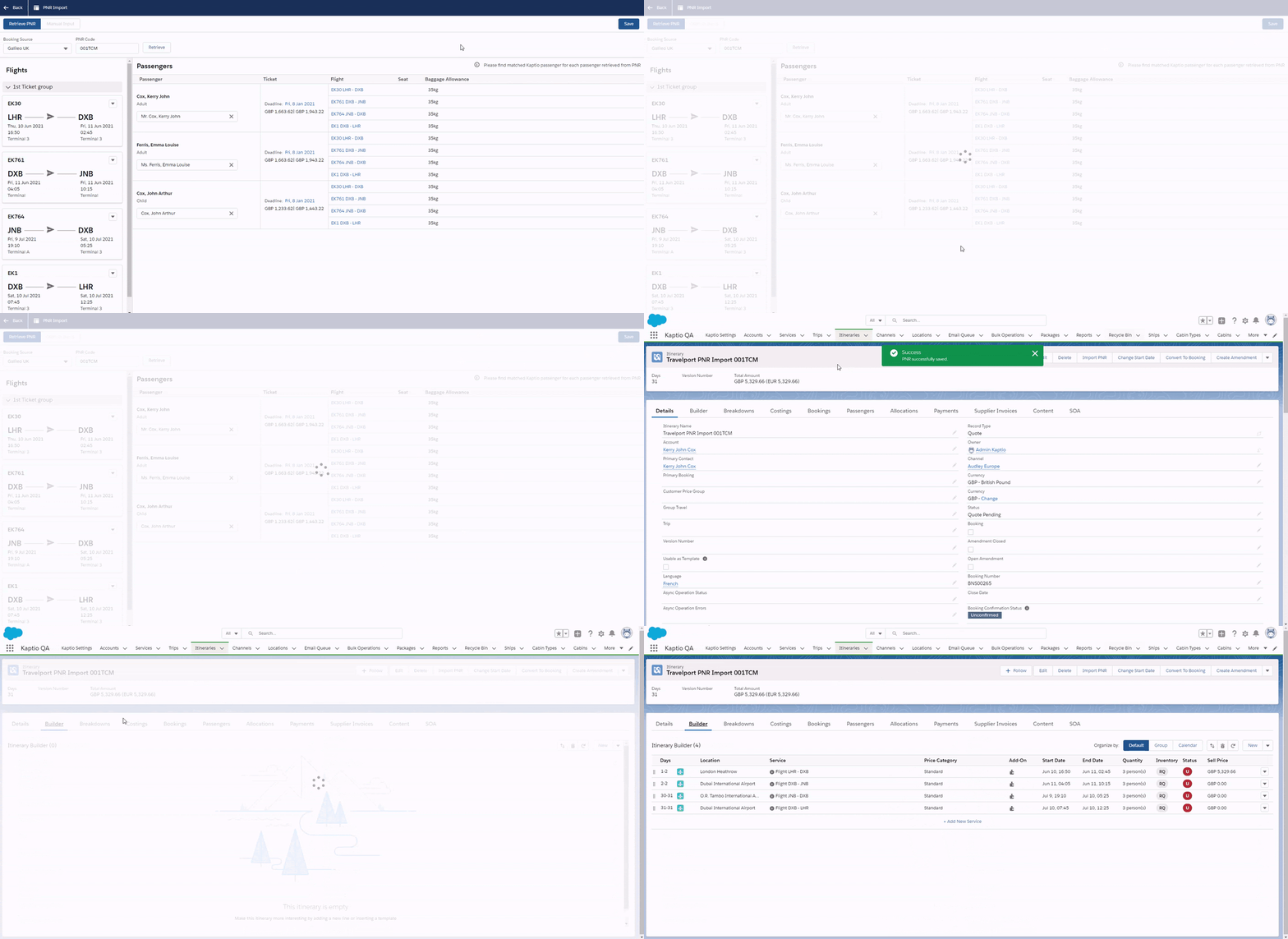
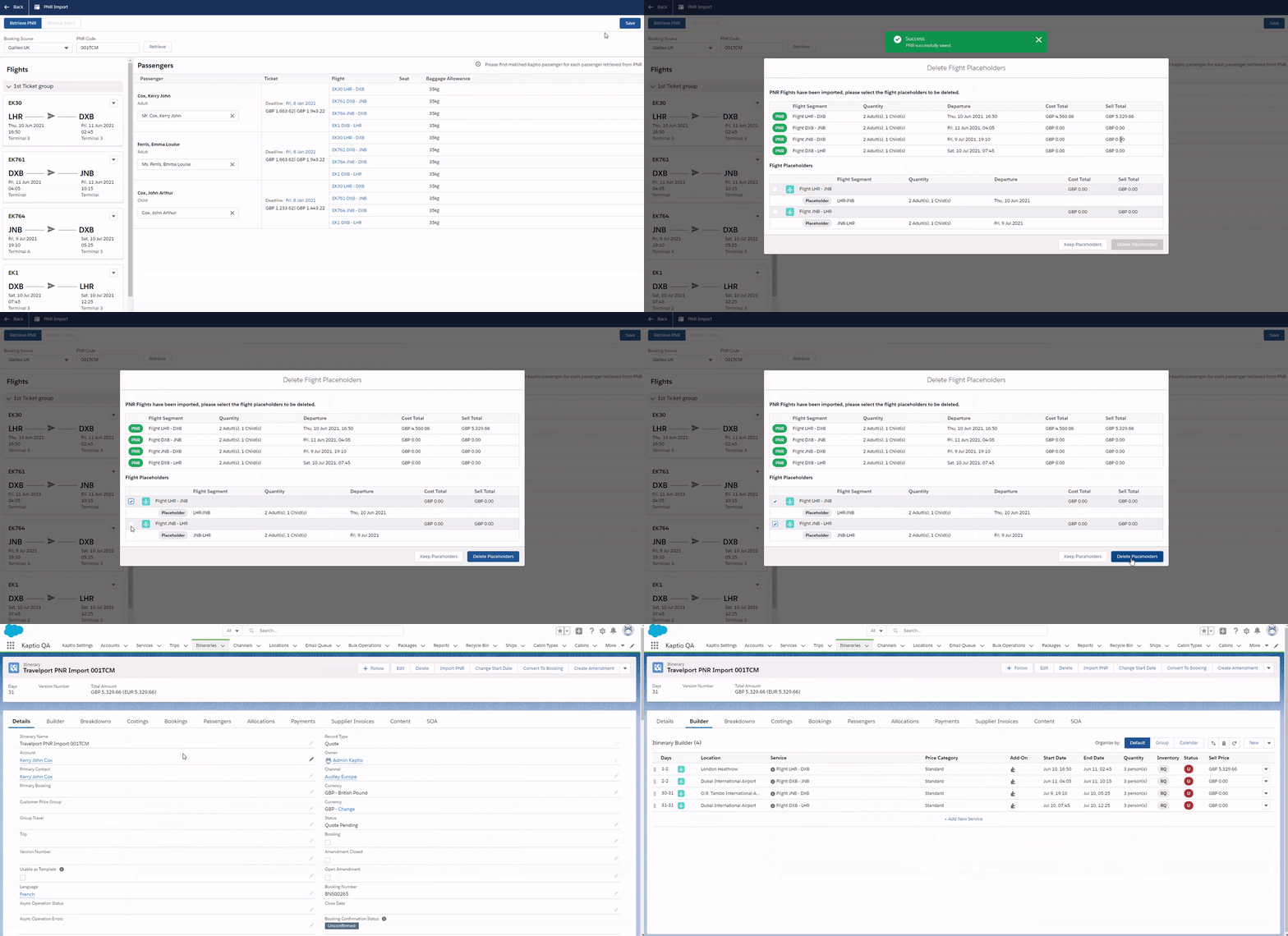
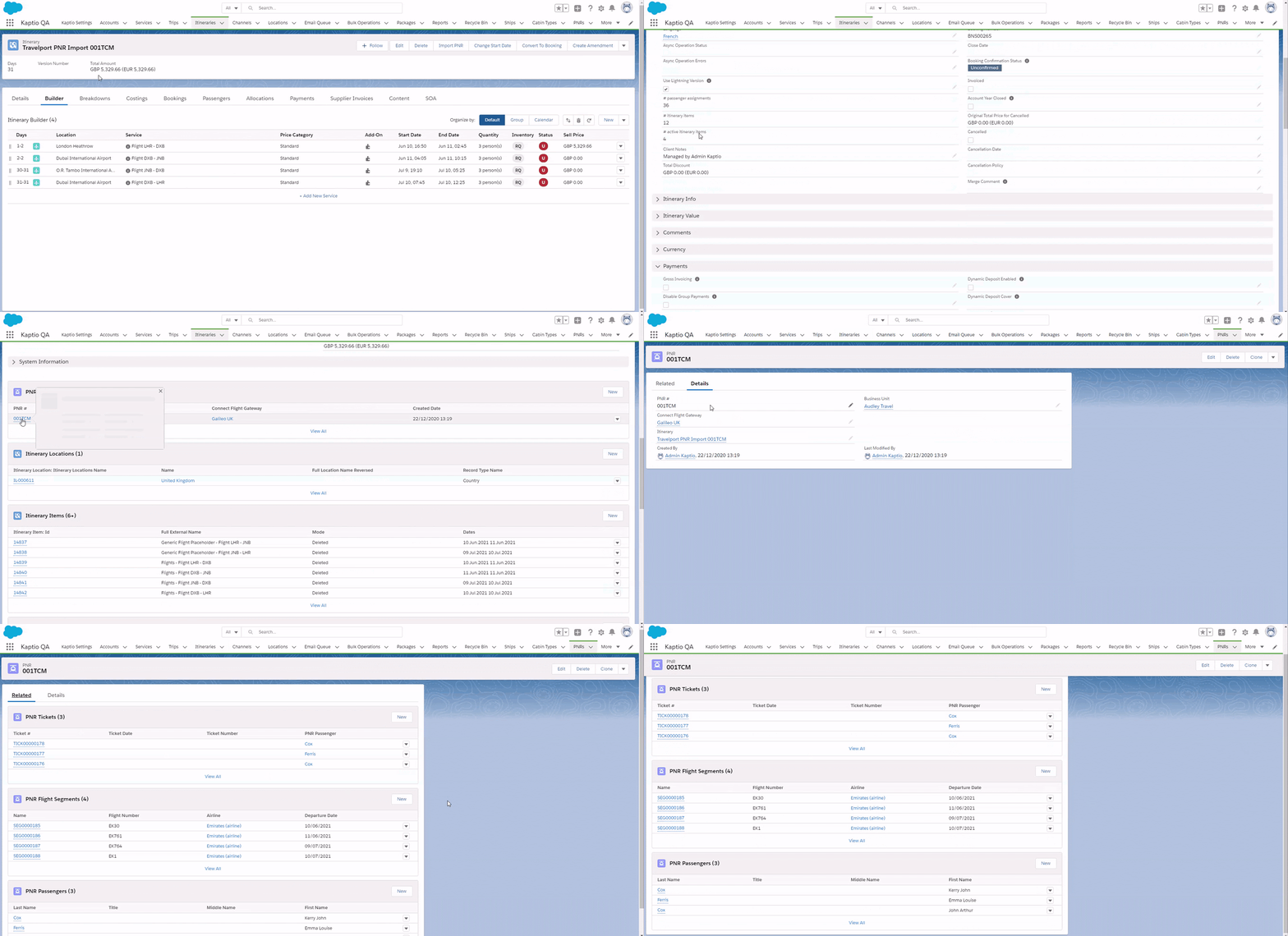
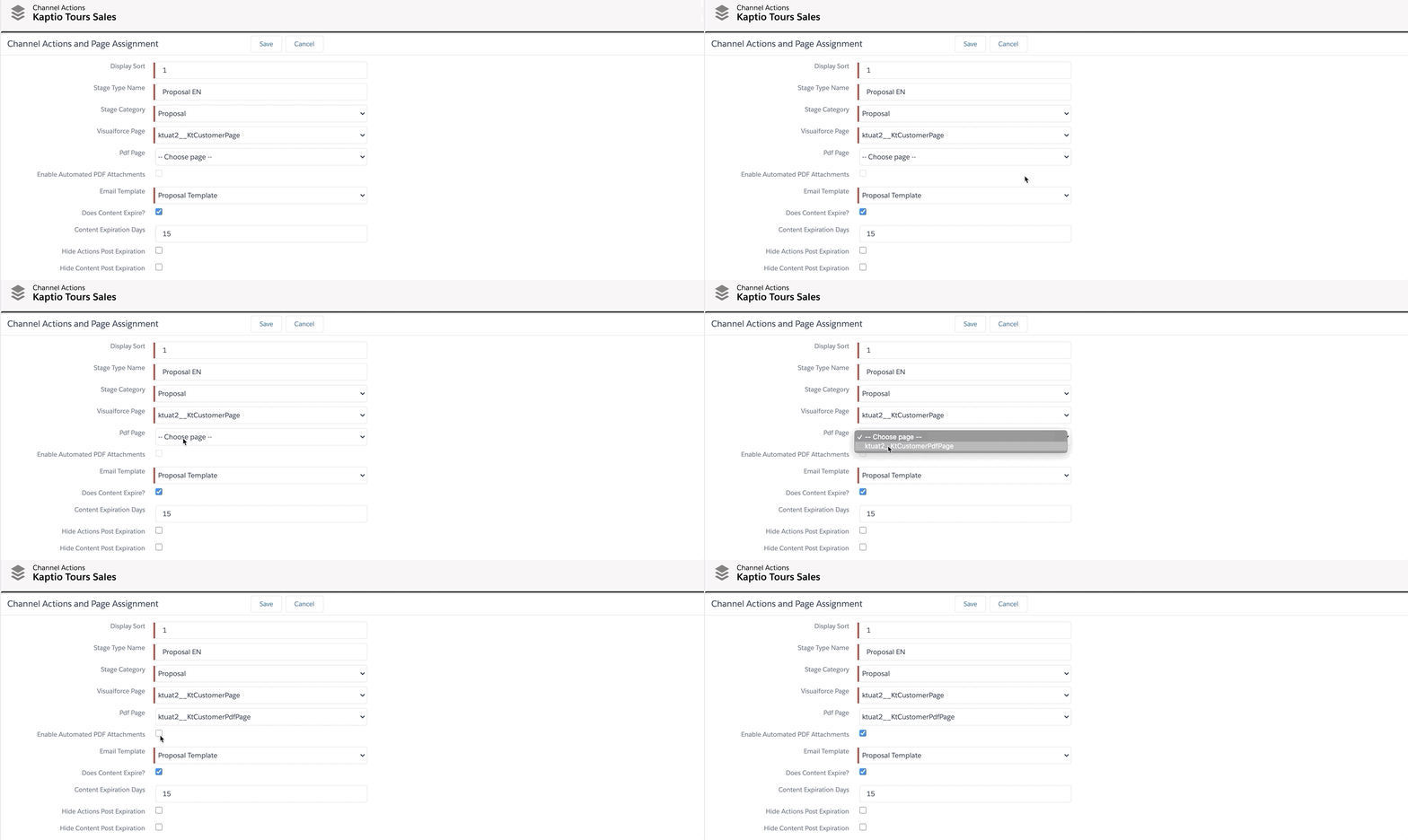
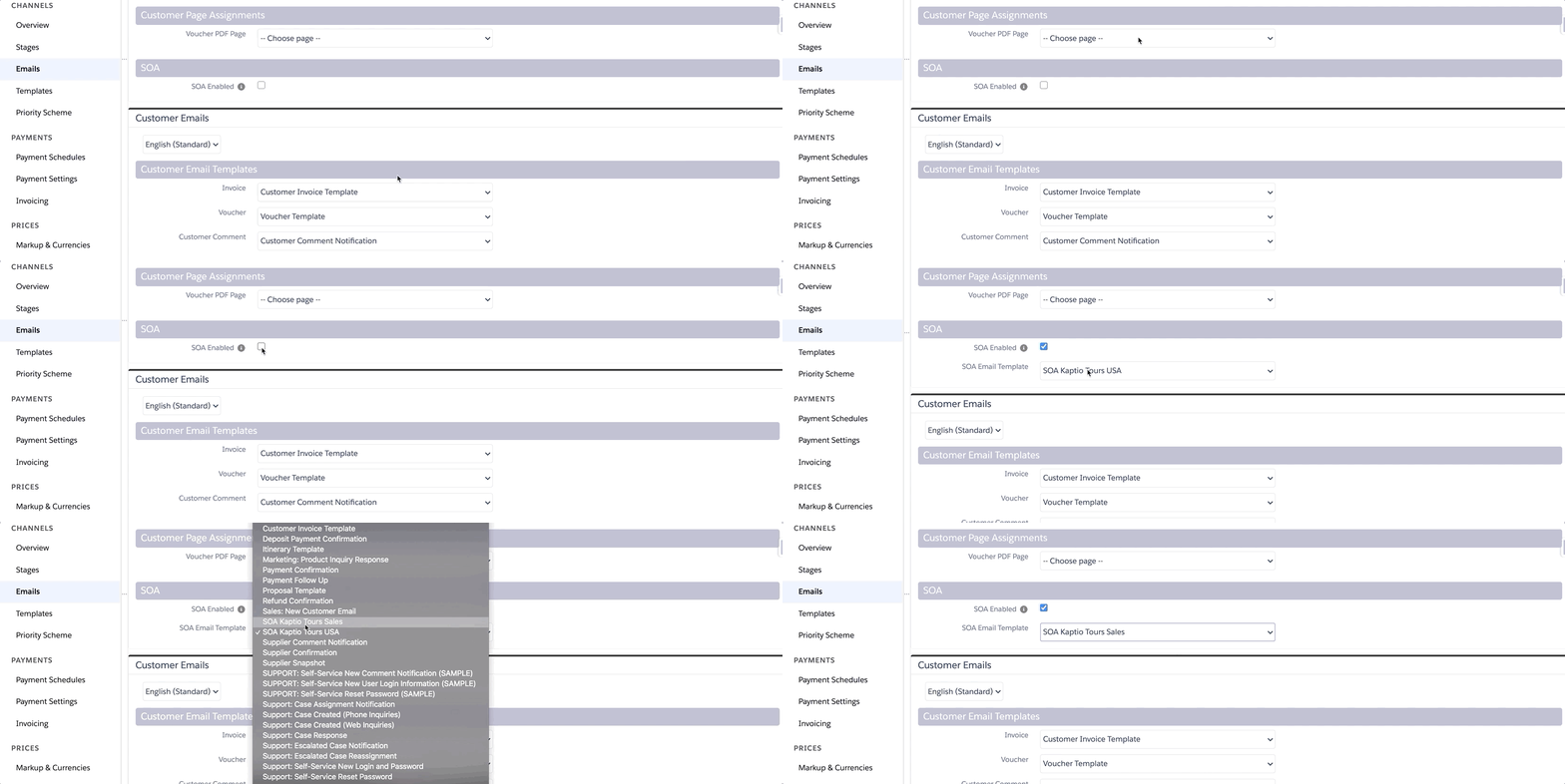
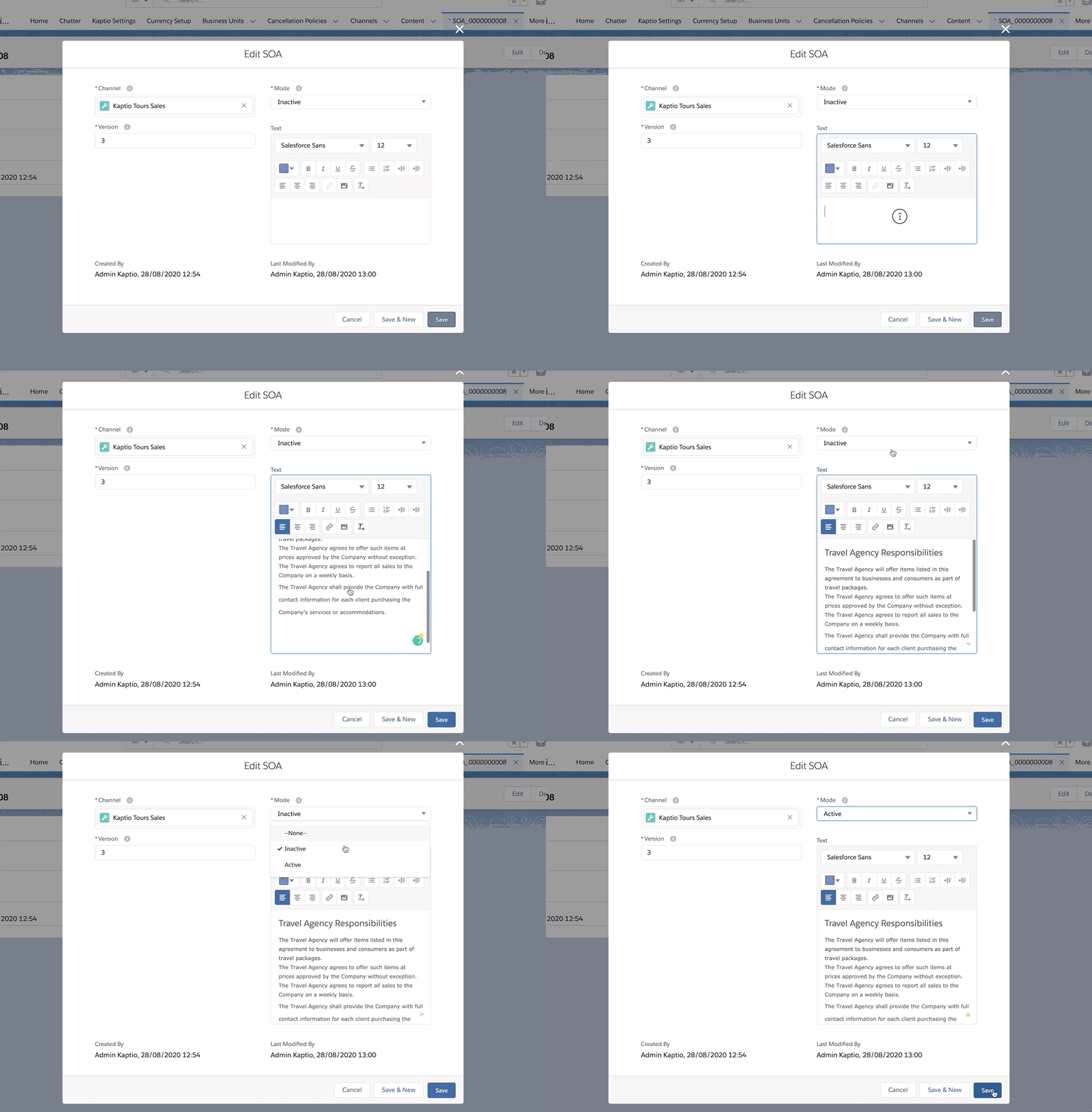
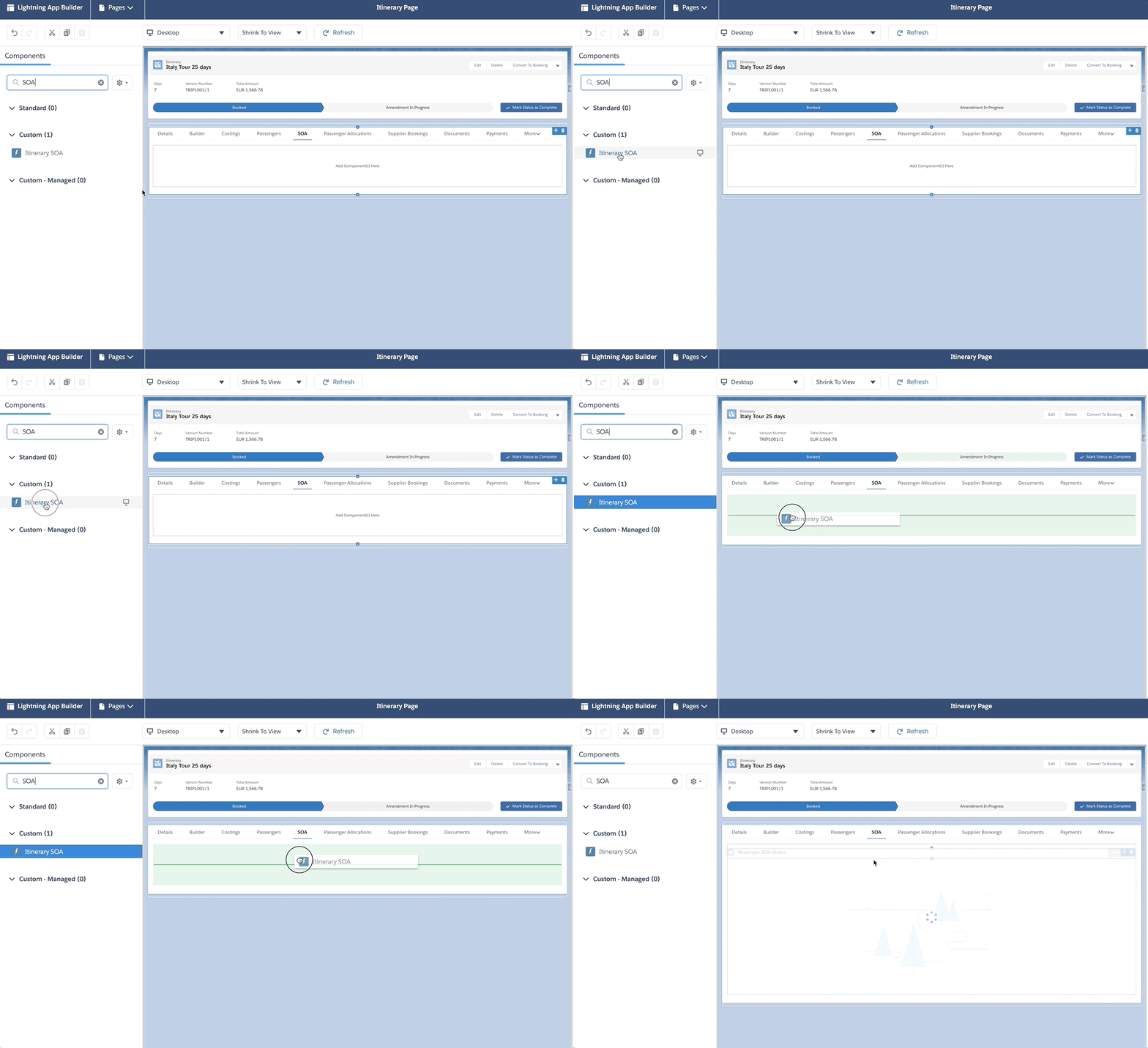
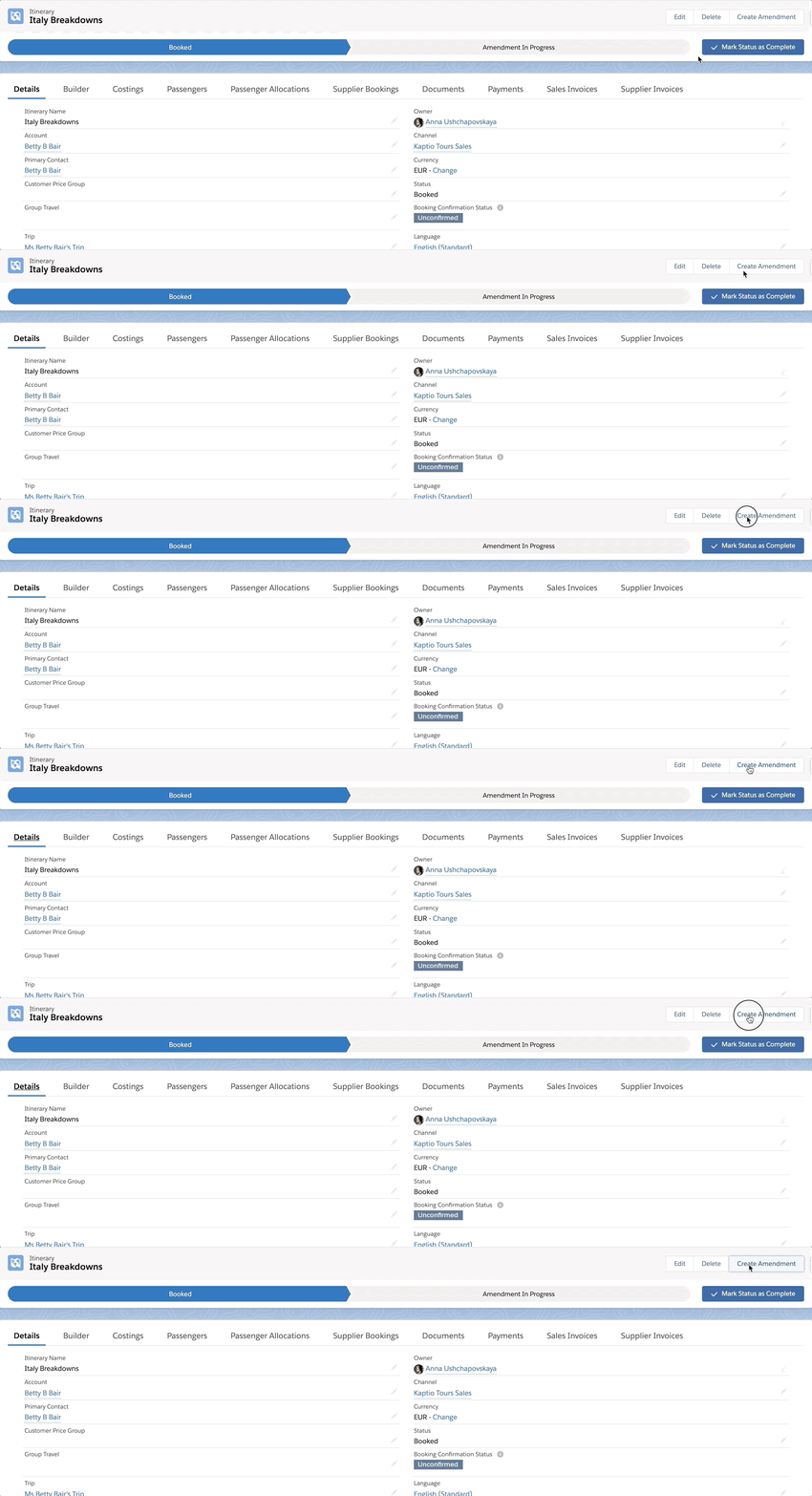
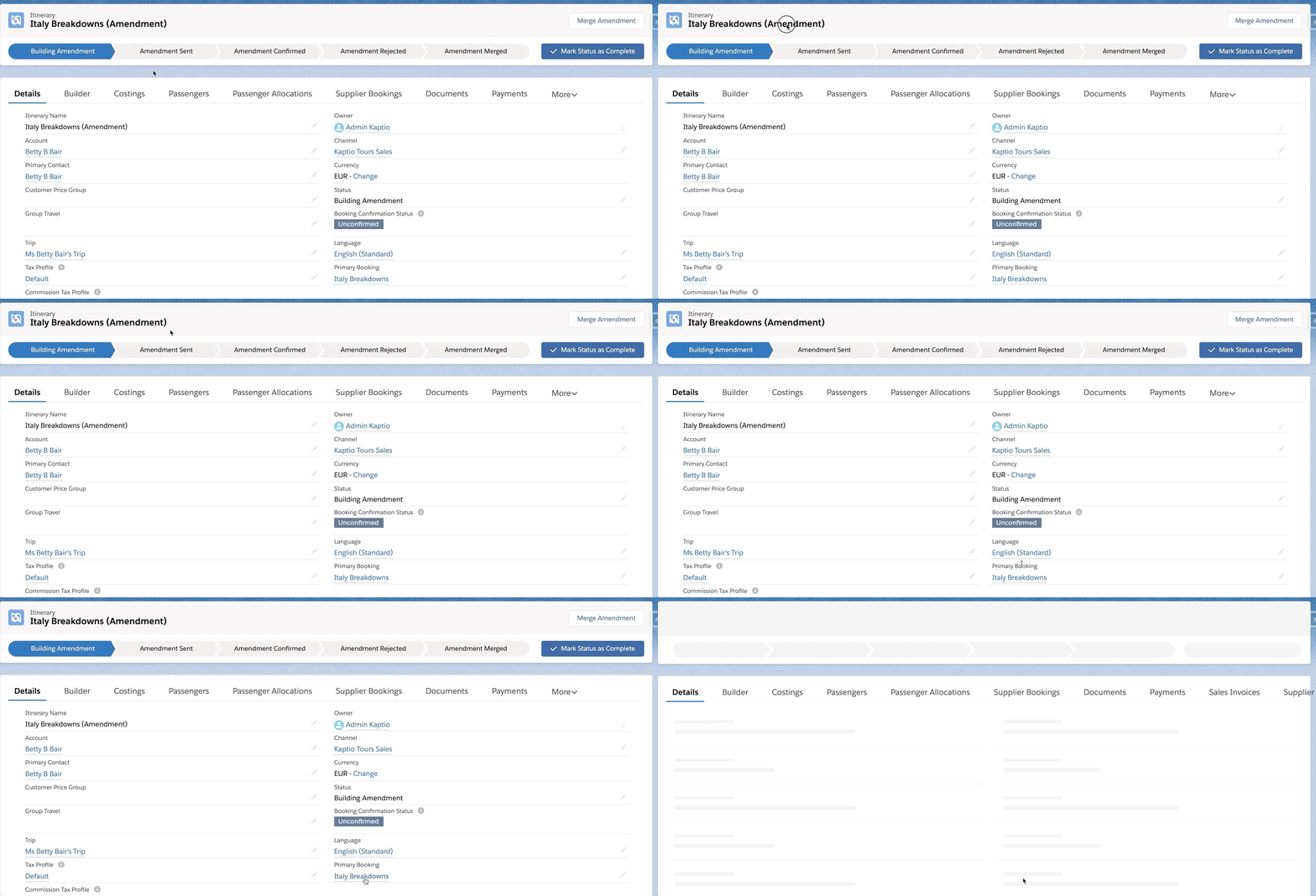
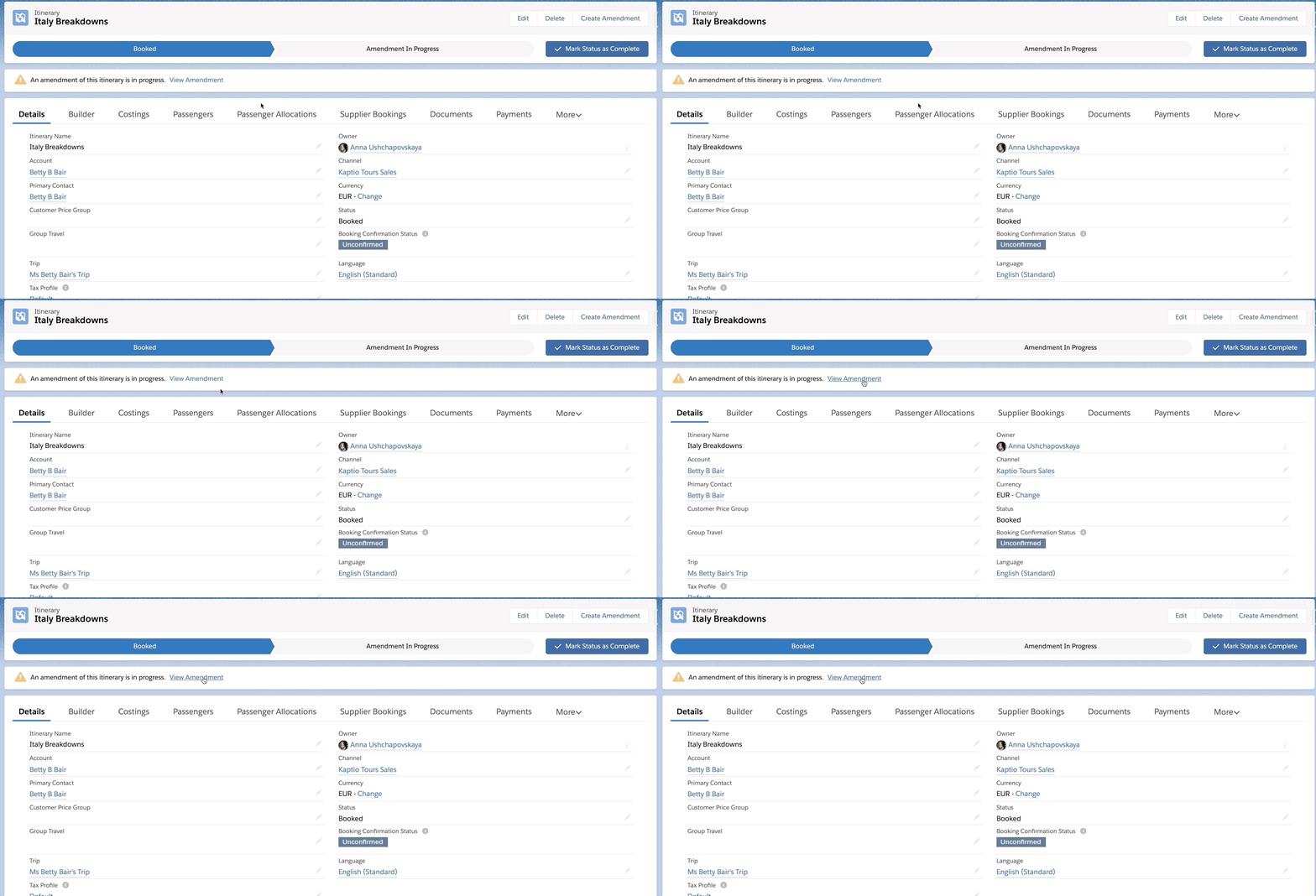
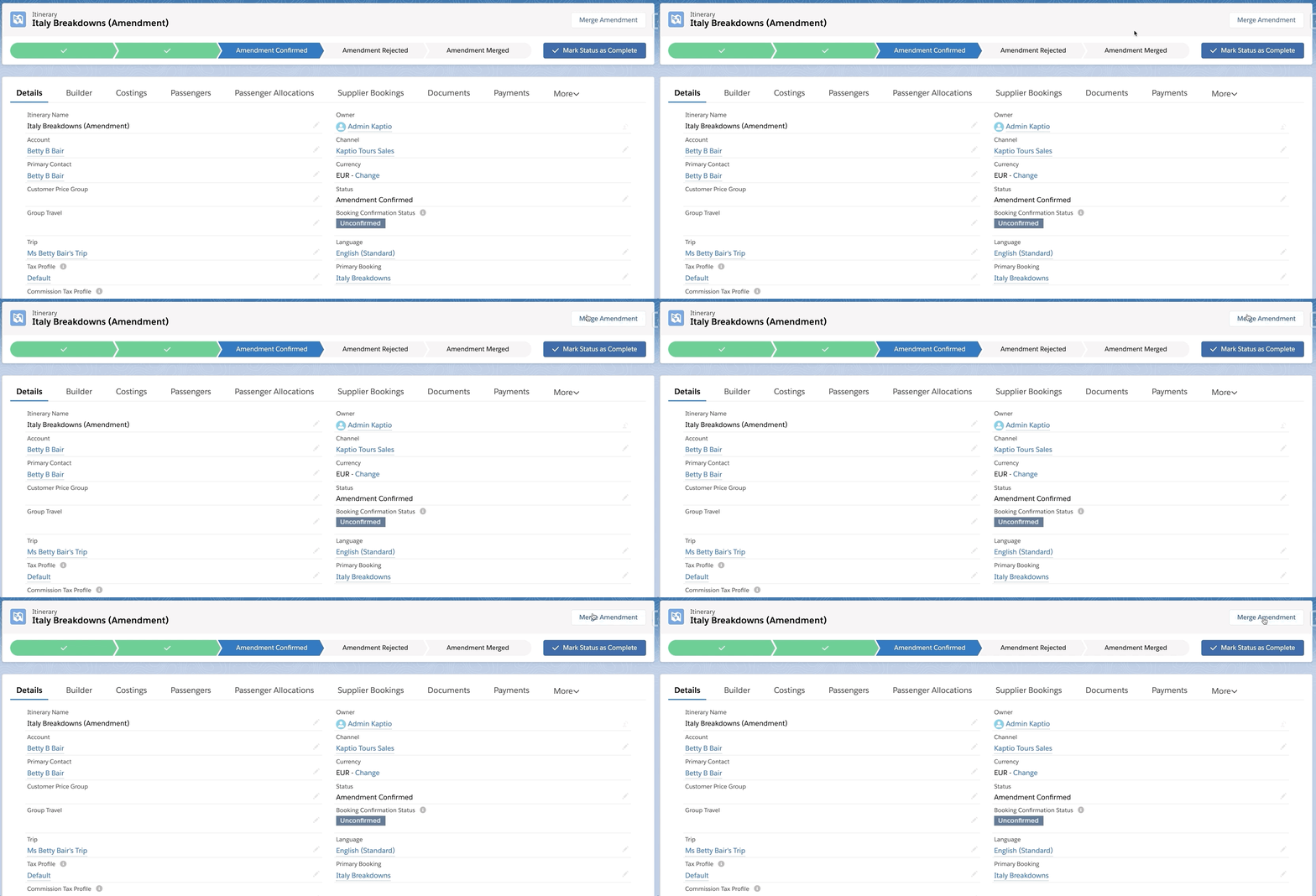
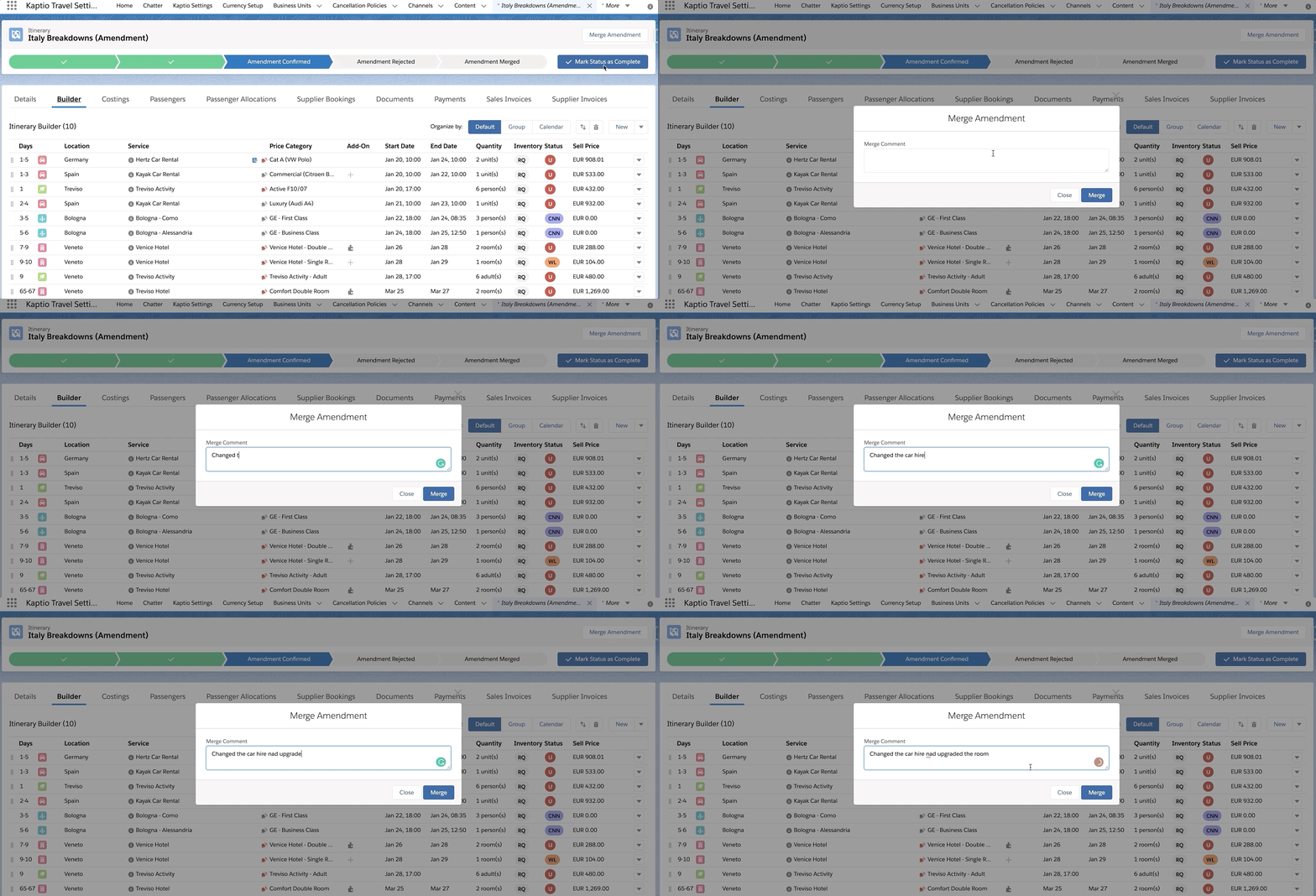
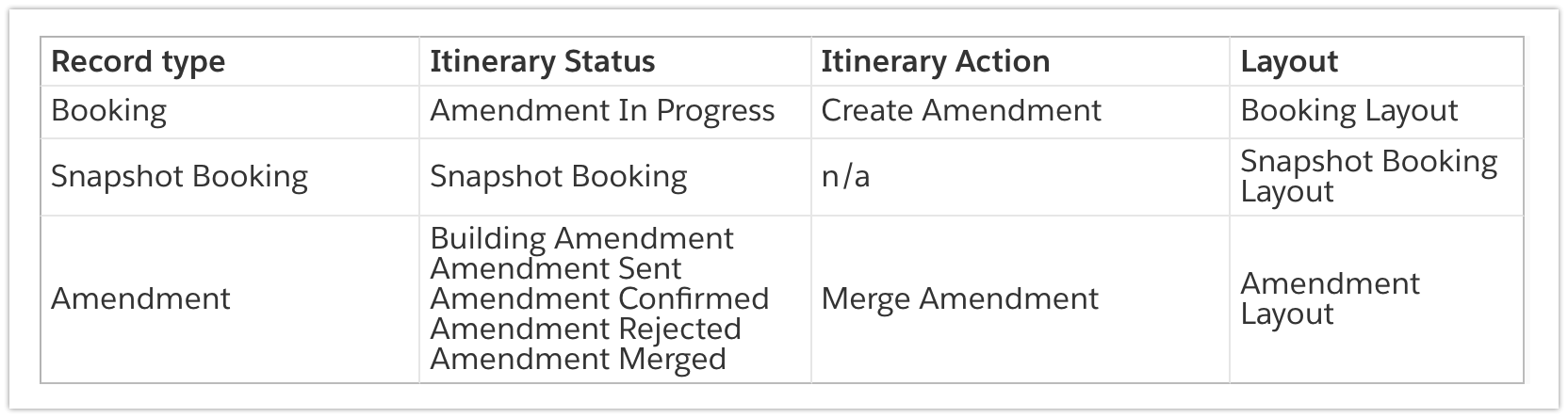
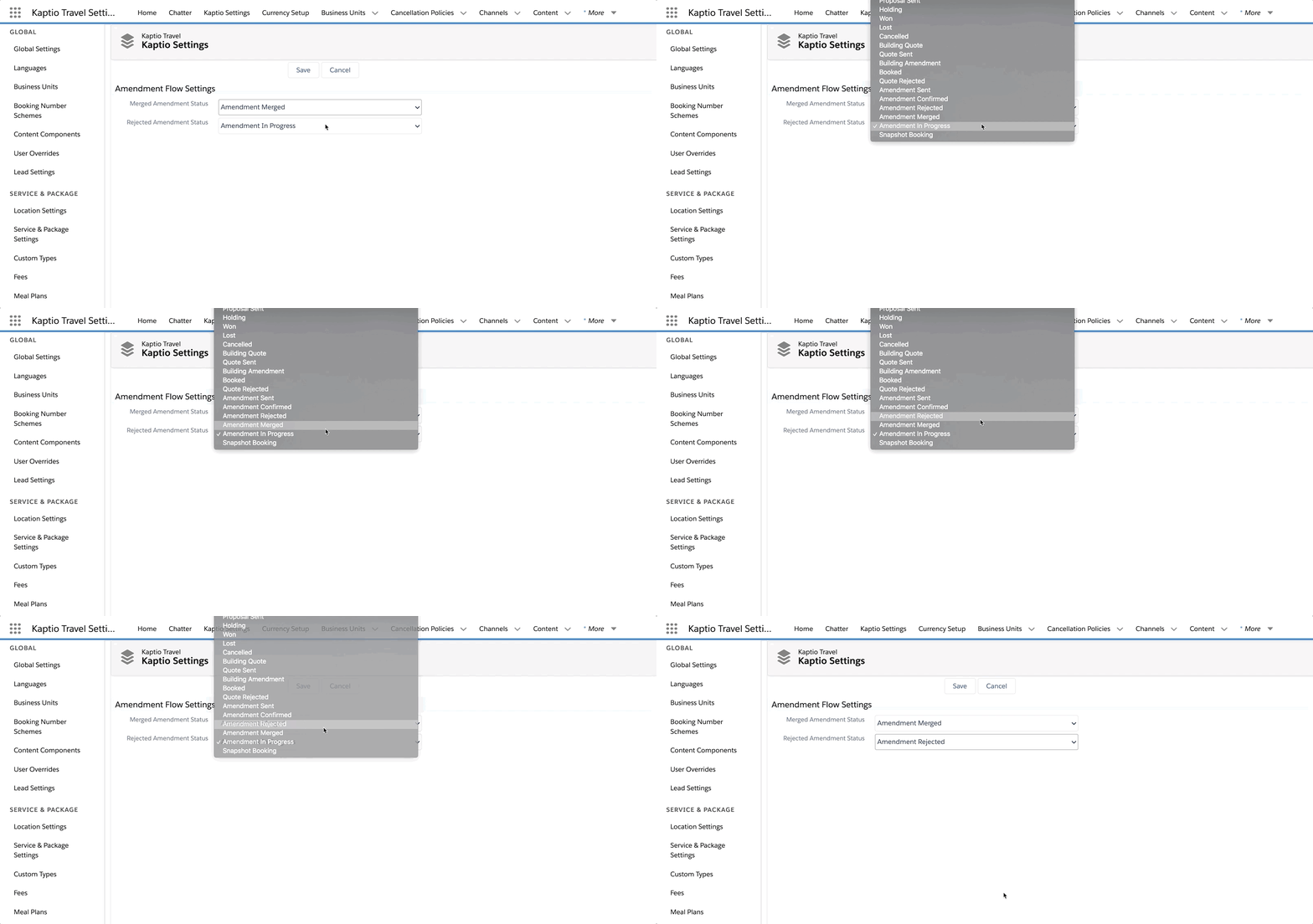
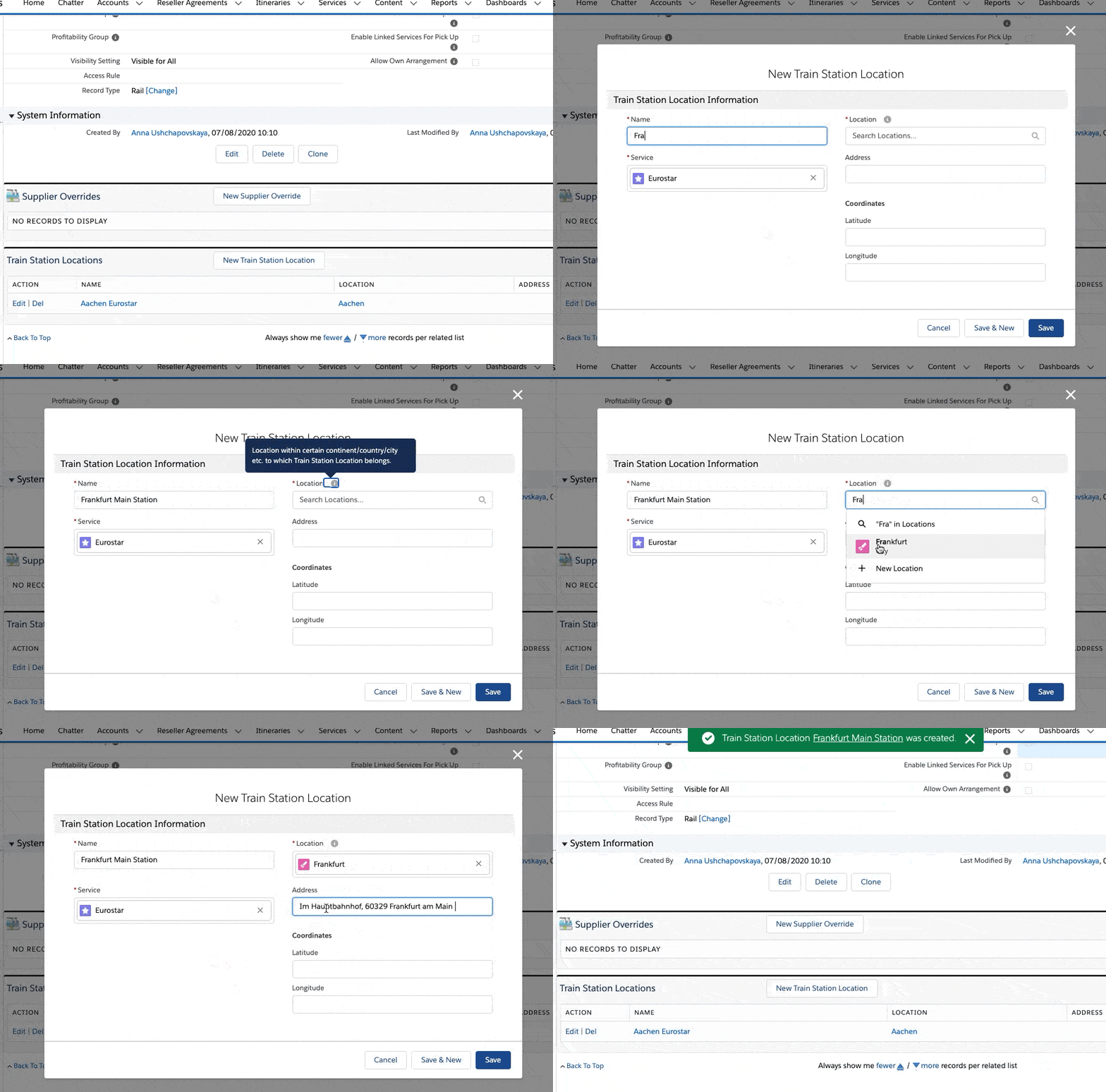
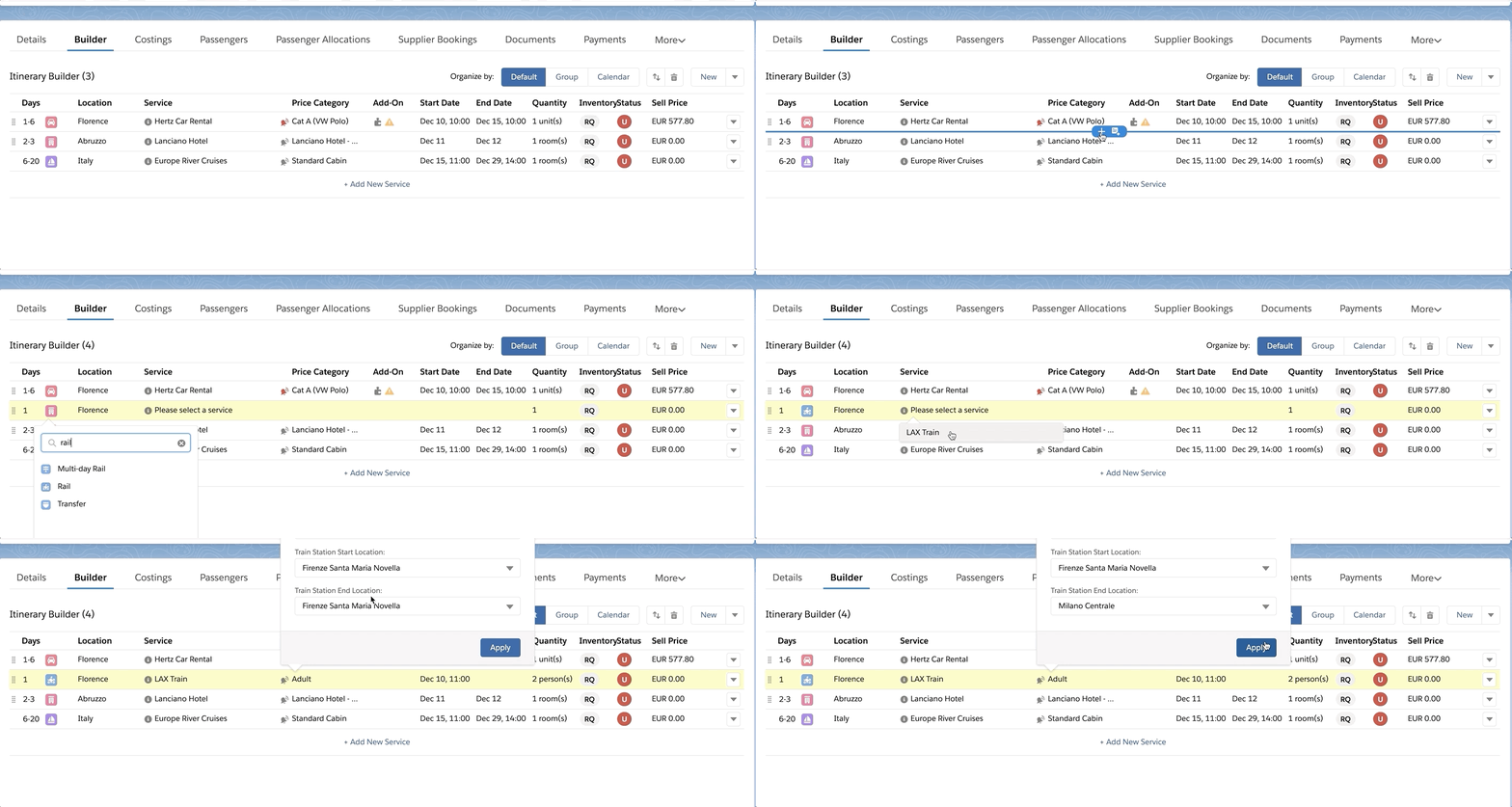
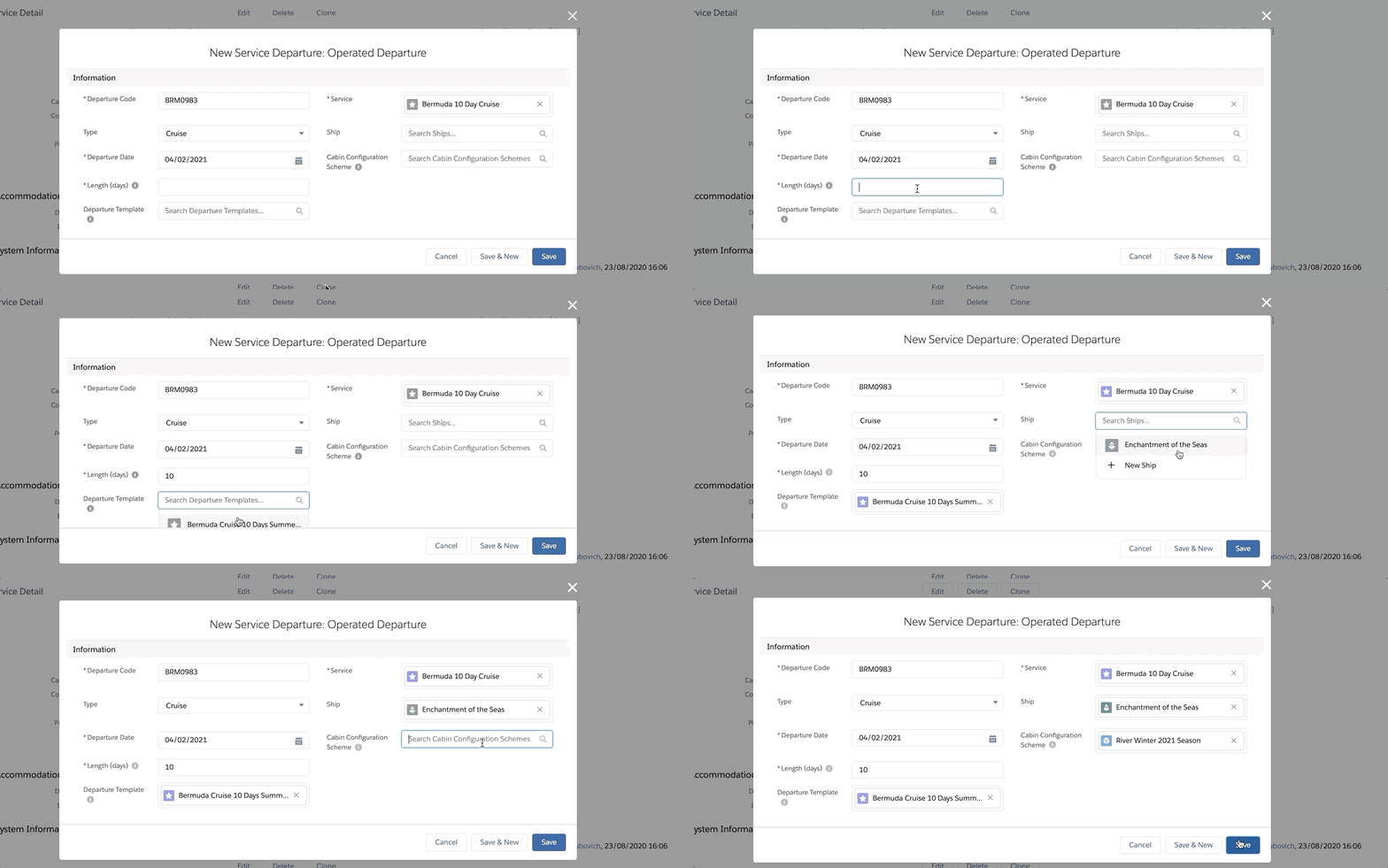
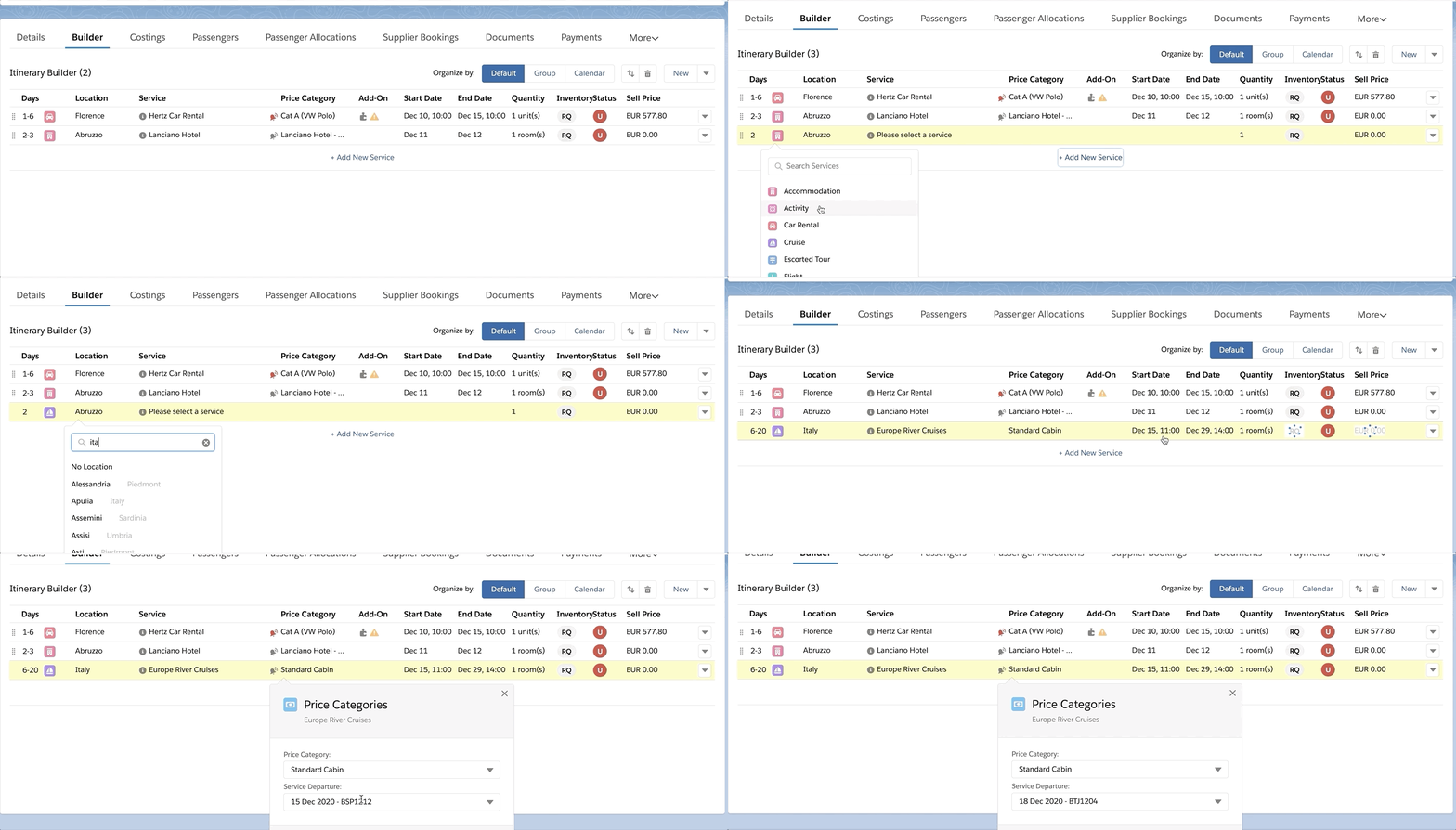
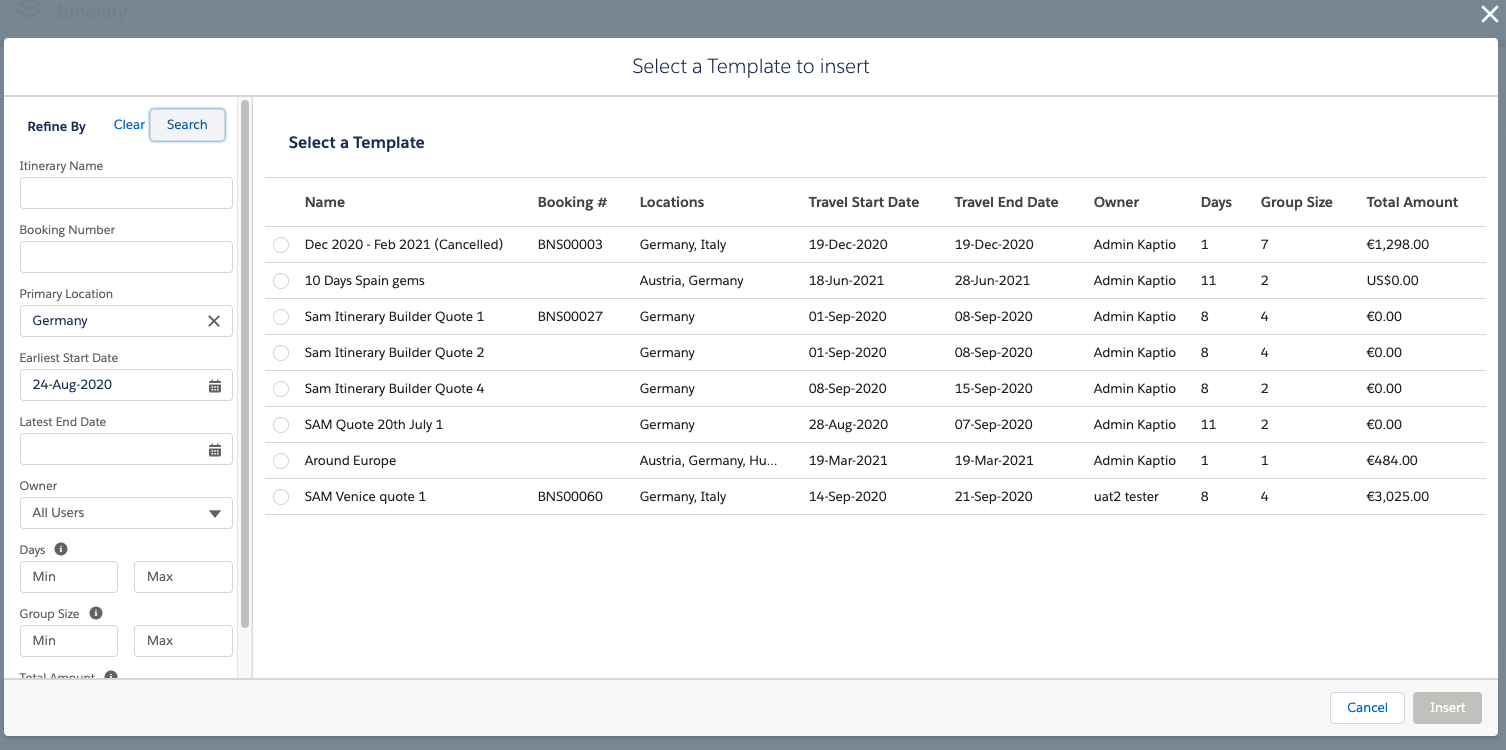
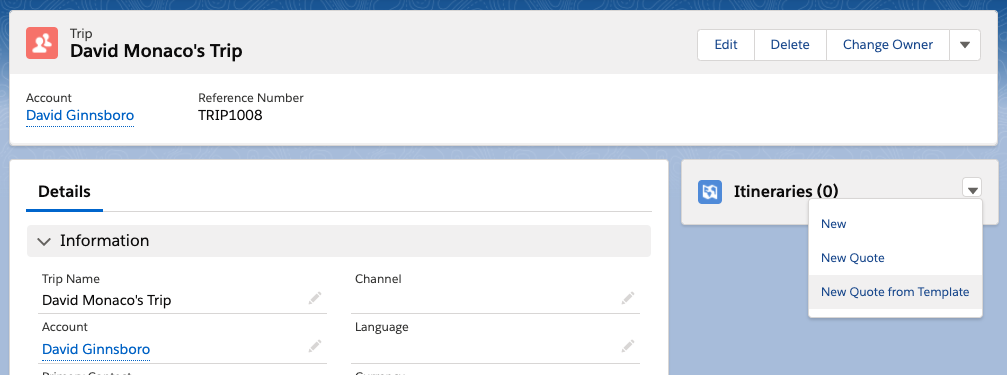
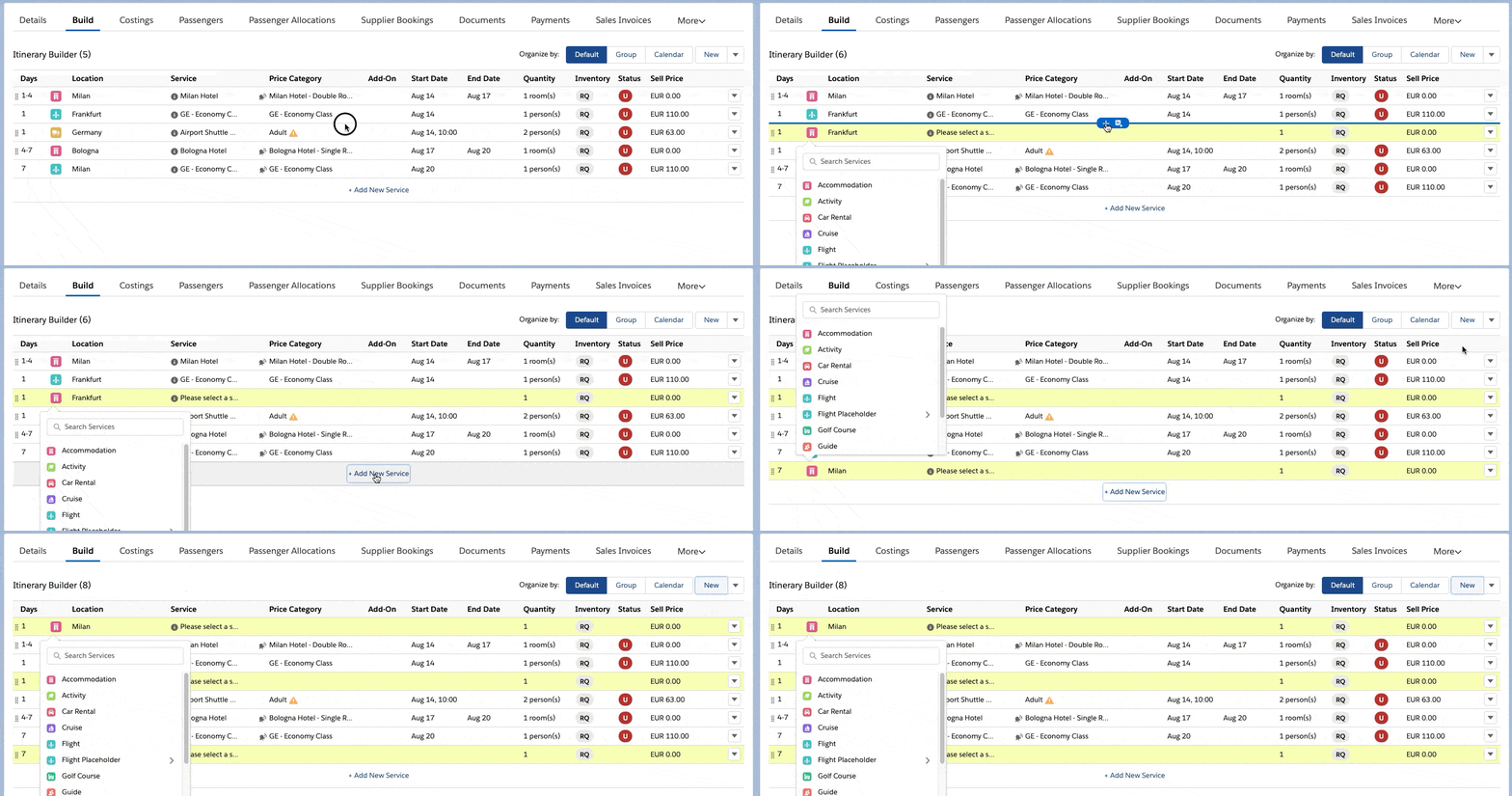
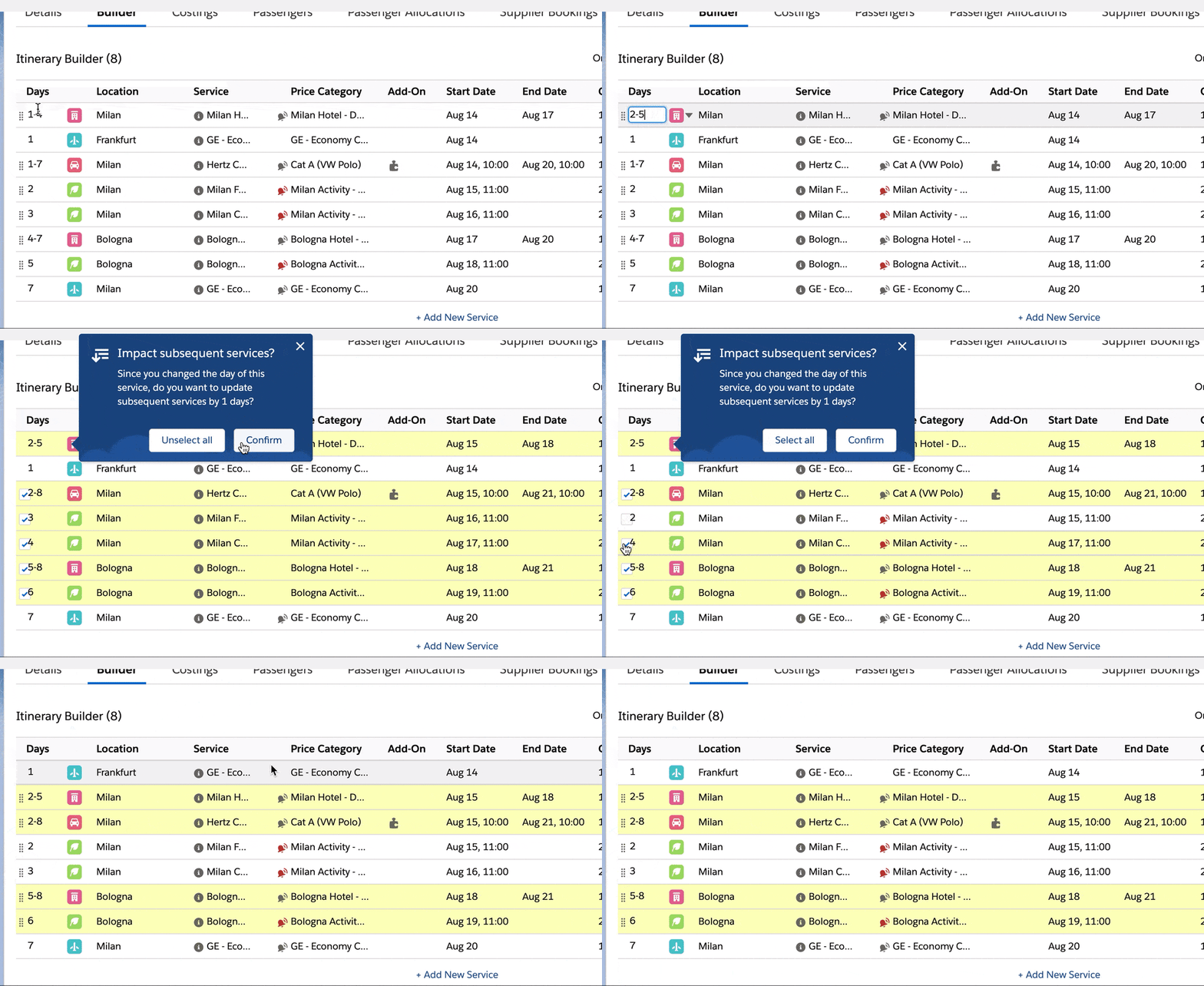
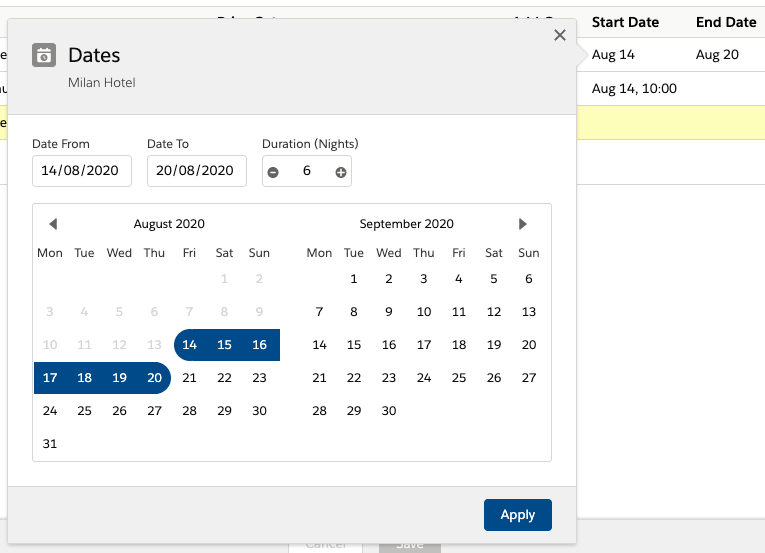
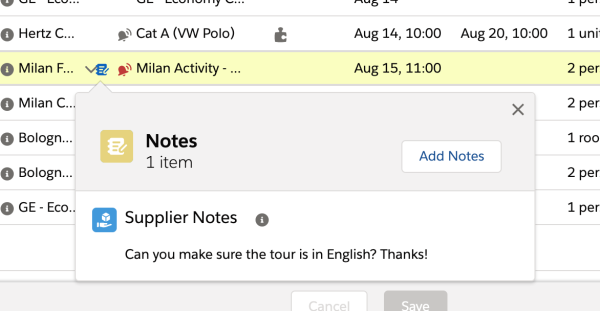
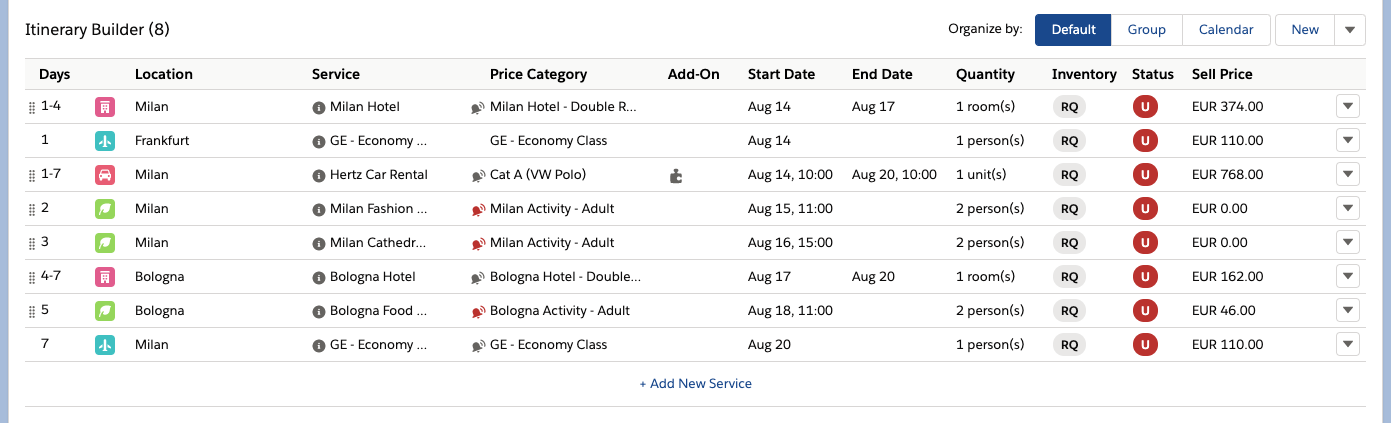
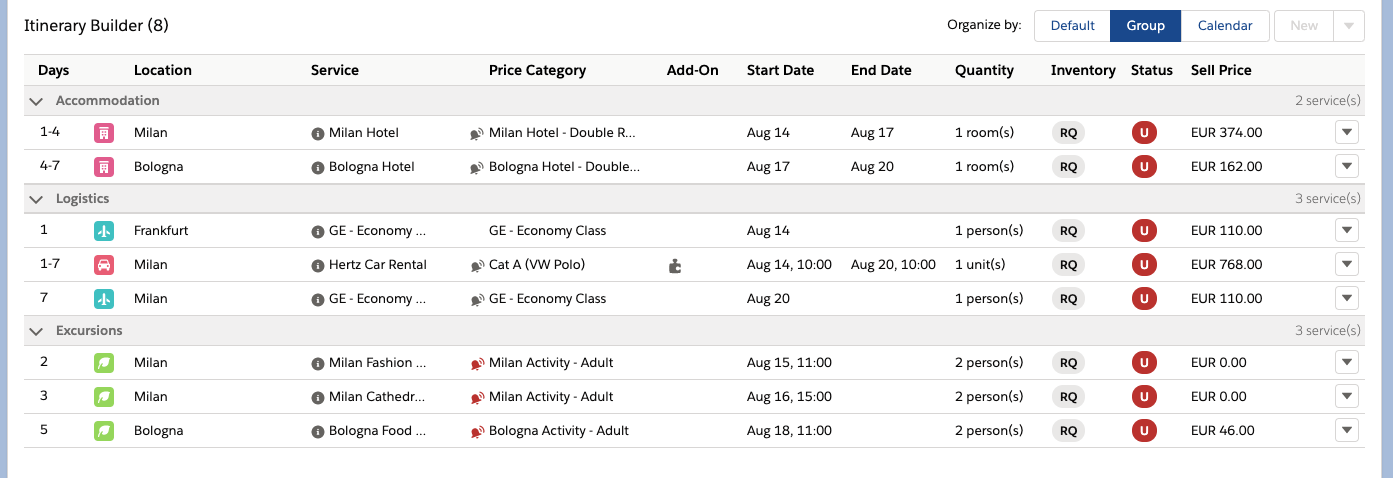
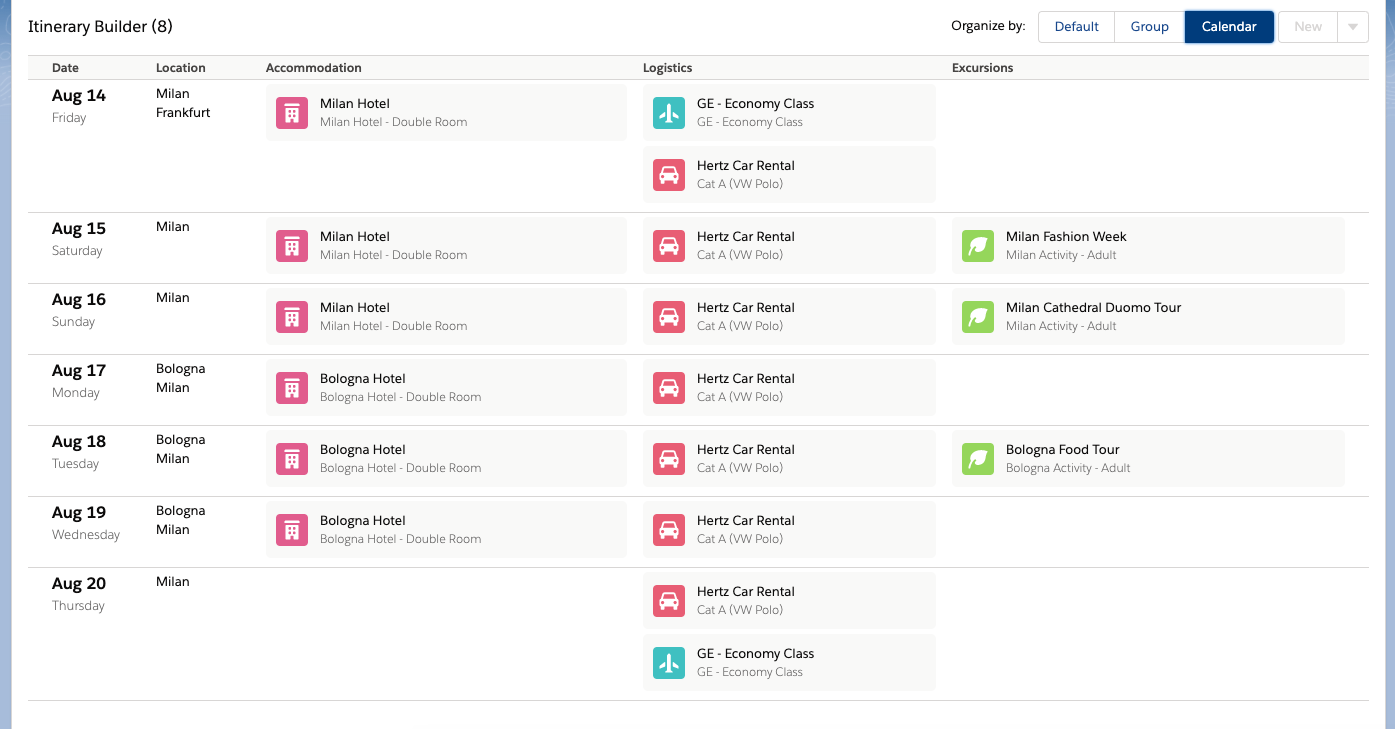
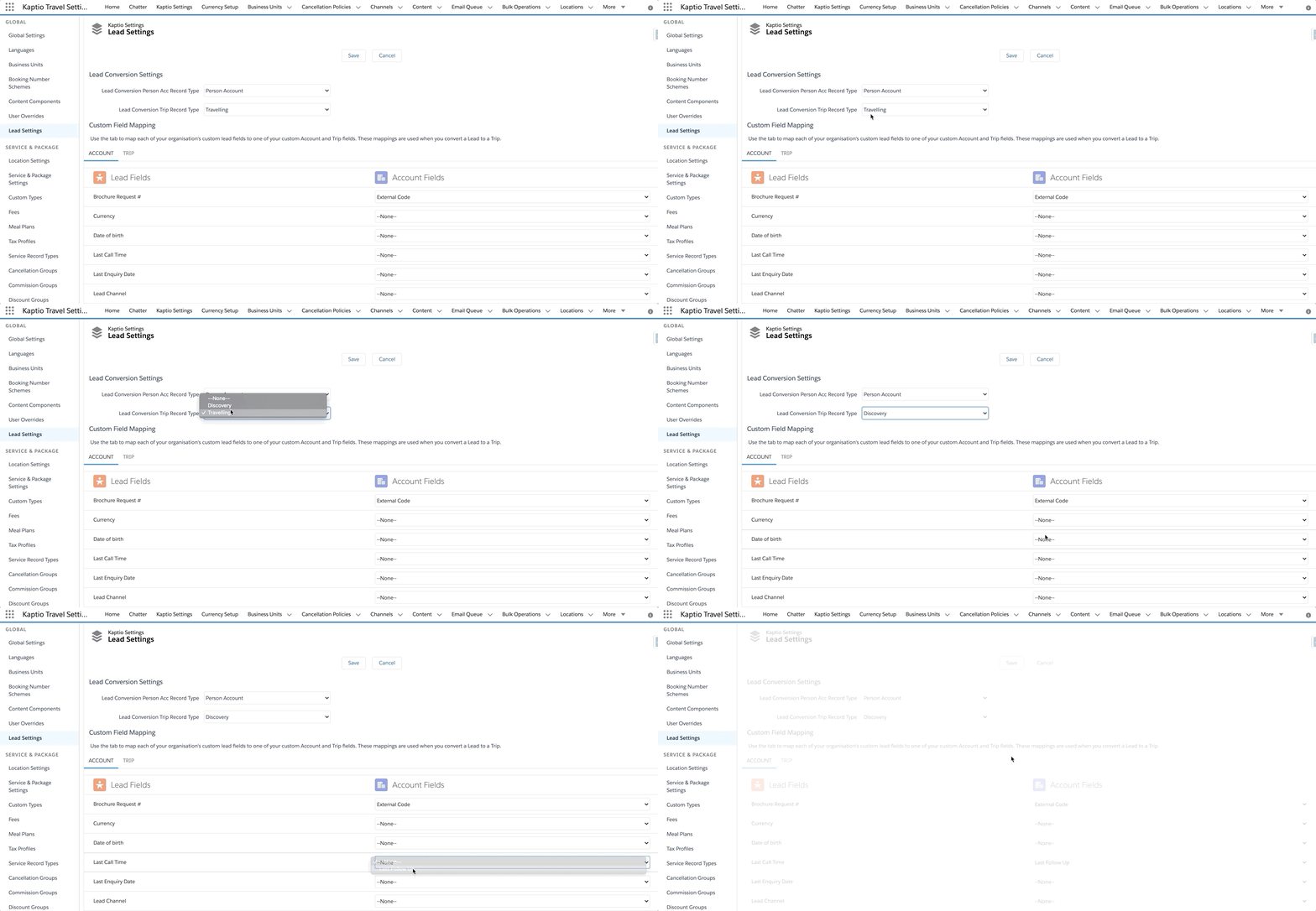
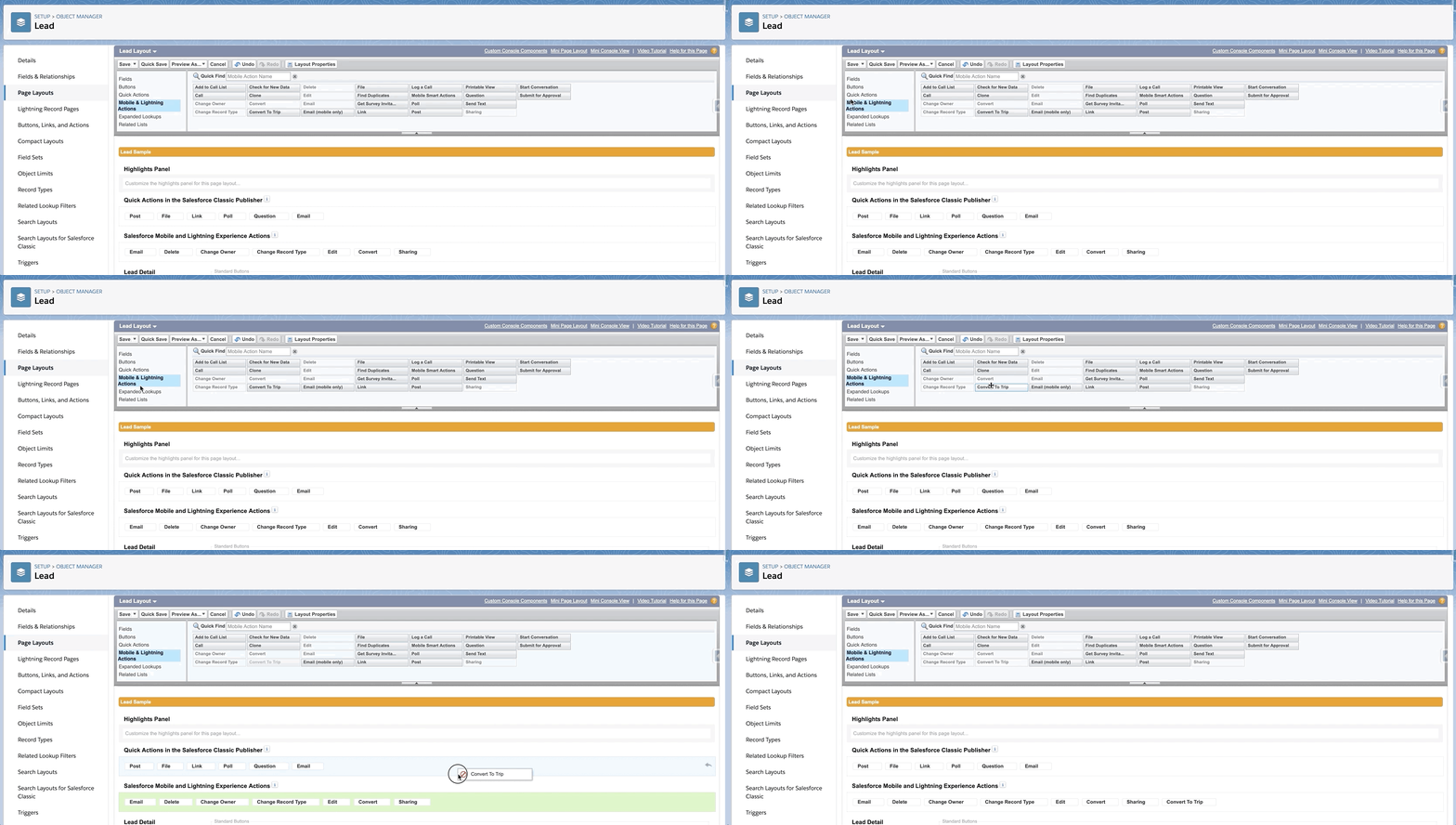
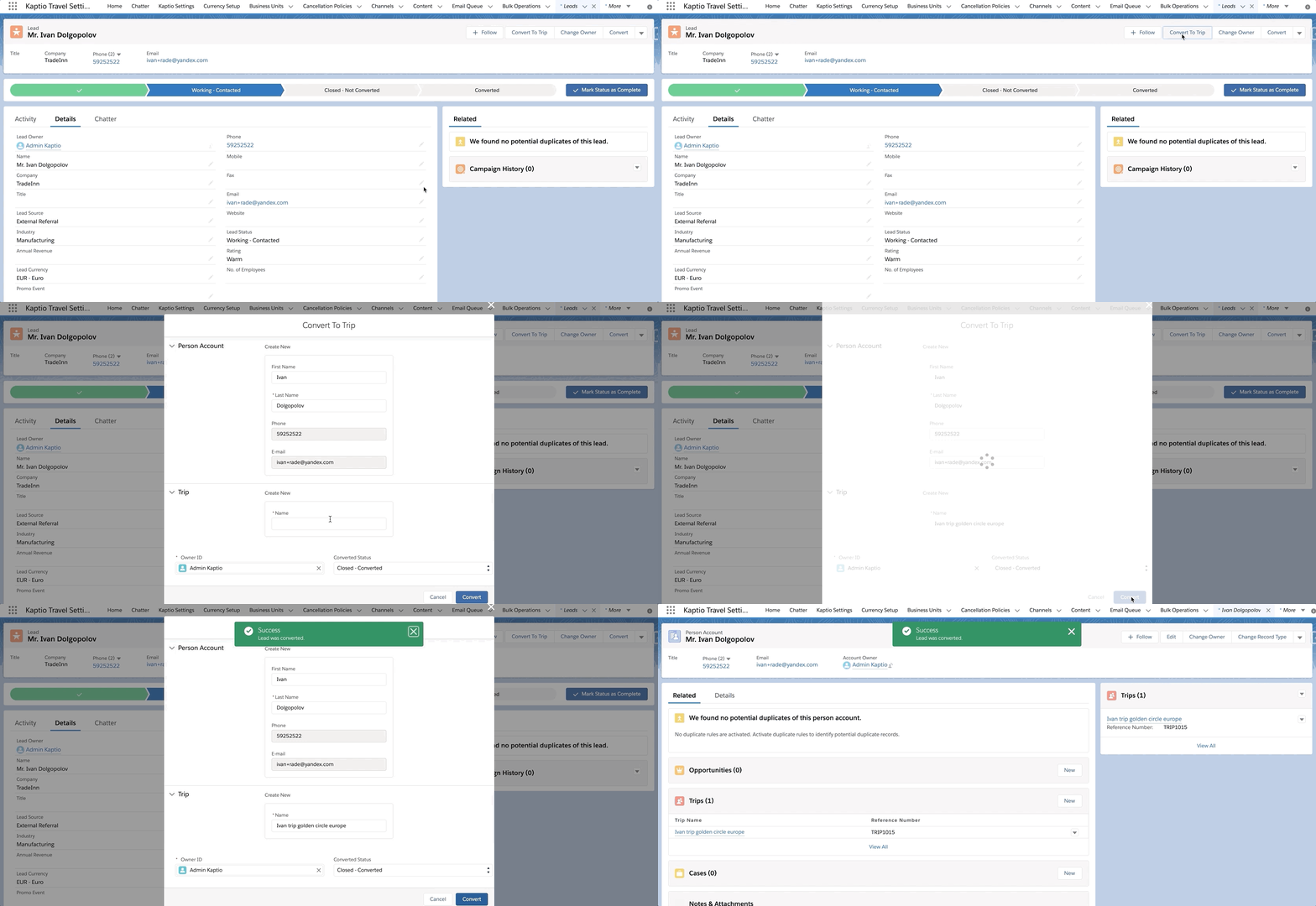
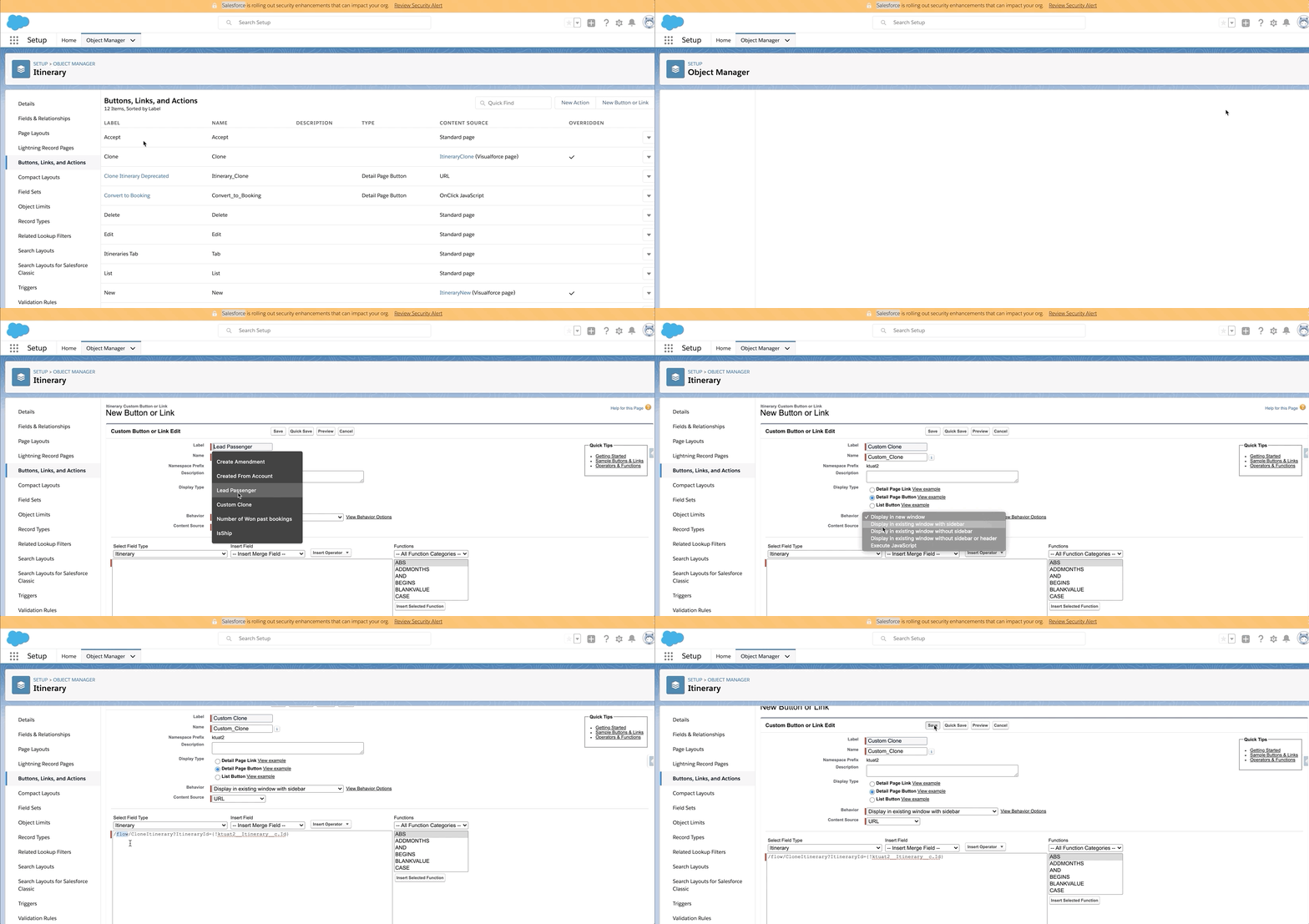
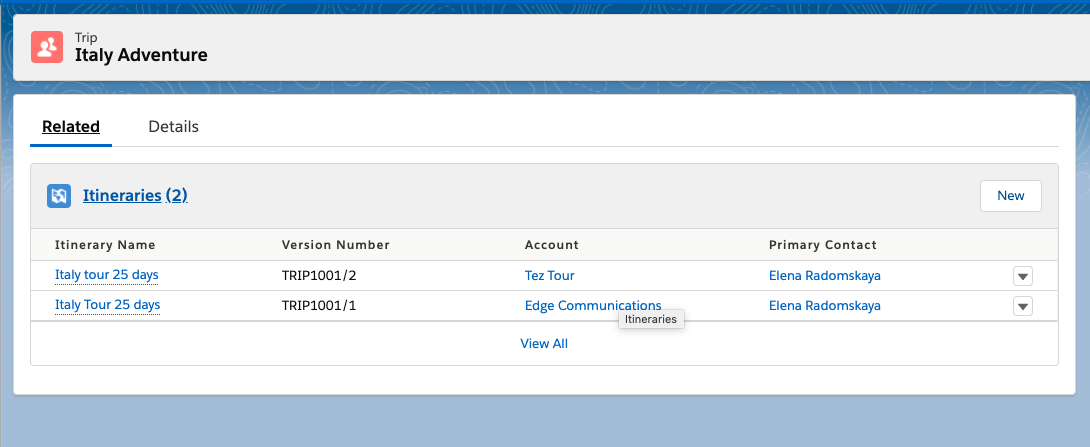
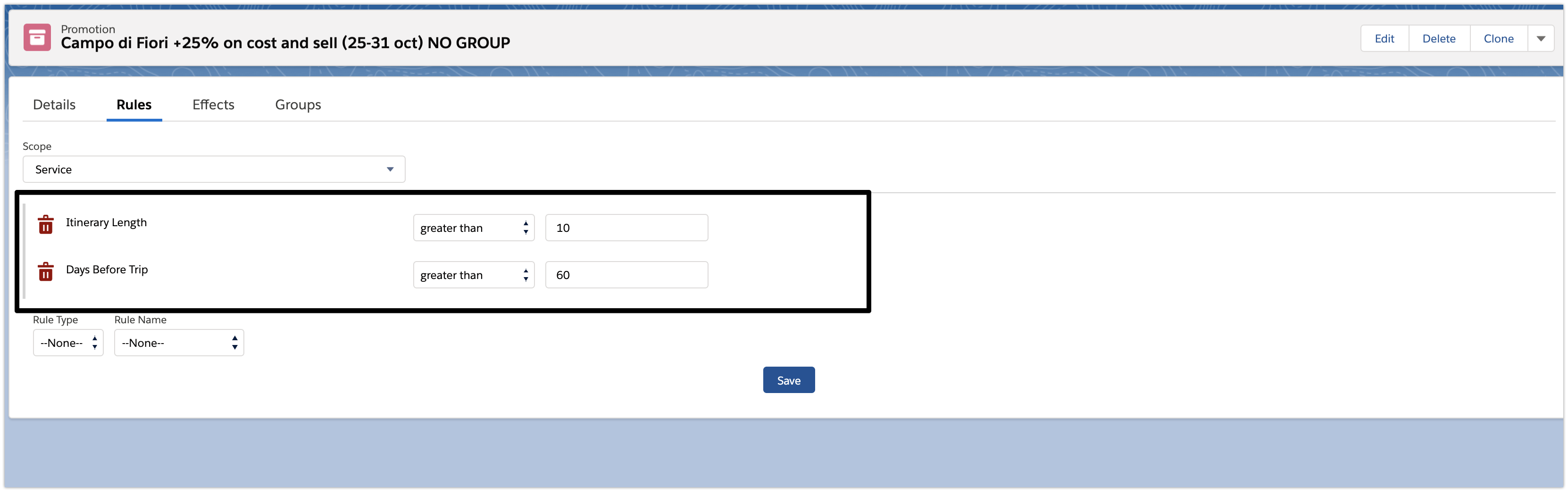
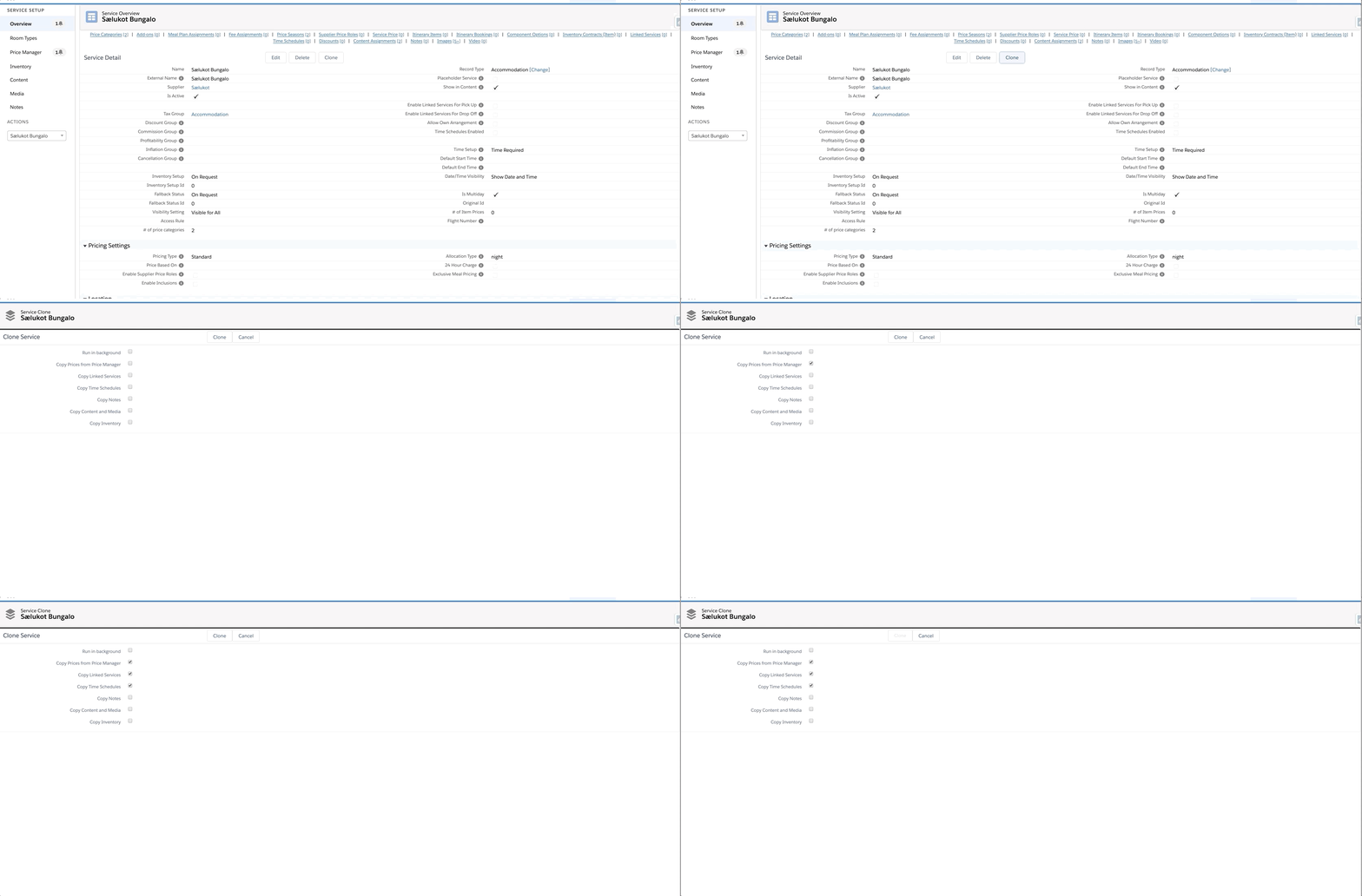
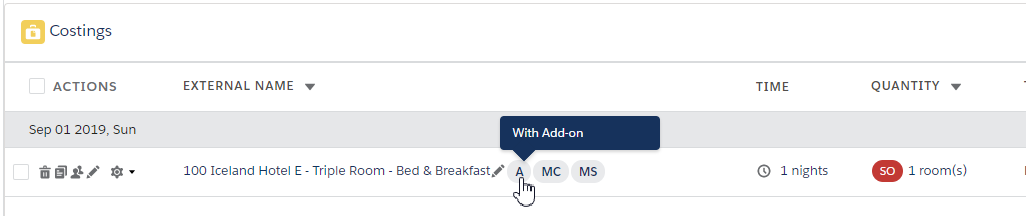
In this Micro release we addressed several issues that arose from earlier releases. General bug fixes and small improvements to mainly Amendments and Keyboard Shortcuts.
New Metadata
For a full overview of new metadata introduced as part of this release, please refer to our Core Data Model Changelog.
Minor Changes
Content
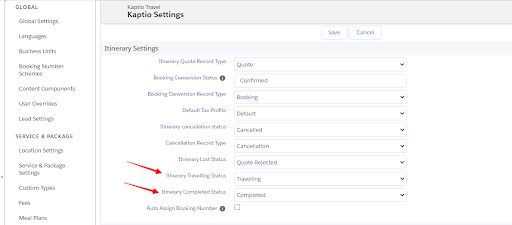
We are happy to announce that starting from this release the documents created on the amendment itinerary are transferred to the primary booking during the new merge process which we introduced in the Alhambra release. This means that the “Delete Amendment Itinerary” setting can be enabled safely.
Itinerary Builder
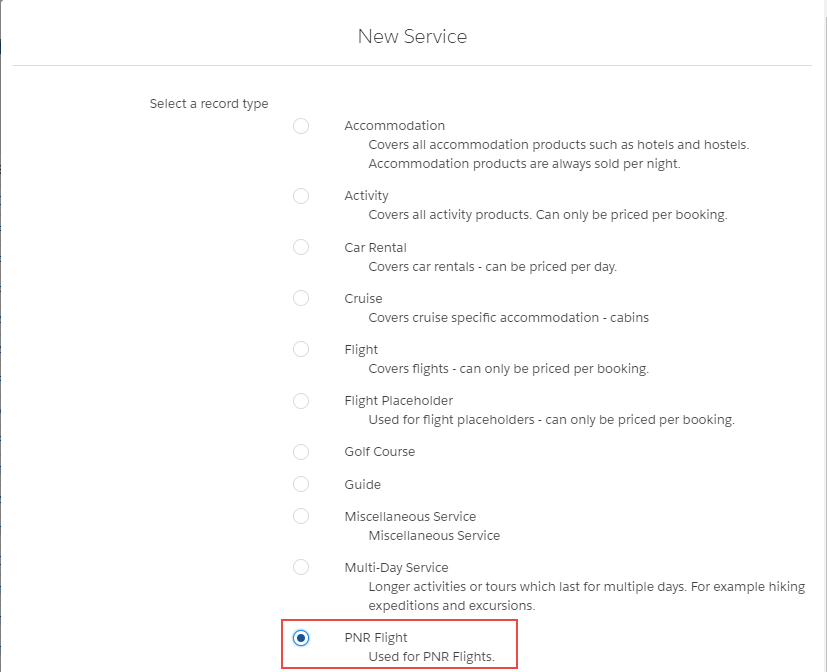
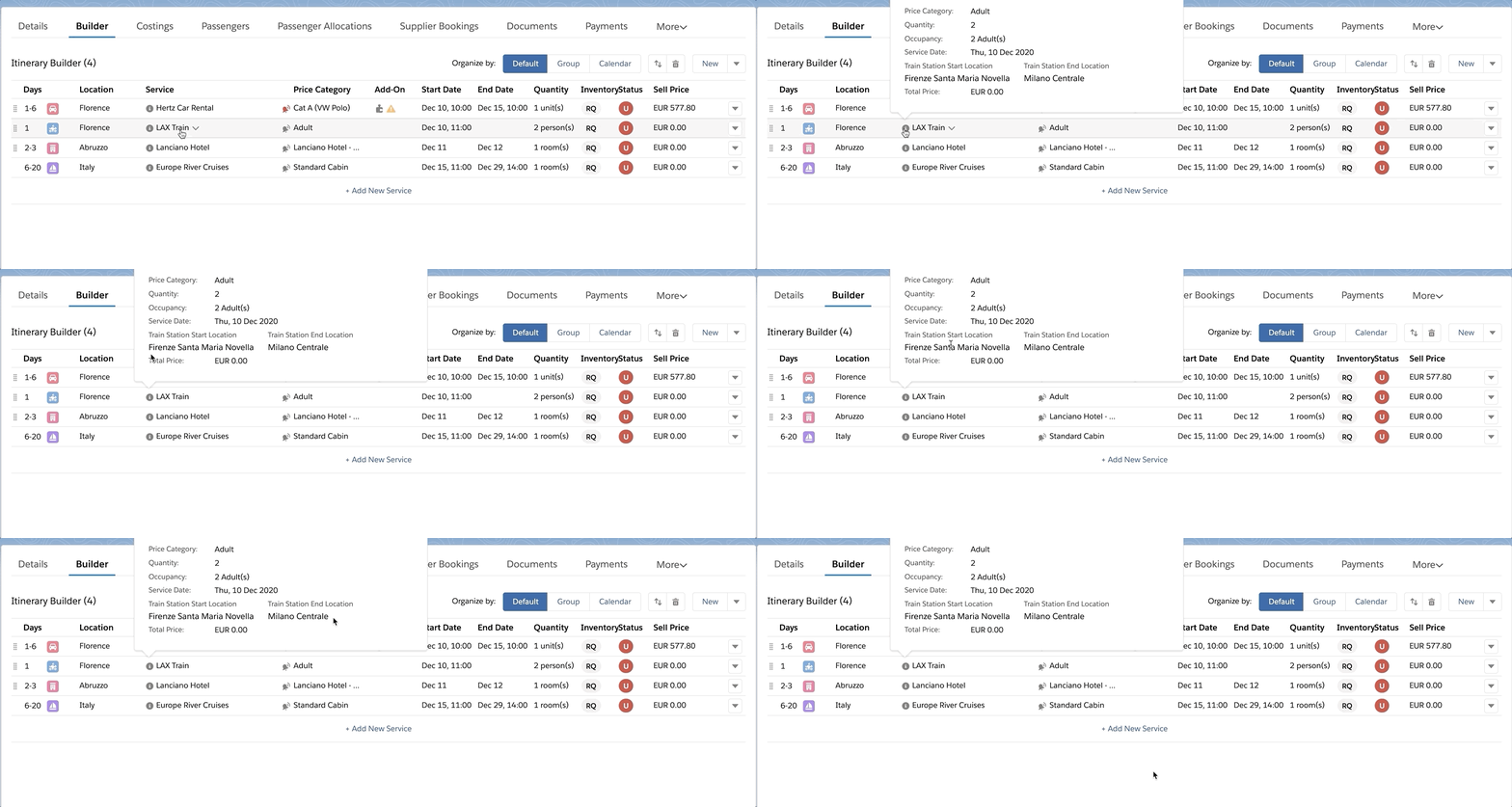
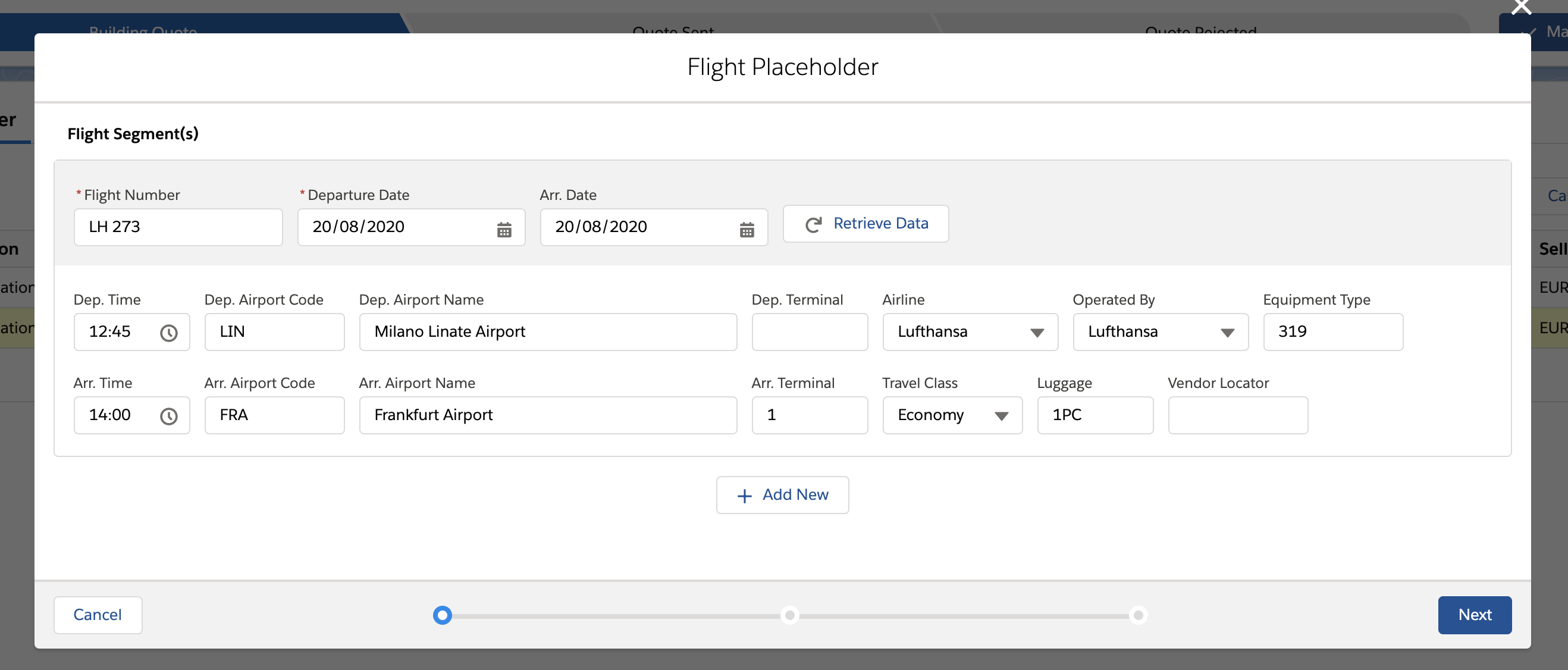
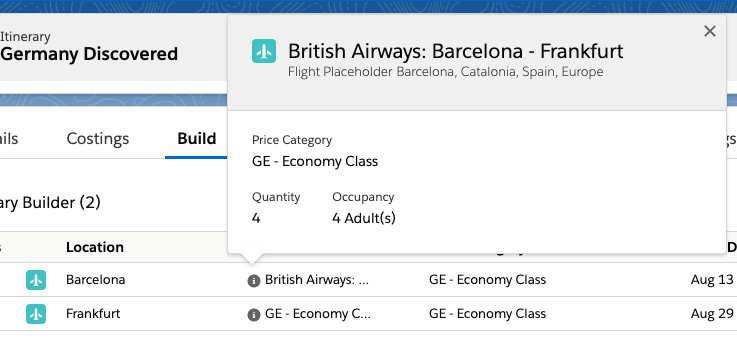
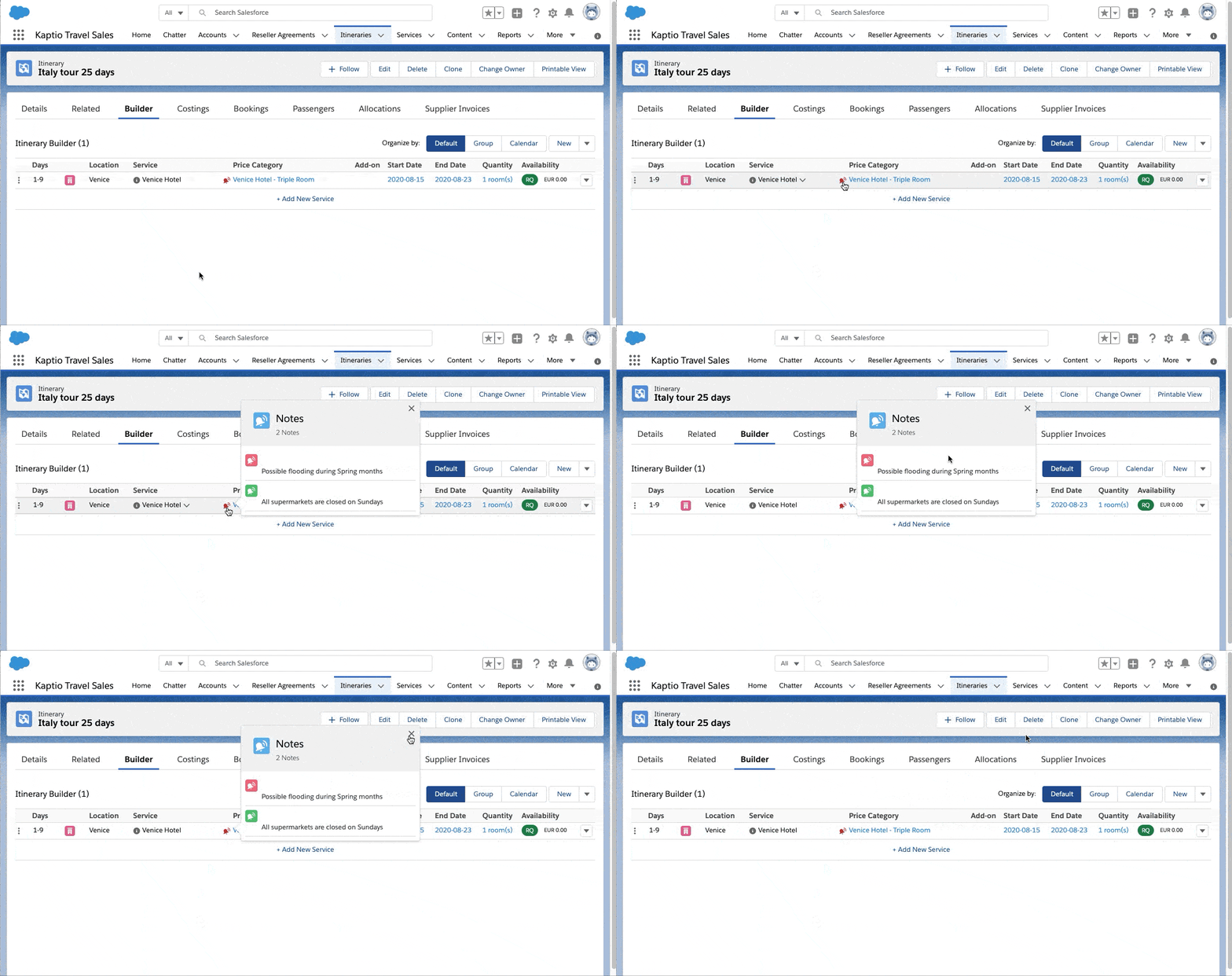
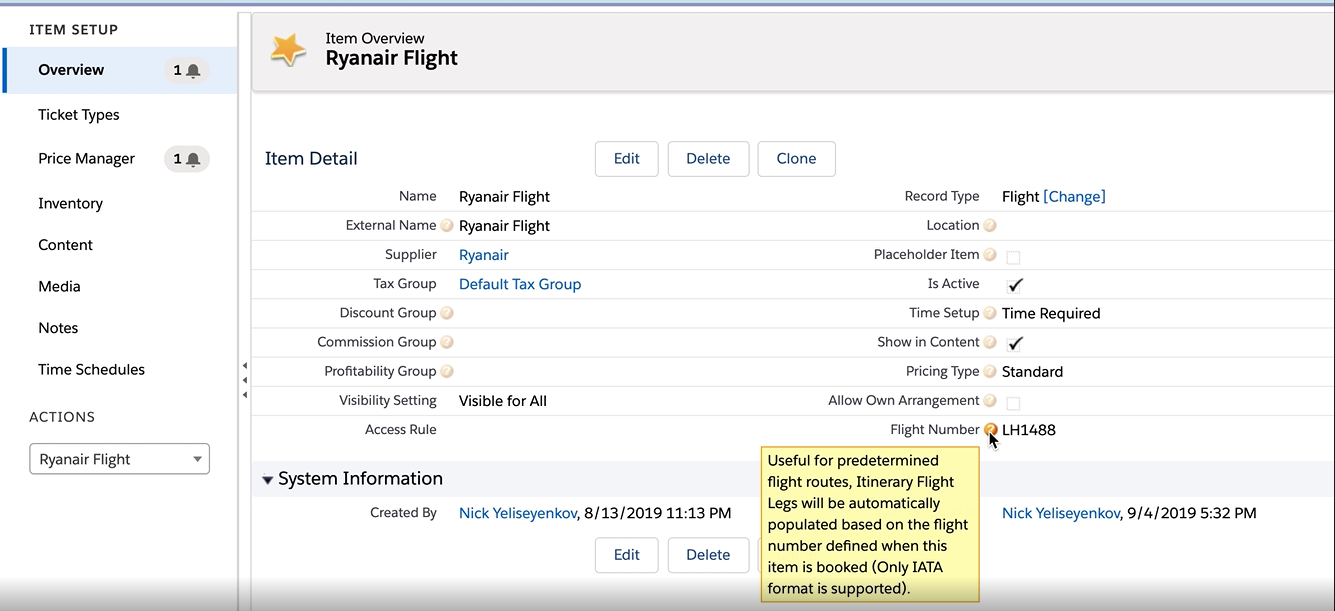
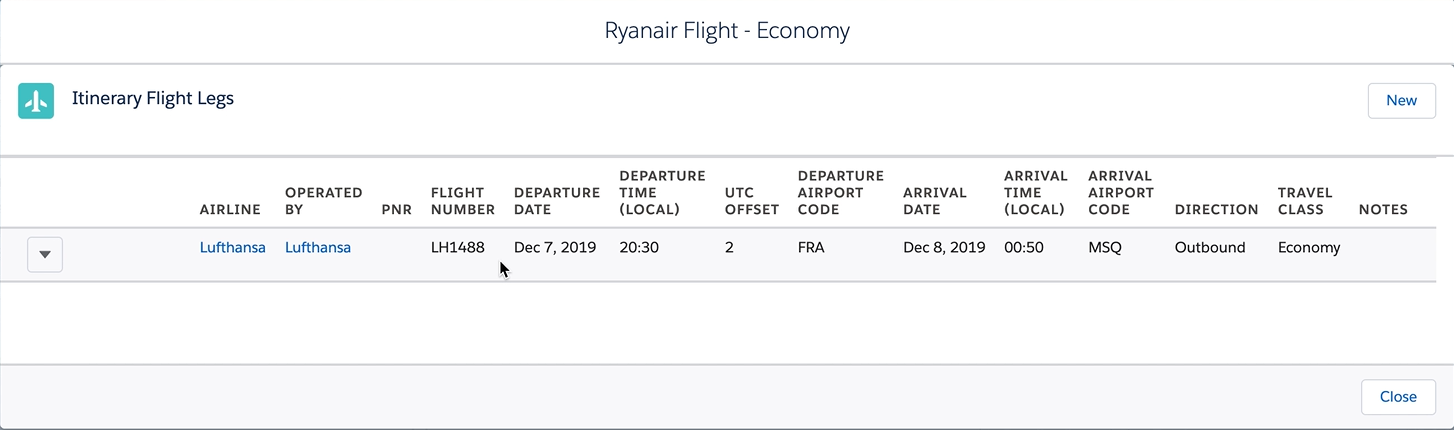
We added more information to the Service Detail card which is accessible when clicking on the info icon beside the Service name of PNR flights and Flight Placeholder in the Builder. Now users can see departure and arrival time of the flight, as well as the flight number.
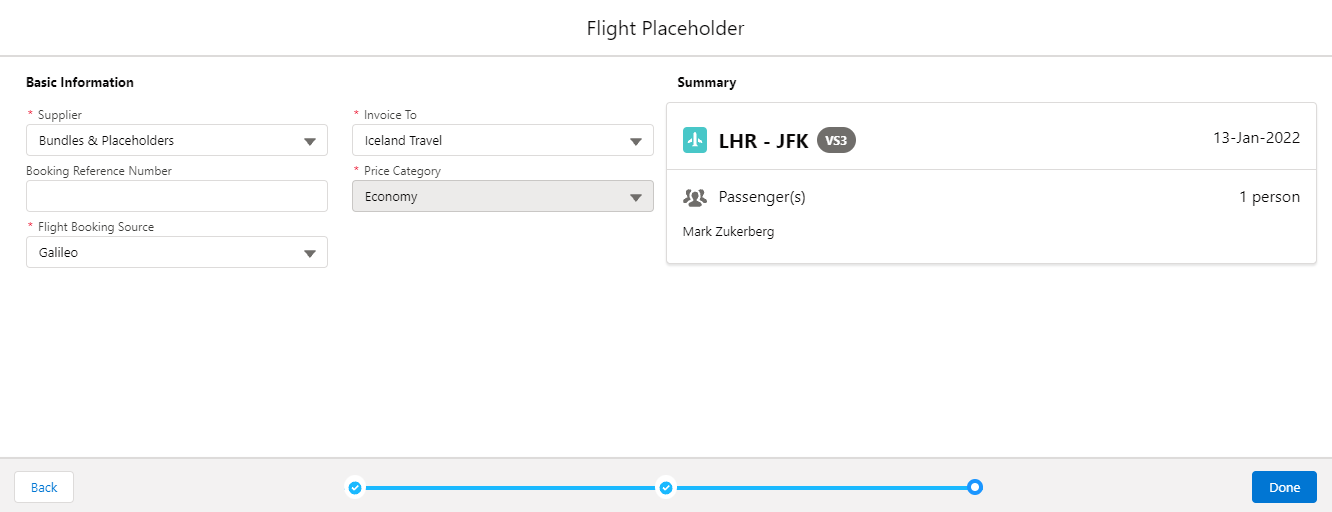
In this release we auto populate the current date field of the Flight Placeholder to the current date of the itinerary item the Flight Placeholder is being added to.
In this release we increased the length of Connect Option Id and Connect Meal Plan Id fields on the itinerary item from 80 to 255 chars thus mitigating the problem we had when the 3rd party supplier provided ids that didn’t fit into these fields.
Related support ticket KHELP-9311
Amendments
Starting in this release we will run a failure job immediately if an amendment has failed. This will help speed up the failure process if an amendment fails for a some reason.
Related support ticket KHELP-8648
When the amendment process hit a validation error, it would continue retrying even though it is known it would never succeed upon further retries. Now we do not retry amendment merge if a validation error is thrown.
Other
A new global method ‘execute’ in the ServiceCall class can be used to perform inventory management. The method’s signature is ‘Object execute(String serviceName, Map<String, Object> arguments)’
The ‘serviceName’ argument gives the class and method to be invoked. Only one service is currently exposed via this call, ‘InventoryManagementService.saveChanges’. Any attempt to call another service method will fail. The user calling the method must have the ‘Inventory_Management’ custom permission, otherwise the call will be rejected.
The ‘arguments’ argument must be the method arguments encoded as a Map. Any non primitive type argument must be encoded as a Map where that Map can be de-serialized into the type corresponding to the argument.
Error handling has been improved when attempting to create an itinerary from a trip
Starting from this release administrator users can disable Kaptio triggers in the User Overrides section of the Kaptio Settings.
Alhambra Micro 3 (15.9)
2022-08-09Micro ReleaseRelease Notes Preview
Summary
In this Micro release we addressed several issues that arose from earlier releases. General bug fixes and small improvements to mainly Amendments and Keyboard Shortcuts.
New Metadata
For a full overview of new metadata introduced as part of this release, please refer to our Core Data Model Changelog.
Minor Changes
Amendments
We addressed an issue with amendment merging. There were issues regarding permissions to editing snapshots that existed in the system.
Related support ticket KHELP-9332
Keyboard Shortcuts
Previously we had an issue when a new service added to the builder after a flight placeholder also got flight placeholder type which could not be changed. This issue has now been resolved so a new service from now on gets a default accommodation type if added after flight placeholder.
Related support ticket KHELP-9329
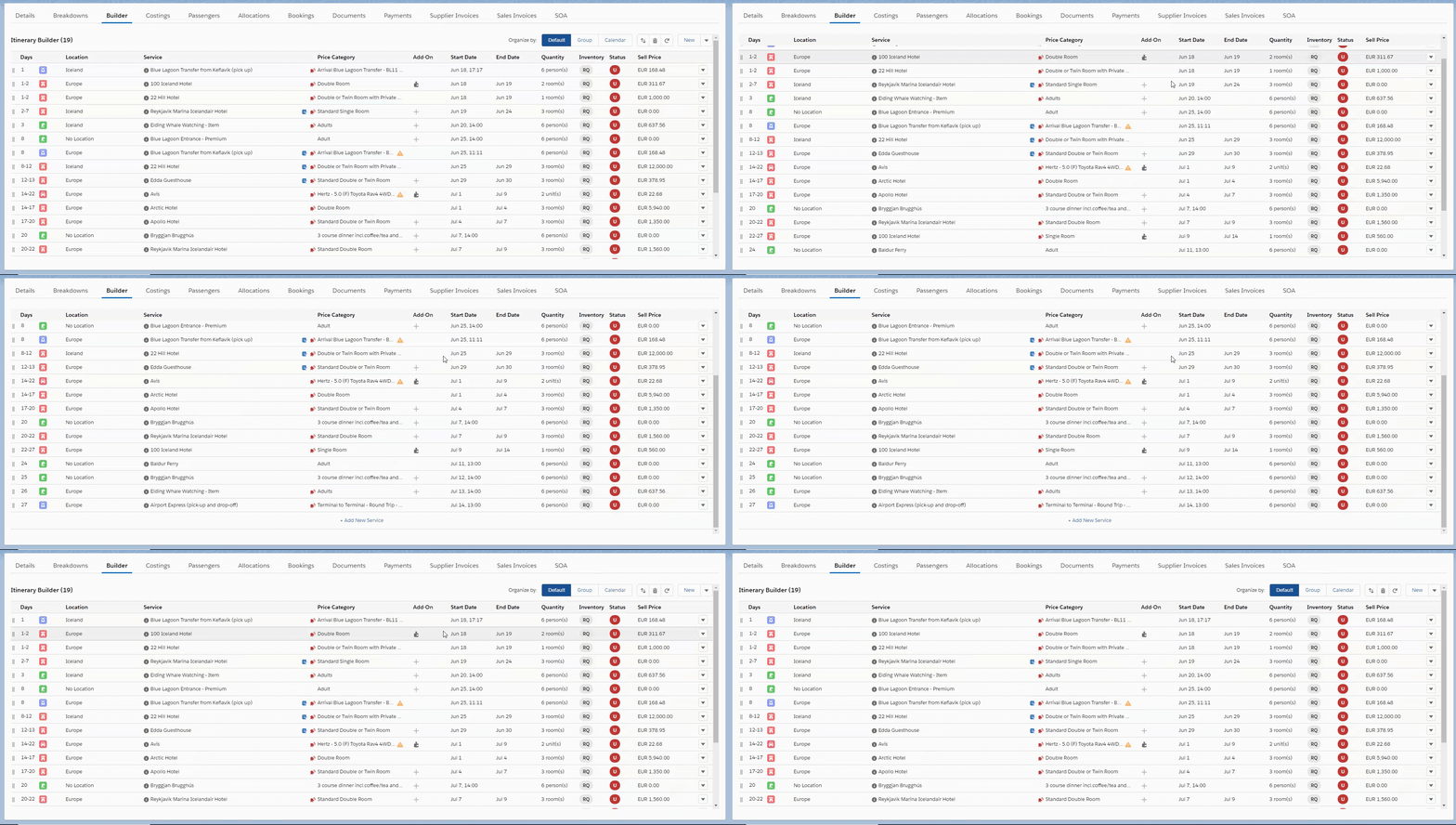
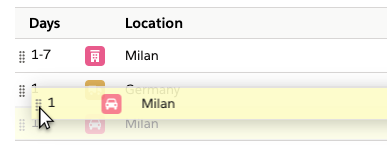
We fixed a couple of issues related to cloning service lines when using keyboard shortcuts. The Itinerary Builder would scroll unexpectedly which blocks the user from dragging and dropping a service with Ctrl pressed. As well as the focus now stays on the newly inserted line when keyboard shortcuts are used to clone a service.
We fixed an issue when the builder was scrolled up unexpectedly after loading, adding new lines or deleting existing ones.
Related support ticket KHELP-9297, KHELP-9325
For the user to have a better quick view of what’s happening each day of the itinerary we added a header for each day of travel grouping the services that start on that day.
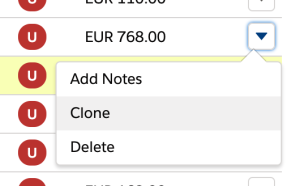
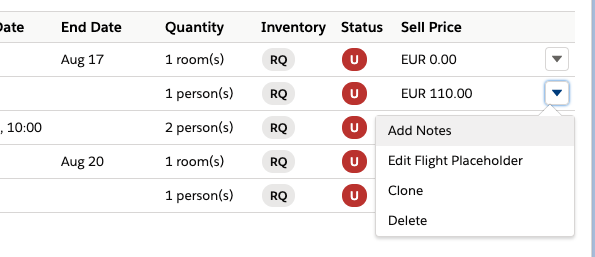
When using the keyboard to go into the more actions dropdown for a service on the far right, users would not be able to select the Clone action if they had already done that earlier. This has now been fixed.
Alhambra Micro 3 Patch 1 (15.9.1)
2022-08-09Hotfix ReleaseRelease Notes Preview
Summary
In this Patch release we addressed several issues that arose from earlier releases. General bug fixes and small improvements to mainly Amendments.
Known issue: There are intermittent issues with redirects when using Amendments Version 1. Sometimes the user is not redirected back to the primary booking. This issue is fixed by switching over to Amendments Version 2.
New Metadata
For a full overview of new metadata introduced as part of this release, please refer to our Core Data Model Changelog.
Minor Changes
Amendments
When using amendments, Kaptio now prioritises custom settings for users will take priority over profile, and profile settings will take priority over org defaults. This feature can be used to turn on different versions of amendments for different users.
Bugs Fixed
Amendements
In this release we fixed an issues that the status of the primary booking was not updated when creating an amendment if that booking was confirmed. Once the amendment has been merged the status goes back to booking confirmed.
Related support ticket: KHELP-9352
In this release we fixed an issue with version number errors on version 1 of the Amendments feature. Some itineraries would get the same version number when amendment merges failed.
Related support ticket: KHELP-9374
Alhambra Micro 2 (15.8)
2022-07-18Micro ReleaseRelease Notes Preview
Summary
In this Micro release we have delivered two minor updates that enhance our user experience. Itinerary Builder now has improved date display. Costings service search is now manual to reduce unnecessary queries and the resulting wait times.
New Metadata
For a full overview of new metadata introduced as part of this release, please refer to our Core Data Model Changelog.
Minor Changes
Itinerary Builder
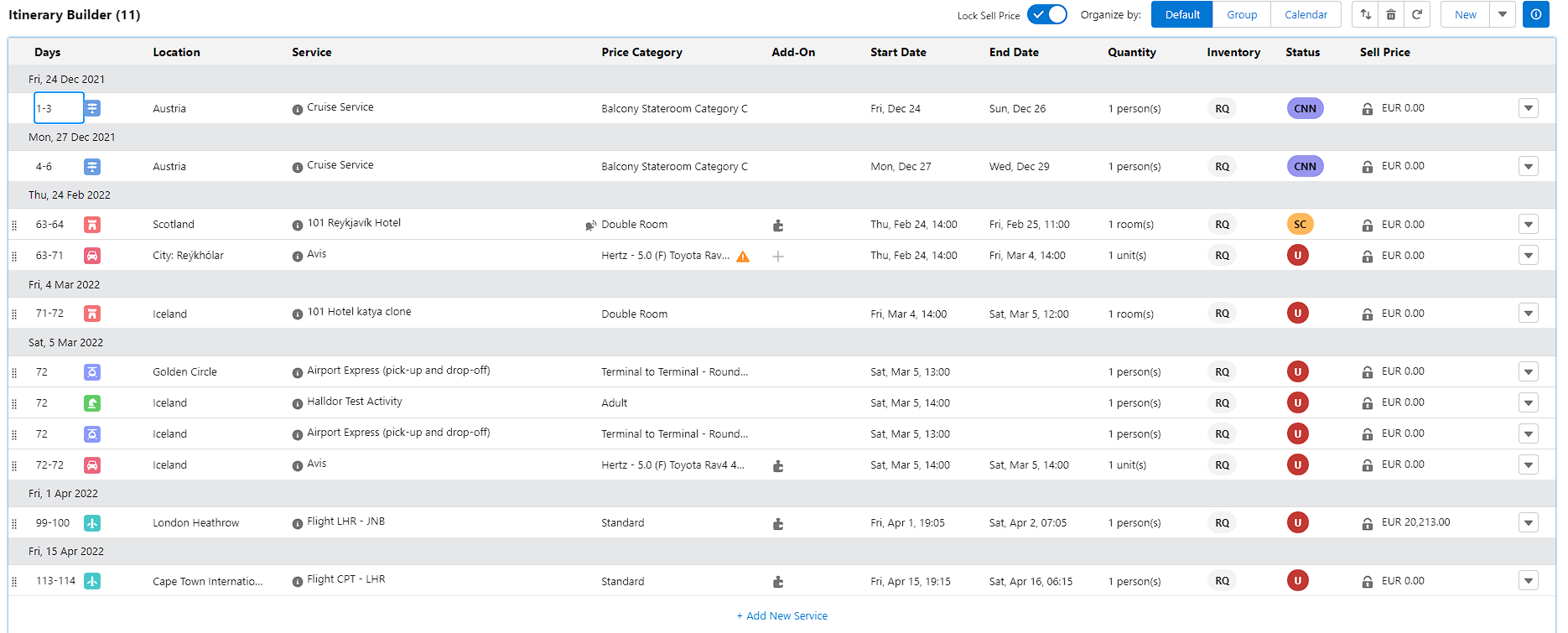
This release introduces date rows into Itinerary Builder where each day has it’s own header row with the date, including the weekday, to help users to have a clearer overview of the Itineraries timeline.
Additionally, the Start Date and End Date columns now show the weekday alongside the date.
Costings
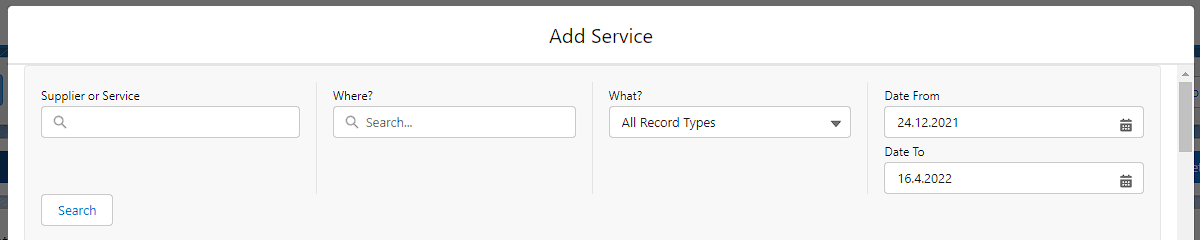
In this release we’ve update the service search within costing to remove the autmatically triggered search when a user types in search terms into the “Supplier or Service” field.
Instead, users will now manually trigger the search by selecting the “Search” button.
This change is done to reduce the amount of unecessary searches and the resulting wait time for users.
Alhambra Micro 1 (15.4)
2022-06-27Micro ReleaseRelease Notes Preview
Enhancements
Allow users to copy price when deleting flight placeholders
Operations / FinanceKTM-31
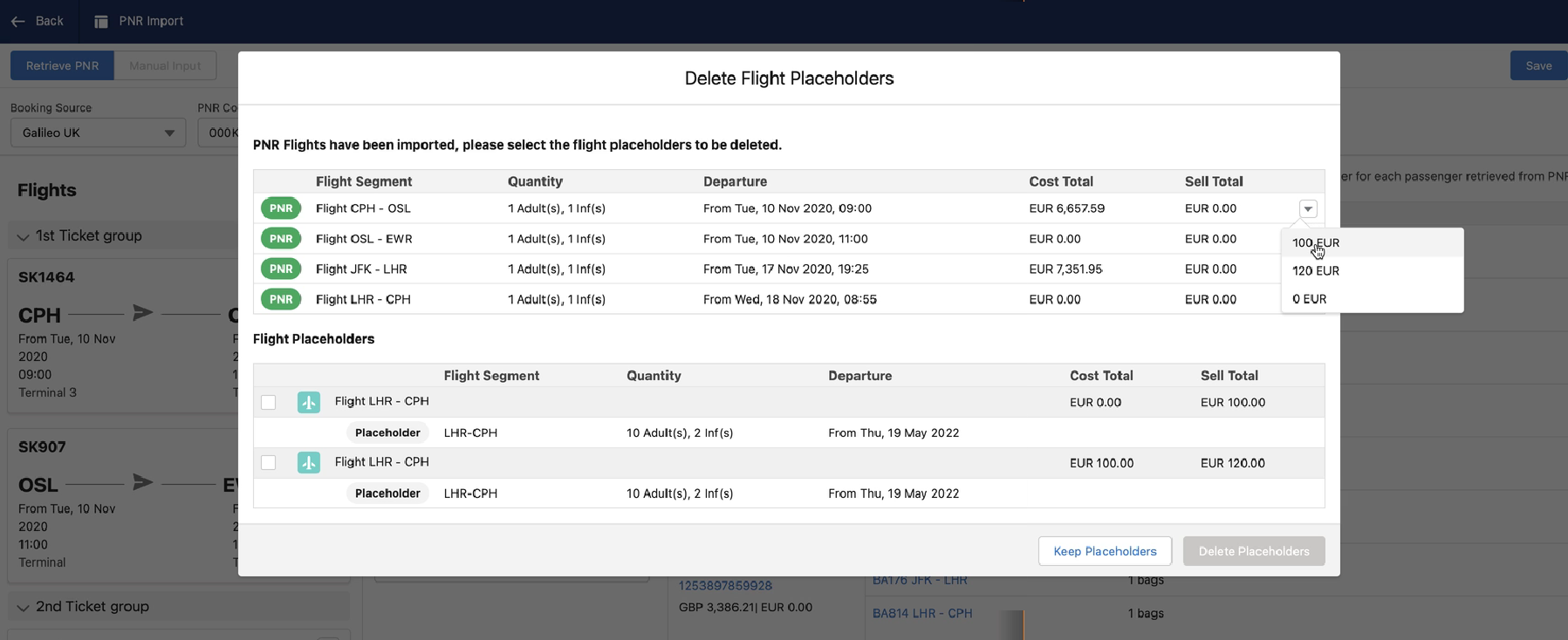
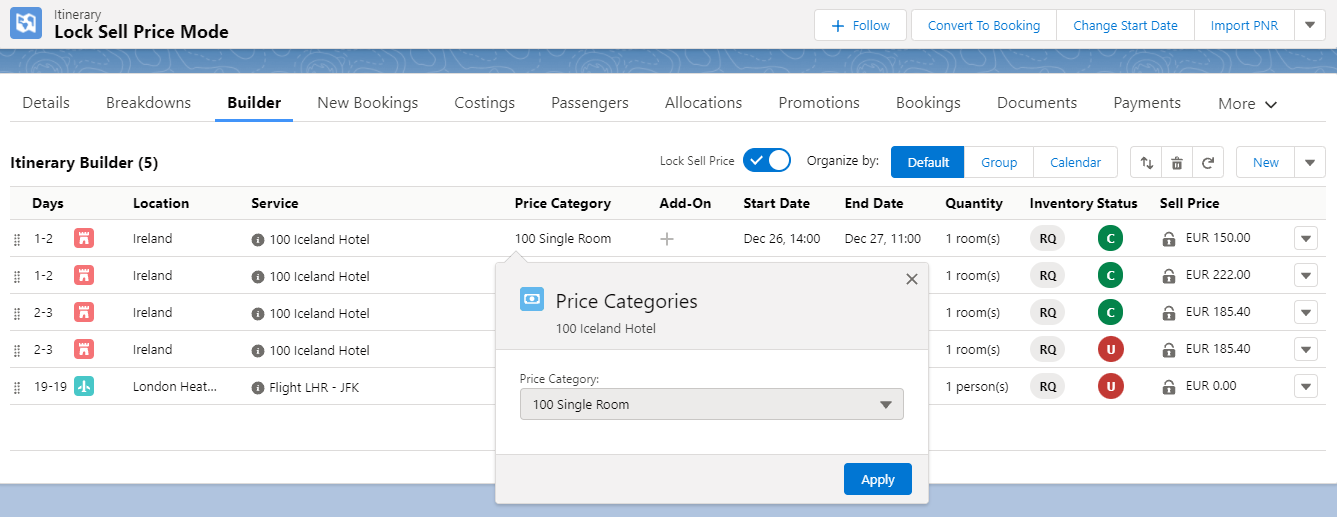
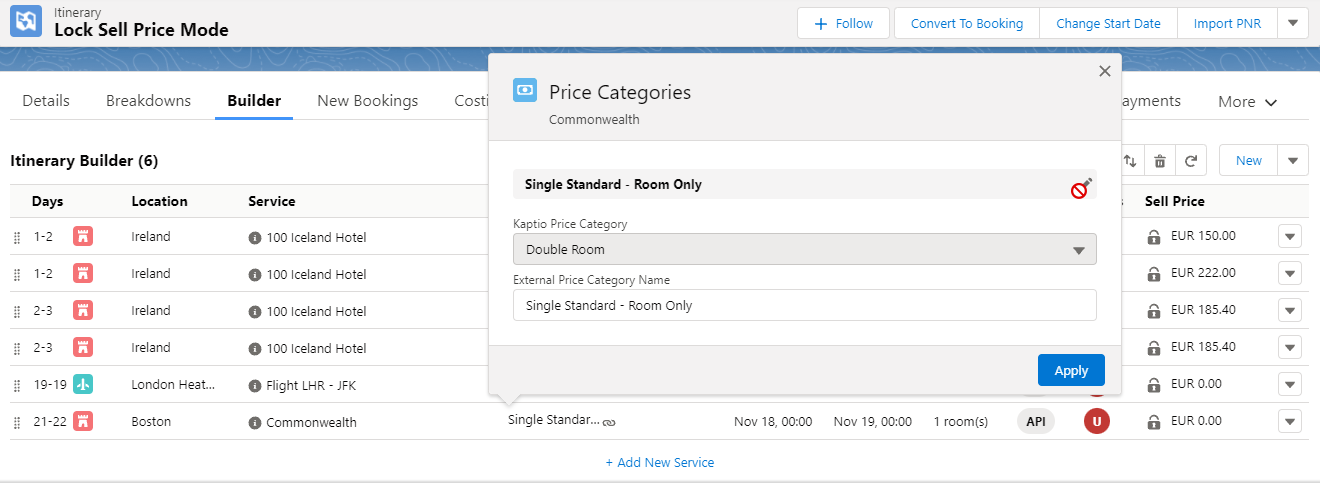
In this release we improved process of PNR import when Lock Sell Price Mode is enabled on the Itinerary. Now users have an ability to assign the selling price of a flight placeholder to an imported PNR flight by choosing the needed price in the inline dropdown menu on the PNR flight segment:
Summary
In this Micro release we have focused on 3 key features that were lacking in functionality. Amendments which needed enhancements when failing. Lock Sell Price where we improved its functionality with PNR and Flight Placeholders. Keyboard shortcuts are now ready to be used properly and have received some much needed love.
New Metadata
For a full overview of new metadata introduced as part of this release, please refer to our Core Data Model Changelog.
Minor Changes
Lock Sell Price
Starting from this release replacing sell pricelist is no longer allowed in Costings when Lock Sell Price Mode is enabled on the Itinerary.
Starting from this release the following bulk operations are no longer allowed on the Itinerary and Itinerary Items when Itinerary has Lock Sell Price Mode enabled: Itinerary Item: Insert, Itinerary Item: Replace, Itinerary Item: Delete, Recalculate
In this release we improved process of PNR import when Lock Sell Price Mode is enabled on the Itinerary. Now users have an ability to assign the selling price of a flight placeholder to an imported PNR flight by choosing the needed price in the inline dropdown menu on the PNR flight segment:
We made the fields “Usable as Template” and “Lock Sell Price Mode“ available in the “Fields to Ignore” fieldset on the Itinerary object so that users can now choose not to clone these values when cloning the itinerary by adding these field to the fieldset.
Related support ticket: KHELP-8092, KHELP-8628
Previously we had an issue when the Min/Max Suggested Prices on the price breakdown groups were not affected by the costs change of included services if it occurred while the Lock Sell Price Mode was enabled on the itinerary. This issue has now been resolved by saving the calculated selling price on services and including them in the calculation of the Min/Max Suggested Prices.
Related support ticket: KHELP-9111
Amendments
From this release, Kaptio will no longer run each of the revert jobs if the parent job hadn’t run during the initial merge.
Starting from this release starting another merge off an Amendment itinerary is no longer allowed if merge is already in progress.
From this release, users will be able to edit an amendment itinerary during a revert, should an attempted merge fail.
Previously we had an issue when values of custom fields of the Itinerary were not cloned during the new process of Amendment creation and merge. This issue has now been resolved.
Related support ticket: KHELP-8523
Keyboard Shortcuts
Users can now add new lines in Itinerary Builder either before or after the service line that is in focus at the time.
To Add new line before use the following shortcuts:On Windows: Shift+bOn MacOS: Shift+b
To Add new line after use the following shortcuts:On Windows: Shift+aOn MacOS: Shift+a
We have added a new button in the button group above the service lines in Itinerary Builder. This button shows the legend for available Keyboard Shortcuts, and is displayed for the first time a users enters the Itinerary Builder.
Users can now cancel all the changes that they have made by pressing Shift + C.
Users can now use the keyboard to delete a service line with Shift + D.
When creating a new line with keyboard shortcuts, the service type that is on the service line which is currently in focus will be used to determine the service type of the newly created service line. This is an assumption that the next line that will be created is of the same type as the one that is next to it.
Bugs Fixed
Lock Sell Price
We fixed an issue when the line cloned in Costings affected the Itinerary Total Amount while the Lock Sell Price Mode was enabled. From now on cloning services in Costings with Locked Sell Price Mode on creates lines with 0 selling price.
We fixed a regression issue where changing the price category was allowed on the service that has selling price when the Lock Sell Price Mode was enabled. Now changing the price category is disabled on such services.
Related support ticket: KHELP-8609
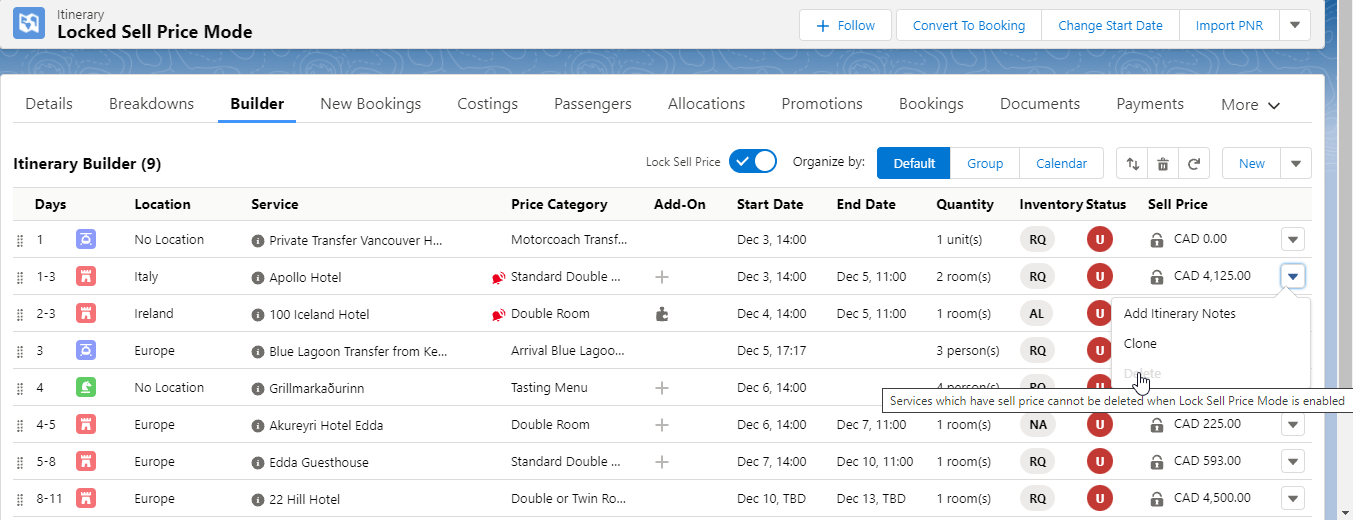
Previously tooltip explaining that service with selling price cannot be deleted when Lock Sell Price Mode is enabled was only accessible when hovering exactly over the “Delete” word of the Delete action in the Builder. This issue has now been fixed.
Amendments
Previously we had an issue when values of custom fields of the Itinerary were not cloned during the new process of Amendment creation and merge. This issue has now been resolved.
Alhambra Major (15.2)
2022-01-31Major Release
Enhancements
Allow users to copy price when deleting flight placeholders
Operations / FinanceKTM-31
In this release we improved process of PNR import when Lock Sell Price Mode is enabled on the Itinerary. Now users have an ability to assign the selling price of a flight placeholder to an imported PNR flight by choosing the needed price in the inline dropdown menu on the PNR flight segment:
Building an itinerary with keyboard
Sales / Search, Cost, BookKT-6669
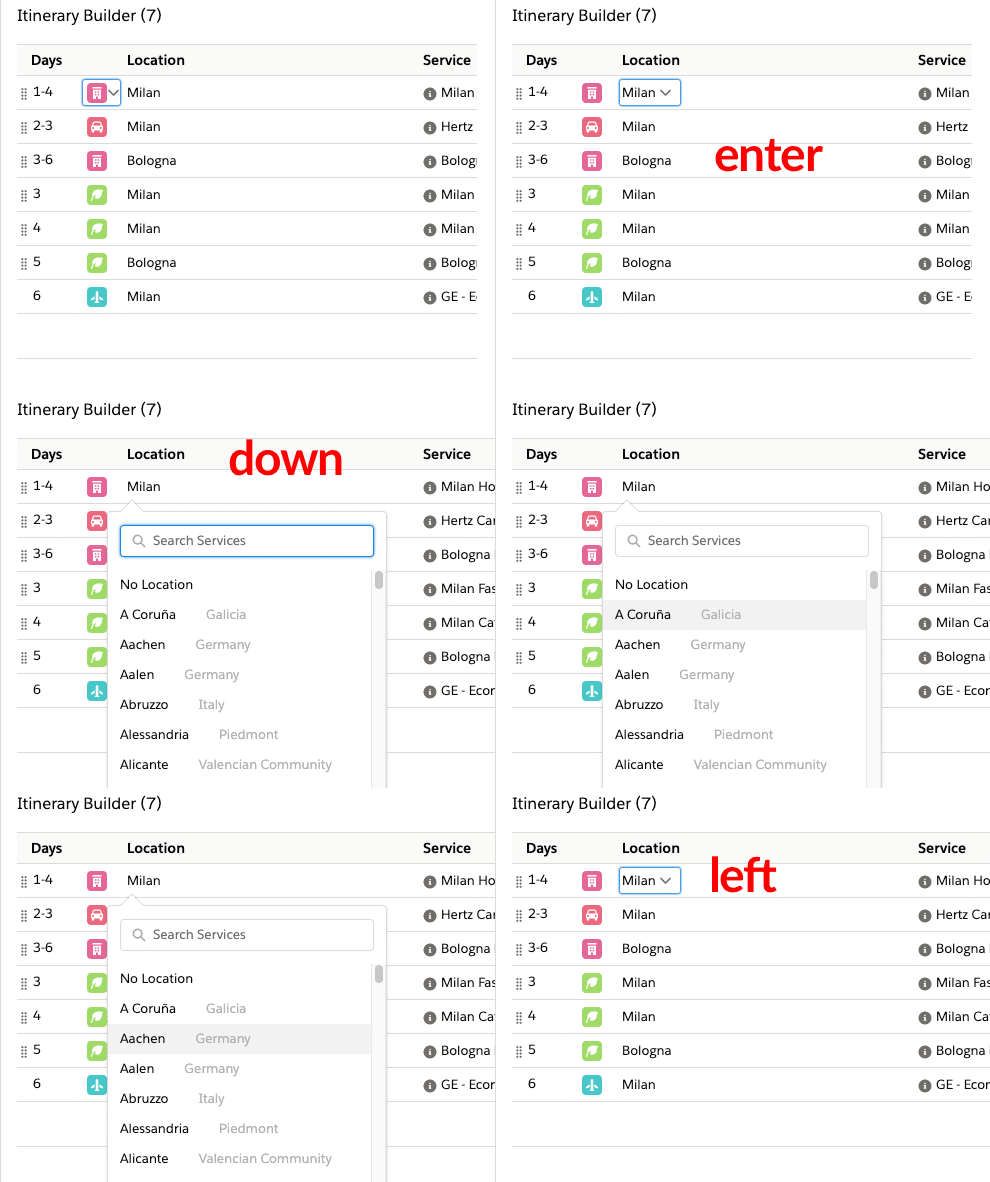
We continue to work on keyboard shortcuts to allow you to build an Itinerary with your keyboard. In this release we introduce the second part which will allow you to navigate through the Builder lines and popovers with the keyboard.
You can now use Tab and Shift+Tab to move focus on elements in the Itinerary Builder: Tab is moving focus forward, from one item to the next, Shift+Tab is moving focus backward, to the previously focused item.
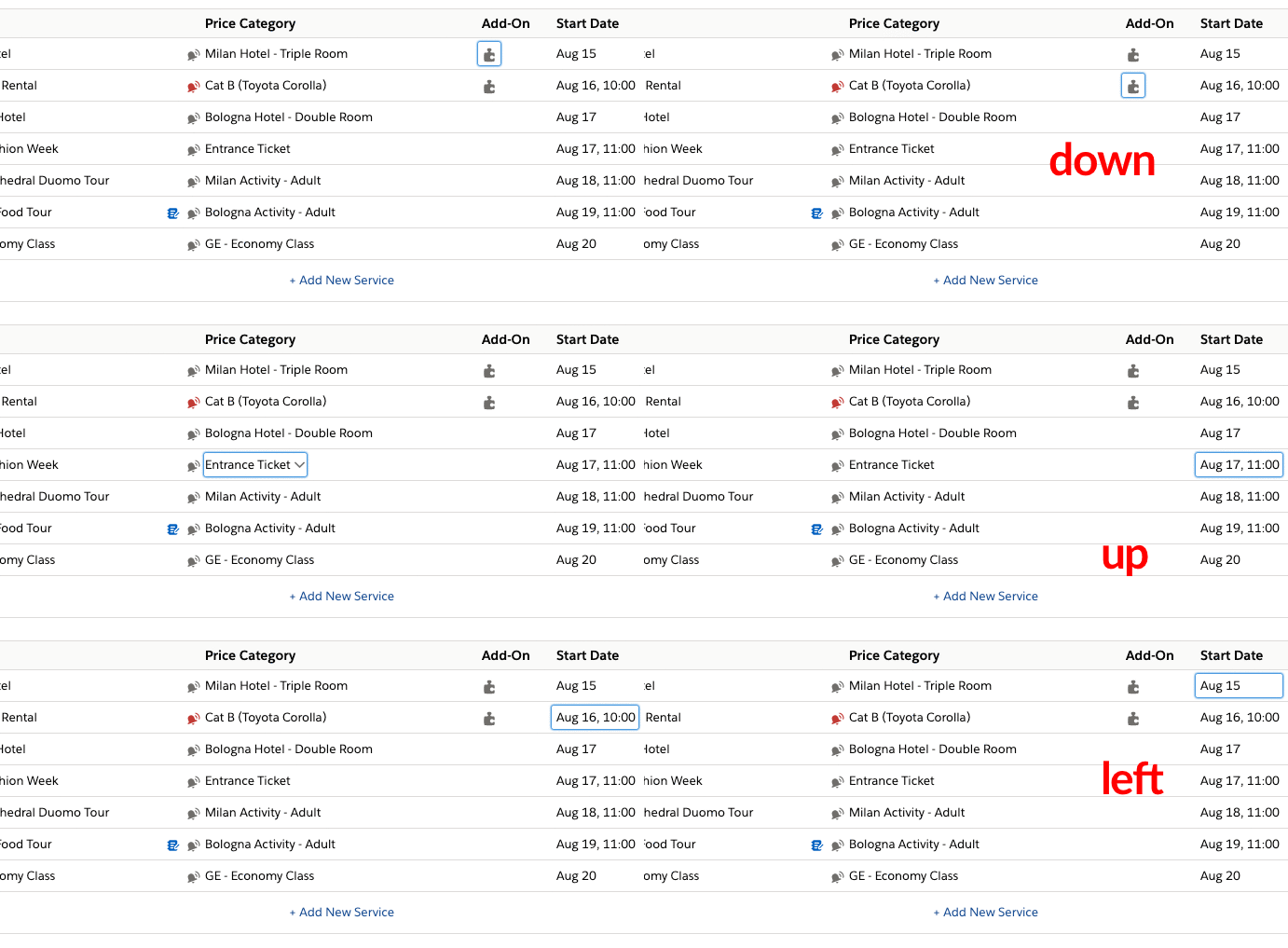
In addition to this, we allow moving focus using arrow keys within the table (but not outside of it): Left/Right arrow moves focus to the column on the left/right, Down/Up arrows move focus to the element in the same column one row below/above.
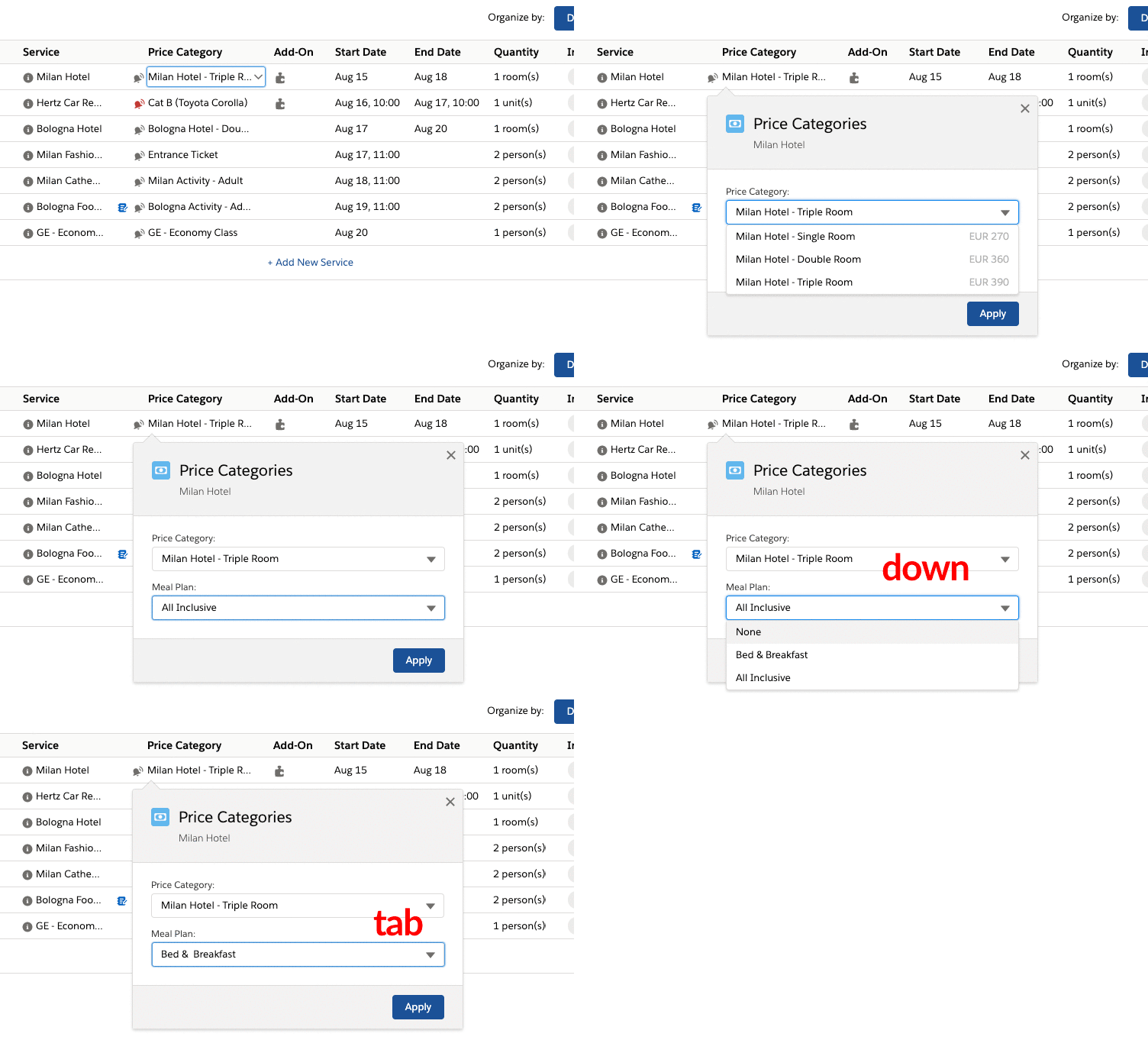
Once the focus is set on the required element (any clickable element on the builder line whether it be record type selector, service, price category popover, add-ons, etc), press the Enter or Space key to open the popover.
You can navigate between inputs and buttons within the popover using Tab and Shift+Tab; expand dropdowns by pressing Enter or Space while the focus is on them; browse options in the dropdowns using Up and Down arrows; select a required option in the dropdown by pressing Enter or Space. Once you’re done in the popover, you can apply your changes by moving focus on the Apply button and pressing Enter or Space key, or you can discard your changes by pressing the Esc key.
Currently the following actions cannot be performed by using only keyboard:
Bulk Move
Bulk Delete
Shifting dates of subsequent services after extending or reducing stay on the multi-day service
Enabling or disabling the Lock Sell Price Mode
Known issues that will be addressed in the future:
tabbing from the last element in any popover moves focus outside of this popover;
deleting a single line in the Builder doesn’t set focus on the Yes button in the delete confirmation dialogue;
arrow keys sometimes stop working when navigating through the elements in the Builder;
changing the date of an Add-on in the Add-ons popover and pressing tab skips to the new Add-ons selection dropdown instead of moving the focus to the element that follows the date input
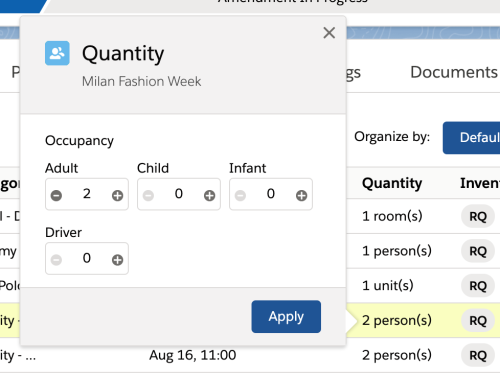
focus moves outside of the Quantity popover when setting occupancy above the limit
pressing Esc while Price Category dropdown is open in the Price Category popover closes the whole popover instead of closing the dropdown; the same issue with Add-on dropdown in Add-ons popover
pressing Space on the Price Category input in the Price Category popover doesn’t open the dropdown but scrolls the Builder page down; the same issue with Add-on dropdown in Add-ons popover
Javascript errors when operating with children inputs in the Service Search popover
Disable inputs in Price Lines modal in Lock Sell Price Mode
As a further improvement of Lock Sell Price Mode on the Itinerary, we now lock additional fields in the Price Lines modal in Costings. They are Markup %, Reseller Commission inputs and, if tax handling is exclusive on the Business Unit - Sell Tax and Reseller Commission Tax inputs.
Lock Sell Price Mode state incorrect in Builder after cancelling changes
Previously we had an issue where the Lock Sell Price Mode toggle was showing an incorrect state after cancelling changes in the Builder. This issue has now been resolved.
Incorrect taxes in imported PNR when Lock Sell Price Mode enabled
From now on when importing a PNR into the Itinerary on which Lock Sell Price Mode is enabled, the selling price of all fares and taxes included is set to 0 in order to keep the Total Amount on the Itinerary unaffected.
Previously we had an issue when selecting an option to update both cost and sell price upon refreshing a PNR; it did not update sell price of the PNR itinerary items correctly if the Lock Sell Price Mode was enabled on the Itinerary. This issue has now been resolved.
Related support ticket: KHELP-8225
Lock Sell Price Mode: disable cancellation of Services with prices
When the Lock Sell Price Mode is enabled on the itinerary, we do not allow deleting services that have a selling price. We have now added the same restriction for cancelling services.
Related support ticket: KHELP-8227
PNR Refresh with 'update cost only' changes sell price when Lock Sell Price Mode is on (line rounding involved)
We fixed an issue when the selling price on the PNR itinerary item that was rounded upon import of the PNR was changing to its non-rounded value after refreshing the PNR with Lock Sell Price Mode enabled on the itinerary.
Related support ticket: KHELP-8225
PNR Refresh with Lock Sell Price Mode enabled shows incorrect sell price for the tickets
We fixed an issue when the new sell price of PNR tickets was not including the ticket fares while refreshing PNR with the Lock Sell Price mode enabled on the itinerary.
Not able to change price category for 0 priced itinerary items when Lock Sell Price is enabled
Previously it was not allowed to change the Price Category on any itinerary items when Lock Sell Price Mode was enabled on the itinerary. Now the Price Category can be changed on those items that have zero selling price and this will not affect itinerary totals.
Related support ticket: KHELP-8243
Process Package Discounts
Product / Packages & Bundle SetupKT-6882
In this release we added a new way of applying Promotions to Packages which allows automatic adding of a package discount Service when booking a Package through Costings.
How to enable:
Create a package discount Service
Set up a package Promotion, then add a Price Category of the package discount Service as a Promotion Effect
Type 'package_promotion' in the Effect Properties field that is accessible under the cogwheel on the Promotion Effect.
With this setup, when adding a Package to Costings a package discount Service will be added automatically, holding the promotion total amount. NOTE: only ‘amount’ effects are supported.
Redesign of the amendment functionality
Sales / Search, Cost, BookKT-6838
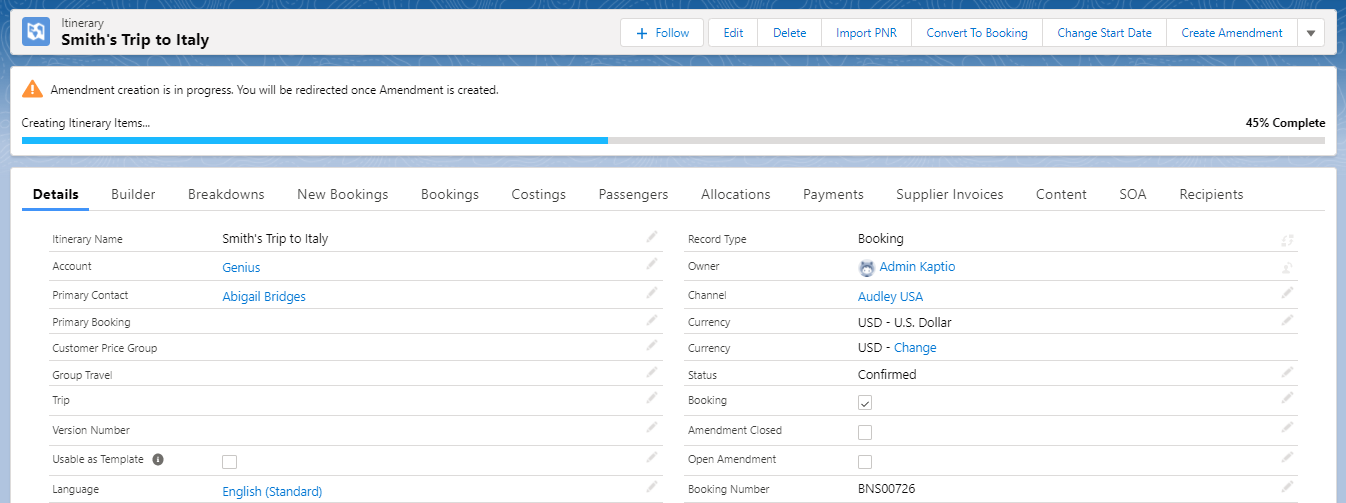
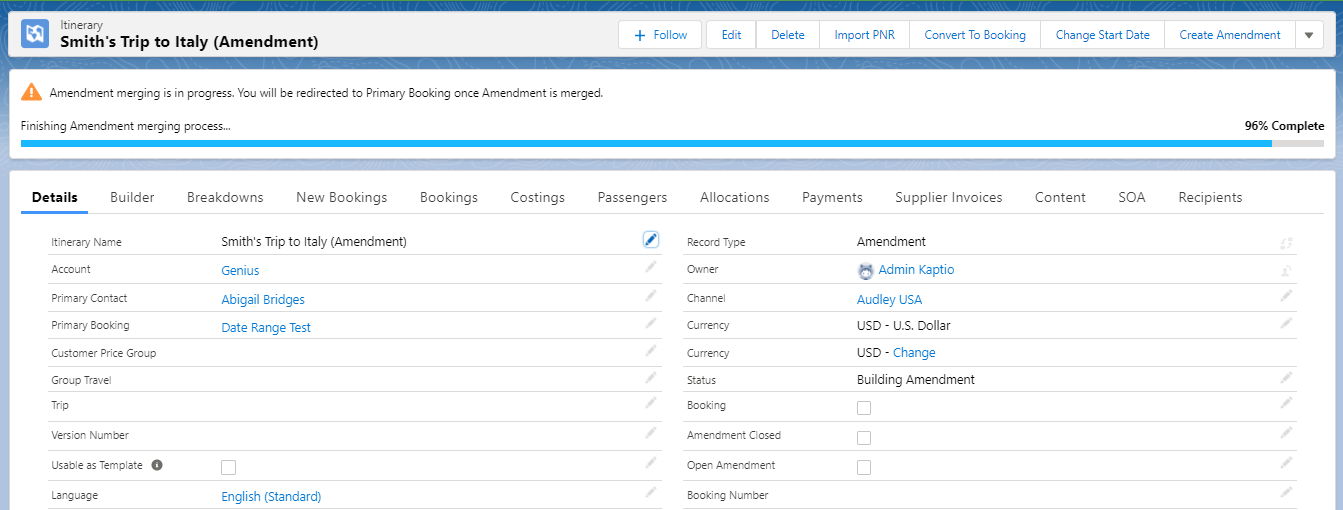
In this release we have developed a new way an Amendment Itinerary is created and merged back to the Primary Booking Itinerary. This needs to be enabled in the Setup > Custom Settings > Amendment Settings, otherwise the current Amendment process will be carried out as usual.
Creating or merging an Amendment now displays a progress bar that shows how many steps of the process have been completed and how many are left.
Each step of the process is done in a queueable job and the system creates an Amendment Log record containing a short description of what the step is doing. For example, creating or merging Passengers or Itinerary Items.
The logs will indicate if any errors have occurred during the process and what has caused it. Amendment Log records will be deleted after the whole process completes successfully. Otherwise, logs will persist in order to keep a trace of what went wrong during the process.
If an error occurs at any step, the system retries this failed step automatically after a certain amount of time which is specified in the setting “Wait Time”. It will keep retrying until it hits the retry limit which is set in the setting “Retry Attempts”. By default, the system retries 3 times, and it waits 2 minutes before each retry. If an error persists after all retries, the system will roll back changes that may have been made during creating or merging an Amendment and will display a notification of the failure with a link to the Amendment Log record in order to help with understanding what went wrong during the process.
Furthermore, to minimise the storage space required for the amendment process, if the “Delete Amendment Itinerary” setting is set to True, the system deletes the Amendment itinerary record after the last step of the merge process, if completed successfully. Please be aware that at the moment Itinerary Documents will be deleted together with the Amendment. This will be changed in the upcoming releases and until then we recommend to keep the “Delete Amendment Itinerary” setting set to False.
Important: Please be aware that during testing for this new amendment process, users could experience errors in Sandboxes. This is due to some Sandboxes having limits of queueable jobs available, which can result in significant delays creating and merging amendments. These types of errors have been accounted for, so they will not affect the retry limit and will not occur twice in a row. This should not affect production environments.
How to enable:
Provide full access to Amendment Log object and its fields to users who create and merge Amendments
Set up new amendment process in Setup > Custom Settings > Amendment Settings:
Set “Enable Amendments v2” flag to True to switch the new amendment process on
Set “Create Attachment Logs” flag to True if you want to get even more detailed information attached to the Amendment Log records
Set amount of time the system waits before retrying the failed step in the amendment process in the “Wait Time” setting
Set the retry limit in the “Retry Attempts” setting
Set the “Delete Amendment Itinerary” to True if you need Amendments deleted automatically after successful merge
Related support ticket: KHELP-8044
Sort order of Multi-day Services in KT Agenda
Sales / Search, Cost, BookKPS-223
In this release we changed the order of displaying multi-day Services in the Developer version of KT Agenda in the Itinerary Documents being generated when settings “Enable Service Type Templates” and “Enable Itinerary Builder Master Sort” are both set to True in App Settings. Please note: these updates do not affect the out-of-the-box version of KT Agenda.
Generic Multi-day Services
On their first day Multi-day Services are shown in the same order as they are within the Itinerary Builder. On their subsequent days (including the last day) they are shown last, and if there are several Multi-day Services on that day, they are shown in a chronological order based on their first date and time.
Accommodation
Behaviour is the same as for generic multi-day Services with two differences:
On subsequent days, accommodation is shown after all other multi-day services. If there is more than one accommodation on that day, they are shown in a chronological order based on their first date and time.
Accommodation is not shown on its check-out day.
Car Rental
Car Rentals are only shown on their first and last days. On their first day they are shown in the same order as they are within the Itinerary Builder. On their last day Car Rentals are shown in chronological order based on the drop-off time (Time To value).
Services with departures (Cruises and Multi-day Rail)
On their first day Services with departures are shown in the same order as they are within the Itinerary Builder. Articles shown on the first day are Service content, Ship content, Cabin content and Departure Location content. On their subsequent days (including the last day) Departure Location content associated with that day is shown as the first entry of the day.
Support of inclusion Add-ons in the Builder
Sales / Search, Cost, BookKT-6841
We closed another gap between Costings and Builder functionality. From now on Inclusion add-ons are selected automatically on the Services added to the Builder in the same way as they do in Costings. Note, these are enabled on a Service by flagging “Enable Inclusions” checkbox.
Visual display of lines causing errors during save
Sales / Search, Cost, BookKT-6573
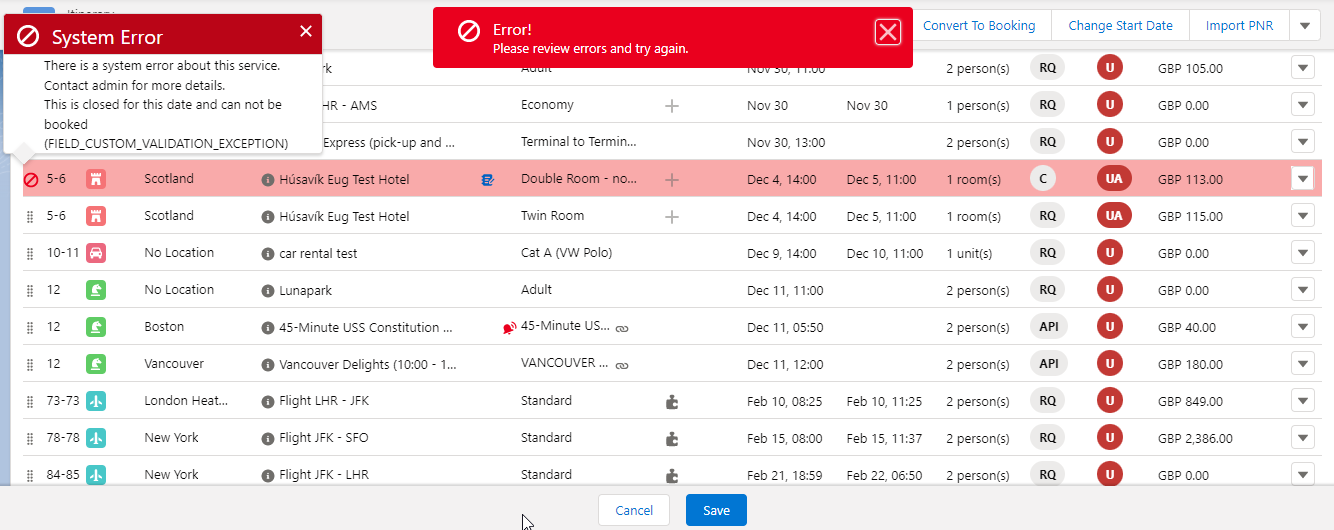
Previously if saving the Builder failed, due to an error caused by a specific line in the Builder, there was no indication of which line was failing. We are happy to announce that starting from this release we highlight such lines in the Builder thus allowing users to easily identify and manage them.
Related support ticket: KHELP-8030
New Metadata
For a full overview of new metadata introduced as part of this release, please refer to our Core Data Model Changelog.
Minor Changes
Please note that the [KT-XXXX] and [KPF-XXX] references shown are for Kaptio Use Only.
[KT-6309] We improved the Package search so that starting from this release only those packages that have the search keywords in their names are shown in the results. Also, all Packages are now sorted alphabetically by their names within the same departure day.
Related support tickets: KHELP-7433, KHELP-5450
[KT-6690] From now on contacts in the Primary Contact lookup in the New Trip modal are filtered to those that are related to the account from which the trip is being created.
Related support tickets: KHELP-7815, KHELP-8306
[KT-6917] We removed validation for Primary Passengers of an Itinerary Group to have an email address in order to save the Itinerary group as the email address is not always known at the time when Itinerary Groups are created.
Related support ticket: KHELP-8259
[KT-6920] We have added support for multiple promotions when processing responses using the new bulk logic for Package promotions recently added to the package_advanced and package_search endpoints in the KTAPI.
[KPL-1487] We reworked a retry flow when the cancellation of Services of the 3rd party Suppliers failed. From now on if the cancellation request timed out, the booking gets a Pending status so that users should either retry the operation until the status changes or skip the service
[KPL-1494] From now on, users who are working with the Supplier Bookings screen are not allowed to change the value of the Booking Reference Number field on the Services of the 3rd party Suppliers.
Bugs Fixed
Please note that the [KT-XXXX] and [KPF-XXX] references shown are for Kaptio Use Only.
[KT-5207] We fixed an issue when the cost of the custom item in Costings was not converted from the supplier cost after changing the currency of conversion rates on the itinerary.
Related support ticket: KHELP-8200
[KT-5405] From now on when creating a Location record while the Location Record Type Hierarchy is not set in the Kaptio Settings, users will be presented with an error explaining that the Location hierarchy needs to be defined.
[KT-5983] Our users had been experiencing issues when navigating to Kaptio Settings -> User Override. We are happy to say that this issue has now been resolved.
Related support tickets: KHELP-6978, KHELP-7383, KHELP-7385, KHELP-6644, KHELP-6885
[KT-6138] In this release we fixed an issue when the “View Details“ modal in the “Map“ view of KT Agenda could not be closed.
Related support ticket: KHELP-7182
[KT-6232] Fixed an issue when the price of Add-ons was not added to the Passengers' totals
Related support ticket: KHELP-6975
[KT-6280] From now on the Recalculation In Progress banner is shown on the Lightning Itinerary page during the asynchronous recalculation that happens when changing some parameters of the Itinerary. For the fix to be effective you need to add the “Lwc Itinerary Toast” component to the top of the Lightning page. We also fixed an issue when the Itinerary actions became unavailable in the Classic UI after recalculation was completed.
Related support tickets: KHELP-7305, KHELP-7645, KHELP-7675, KHELP-7705, KHELP-7750, KHELP-7695, KHELP-7800
[KT-6357] In this release we have fixed an issue where the due dates of Payment Schedules on the Itinerary were in the past after shifting the travel start date on it. Now if the date that is calculated according to the Payment Schedule setup and the new travel start date of the Itinerary is in the past, then the Payment Schedule gets the due date set to today’s date. If, as a result of the travel start date change, due dates of both Deposit(s) and Balance Payment Schedules fall in the past, then the Deposit(s) are deleted and the Balance Payment Schedule only remains with the due date set to today’s date.
Related support ticket: KHELP-5680
[KT-6555] In this release we fixed an issue when Itinerary Documents have been generated with some content missing. From now on the Itinerary Document is not generated until the full data (all Itinerary Content Line items) have been generated successfully and can be included in the Document.
Related support ticket: KHELP-7699
[KT-6592] Previously when selecting a fixed or per person value type on a payment schedule the currency on it did not default to the currency of an itinerary. In this release, this issue has been resolved.
Related support ticket: KHELP-7069
[KT-6633] We improved performance so that occurrence of the 'Apex heap size too large' error on huge Itineraries has decreased.
Related support ticket: KHELP-7851
[KT-6666] We fixed the “Invalid conversion from runtime type String to Decimal“ error that occurred when managing conversion rates on some Itineraries.
Related support ticket: KHELP-7867
[KT-6792] Previously our users who have Force New Conversion Post Booking setting enabled have been facing an error when trying to manage Add-ons on Services added to the itinerary that had been converted to Booking. This issue has now been resolved.
Related support tickets: KHELP-7423, KHELP-7887
[KT-6819] We fixed an error that occurred on Itineraries converted to Booking when setting a negative cost on the Services which have percentage Deposit Payment rules in their Supplier Agreements.
Related support tickets: KHELP-8100, KHELP-8198
[KT-6822] We fixed an error that occurred when selecting another option while editing a Package component in Costings.
Related support tickets: KHELP-8107, KHELP-8218
[KT-6829] We fixed an issue when an error message was appearing upon saving the Builder saying that changes are not allowed on Snapshot Booking while the edited itinerary was not a Snapshot Booking.
Related support ticket: KHELP-7607
[KT-6853] Previously Final Payment Amount on the Itinerary was always equal to the difference between the Total Amount and Deposit Amount regardless of the Gross Invoicing flag. Now the flag is considered and if it is set to False, the Final Payment Amount is calculated based on Total Amount Net.
[KT-6863] In this release we fixed an “Invalid Id” error that occurred during the merging of an Amendment.
Related support ticket: KHELP-8070
[KT-6864] Fixed an issue when the PGI button on a Passenger did not open the PGI screen
[KT-6873] Previously we had an issue when the Service Levels of a Bundle which were freshly added to a Package were not shown on the Package Editor screen until the page was refreshed. This issue has now been resolved.
[KT-6886] The issue when uppercase characters were not allowed for email addresses in the Kaptio Email Composer has now been fixed.
Related support ticket: KHELP-8209
[KT-6887] We fixed an issue when Sell and Reseller Commission Taxes were zeroed after cancelling the itinerary instead of being recalculated based on the new Sell price and Reseller Commission.
Related support ticket; KHELP-5801, KHELP-8248
[KT-6889] We fixed an issue when currency on the Passenger was not matching the Itinerary currency.
Related support ticket: KHELP-8220
[KT-6898] We fixed an issue when promotions having conditions on booking start or end date did not apply to the services and packages on the itinerary not yet converted to the booking
[KT-6918] We fixed an issue when prices of itinerary items that were not changed in the Builder were still recalculated upon saving the Builder due to a change of the order on them.
Related support ticket: KHELP-8271
[KT-6935] We fixed an issue when the promotion was not applied correctly to the package with a fixed departure date that contained bundle(s) with own departure dates
Related support ticket: KHELP-8286
[KT-6936] Previously we had an issue when options couldn’t be added to the package component of a custom record type where its name was the same as the name of a Kaptio record type. This issue has now been resolved.
Related support ticket: KHELP-8292
[KT-6946] We fixed an issue when the cost of the cancelled services of the 3rd party suppliers didn’t persist after recalculation of the Itinerary.
Related support ticket: KHELP-8331
[KT-6975] Previously we had an issue where cancelling the Itinerary resulted in the incorrect selling price on the itinerary items with promotions applied on them. This issue has now been resolved.
Related support ticket: KHELP-8248
[KT-6976] [KT-6986] We fixed an issue where the guest user couldn’t access the Multi-currency object after the Spring '22 release from Salesforce.
Related support ticket: KHELP-8372, KHELP-8419
[KT-6998] We fixed an issue when it was not possible to type capitalised S or N letters using the Shift key in the builder.
Related support ticket: KHELP-8463
[KPL-1480] We fixed an issue when the Services of the 3rd party Suppliers were not booked in the name of the Lead Passenger. From now on if the Lead Passenger is assigned to the Service being confirmed via API then the Service is also booked in their name with the Supplier.
Related support ticket: KHELP-8289
[KPL-1492] Previously the Meal Plan field was not locked on 3rd party Supplier Confirmed Services. This issue has now been fixed so that it is no longer possible to change the meal plan on such Services.
Related support ticket: KHELP-8296
2021 12
2021 15.1
2021-11-22Major Release
New Features
Lock Sell Price Mode
Sales / Search, Cost, BookKT-6497
In this release we introduce Lock Sell Price Mode. Previously sales agents faced a problem when they sent a Quote to their clients with a certain selling price which the client had accepted. Then once changes were required, for example to the cost price, the markup-based selling price was updated automatically, which meant that sales agents lost the selling price which the client had agreed upon.
Lock Sell Price Mode on the Itinerary can be enabled/disabled based on whether the selling price should be impacted when making changes in Builder or Costings.
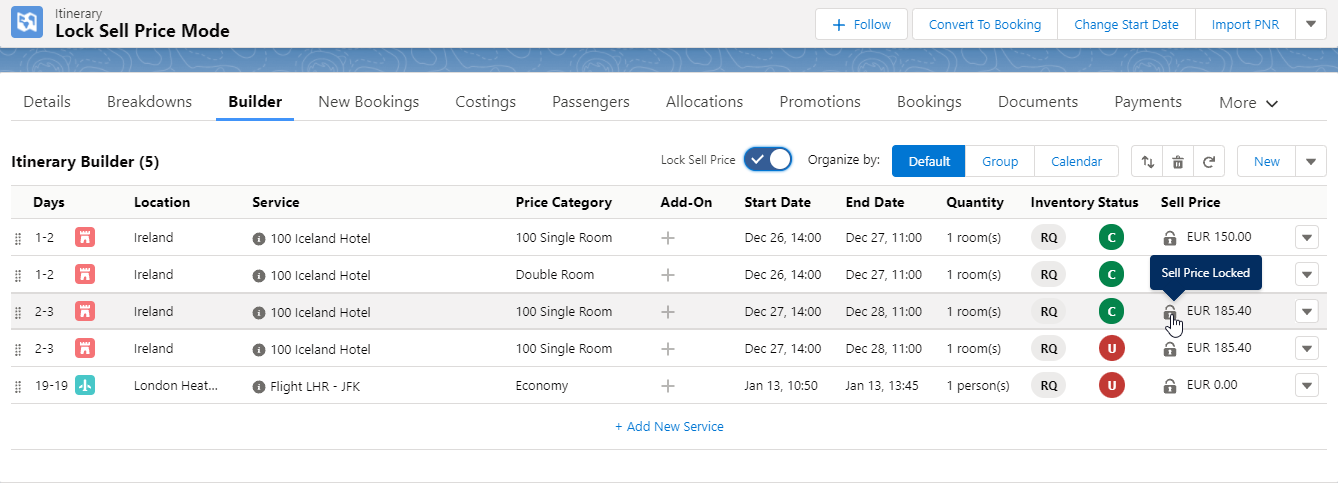
The Lock Sell Price switch is visible both in Builder and Costings as well as in Price Lines modal. In Builder, when the Lock Sell Price Mode is enabled, a padlock icon is presented next to the selling price:
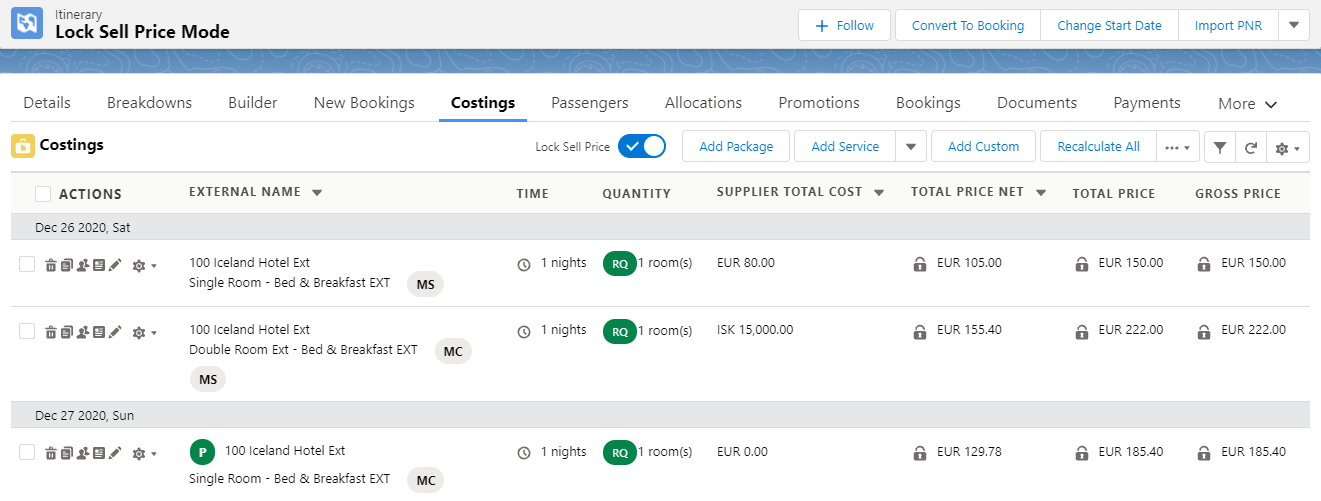
and in Costings:
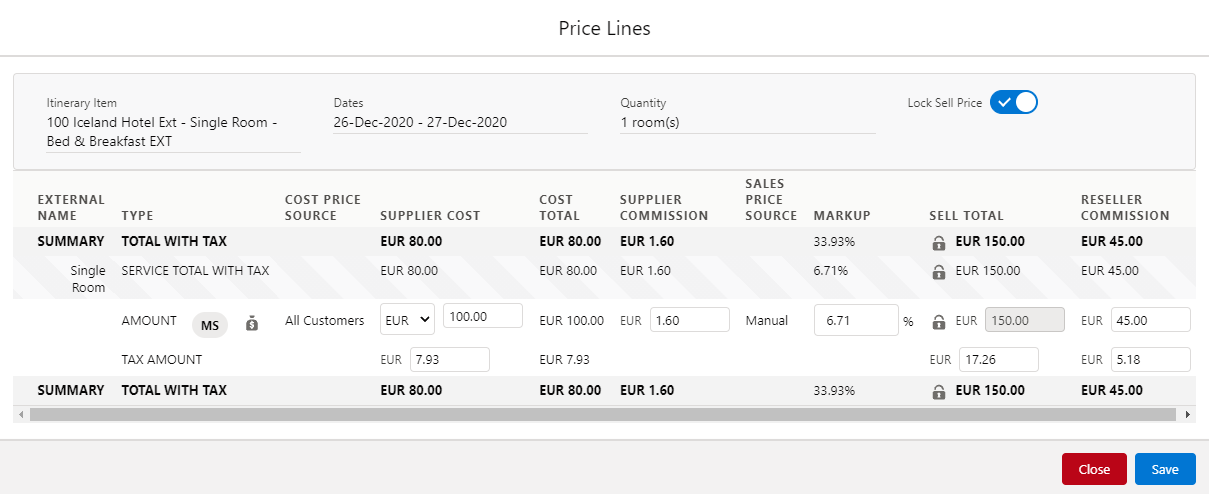
as well as in Price Lines modal:
When Lock Sell Price Mode is enabled, the selling price, as well as reseller commission, is not affected by any change made to the Itinerary Item whether it be a change in dates, quantity, add-ons, costs, etc. Also, any new services and add-ons added to the Itinerary while Lock Sell Price Mode is enabled have a zero selling price so that the total amount on the Itinerary is not affected.
The below videos show how different actions in Builder and Costings affect the selling price when Lock Sell Price Mode is disabled and how the same actions no longer affect the price after Lock Sell Price Mode is enabled:
In order to keep the Itinerary total amount unaffected, when the Lock Sell Price Mode is enabled, the deletion of services and add-ons that have a selling price is not allowed. When trying to do this, a hint appears explaining why the action is not allowed:
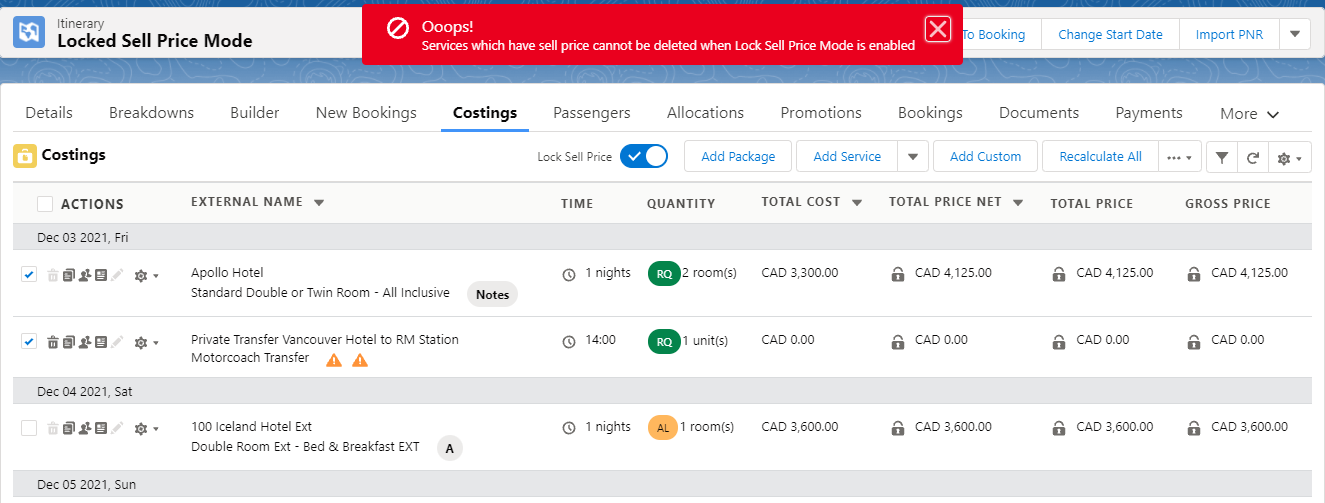
The same message appears when trying to delete services from Costings that have a selling price:
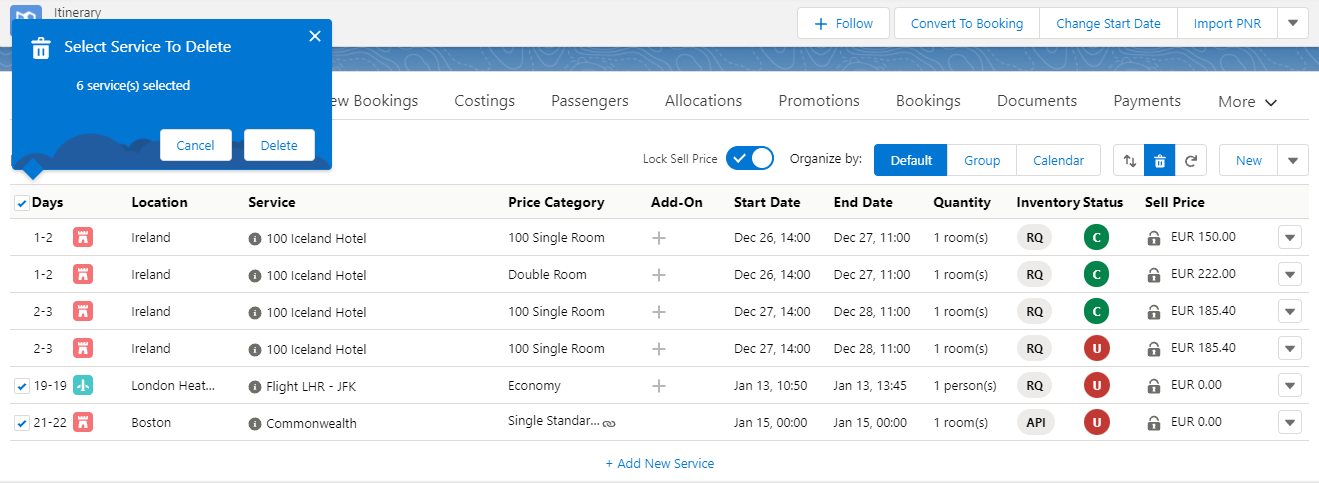
When performing a bulk delete action in Builder, Services with selling prices are not available for selection so that they cannot be deleted:
To keep the Itinerary total amount unaffected, changing the price category is not allowed when the Lock Sell Price Mode is enabled for any service that is already saved on the Itinerary, whether it be an internal service:
a flight placeholder:
or a service of a 3rd-party Supplier:
How to Enable:
The Lock Sell Price mode feature is by default disabled and not available to users. In order to enable the feature your Administrators need to follow the following configuration steps:
Set the “Enable Lock Sell Price on Itinerary” setting to True in the App Settings
Provide read and edit access to the Lock Sell Price Mode field on the Itinerary object to users who build Itineraries
Persistent Editing of Documents
Sales / Content & Documents SetupKT-6607
There are known issues with this feature, we recommend that you wait with adopting this issue until it has been fixed.
In this release we are pleased to announce a much anticipated feature which allows changes and personalisation to Itinerary Documents to persist between different document versions. Sales users who personalise Documents on the Itinerary to fit the interests of their customers previously had no way to keep their edits for future use in further Documents on the same Itinerary. Starting from this release, the edits made to a Document are preserved onto the next version of the Document within the same Itinerary. Also, edits made to the content shared between Document types, regardless of Stage, are preserved onto other Document types within the Itinerary, given that Templates that are selected to generate the Documents use a component of the same type and instance name. Furthermore, when cloning an Itinerary together with the Documents, the edits in the cloned Documents also persist and can be re-used in further Documents created for the new Itinerary.
How to Enable:
1. Set the “Enable Document Edit Persistence” setting to True in the App Settings
2. Make sure that names are added to the following components in the existing Templates if you want edits made to them in the Itinerary Documents to be preserved onto the next versions:
KT Agenda
KT Repeat
Destination Component
Library Component
HTML
3. Provide read, create and edit access to the KObject object to users who manage Itinerary Documents
Enhancements
Bookings: Change Agency & Channel on a booking once it is in "booked" status
Sales / Search, Cost, BookKT-6802
Previously a change of Account or Channel was not allowed on any Itineraries that had been converted to a booking and had the Booking flag set to True. Now this action is allowed for users who have “Can edit Itinerary Channel and Account” custom permission assigned to their profiles or permission sets.
How to Enable:
Add “Can edit Itinerary Channel and Account” custom permission to profile or permission set of users who need to change Channel or Account on Bookings.
Building an Itinerary with keyboard - Part I
Sales / Search, Cost, BookKT-6669
We are happy to announce that we have started to work on keyboard shortcuts to allow you to build an Itinerary with your keyboard. In this release we introduce the first part which will allow you to add new lines to the Builder and save changes with your keyboard using the following shortcuts:
Shift+n to add new lines to Itinerary Builder
Shift+s to save changes made in Itinerary Builder
Extend Manifest Feature
Operations / FIT Supplier OperationsKT-6837
In this release we introduced new fields on the Manifest object: Date From, Date To, Manifest From, and Manifest To. The values defined in these fields will help to filter Itinerary Items down to those matching the specified dates when adding them to the Manifest record.
How to Enable:
Provide read and edit access to the Date From, Date To, Manifest From, and Manifest To fields on the Payment Schedule object to users who manage Manifests.
Improve Itinerary builder loading performance
Sales / Search, Cost, BookKT-6662
We have taken steps to improve the time it takes to load Itinerary builder. The effect should be most notable on orgs with a large number of locations and Itineraries with a large number of items.
Net & Gross Payment Schedules
Sales / Search, Cost, BookKPS-248
In this release we have relabelled the Amount field on the Payment Schedule object to Amount Gross. Along with making both Amount Gross and Amount Net fields available when Gross Invoicing is disabled to allow both Client and Agent facing documentation to be generated for agencies that pass on the documentation directly to clients. This eliminates the need for users to toggle Gross Invoicing from disabled to enabled in order to generate Itinerary Documents with Net Amount figure for Agent and Gross Amount figure for Client respectively.
How to Enable:
Provide read and edit access to the Amount Gross field on the Payment Schedule object to users who build itineraries and generate Documents
New Metadata
For a full overview of new metadata introduced as part of this release, please refer to our Core Data Model Changelog.
Minor Changes
Please note that the [KT-XXXX] and [KPF-XXX] references shown are for Kaptio Use Only.
[KT-5277] We now provide an ability to edit profitability periods in the Profitability Setup. Users can now amend the Valid From and To dates when editing the Profitability Book. The same change was made to Inflation Books.
[KT-6786] From now on if the Close Date has a value on a Quote Itinerary, it is no longer overridden with the current date when the Itinerary is converted to Booking.
Related support ticket: KHELP-8058
[KPL-204] We improved the popovers in the Builder and Supplier Bookings screens so that they are now always placed and fully accessible within the viewport.
[KPL-619] We now provide users the ability to change the external name of confirmed API services in the Builder.
[KPL-626] When adding Activity or Transfer services that have Time Schedules enabled using the Service Search, the Time Schedule is now respected, and the service gets the Time From from the Schedule unless the 3rd party Supplier provides a restricted list of departure times.
[KPL-668] From now on the cost rate, if present, is shown for the service added to the basket in the Service Search app.
[KPL-685] In order to simplify the investigation of possible issues when searching, booking and cancelling Services of 3rd party Suppliers, we have added the Session Id, which is needed for tracking API requests, to the UI of the Service Search app where you can view it by clicking on the Help icon. In the Book Services and Cancel Services modals, you can view the Session Id in the error message popover. The Session Id must be passed to Kaptio support when logging issues related to the searching, booking and cancelling Services of 3rd party Suppliers.
[KPL-699] We changed the order in which Services appear in the Service Search results. Now services which have an identical price are sorted alphabetically.
[KPL-736] Previously we sent an Itinerary No as a reference number in a reservation request to a 3rd party Supplier. This number didn’t provide much value, so from now on the Itinerary’s Version Number is sent as a reference number.
Related support ticket: KHELP-8127
In this release we introduce a tab for the Flight Booking Source object as the tab was missing when we introduced the object in the last release. In case a custom tab for the Flight Booking Source object has been created in your org please make sure to remove the tab prior to the release being installed to your org.
Bugs Fixed
Please note that the [KT-XXXX] and [KPF-XXX] references shown are for Kaptio Use Only.
[KT-4611] We have fixed a few usability issues for Reseller Statements and Bulk Payments. Issues such as adding help texts, making sure field labels and field values are differentiated.
[KT-5662] We fixed an issue when the dates in the Passenger Allocations screen were sorted incorrectly.
Related support ticket: KHELP-8002
[KT-5692] We fixed an issue when the Dynamic Deposit setup on the cloned itinerary was not derived from the Account/Channel payment settings as expected but got hard-coded values.
Related support ticket: KHELP-5199
[KT-6312] We fixed an error that occurred when overriding prices in Costings on a service that has multiple instances of the same add-on.
Related support tickets: KHELP-7301, KHELP-7631
[KT-6522] We fixed an issue when the “Maximum view state size limit exceeded” error occurred upon editing large itinerary content documents.
Related support ticket: KHELP-7112
[KT-6541] We fixed a Javascript error in the Itinerary Content that caused failure of the tab layout.
Related support ticket: KHELP-7324
[KT-6634] We fixed an issue when the currency of the add-on on the PNR itinerary item was showing incorrectly in the Builder and Costings. Add-ons on PNR itinerary items should now be matching the selling currency of the itinerary.
Related support ticket: KHELP-7817
[KT-6653] We fixed an issue when payments made on the primary booking were not re-allocating properly after merging an amendment where the Total Amount had been reduced.
Related support ticket: KHELP-7890
[KT-6660] From now on the Deposit Amount on the newly created amendment itinerary is carried over from the primary booking to avoid the deposit showing as 0 in documents on amendment itineraries.
Related support ticket: KHELP-7868
[KT-6720] Fixed an issue when loaded prices loaded in Price Manager dependent on occupancy were not calculated correctly in the Builder.
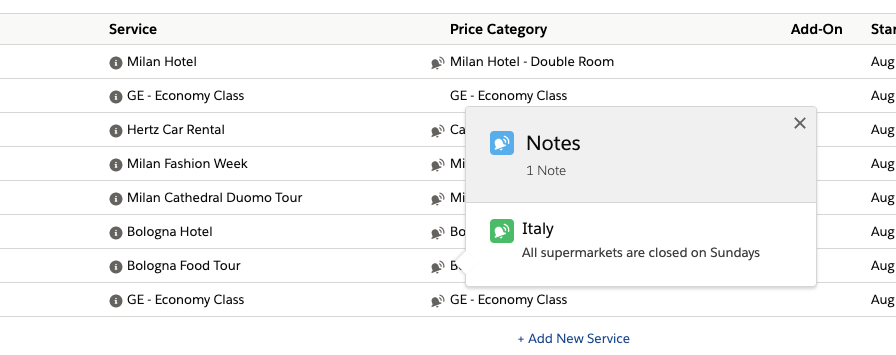
[KT-6724] From now on Service and Location notes in the Builder are shown correctly formatted when the notes include HTML.
Related support ticket: KHELP-7958
[KT-6746] We fixed an issue when an infant Kaptio passenger could not be mapped to a PNR passenger if their Passenger Type Code was INS.
Related support ticket: KHELP-7973
[KT-6763] We fixed a few usability issues in the Kaptio Notes creation or edit process. Now both the Channel and Price Category fields are searchable, as well as special characters being searchable in the Service and Location fields. Name field has been made mandatory. Furthermore, we have fixed an issue when cloning a Service Note and changing the Service, the correct Price Categories should be available in the Price Categories field based on the newly selected Service. Previous Price Category selection on service notes should now also be displayed correctly in the UI as well as Scope for both Service and Location notes. Last but not least when creating a note from a specific Service the Service is now prepopulated on the note being created.
We will be doing further enhancements for the new Note modal in one of the upcoming releases and we do have some known redirection issues which occur when saving a note from a particular service or cloning a note from a service. Those will be addressed at a later date.
Related support ticket: KHELP-8123, KHELP-8137
[KT-6776] We fixed an issue when all applicable pricelists were not available for selection in Costings even though prices were loaded against a given pricelist.
Related support ticket: KHELP-7980
[KT-6785] From now on if Close Date on a Quote Itinerary has been populated, the value from there is taken into consideration when calculating prices. This applies for prices or discounts which are loaded based on Booking Dates.
Related support ticket: KHELP-8058
[KT-6788] We fixed an issue when the selection of a Service Departure on a Cruise or Rail item was not saved on the item if the previous Departure had exactly the same dates.
Related support ticket: KHELP-8041
[KT-6794] Email Templates that are not available for use can no longer be selected in the Channel Emails settings, Supplier Settings and Reseller Statements on the Business Unit, as well as in the Kaptio Email Composer. Also, Email Templates saved in the user’s private folder are no longer available for other users.
Related support ticket: KHELP-8066
[KPL-642] We fixed an issue when the Full External Name of an Itinerary Item was not updated correctly after changing the existing Service of a 3rd party Supplier to another.
[KPL-642] We fixed an error that occurred when saving several Services in the Builder if one of them was a Flight Placeholder.
Related support ticket: KHELP-8083
[KPL-642] We fixed an issue where single-day services added to the Builder defaulted to an overnight stay e.g. 1-2 is shown in Day column.
Related support ticket: KHELP-8085
[KPL-667] We fixed an issue which occurred when discarding the selection in Service Search was still updating the service line in Builder.
[KPL-675] Fixed an issue when the occupancy was set incorrectly in the Service Search app if editing a service to which a Youth passenger was assigned. For the fix to be effective on the org, the value should be set for the setting “Max Child Age in Service Search” that is available in Kaptio Settings in the ‘Trip & Itinerary Settings” tab. That value specifies the maximum age which is a threshold that distinguishes an adult from a child in the Service Search app. For the Youth passengers case, that value should be set equal to the maximum age of the Youth channel role.
Related support ticket: ATD-1031
[KPL-695] Fixed an error that occurred when adding Activity and Transfer services to the basket in the Service Search app when On Request filter was applied.
Related support ticket: KHELP-8072
[KPL-700] We fixed an error that occurred when selecting a Meal Plan on the Service that is provided by a 3rd party Supplier.
[KPL-711] Fixed an issue when a cloned Service of a 3rd party Supplier became disconnected from API after saving the Builder.
Related support ticket: KHELP-8068
[KPL-713] Fixed an issue when the occupancy on the cloned service of a 3rd-party supplier was shown incorrectly when entering the Service Search for the cloned service.
[KPL-715] From now on when booking Services of 3rd party Suppliers and choosing another option on a Service because the previous one became unavailable the Passengers' allocations are always kept for the newly selected option.
Related support ticket: KHELP-8078
[KPL-717] In this release we have fixed an issue which presented itself by custom Confirmation Statuses not being shown for Itinerary items in the new Supplier Bookings screen.
Related support ticket: KHELP-8073
[KPL-718] In this release we have fixed an issue when the Supplier Request Emails could not be changed on an individual Itinerary Item in the new Supplier Bookings screen.
Related support ticket: KHELP-8075
We fixed an error that occurred when booking another option on the API activity or transfer that was no longer available.
[KT-6723] From now on popovers appearing in the Builder no longer obscure the Salesforce Call Center utility bar
Related support ticket: KHELP-7911
[KPL-1316] We fixed an issue when the flight number was not updated on the PNR Flight Segment upon PNR Refresh.
Related support ticket: KHELP-8125
2021 14.5
2021-09-30Minor Release
Enhancements
Change Start Date Lightning Action
Sales / Search, Cost, BookKPF-620
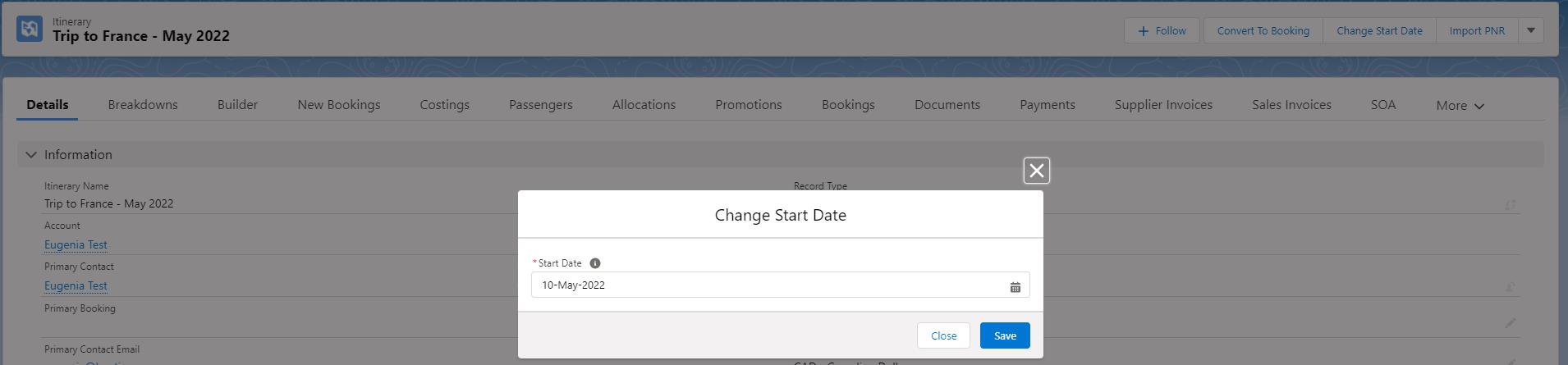
For our customers who have enabled a lightning page for the Itinerary object we have pleased to announce that we now have a lightning action to Change Start Date. When the Change Start Date button is clicked a modal will pop up allowing users to select a new start date and services in the itinerary will be moved accordingly.
How to Enable:
Your Salesforce administrator will need to update the page layout used in your Salesforce environment for the Itinerary object to include the new Change Start Date lightning action.
Flight Booking Source Object
Sales / Search, Cost, BookKT-6559 / KT-6560
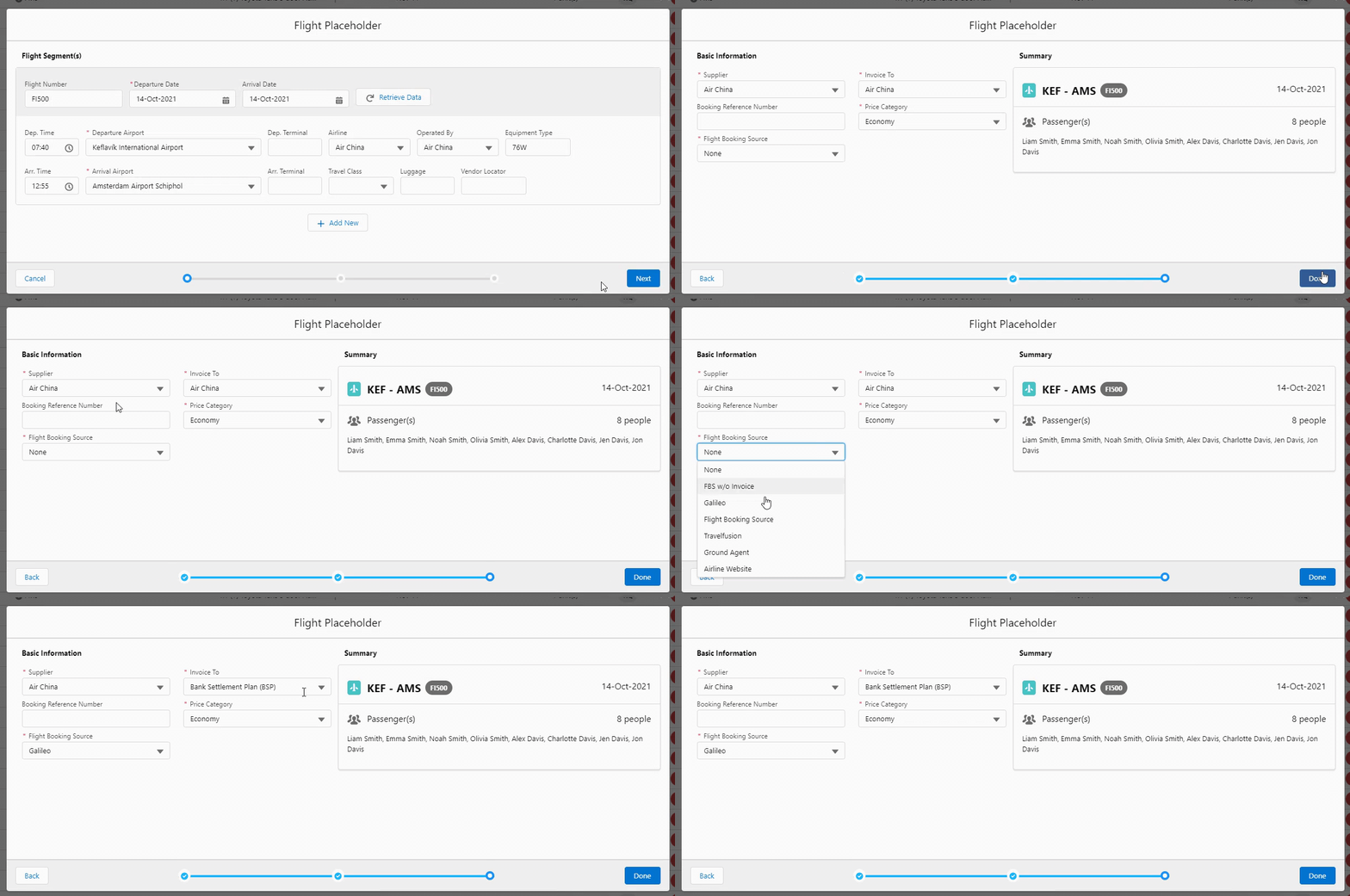
In this release we have introduced a new object called Flight Booking Source. The aim with this object is to enable our customers to automate the ‘Invoice To’ selection based on the Flight Booking Source selected in the Flight Placeholder modal.
How to enable:
First of all, users that are allowed to configure which Flight Booking Source should be available need to be granted access to the Flight Booking Source object, as well as have the object tab enabled for them.
After being granted access, the user can navigate to the Flight Booking Source tab and create Flight Booking Source records. A record should be created for each value required in the Flight Booking Source picklist, where the ‘Flight Booking Source Name’ represents the value visible to users in the Flight Placeholder modal.
On the Flight Booking Source Record users can define an ‘Invoice To’ option to set a default Invoice To based on the Flight Booking Source selected. If no ‘Invoice To’ is defined the Invoice To will default to the Supplier on the Flight Placeholder Itinerary Item.
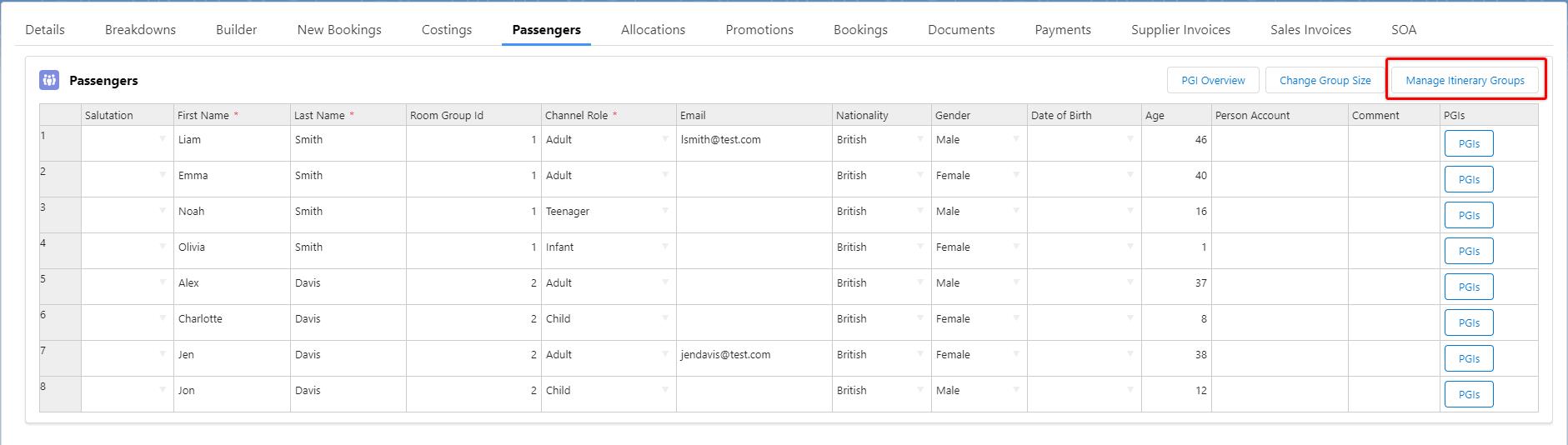
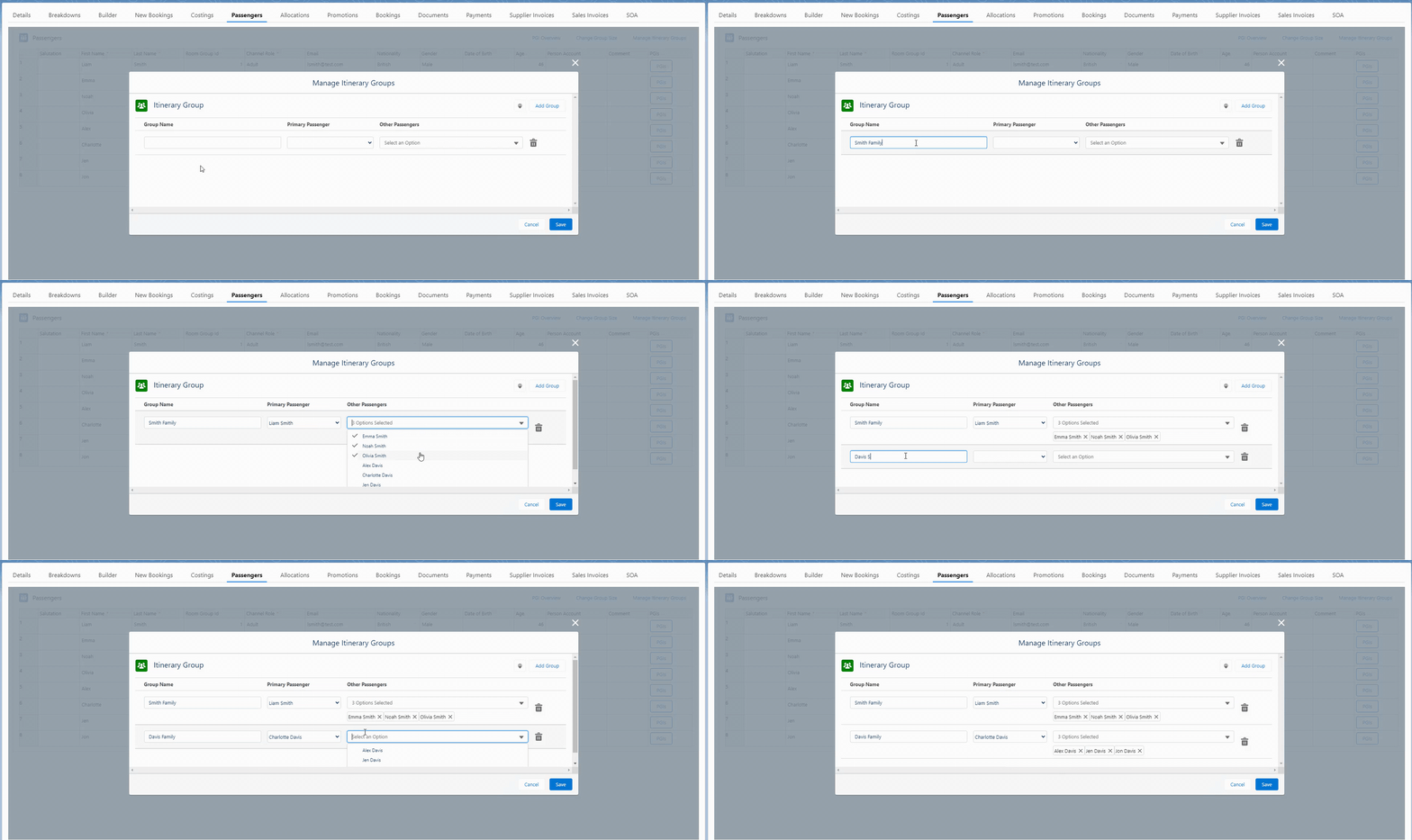
In this release we introduce a new user interface to manage itinerary groups which is accessible via the Manage Itinerary Groups button on the passenger screen:
In the new Manage Itinerary Group modal users can create an itinerary group, assign a Primary Passenger as well as other passengers all in one place. Please note that the Primary Passenger selected for each of the Itinerary Groups holds no specific functionality at this point. However, in our upcoming releases we will be introducing functionality related to the Primary Passenger, more on that later.
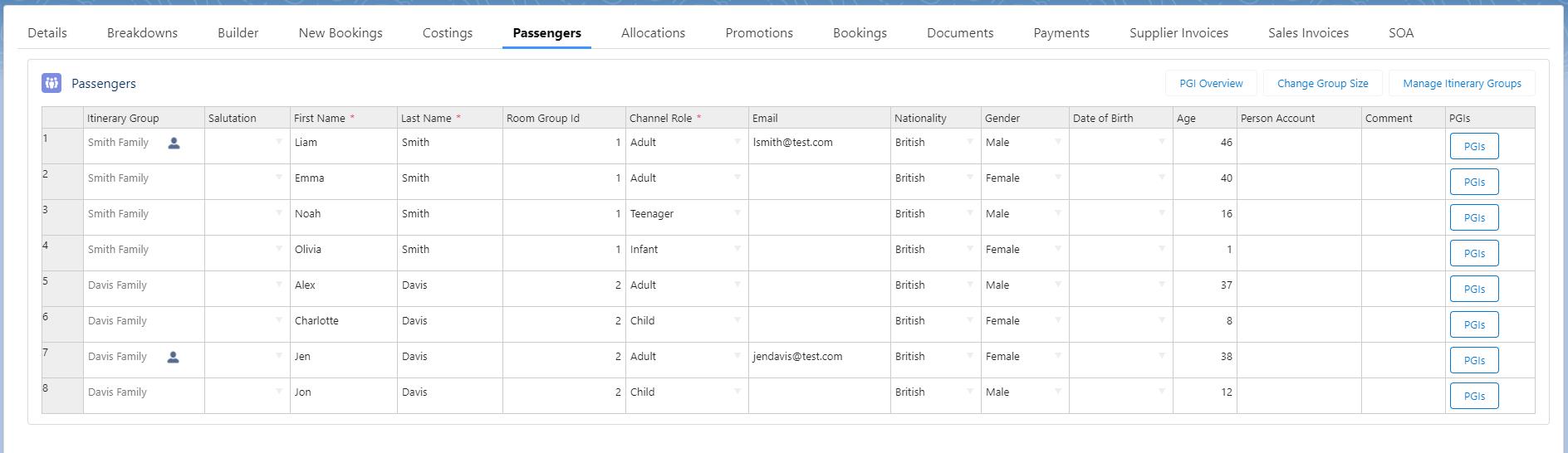
When Itinerary Groups have been created and saved, they will show in the Passenger grid with the Primary Passenger for each group identifiable with a person icon beside the Itinerary Group name.
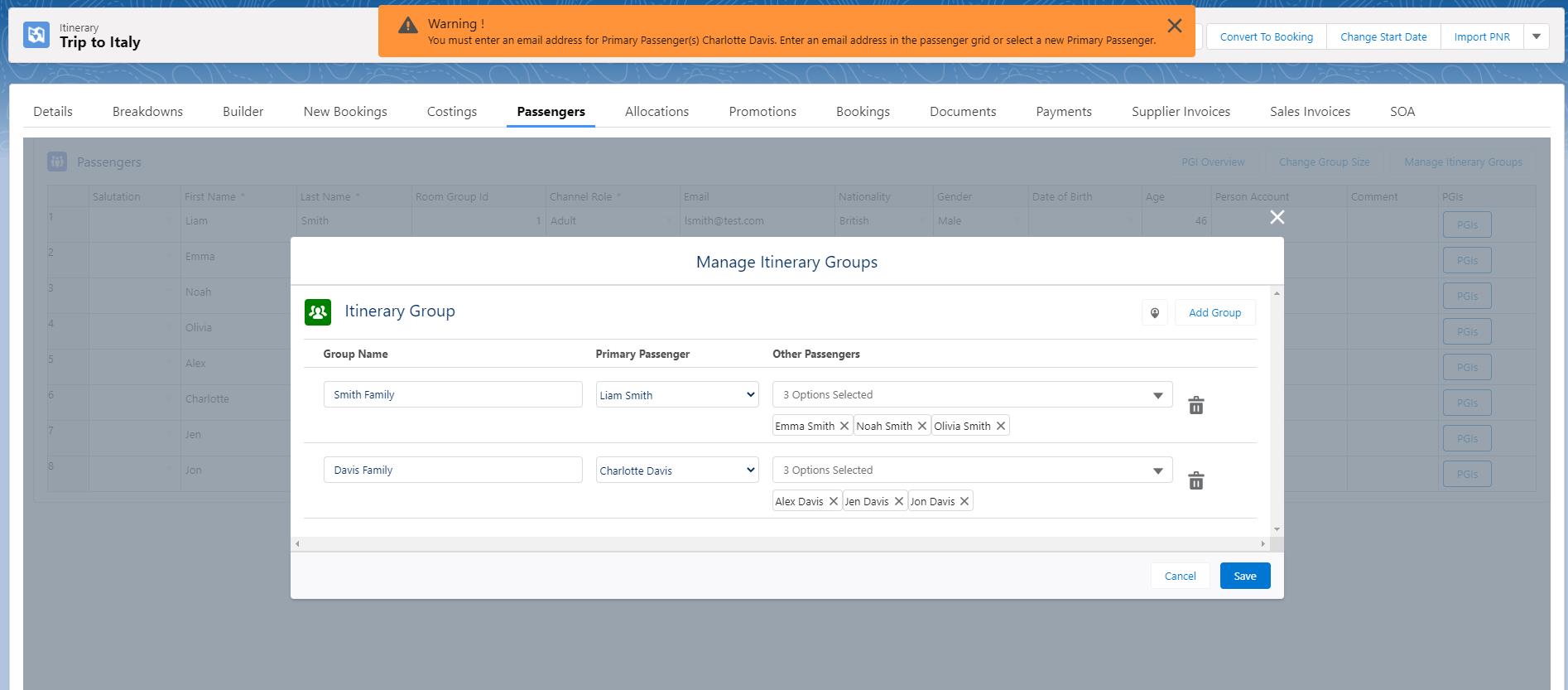
The Primary Passenger assigned to an Itinerary Group is required to have an email address. If the Primary Passenger does not have one then users may expect a validation as shown on the picture below.
Note Management: Kaptio Notes
Product / Services SetupKT-6470
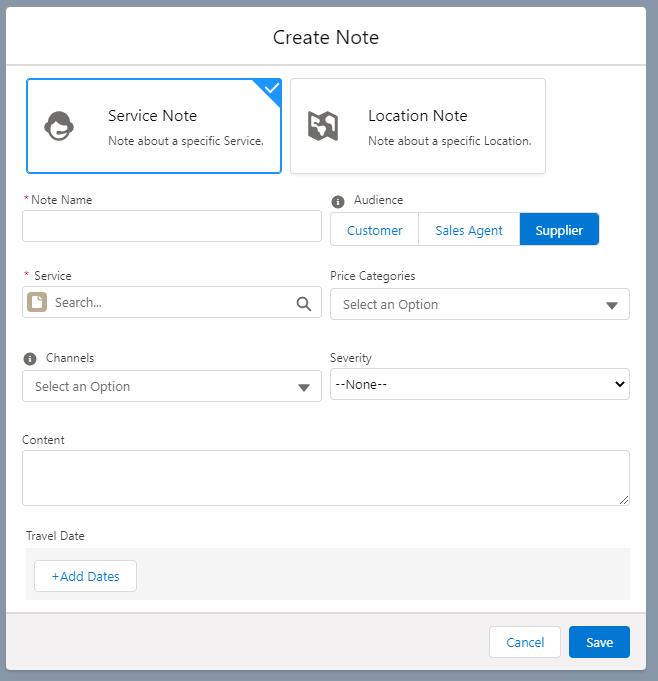
In this release we have simplified the approach for creating notes on Services and Locations. They can now be created from the Kaptio Notes tab that is available under the Kaptio Travel Settings app, which is more efficient from a maintenance, usability, and consistency perspective.
We have relabelled the current Note object to Kaptio Note and retired the Location Note to make it easier to create, view, and edit all the notes in a single place. We also introduce two record types for Kaptio Notes: Service Note and Location Note to leverage a single object for two types of notes.
Along with the new Kaptio Notes tab, we have enhanced the User Interface for creating notes to support our users in creating different types of notes in a single place:
As you may notice from the screenshot above, we have also relabelled the field that was previously known as ‘Scope’ to ‘Audience’ to clarify the purpose of the field. Currently we only support displaying notes to your Sales Agents in Costings, or our pilot feature: Itinerary Builder, (which is when you set the Audience field to Sales Agents).
However in our upcoming releases we will be adding support for Kaptio Notes to be displayed in client documentation as well as on supplier requests. This is where the Audience field will play a key role, but more on that in later release notes. Stay tuned.
How to enable:
The automatic post-install script will set the Service Note record type on all your services’ notes. Please contact Kaptio Support if you need to migrate the existing Location Notes records to the Kaptio Note object.
We recommend that users who manage Service and Location Notes have a) the Service Note and Location Note record types in the Kaptio Note object assigned to their profiles and b) have the new Kaptio Notes tab enabled if your users do not use, or have access to, the Kaptio Travel Settings app.
Pick up and Drop off for Transfers improvements
Sales / Search, Cost, BookKT-5885
In this release we have made improvements to how pick-up and drop-off services are re-evaluated when changing the start date of an Itinerary.
For services with Linked Services enabled but Allow Own Arrangement = false. When they get new dates and the linked pick-up and/or drop-off services still have matching linked services seasons setup, the Itinerary Item maintains the linked Pick-up / Drop-off services as well as locations and instructions. When the same services get new dates and there are no longer matching seasons setup, users may expect to see a warning message: “Pick-up/Drop-off is not available for {Service Name}, please review“
For services with Linked Service enabled but Allow Own Arrangement = True, the Itinerary Item maintains the linked Pick-up / Drop-off services as well as locations and instructions when the service dates are changed.
Support internal search results to support booking out of range services
Sales / Search, Cost, BookKPL-655
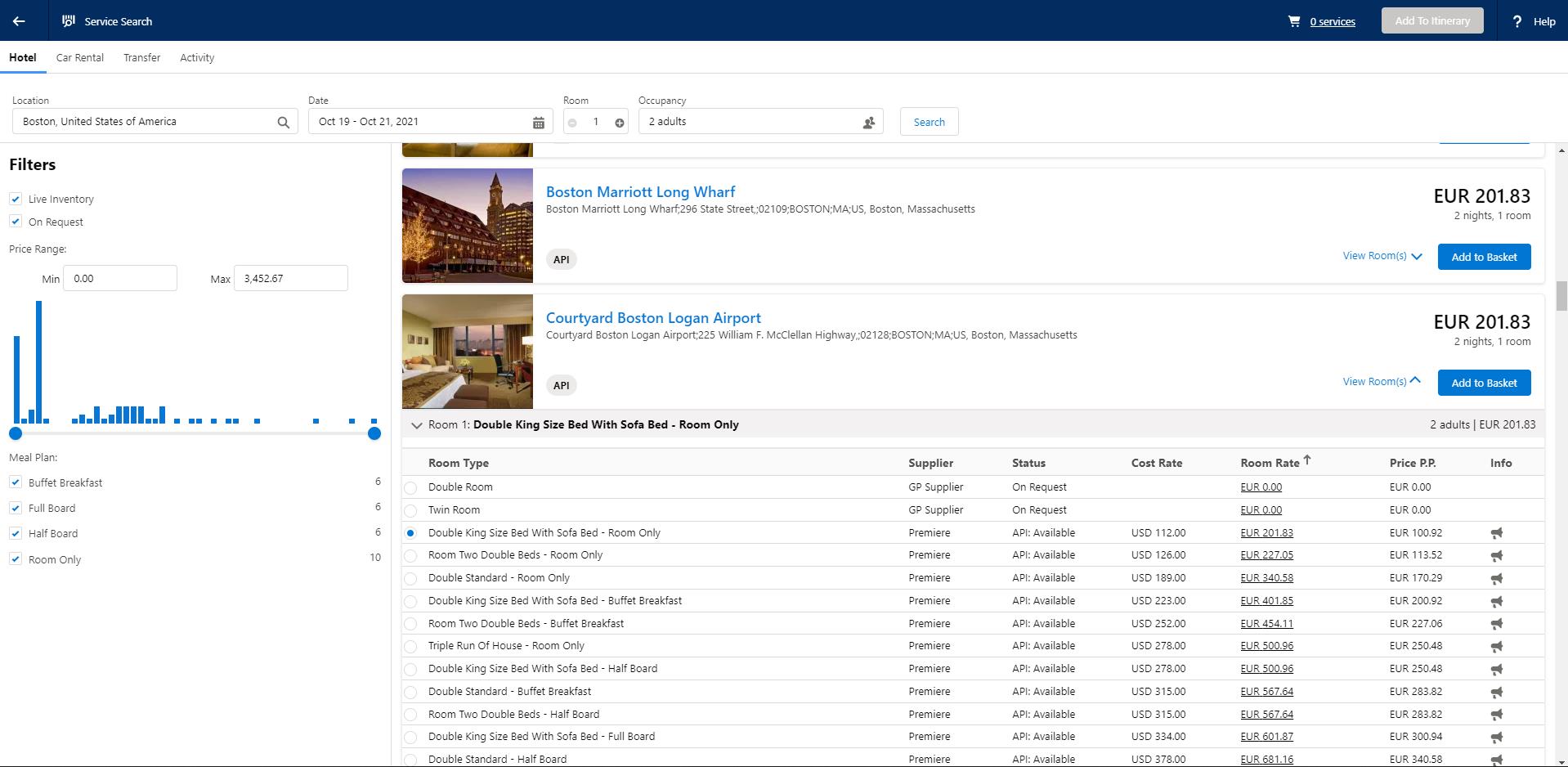
In this release when performing an Accommodation search, only Live inventory (API) will be searched by default. It is now possible for the user to pick filters to choose if Live inventory and/or search On Request inventory from internal services.
When View Rooms is selected for a search result, a combination of both Live inventory and/or On Request options will be displayed - depending on the specified filters that have been selected.
If On Request is selected as a filter and no priced availability is available these will appear as zero based options, as shown in the screenshot below.
Any Live inventory options returned can be identified through the “API: “ prefix that is displayed in the status column.
An additional Cost Rate column is also now visible that displays the cost rate in the suppliers currency for each option, if available.
New Metadata
For a full overview of new metadata introduced as part of this release, please refer to our Core Data Model Changelog.
Minor Changes
Please note that the [KT-XXXX] and [KPF-XXX] references shown are for Kaptio Use Only.
[KT-6512] In this release we have made improvements to the way Salesforce duplicate rules work with Kaptio Travel functionality where person accounts are created automatically, in use cases such as:
Converting a lead to trip
Creating a person account from the Passenger grid with Person Account Setting Schemes.
Prior to this release where our customers had Salesforce duplicate rules configured for the Person Account object, users experienced conflict in the use cases mentioned above when potential duplicates were detected.
Users may now expect a similar flow when duplicates are detected for the mentioned use cases as they face when using standard Salesforce functionality, like creating a Person Account from the Account Tab. Example:
If a duplicate rule is set to ‘Alert’ only then the user will get an alert but is able to continue by confirming their action or clicking ‘Save’ again.
If a duplicate rule is set to ‘Block’ users from creating a duplicate then the user will get an alert and is blocked even if they try and confirm their action again.
Related support tickets: KHELP-6922
[KT-6652] We have now added the Nationality field on the Account object to the Person Account Mapping Fields fieldset so that the Nationality field can be mapped between a Passenger and Person Account using our Person Account Setting Schemes.
[KT-6733] We have made improvements so fields from the fieldset: Field on KT Agenda Sidebar can now be included in PDF versions of Content Documents.
Related support ticket: KHELP-4681
[KT-6166] We have made improvements to the Flight Placeholder which means now when users set a Departure Date in the Flight Placeholder modal by selecting a date manually or retrieving flight via API the Arrival Date is automatically populated with the same date as the Departure Date. The Arrival Date can of course be overwritten with a different date if need be, however, this should prevent the Arrival Date being wrong.
Related support ticket: KHELP-7737
[KT-6561] In this release we have made improvements to the Passenger Allocation screen and now exclude Itinerary Items with Mode = Cancellation.
Related support tickets: ATD-1012
[KT-5748] We have made the Channel field a required field on the New Itinerary Screen.
[KT-6523] We have made an exception so that for Merged or Rejected Amendment records that are locked for editing, the Usable as Template field can still be updated.
[KPL-610] We added the ability to add the meal plan dropdown menu to the Price Category in Builder for 3rd party services.
[KPL-630] The PNR fields were adjusted to take into account customer’s different time zones. The Ticket Date field was changed to include time, and the Ticket Deadline Date and Ticket Deadline Time fields were merged into one field.
Related support ticket: KHELP-7884
[KPL-629] In this release we fixed an issue where editing an API service in the Service Search app didn’t trigger the appearance of Save/Cancel buttons in the builder.
[KPL-624] Historically services in the basket are displayed in the order by which they are added. Services in the basket will now be shown in the same order as the builder, this means that earlier services are shown first and accommodations shown at the end of the day.
E.g.transfer 10 Sep 18:30
activity 10 Sep 19:00
transfer 10 Sep 20:30
accommodation 10 - 15 Sep
activity 12 Sep 10:00
transfer 15 Sep 09:00
[KPL-603] In this release price override items are no longer shown on Supplier Bookings screen. Price override items are items that are inserted automatically once a user overwrites a final price for a Price Breakdown Group. The price category used as the price override items is defined in app settings in the Price Breakdown Default Override.
[KPL-564] When additional questions are provided by a supplier through the API they can optionally use validation to check if the provided answer is valid. The validation failure message has been improved in these scenarios, to provide clearer feedback about what needs to be corrected.
[KPL-627] Historically the behaviour of itinerary items in the builder and their confirmation method in new supplier bookings were controlled by the presence of the service mapping tables. This way the items that were added to the itinerary before they became connected to Connect no longer behave as internal services.
Now the presence of the Connect Option Id on the item is used to determine if it should behave as an internal service.
Related support ticket: ATD-1027
[KPL-623] Activities & Transfers in Passenger Allocations
Historically the system doesn’t allow changing passenger allocations on API activities and transfers with a Confirmed status.
API activities and transfers that have Waiting List confirmation status also now do not allow for passenger allocations to be changed.
Accommodations in Passenger Allocations
Historically the system triggers an unconfirmed amendment modal when changing passenger allocations on API and internal accommodations having Confirmed/Confirmed Amendment status only.
This behaviour now also occurs when the status is set to Waiting List
All services in Passenger Grid
Historically the system triggers an unconfirmed amendment modal when changing passenger data if that passenger is assigned to services having Confirmed/Confirmed Amendment status only.
This behaviour now also occurs when the status is set to Waiting List
Related support ticket: ATD-1022
[KPL-613] When a service has been cancelled by the supplier, and when the supplier booking is refreshed, the correct Confirmed Cancellation status is set and the Cancellation mode and prices are updated.
[KPL-611] In this release when the connected option of the API service is selected in the Service Search app and is added to the builder, the line will no longer have the default meal plan assigned to it.
[KPL-214] If during a reservation the service becomes no longer available, the user will be provided with the choice to book another option for that service.
If the Unavailable status badge and then Book Another option is selected in the Unavailable Reservation popover, the Service Search app will be launched with search inputs prepopulated.
If the Back button is selected in the Service Search app, the user will be returned to the Unavailable Reservation popover without any changes being applied to the itinerary item.
The Retry button is no longer available in the Unavailable Reservation popover.
[KPL-79] We now prevent actions being performed on itineraries with the following states:
Itinerary with an open amendment
Snapshot Booking
Rejected or merged amendment
Invoiced Itinerary
Itinerary with account year closed
[KPL-526] When a service is deleted from the basket, the green checkmark button will change back to display “Add to basket”
Bugs Fixed
Please note that the [KT-XXXX] and [KPF-XXX] references shown are for Kaptio Use Only.
[KT-6630] Prior to this release our customers who had promotions set up to target packages with the Departure Type set to ‘Anyday’ or ‘Season’ were experiencing issues getting their promotions to apply as expected. The issue has now been resolved and in such cases the Itinerary Item’s Date From is used as the Package Date From in the promotion request.
For Packages with Departure Type as ‘Fixed’ there should be no change as the Package Date From in that case is the Package Departure date.
Related support tickets: KHELP-7864
[KT-6548] In this release we have fixed an issue which occurred when a service had a mandatory add-on and the service dates were changed in Itinerary Builder. Now the add-on dates are changed accordingly instead of the add-on being added again on the new dates as was the case before.
Related support ticket: KHELP-7746
[KT-6556] In this release we have fixed an issue where emails ending with .travel were not being sent successfully.
Related support ticket: KHELP-7770
[KT-6589] In this release we have fixed an issue where services were duplicated in builder after a user received an error when trying to save and then attempted a second save successfully. The issue was only reproducible when the setting Enable Itinerary Builder Master Sort was set to True.
Related support ticket: KHELP-7618
[KT-5365] We have fixed an issue related to Language on Itineraries and cloning. Previously when cloning an Itinerary the language selection always defaulted to the default language of the Itinerary, even though on the Itinerary being cloned a different language had been selected. Now the language selection is passed on to the cloned itinerary.
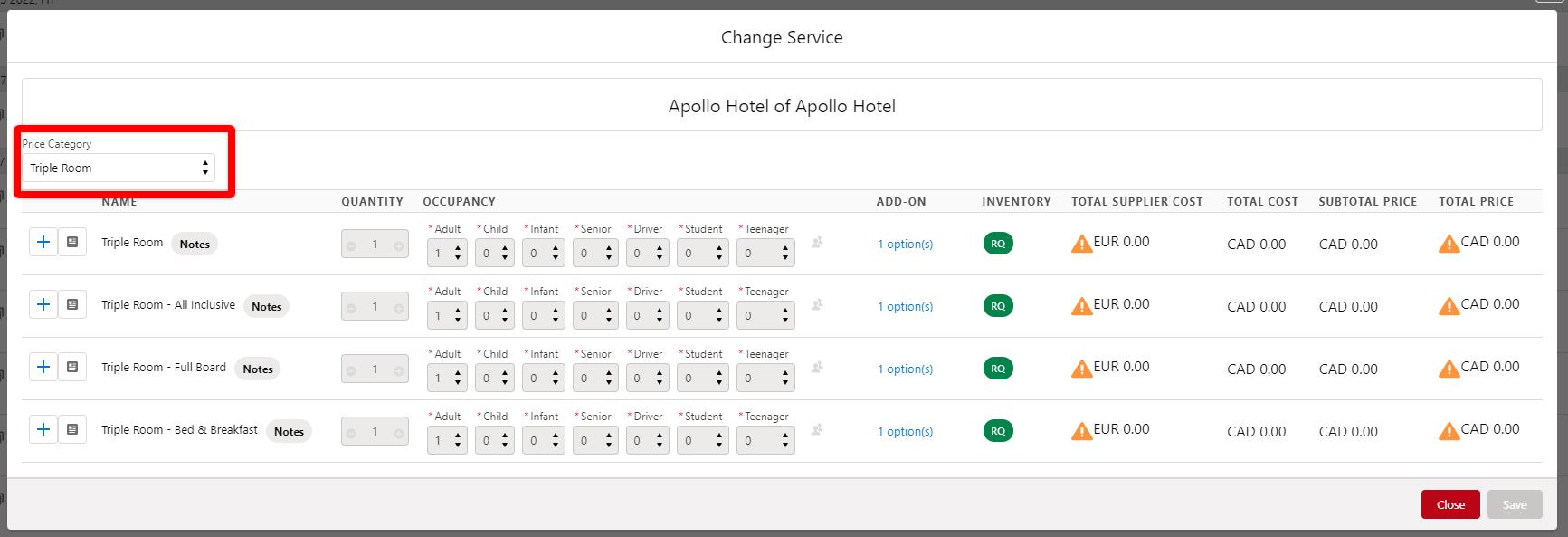
[KT-5813] We have fixed a CPU time limit error which occurred when users navigate to ‘Change Service’ modal in Costings. To fix the issue we have introduced a drop down where users can select the desired Price Category and we will present the user with possible matches of a meal plan.
[KT-6513] Previously users were facing CPU time limit errors when cancelling large itineraries. To fix the issue we have moved the cancel operation for Itineraries to asynchronous mode when using the ‘Cancel’ button.
Related support ticket: KHELP-7548
[KT-6534] In this release we have fixed an issue which occurred when Amendments were merged leading to the SOA Status being cleared and SOA Passenger Assignment removed from passengers.
Related support ticket: KHELP-7729
[KT-6558] We have fixed an issue where users faced an error when clicking ‘View Details’ for an Itinerary Items in classic costings. Note that this issue was not reproducible for our customers using lightning costings.
Related support ticket: KHELP-7756
[KT-5651] We have fixed an issue related to cloning a service by making sure that the field Content__c.APIName__c is ignored in the cloning process as the field requires a unique value.
Related support ticket: KHELP-6466
[KT-6597] In this release we have fixed an issue where Add-ons were added in a different currency than the related Itinerary Item after the default Itinerary Item currency had been changed to an alternative one.
Related support ticket: KHELP-778
[KT-6756] We fixed an issue where special characters were not searchable in Itinerary Builder.
Related support ticket: KHELP-8028
[KPL-618] We fixed an error where if a user selected anything other than the default price category for a PNR, and then amended any of the information on the ticket, the search could not find the PNR and users faced an Attempt to de-reference null object error.
Related support ticket: KHELP-7818
[KPL-662] We fixed an error when the process of booking a 3rd party service had been interrupted - for example if the user left the webpage halfway through confirming a reservation, the reservation was started but not completed. When the user went back to complete it, the cancellation policy would appear but would not present the option to ‘Skip’ or ‘Acknowledge & Book’.
Related support ticket: ATD-1024
[KPL-631] We corrected an issue that caused the selling price of a PNR to be calculated incorrectly once refreshed, if any Price Category other than the default was selected.
[KPL-659] We fixed an error that caused the occupancy to change from the original search criteria to the default occupancy for the itinerary after refreshing the services.
Related support ticket: ATD-1031
[KPL-628] An error was fixed that caused the Connect Reservation Id field to empty after an itinerary item was confirmed and then amended.
[KPL-625] We fixed an issue where, when an attempt to confirm a booking failed and was retried, a new booking was created rather than retrieving the original booking.
Related support ticket: ATD-1026
[KPL-621] An issue was fixed that prevented 3rd party accommodation with no cancellation policy from being confirmed.
[KPL-560] We fixed an error that occurred when an itinerary was refreshed that comprised 30 or more 3rd party services.
Prior to this fix, if an itinerary with 30 or more 3rd party services was refreshed it would fail.
[KPL-615] We fixed an issue where the user was unable to add a 3rd party service with pick up options followed by a 3rd party service with no pick up options to the basket.
2021 14.2
2021-09-08Major Release
Enhancements
Cancellation Overrides
Sales / FIT Trips & Itineraries SetupKT-6719
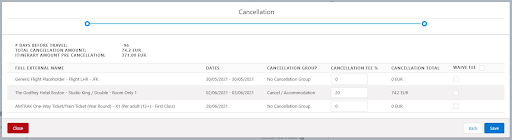
We have introduced the capability which allows users to amend the pre-defined cancellation percentages at itinerary item level when going through the cancellation flow which is initiated when clicking the ‘Cancel’ button.
This capability is not available to users by default. It depends on a Custom Permission labelled: ‘Can Override Cancellation Percentage’ which will need to be added to the relevant permission sets or profiles.
New Metadata
For a full overview of new metadata introduced as part of this release, please refer to our Core Data Model Changelog.
Minor Changes
Please note that the [KT-XXXX] and [KPF-XXX] references shown are for Kaptio Use Only.
[KT-6691] For itineraries that have reseller commission we now display both ‘Total Price Net by Passenger’ and ‘Total Price by Passenger’ in the Totals in Costings to give users a view of the passenger totals with and without reseller commission amounts.
Please note that the total by passenger sections are only visible if the costings layout in use has ‘Use Total By Passenger in New Costings’ checked.
[KT-6686] In this release we have introduced new fields related to reseller commission and tax. The new fields are as follows:
On the Itinerary Service object we have introduced the two following fields:
Total Reseller Commission Tax - This field shows the Reseller Commission tax amount for a particular Itinerary Service.
Subtotal Reseller Commission - this field shows the Reseller Commission excluding tax for a particular Itinerary Service.
On the Passenger Itinerary Unit Assignment object we have introduced the two following fields:
Total Reseller Commission Tax - This field shows the Reseller Commission tax amount for a particular Passenger Itinerary Unit Assignment.
Subtotal Reseller Commission - this field shows the Reseller Commission excluding tax for a particular Passenger Itinerary Unit Assignment.
Last but not least we have added similar fields on the Passenger object:
Total Reseller Commission Tax - This field shows the Reseller Commission tax amount for a particular Passenger.
Subtotal Reseller Commission - this field shows the Reseller Commission excluding tax for a particular Passenger.
[KT-6727] We’ve introduced a new field on the Email Queue object called Operation. The field indicates what type of action an email in the email queue relates to. The affected actions that create an email record are:
Content
Payment
Manifest
PaymentScheduleDeposit
PaymentScheduleBalance
SOAPublish
SalesInvoice
SupplierRequest
Bugs Fixed
Please note that the [KT-XXXX] and [KPF-XXX] references shown are for Kaptio Use Only.
[KT-6649] In this release we fixed an issue in Builder which users may have experienced in two ways: First when amending occupancy for services with unit of measure set to ‘room’ or ‘unit’, the updated occupancy was not saved properly. Second, if a service had prices in the price manager using occupancy modifiers for different price roles where it returned zero prices in Builder. The underlying cause was the same for the two scenarios which has been fixed.
[KT-6689] In this release we have fixed an issue where merging an amendment which included an accommodation service with Allow Day Use = True, caused an error.
2021 14.1
2021-07-30Major Release
New Features
GP Land Transfers/Activities
Product / Services SetupKPL-345 and KPL-236
Connected Activities/Transfers Inventory (Pilot)
Kaptio is proud to announce the pilot release of a long awaited feature: the ability to search, cost, book, modify and cancel connected Activity and Transfer inventory from selected integration partners.
The design of this new functionality is modular, so Kaptio can, in the future, easily and quickly add new Suppliers or Aggregators. The modular design means Kaptio can quickly respond to any issues with a particular Supplier, delivering changes or fixes to a single connection without impacting all 3rd Party Suppliers available through the service.
The Salesforce user interface is lightweight and uses the Kaptio Connect middleware, which manages the connectivity to the 3rd Party Suppliers for real time availability and processing results, including pricing and associated business rules (which are all configured in the Kaptio Salesforce environment).
Kaptio customers will need their own commercial agreements with any 3rd Party Suppliers they wish to use, and it will be the customer’s responsibility to acquire the necessary credentials from the Suppliers before the service can be activated.
This pilot release integrates with GP Solution’s GP Travel Hub, who have 11 Suppliers of events (Activities) and 6 Suppliers of Transfers globally integrated into their aggregation hub. For a detailed list of Suppliers please visit https://www.software.travel/platform/gp-travel-hub/suppliers/
With this release, we are launching new features related to the Connected Activity and Transfer Inventory feature and making it available to selected customers as a pilot feature. As part of a future release, we will announce when the feature becomes generally available but there is no official timeline in place at present.
Please note that 3rd Party Transfer and Activity connections work with our core Service Record Type of Transfer and Activity. If you have custom record types, it will not work.
Land Supplier & Gateways
From a setup perspective, to prepare your org for the feature, you will need to execute the following steps:
Submit a ticket to Kaptio Support with your org ID and ask to enable the Live Activities and/or Transfers Inventory feature. Our technical teams will then enable the feature in our API systems (please note you have to be a pre-approved pilot customer to get this feature enabled). Once the support team has confirmed the feature has been enabled on your org, you can continue with the next step.
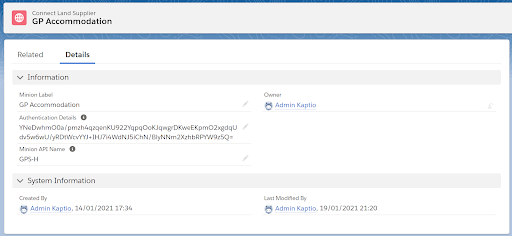
Find the Connect Land Supplier tab. This is where you will create an instance of your Supplier credentials. Please provide:
Land Supplier Name - the internal name of the Supplier system
Authentication Details - please provide the GP login credentials in the following JSON structure
{
"mode":"production",
"id":"your-gp-id",
"password":"your-gp-password"
}
Please note that after you click Save this information is tokenised and stored securely within our systems.
NOTE: The format is different for each supplier/minion in Connect (example above is for GP Solutions) .Please refer to our API documentation for further details.
Minion API Name - currently only supports “GPS-H”, which is GP Hub Hotels API.
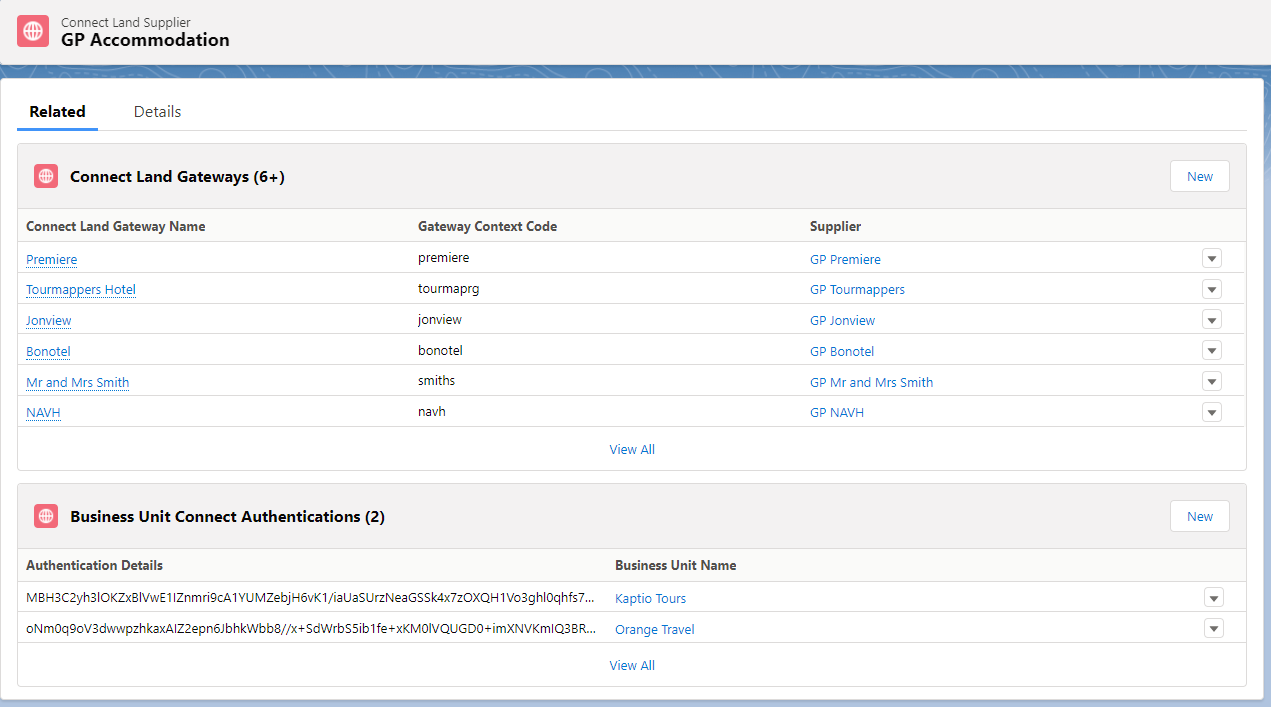
Once you have successfully created the record, click on the related tab where you can define specific Supplier Gateways (for example Jonview, Bonotel, HotelBeds) that are accessible through the GP Land Supplier credentials. Click on New Gateway and provide:
Connect Land Gateway Name: enter the Gateway Supplier eg, Jonview, Bonotel
Connect Land Supplier - this is set automatically to the land Supplier system whose credentials you will use.
Gateway Context Code: unique identifier of the Gateway in the Land Supplier system eg, JON, BON. For a detailed list of context codes please reach out to Kaptio Support.
Supplier: Defines the account that will be used as the Supplier and invoice To record for all the bookings made via the Gateway. Enter the Kaptio Account (Supplier record type required)
Is Active: check to flag an active Gateway
Default Email: the email that is passed to the Supplier as the email of the passenger. It is uncommon for an FIT tour operator to pass the end client’s email to the 3rd Party Supplier, therefore this email address will be passed instead.
NOTE: Please note that we also pass the email address of the Sales Agent that creates the booking at time of booking - so the Supplier is provided with 2 email addresses, the Sales Agent (stored at the booking level) and this Default Email (stored against the passengers within the booking).
Now that you have set up a Land Supplier and a Land Gateway, you can start to create mapping records against your Services.
NOTE: You’ll need to set up an Encryption Key too. This will be used to encrypt the authentication details on the Connect Land Supplier record. It should be set BEFORE you enter the authentication details in the Connect Land Supplier record. The value should consist of exactly 32 characters and can be anything you wish. But make sure you provide the Kaptio API Team with this key, so that they can configure the connection.
To enter the Key details, go to Setup, Custom Settings, App Settings and enter your key into the Encryption Key field.
Multiple credentials by Business Unit
Some land suppliers require different API credentials to be used for search and book services depending on the source market (that is represented as business units in Kaptio).
On the object Business Unit Connect Authentication, you can define credentials to be used for search and book of land services of a land supplier in a specific business unit.
When adding the authentication details, they must take the same format as on the main Connect Land Supplier screen (detailed above). You can select the Land Supplier and then link it to the relevant Business Unit. Validation is in place to ensure that the inserted Business Unit Connect Authentication doesn’t duplicate an existing record related to the same Connect Land Supplier and Business Unit.
Mapping Tables
Kaptio’s customers work with a curated list of Services and do not want their Sales teams and Agents to simply sell any activity or transfer that comes back from the integration partners. This is why, before you start searching for inventory, you will need to create mapping entries against your Kaptio Services. This is to ensure that you are mapping your Kaptio Service against a valid Service from the Supplier Gateway.
The mapping information is managed in the Service Mapping Table object. The table contains the following information:
Land Gateway lookup: a relationship to the Gateway you’ve now set up (as per previous steps). This is where we inherit the Gateway Context Code, which is passed into our Connect API when looking for inventory from that particular Gateway.
Service lookup: a relationship to the Kaptio Service that you are connecting to the Gateway.
Gateway Service Code: a value that represents the identifier of the Service in the Gateway system
Gateway Location Code: a value that represents the identifier of the Service’s location in the Gateway system
In order to effectively manage your mapping table, we have created a CSV loading template that can be used to import into your Salesforce org using Data Loader. This template can be accessed here (Link is directed to a Google Spreadsheet. Please click on File > Make a Copy or File > Download > Microsoft Excel (.xlsx) to use)
NOTE: We recommend that you map one 3rd Party Service to one Kaptio Service (one mapping entry per Service). This is because the 3rd Party Supplier sometimes returns identical descriptions for a Service’s price categories (options) and can cause issues for the Sales User when amending bookings.
Price Category requirements
If you have multiple price categories on your Service with different occupancy rules, you should set a default Price Category for 3rd Party Suppliers to a high number in the Max occupancy for Total number, number of Adults, Children and Infants. Set your sort order to 0, if you have existing entries starting with a sort order of 1.
Page Layout and Field requirements
Passenger grid: DoB is mandatory to make a booking with the 3rd Party Supplier, so you should add this field if it is not already there.
Service Mapping Table: recommended fields to add to the related list are Connect Land Gateway Name, Connect Land Supplier, Is Active, Gateway Location Code, Gateway Service Code.
Service Setup: You will need to add the Service Mapping Table related list to each record type that you will map to a 3rd Party Supplier.
Connect Land Supplier: Business Unit Connect Authentications related list should be added to the Connect Land Supplier page layout if you are using multiple credentials functionality. You are also recommended to add the “Is Active” on the page, so you can see when a Gateway is Active.
Itinerary Price Line object: Picklist values are required in the Entry Type field of the Itinerary Price Line object for setting the cancellation fee on the cancelled item. Picklist values are: COSTCANCELLATION and SUPCOMMISSIONCANCELLATION
Search & Cost
In order to use the 3rd Party Supplier connections, you need Itinerary Builder, and the new (Supplier) Bookings component enabled. We also make an assumption that you have pre-selected your Primary Locations in the Builder, and chosen a City as the location for your search.
The Service Search functionality in Builder will be, by default, disabled. In order to enable it, you can switch in the new setting, “Enable Service Search in Builder” in Kaptio Settings. You’ll find the new checkbox in the Trip & Itinerary Settings tab, Itinerary Settings section. If this is checked, you will see the Service Search link in the Service dropdown in Itinerary Builder.
Searching for a specific Activity
You can search in Itinerary Builder for a specific Activity, as well as multiple Activities, using the new Kaptio Service Search. If you are searching for a specific Activity, you can use the dropdown, or free-type field in the Service column:
The Service Search screen will open with the Location (City) as an uneditable field with the selected Activity only (based on total number of passengers in your Itinerary) . You can then amend your search dates, and passengers (if entering children or infants, the ages must be entered prior to searching) and Search again.
Searching for a specific Transfer
You can search in Itinerary Builder for a specific Transfer, as well as multiple Transfers, using the new Kaptio Service Search. If you are searching for a specific Transfer, you can use the dropdown, or free-type field in the Service column.
The Service Search screen will open with the Location (City) and Type (Group/Individual) as uneditable fields with the selected Transfer only (based on total number of passengers in your Itinerary) . You can then amend your search dates, add a time, and passengers (if entering children or infants, the ages must be entered prior to searching) and Search again.
View results (columns)
Results will display with a Lead-In price in the Quote Currency (including markup). You can view Content (including pictures and text from the external Supplier) by clicking on the Activity or Transfer name.
For Activities you’ll also see all of the options types by Supplier, Status, Total Price (including markup), Price PP (including markup), and any Additional information regarding contract information and cancellation policies in the loudspeaker icon. You can sort these columns by hovering over them and clicking.
For Transfers you’ll also see all of the option types (Group/Individual) by Supplier, Max Pax number for the vehicle, Luggage allowance (where applicable), Status, Total Price (including markup), Price PP (including markup), and any Additional information regarding contract information and cancellation policies in the loudspeaker icon. You can sort these columns by hovering over them and clicking.
Searching for multiple Activities
If you are unsure which Activities are available in a certain city, you can perform the Service Search to bring back multiple results. To do this, you can use the Service Search hyperlink at the bottom of the list when clicking on the Service column:
A Service Search popup screen will open showing the selected date and number of passengers. You can define your search here and click Search to continue. Multiple results (based on the date you entered) will be displayed with the Location (City) as an editable field. You can use this to switch between Locations if you have more than one Primary Location in the Builder. The number of passengers will be pre-populated with the details you entered in Itinerary Builder.
You can then amend your search dates and occupancy (if entering children or infants, the ages must be entered prior to searching) and Search again.
You can use the Filters to fine tune your search by Price Range.
You can click View Options against several Activities to see the price categories returned by the 3rd Party Supplier, or your own unmapped stock (if costs are loaded). If you are searching for multiple Activities, you will have the opportunity to expand and collapse the Options to see all of the price categories available to you.
Searching for multiple Transfers
If you are unsure which transfers are available in a certain city, you can perform the Service Search to bring back multiple results. To do this, you can use the Service Search hyperlink at the bottom of the list when clicking on the Service column.
A Service Search popup screen will open showing the selected date and time, and number of passengers. You can define your search here and click Search to continue. Multiple results (based on the date you entered) will be displayed with the Location (City) as an editable field. You can use this to switch between Locations if you have more than one Primary Location in the Builder. Transfer Type dropdown to defaults to All transfers. The number of passengers will be pre-populated with the details you entered in Itinerary Builder.
You can then amend your search dates, times, transfer types (All, Individual, Group) and occupancy (if entering children or infants, the ages must be entered prior to searching) and Search again.
You can use the Filters to fine tune your search by Price Range.
You can click View Options against several Transfers to see the options returned by the 3rd Party Supplier, or your own unmapped stock (if costs are loaded). If you are searching for multiple transfers, you will have the opportunity to expand and collapse the options to see all of the options available to you.
Adding to Basket & Itinerary
Select your Activity or Transfer options by clicking on the radio button, and then clicking Add to Basket. You can add as many Activities and Transfers as you wish to the basket before adding it to your Itinerary. You can view the Services in your basket and choose to remove them too. When you’re ready to add them to your Itinerary, click on Add to Itinerary and then save in the Builder.
For Transfers, you will sometimes be required to enter pick-up/drop-off points to send through to the Supplier. These will need to be entered when you click Add to Basket:
Once entered, you can continue to Add to Itinerary.
Creating Quote from Template
If you have a large Itinerary containing many 3rd Party Services, you can use the existing New Quote from Template functionality to copy over an Itinerary flagged as a template. You can also use the function in Itinerary Builder to insert a template.
When the new Itinerary is created, all Confirmed 3rd Party Services from the original Itinerary will be inserted into the Builder with a status of Unconfirmed. You can then shift dates, add new Activities, Transfers and so on. Just as today, you will be alerted to any issues with availability, and you will need to find an alternative Service to take its place.
Itinerary Builder
Once your selected Activities and Transfers have been added to Builder, you can take advantage of all of the rich functionality that already exists in Builder, like deleting and cloning services, shifting dates, adding Notes, as well as new functionality to re-check live availability and prices.
NOTE: All of the functionality below relates to pre-Booking:
Amending Price Category Name
The 3rd Party Supplier will provide descriptions that may not be suitable for your customers and documents. You can change the description by clicking on the Price Category, selecting the External Price Category name field and over-typing to a name that suits you. You can also select the Kaptio Price Category name from the dropdown if you use this on any screens or customer documentation.
Changing Option of existing line in Builder
If your customer wishes to change the option you have already quoted, you can simply click on the pencil icon a couple of times and look for a new one. It will have defaulted to your current option (if it is still available), so you simply have to select a new one and Add to Itinerary. And don't forget to Save! If you choose to discard your changes, the previous option will remain in your Itinerary.
Changing Activity or Transfer Option of existing line in Builder
If your customer wishes to change both the Activity or Transfer Options on the dates you have quoted, you can simply click on the existing Activity or Transfer and perform a new search. The Location will be uneditable but you can also change the dates if required. Simply select your new Transfer or Activity and Add to Itinerary. And don't forget to Save! If you choose to discard your changes, the previous Service will remain in your Itinerary.
Changing/shifting Dates
This functionality hasn’t changed but as you change dates, or shift by a number of days, the availability and pricing will be re-checked. You can read the article on how to move things around the Builder to familiarise yourself with the functionality.
Refresh Availability and Price
Our quick, comprehensive, can’t-live-without Refresh action will allow you to perform two key operations in one single screen. From the new (Supplier) Bookings component, you will be able to check availability of unconfirmed services and re-check the status of Confirmed/Waitlisted bookings. Below are examples of running it once at Quote Stage, assuming everything is Unconfirmed, and again at Booking Stage, assuming everything is Confirmed or Waitlisted, but there is nothing stopping you running it when the Kaptio Travel Booking has Services at different stages in their booking cycle.
Pre-Booking Refresh
When first adding Activities or Transfers to the Builder, they display with the prices at the time of quoting. In order to re-check the availability and prices, to get the most up to date details prior to making a booking, you can run the Refresh action in the new (Supplier) Bookings component against one or more Service lines. This feature will check if the quoted Services are still available and if there are any price changes. Carrying out a Refresh of Itinerary Items will not send new requests to book to the 3rd Party Supplier, but simply check whether the Service is still available at the price you quoted to the customer.
You can then Confirm all of your 3rd Party Services and Convert to Booking.
Post-Booking Refresh
When a Service line from the 3rd Party Supplier is in a Confirmed or Waitlisted status, you can run the Refresh action in the new (Supplier) Bookings component against one or more Service lines to check for any Supplier updates since the booking was made. This feature will check if the booked services still have the same status returned and if there are any price changes.
Carrying out a Refresh of Itinerary Items will not send new requests to book to the 3rd Party Supplier, but simply check for updates.
Waitlisted Service becomes confirmed
If the Service line in Builder was set to Waiting List in its original state, and the Supplier sends a Reserved status back, the new status will display as Booked in the modal and Confirmed on the Itinerary.
Waitlisted Service remains waitlisted
If the Service line in Builder was set to Waiting List in its original state, and the Supplier sends a Waitlist status back, the status will display as Waitlisted in the modal and remains unchanged on the Itinerary.
Waitlisted Service fails
If the Service line in Builder was set to Waiting List in its original state, and the Supplier encounters an error or sends a Failed status back, the status will display as Failed in the modal (you can click on this to Skip or Retry) and remains unchanged on the Itinerary (unless the Retry updated to Confirmed or Cancelled).
Waitlisted Service becomes cancelled
If the Service line in Builder was set to Waiting List in its original state, and the Supplier sends a Cancelled status back, the status will display as Cancelled in the modal and Cancelled Manually on the Itinerary, and and the Service will be removed from Builder.
Confirmed Service remains confirmed
If the Service line in Builder was set to Confirmed in its original state, and the Supplier sends a Reserved status back, the status will display as Booked in the modal and remains unchanged on the Itinerary.
Confirmed Service fails
If the Service line in Builder was set to Confirmed in its original state, and the Supplier encounters an error or sends a Failed status back, the status will display as Failed in the modal (you can click on this to Skip or Retry) and remains unchanged on the Itinerary (unless the Retry updated to Waitlisted or Cancelled).
Confirmed Service becomes cancelled
If the Service line in Builder was set to Confirmed in its original state, and the Supplier sends a Cancelled status back, the status will display as Cancelled in the modal and Cancelled Manually on the Itinerary, and the Service will be removed from Builder.
Closing the modal when only unconfirmed services are processed
When Services exist that have Unconfirmed or Unconfirmed Amendment statuses in the new (Supplier) Bookings component, if you attempt to perform a Refresh action on them, the Done and X button is always active.
Closing the modal when confirmed services are processed
When Services exist that have Unconfirmed, Unconfirmed Amendment, Confirmed, Confirmed Amendment, and Waiting List statuses in the new (Supplier) Bookings component, if you attempt to perform a Refresh action on them, if the Services that have Confirmed and Confirmed Amendment and Waiting List statuses are in progress, the Done and X button will be disabled.
When the responses are received for all Services having Confirmed, Confirmed Amendment and Waiting List statuses, and all these Services have status badges, then the Done and X button in the Refresh modal become active (even though some Unconfirmed services are still in progress).
Supplier Notes
You can enter Supplier Notes in the usual place on the Service line. They will be passed through the API request to the 3rd Party Supplier on booking initiation.
Important: Please note that Kaptio cannot guarantee that this information will be actioned by the Supplier.
Book
In order to book the 3rd Party Supplier Services, you need Itinerary Builder, and the new (Supplier) Bookings component enabled. We also make an assumption that you have allocated all of your passengers to the Services and entered mandatory information in the Passenger grid (First Name, Last Name and DoB).
New Bookings Component
In order to use the 3rd Party Transfers and Activities Book functionality in Kaptio Travel, you must enable and use the new (Supplier) Bookings component. This takes the functionality of the old component and enhances it further to support the display of new information, to offer new actions and to enable booking with 3rd Party Suppliers.
The screen is grouped by Supplier to make it easier to see the breakdown of their Services, you can see any booking references (where applicable), allocated passengers, Supplier currency costs, and you can also carry out several booking actions from the menu options:
Confirming a single 3rd Party Service line
It’s really quick and easy to confirm a single Service line from this screen. You can simply click on the Confirmation Status badge to open the Confirmation Action popup, select Confirm by the API Confirmation Method and the Bookings process is initiated in the Book Services screen.
Confirming multiple 3rd Party Service lines
If you thought booking a single Service line was easy, wait until you see how easy it is to confirm multiple Service lines, whether they are via a 3rd Party Supplier (API), emailed automatically (Email) or managed manually (Manual). You can do it all from one action. From the new (Supplier) Bookings component, you can multi-select your Services, then hit the Confirmation Action button, select Confirm by the relevant Confirmation Method (API, Manual, Email) and the Bookings process for any API entries is initiated in the Book Services screen.
The Book Services screen will fire off live requests to all of the selected 3rd Party Suppliers one after the other. Any cancellation policy information will be shared with the user and Booking references will be returned, and the status of the Service updated to Confirmed. Should the Cancellation Policy be unfavourable to your customer, you can Skip making the booking and perhaps offer an alternative service at a later stage.
For Transfers and Activities, you will sometimes be required to Additional Information to send through to the Supplier. They are free type fields and must be entered in the Book Services screen:
If you Skip, it will not Proceed to Book. If you try to Proceed without providing the information, you will not Proceed to Book.
Making a booking where the cost increases or decreases
Often when you’ve quoted for some Services, and not yet booked, in the meantime the cost of the Service may have increased or decreased in cost at the Supplier’s end, thus affecting your selling price for the customer. If this is the case, on initiating the Booking process, you’ll be warned of the change.
You’ll be able to choose whether you quote the original price, accept the increased or decreased price or skip the booking altogether.
Bookings with a Waitlist status
3rd Party Suppliers can not always guarantee availability of services, and so a status of Waitlist is returned. You will receive a Booking number nonetheless. You can then choose to refresh these bookings to update them in the future.
Booking out of range Services
It is very likely that the 3rd Party Suppliers do not load costs for out of range Services, so it is advised that you add the Service via Costings and add forecasted costs/prices manually.
Booking Kaptio Travel Internal Services
The Service Search supports 3rd Party inventory and internal stock with costs loaded. It does not support a blended search of API and internal contracts in this first iteration. If the 3rd Party contract is not competitive and you prefer to load your own costs/prices manually, we advise you use Costings to add the Service to your Itinerary.
Cancel
On a Confirmed Booking, you may wish to cancel one or all of the Services booked via the 3rd Party Supplier(s). It is extremely simple to cancel selected Transfers or Activities from the new (Supplier) Bookings component from the Confirmation Action option.
Cancelling a single 3rd Party Service line
It’s really quick and easy to cancel a single Service line from this screen. You can simply click on the Confirmation Status badge to open the Confirmation Action popup, select Cancel by the API Confirmation Method and the Cancellation process is initiated in the Cancel Services screen. Cancellation policy information will pop up, and you will be asked if you wish to proceed or abort. In Costings, the cost price, sell price and Supplier commission will be set to zero, unless a cancellation fee has been applied from the Supplier.
Cancelling multiple 3rd Party Service lines
If you thought cancelling a single Service line was easy, wait until you see how easy it is to cancel multiple Service lines, whether they are via a 3rd Party Supplier (API), emailed automatically (Email) or managed manually (Manual). You can do it all from one action. From the new (Supplier) Bookings component, you can multi-select your Services, then hit the Confirmation Action button, select Cancel by the relevant Confirmation Method (API, Manual, Email) and the Cancellation process for any API entries is initiated in the Cancel Services screen.
The Cancel Services screen will fire off live requests to all of the selected 3rd Party Suppliers one after the other. Cancellation policy information will pop up, and you will be asked if you wish to proceed or abort. In Costings, the cost price, sell price and Supplier commission will be set to zero, unless a cancellation fee has been applied from the Supplier.
Cancelling a converted Booking
When performing a full booking cancellation, all Services booked via the 3rd Party Supplier will return a status of Unconfirmed Cancellation. You’ll just need to confirm the cancellations and your booking will be up to date.
Statuses
Confirmed - Service line is booked successfully with the 3rd Party Supplier and booking reference returned
Waitlisted - Service line is requested successfully with the 3rd Party Supplier and must be confirmed directly with them at a later date
Confirmed Cancellation - Service line is successfully cancelled and any cancellation charges applied to Costings
Unconfirmed Cancellation - when the Kaptio converted Booking is fully cancelled
Unconfirmed Cancellation - when a Service line was Confirmed and then later deleted from Builder
Passenger Modifications
Modifications to Passenger details
Modifications to passenger details are NOT supported by 3rd Party Suppliers. If you make changes to the following:
Passenger First Name
Passenger Last Name
Passenger DoB
When you make changes to a Passenger line, and click to Save, you will be prompted to Cancel or Proceed.
You can choose to Update the status to Unconfirmed Amendment, or choose to keep the status that was previously displayed. The status in Itinerary Builder will also be updated according to your selection.
NOTE: If you Proceed with Unconfirmed Amendment status for 3rd Party Activities and Transfers, you will need to change the status manually from the itinerary item detail page by choosing the Confirm value in the Confirmation Action field. This is because the API Confirm action from the (Supplier) Bookings component skips 3rd Party Activities and Transfers with an Unconfirmed Amendment status.
You must then confirm the modifications with the 3rd Party Supplier by contacting them directly.
Modifications to Passenger Allocations
Previously, the Passenger Allocations screen updated automatically after making a change.
For allocated passengers to a Transfer or Activity Service line with a Confirmed status, when attempting to change allocations, we display the following warning message:
Booking Amendments
Booking Amendments for Transfers and Activities is NOT supported in Kaptio Travel for 3rd Party Suppliers.
Amending the time of a confirmed Activity or Transfer
You may, however, change the time of an Activity or Transfer in Itinerary Builder after it has been confirmed.
Users can click on the start date and open the Dates popover. In that popover, the Date From input and the date picker are disabled, and only the Time From can be edited. The warning icon displays near the Apply button with the text "Amendment of this service is not supported by external Supplier. Please notify the Supplier of any change.".
After the new time is saved, the itinerary the Service will maintain its Confirmed status.
Enhancements
'Allow Day Use' flag on 'night' service to allow it to have check-out on the same day as check-in
Sales / FIT Trips & Itineraries SetupKT-6121
We have introduced the ability to set the Accommodation Service 'Date From' and 'Date To' as the same date in an itinerary. This can be switched in on the Service by checking the flag “Allow Day Use“.
Ability to select a Featured Image for a Service (CR-175)
Sales / Content & Documents SetupKT-6526
We have introduced a better way to select a featured image on a Content record. Content Managers can now load all images relevant for the Content record, and after that, set one of them as a featured image. Users no longer need to browse the image library to find the required image.
GP Land Accommodation enhancements
Product / Services SetupKPL-583, KPL-580, KPL-389
In this release, we have added some additional functionality to the GP Land integration for hotels (they also apply to Transfer & Activity integration). Specifically:
Support for business Unit level credentials for Connect Land Supplier (KPL-583)
Passenger Allocations for multiple channel roles/ages (KPL-580)
New Service Search Configuration popover (KPL-389)
Added Record id to error messages to help with error reporting (KPL-514)
Inventory on amendment itinerary
Product / Inventory SetupKT-6314
We introduced support of the Inventory to the Amendment Itineraries. From now on Services in the Amendment Itineraries will get actual Inventory Status that becomes visible in the Itinerary Builder, Costings, and Bookings screens.
Related support tickets:KHELP-7392
Itinerary Item Conversion Rates Source updating incorrectly when cloning Itinerary
System / Currency SetupKT-5648
In this release we have changed the itinerary clone behaviour when the “Force New Conversion Post Booking” setting is enabled and the “Get New Conversion Rate” checkbox is unchecked during the clone operation. In this case the conversion rates on Itinerary Items are cloned.
Related support tickets:KHELP-6310
Price category override for PNR flight itinerary items
Operations / Custom Group OperationsKT-6149
From now on, when importing a PNR into the Itinerary, it becomes possible to choose the Price Category profitability rules which will be used for calculating the selling price of the imported PNR Itinerary Items.
Supplier on itinerary item related to PNR flight segment
Operations / Custom Group OperationsKT-6140
From now on we default the supplier selection for PNR Flights imported to Kaptio Travel with the Airline associated with the flight being imported.
Support Itinerary Fields in Promotion Engine
Product / Pricing & Promotion SetupKT-6099
We fixed an issue when Promotions were not applying to the Services in the Itinerary if the Itinerary custom fields were used in Promotion Rules.
How to Enable: Contact support and Platform Services with the fields that you want to enable for the itinerary object into the promotion engine.
New Metadata
For a full overview of new metadata introduced as part of this release, please refer to our Core Data Model Changelog.
Minor Changes
Please note that the [KT-XXXX] and [KPF-XXX] references shown are for Kaptio Use Only.
[KT-6278] From now on the Stage Type Category will be saved on the Itinerary Content records in addition to the Stage value.
[KT-5590] Updated Currency Book UI (improved rates section). Metadata was not updated.
Related support tickets: KHELP-4112
[KT-6153] We fixed an issue when the Itinerary Smart Dates feature was not respecting the dates of optional Services added to the very beginning or end of the Itinerary.
Related support tickets: KHELP-6933
[KT-6155] In the Flight Placeholder passengers screen, we replaced the “Is Child” column with the “Occupant Type“ column.
[KT-6168] From now on the Price Breakdowns screen displays external names of the Services.
Related support tickets: KHELP-7217
[KT-6469] In this release, we added a new “Issue Date“ field to the Passenger object to indicate the date when a person's Identity Document was issued.
[KT-6326] From now on changing the Account on the Itinerary will bring a new Tax Profile and Commission Tax Profile to the Itinerary that is relevant for the new Account and will recalculate the cost, sell, and reseller commission taxes on the Services in the Itinerary.
Related support tickets: KHELP-7445
[KT-6503] When setting up a Promotion, the option that has previously been labelled Guests has now been relabeled as Group Size to align with the naming convention on Trips and Itineraries.
[KT-6506] We improved the Locations dropdown in the Itinerary Builder. Now, when more than 10 options are available in the list, the dropdown will show only the first 10 options and a message asking the user to use the search field to narrow down the results. If there are less than or equal to 10 results it will behave as it currently does and show them all.
Bugs Fixed
Please note that the [KT-XXXX] and [KPF-XXX] references shown are for Kaptio Use Only.
[KT-6529] In this release we fixed an issue where per person prices were not updating accordingly for Custom Services created using a Service with Supplier Price Roles enabled.
Related Support Ticket: KHELP-7044
[KT-6552] We fixed an issue where a duplicate Person Account was created upon converting a Lead to a Trip with an existing Person Account chosen.
Related support tickets: KHELP-7544, KHELP-7544
[KT-4423] In this release we have fixed an issue that occurred when Group Payments were enabled and per person prices were incorrect for net payments.
[KT-6099] We fixed an issue when Promotions were not applying to the Services in the Itinerary if the Promotion Rules are based on the Itinerary custom fields.
[KT-6487] We fixed an issue when the currency of the Bulk Payment made against the Reseller Statement was incorrect.
Related support tickets: KHELP-7657
[KT-6496] In this release we fixed an issue where Itineraries were cloned unsuccessfully due to a validation being thrown while the user was not notified of any issues. Users may now expect to see validations being thrown during the cloning process if any should appear, resulting in the Itinerary creation being reverted.
Related support tickets: KHELP-7214, KHELP-7655, KHELP-7203
[KT-5029] We fixed an issue when Supplier Invoice Lines got incorrect Cost Due values if SILs relate to the Service with 0 Cost and are based on the Supplier Agreement with Deposit Amount payment rule.
Related support tickets: KHELP-3925, KHELP-3925
[KT-6323] We fixed an issue when Itinerary Group Size was not updating after removing the Lead Passenger from the Itinerary.
Related support tickets: KHELP-7201, KHELP-7603, KHELP-7688
[KT-6490] Fixed an error that occurred when changing the Itinerary Travel Start Date.
[KT-6527] We fixed an issue when the Payment Schedule records were not updating on the Primary Booking after merging an Amendment into it.
Related support tickets: KHELP-7459
[KT-6486] Fixed an issue where a Service with a Time Schedule set up for All Price Categories was not available in the Itinerary Builder.
Related support tickets: KHELP-7630
[KT-6554] Fixed an error that occurred when changing the Itinerary Travel Start Date.
2021 13.6
2021-06-18Minor ReleaseRelease Notes Preview
Enhancements
Manifest by Date Enhancement
Operations / Custom Group OperationsKT-6395
In this release we introduced enhancements to the Manifest by Date field on Itinerary Item. We now update the field accordingly when a user updates the Release1Day on Allotment Day record. This logic runs in asynchronous mode and it is expected to take a few minutes to run depending on the quantity of records being updated. Something to keep in mind while testing this functionality.
Docs Updated
Articles on the Community Portal to be updated
System Admin Notes
To make sure this enhancement runs smoothly in your environment, the Apex Class: BatchManifestDateRecalculate is required to be enabled for users who are allowed to update the release dates on Allotment Days.
Passenger info and Passenger Allocation amendments
Operations / Passenger SetupKPL-448
We have introduced an option for users to choose what happens to the confirmation status when amending either passenger information, such as Date of Birth or names of passengers that are assigned to confirmed services, or changes to Passenger Allocations. Users now have the option to change the Confirmation Status to Unconfirmed Amendment, in order to notify the supplier of the amendments, or they can choose to leave the status unchanged.
System Admin Notes
Along with this functionality a new field has been introduced on the Itinerary Item object: Unconfirmed Pax Amendment. We recommend that Sales Users, as well as other users who use Itineraries and related objects, have granted Read and Edit access to this field.
PNR Import not allowed on invoiced Itineraries
Product / Services SetupKT-6052
From now on PNR Import action is disallowed on invoiced Itineraries. These are Itineraries for which a sales invoice has already been posted and is indicated by the Invoiced flag being set to True on the Itinerary record.
In addition, the PNR Import action is disallowed on Itineraries where the Account Year Closed flag is set to True.
Summary
This minor release introduces new capability to selected customers only. Features, enhancements and fixes in this release will be made generally available in our next Major release to all customers.
New Metadata
For a full overview of new metadata introduced as part of this release, please refer to our Core Data Model Changelog.
Minor Changes
Please note that the [KT-XXXX] and [KPF-XXX] references shown are for Kaptio Use Only.
[KT-6391] We have improved the ‘Convert to Trip’ process for Leads to ensure that the ‘Is Converted’ field is set accordingly when converting a Lead to an existing Account as it does for new Accounts.
Related support tickets: KHELP-7544
[KT-6247] On the Passenger Allocation screen, we now show the external names of price categories instead of the Price Category Name.
Bugs Fixed
Please note that the [KT-XXXX] and [KPF-XXX] references shown are for Kaptio Use Only.
[KT-6476] In this release we fixed an issue where price changes for custom services triggered the price per person to update.
Related support tickets: KHELP-7654, KHELP-7044
[KT-6137] We have fixed an issue where the Itinerary actions disappeared and costings got locked from editing after changing the Start Date of an itinerary.
Related support tickets: KHELP-7142
[KT-6340] Users were experiencing issues where passenger assignments were removed or changed from Services when performing certain actions such as adding notes to accommodation services. This issue has now been resolved.
Related support tickets: KHELP-7461
[KT-6428] We have fixed an issue where an error was thrown if an Itinerary without services was cancelled.
Related support tickets: KHELP-7561
[KT-5846] For our customers using the Kaptio Email Composer as well as visualforce email templates we have fixed an issue where content in the composer did not update according to the visualforce email template selected.
Related support tickets: KHELP-6233, KHELP-7538
[KT-6325] Where the Salesforce Sales Console is used, the PNR app is now closed successfully after a PNR has been imported.
Related support tickets: KHELP-7458
2021 13.4
2021-06-03Minor ReleaseRelease Notes Preview
Summary
This minor release introduces new capability to selected customers only. Features, enhancements and fixes in this release will be made generally available in our next Major release to all customers.
New Metadata
For a full overview of new metadata introduced as part of this release, please refer to our Core Data Model Changelog.
Minor Changes
Please note that the [KT-XXXX] and [KPF-XXX] references shown are for Kaptio Use Only.
[KT-6398] We have removed the second scrollbar from Itinerary Builder, introduced in a previous release.
Related support ticket: KHELP-7549
[KT-6320] We have made improvements to our Amendment flow and now include Itinerary Team Members in Amendments! That means when an Amendment is created, the user creating the Amendment becomes the owner, as well as an Itinerary Team Member for the Amendment Itinerary. If more Itinerary Team Members are added to the Amendment, when the Amendment is merged, the team members from both the primary Itinerary and the Amendment Itinerary will be team members on the primary Itinerary.
Related support tickets: KHELP-7165, KHELP-7367
Bugs Fixed
Please note that the [KT-XXXX] and [KPF-XXX] references shown are for Kaptio Use Only.
[KT-6431
, KT-6350] In this release we have moved the calculations for Itinerary Payment Schedules to an asynchronous mode to solve issues where the Payment Schedule wasn’t reflecting changes made on the itinerary.
Related support tickets: KHELP-7596, KHELP-7459, KHELP-7502
[KT-6429] We have fixed an issue where Linked Services were not working for other Service Record Types other than Transfers.
Related support tickets: KHELP-7503
[KT-6421] Fixed an issue where payments made through a payment gateway were not converting a quote Itinerary to a Booking.
Related support tickets: ATD-989
[KT-6416] PNR Flight services are now considered for Smart Dates which means Travel Start Date and Travel End Date of an Itinerary will also update according to PNR Flights.
Related support tickets: ATD-990
[KT-6409] We have fixed an issue where PNR Flight Services were not included in Amendment records when Amendments were created from a primary booking including a PNR flight.
Related support tickets: ATD-988
[KT-6408] An issue was fixed which prevented users from selecting a Pick Up or Drop Off Service that was a day before or after the Transfer Service.
Related support tickets: ATD-939
[KT-6400] On the Passenger Grid, the option to right click and select ‘Link to Person Account’ now works again.
Related support ticket: ATD-986
[KT-6384] Updated logic for selecting Custom Metadata record from the Promotion Field Support. If a custom record does not exist, logic will use the package record as before. If a custom record exists, then the custom record will be used. This allows the user to update custom record metadata and add custom fields to target in promotions. Please note that the custom record created has to be named MASTER like the metadata record in the package.
Related support ticket: KHELP-7522
[KT-6285] We have fixed an issue where Services were not available as Pick Up or Drop Off Services for Transfers if their dates were the same as the Transfer date.
Related support ticket: KHELP-7558
2021 13.3
2021-04-29Minor ReleaseRelease Notes Preview
New Features
Connected Hotel Inventory (Pilot)
Sales / Search, Cost, BookKPL
Kaptio is proud to announce the pilot release of a long awaited feature: the ability to search, cost, book, modify and cancel connected hotel inventory from selected integration partners.
The design of this new functionality is modular, so Kaptio can, in the future, easily and quickly add new Suppliers or Aggregators. The modular design means Kaptio can quickly respond to any issues with a particular Supplier, delivering changes or fixes to a single connection without impacting all 3rd Party Suppliers available through the service.
The Salesforce user interface is lightweight and uses the Kaptio Connect middleware, which manages the connectivity to the 3rd Party Suppliers for real time availability and processing results, including pricing and associated business rules (which are all configured in the Kaptio Salesforce environment).
Kaptio customers will need their own commercial agreements with any 3rd Party Suppliers they wish to use, and it will be the customer’s responsibility to acquire the necessary credentials from the Suppliers before the service can be activated.
This pilot release integrates with GP Solution’s GP Travel Hub, who have over 64 Suppliers of hotel inventory globally integrated into their aggregation hub. For a detailed list of Suppliers please visit the GP Travel Hub supplier page.
With this release, we are launching new features related to the Connected Hotel Inventory feature and making it available to selected customers as a pilot feature. As part of a future release, we will announce when the feature becomes generally available but there is no official timeline in place at present.
Please note that 3rd Party Hotel connections work with our core Service Record Type of Accommodation. If you have a custom record type, it will not work.
Land Supplier & Gateways
From a setup perspective, to prepare your org for the feature, you will need to execute the following steps:
Submit a ticket to Kaptio Support with your org ID and ask to enable the Live Hotel Inventory feature. Our technical teams will then enable the feature in our API systems (please note you have to be a pre-approved pilot customer to get this feature enabled). Once the support team has confirmed the feature has been enabled on your org, you can continue with the next step.
You’ll need to set up an Encryption Key. This will be used to encrypt the authentication details on the Connect Land Supplier record. It should be set BEFORE you enter the authentication details in the Connect Land Supplier record. The value should consist of exactly 32 characters and can be anything you wish. But make sure you provide the Kaptio API Team with this key, so that they can configure the connection.
To enter the Key details, go to Setup, Custom Settings, App Settings and enter your key into the Encryption Key field.
Find the Connect Land Supplier tab. This is where you will create an instance of your Supplier credentials. Please provide:
Land Supplier Name: the internal name of the Supplier system
Authentication Details: please provide the GP login credentials in the following JSON structure
{
"mode":"production",
"id":"your-gp-id",
"password":"your-gp-password"
}
Please note that after you click Save this information is tokenised and stored securely within our systems.
Minion API Name: currently only supports “GPS-H”, which is GP Hub Hotels API.
Once you have successfully created the record, click on the related tab where you can define specific Supplier Gateways (for example Jonview, Bonotel, HotelBeds) that are accessible through the GP Land Supplier credentials. Click on New Gateway and provide:
Connect Land Gateway Name: enter the Gateway Supplier eg, Jonview, Bonotel
Connect Land Supplier - this is set automatically to the land Supplier system whose credentials you will use.
Gateway Context Code: unique identifier of the Gateway in the Land Supplier system eg, JON, BON. For a detailed list of context codes please reach out to Kaptio Support.
Supplier: Defines the account that will be used as the Supplier and invoice To record for all the bookings made via the Gateway. Enter the Kaptio Account (Supplier record type required)
Is Active: check to flag an active Gateway
Default Email: the email that is passed to the Supplier as the email of the passenger. It is uncommon for an FIT tour operator to pass the end client’s email to the 3rd Party Supplier, therefore this email address will be passed instead.
NOTE: Please note that we also pass the email address of the Sales Agent that creates the booking at time of booking - so the Supplier is provided with 2 email addresses, the Sales Agent (stored at the booking level) and this Default Email (stored against the passengers within the booking).
Now that you have set up a Land Supplier and a Land Gateway, you can start to create mapping records against your Services.
Mapping Tables
Kaptio’s customers work with a curated list of Services and do not want their Sales teams and Agents to simply sell any hotel that comes back from the integration partners. This is why, before you start searching for inventory, you will need to create mapping entries against your Kaptio Services. This is to ensure that you are mapping your Kaptio Service against a valid Service from the Supplier Gateway.
The mapping information is managed in the Service Mapping Table object. The table contains the following information:
Land Gateway lookup: a relationship to the Gateway you’ve now set up (as per previous steps). This is where we inherit the Gateway Context Code, which is passed into our Connect API when looking for inventory from that particular Gateway.
Service lookup: a relationship to the Kaptio Service that you are connecting to the Gateway.
Gateway Service Code: a value that represents the identifier of the Service in the Gateway system
Gateway Location Code: a value that represents the identifier of the Service’s location in the Gateway system
In order to effectively manage your mapping table, we have created a CSV loading template that can be used to import into your Salesforce org using Data Loader. This template can be accessed here (Link is directed to a Google Spreadsheet. Please click on File > Make a Copy or File > Download > Microsoft Excel (.xlsx) to use).
NOTE: We recommend that you map one 3rd Party Service to one Kaptio Service (one mapping entry per Service). This is because the 3rd Party Supplier sometimes returns identical descriptions for a Service’s price categories (room types) and can cause issues for the Sales User when amending bookings.
Price Category requirements
If you have multiple price categories on your Service with different occupancy rules, you should set a default Price Category for 3rd Party Suppliers to a high number in the Max occupancy for Total number, number of Adults, Children and Infants. Set your sort order to 0, if you have existing entries starting with a sort order of 1.
Page Layout and Field requirements
Passenger grid: DoB is mandatory to make a booking with the 3rd Party Supplier, so you should add this field if it is not already there.
Service Mapping Table: recommended fields to add to the related list are Connect Land Gateway Name, Connect Land Supplier, Is Active, Gateway Location Code, Gateway Service Code.
Service Setup: You will need to add the Service Mapping Table related list to each record type that you will map to a 3rd Party Supplier.
Connect Land Supplier: Business Unit Connect Authentications related list should be added to the Connect Land Supplier page layout if you are using multiple credentials functionality. You are also recommended to add the “Is Active” on the page, so you can see when a Gateway is Active.
Itinerary Price Line object: Picklist values are required in the Entry Type field of the Itinerary Price Line object for setting the cancellation fee on the cancelled item. Picklist values are: COSTCANCELLATION and SUPCOMMISSIONCANCELLATION
Search & Cost
In order to use the 3rd Party Supplier connections, you need Itinerary Builder, and the new (Supplier) Bookings component enabled. We also make an assumption that you have pre-selected your Primary Locations in the Builder, and chosen a City as the location for your search.
The Service Search functionality in Builder will be, by default, disabled. In order to enable it, you can switch in the new setting, “Enable Service Search in Builder” in Kaptio Settings. You’ll find the new checkbox in the Trip & Itinerary Settings tab, Itinerary Settings section. If this is checked, you will see the Service Search link in the Service dropdown in Itinerary Builder.
Searching for a specific hotel
You can search in Itinerary Builder for a specific hotel, as well as multiple hotels and rooms, using the new Kaptio Service Search. If you are searching for a specific hotel, you can use the dropdown, or free-type field in the Service column:
The Service Search screen will open with the Location (City) as an uneditable field with the selected hotel only (based on default 1 night, 1 room, 2 adults) . You can then amend your search dates, number of rooms and occupancy (if entering children or infants, the ages must be entered prior to searching) and Search again.
View results (columns)
Results will display with a Lead-In price in the Quote Currency (including markup). You can view Content (including pictures and text from the external Supplier) by clicking on the hotel name.
You’ll also see all of the room types by Supplier, Status, Room Rate (including markup), Price PP (including markup), and any Additional information regarding contract information and cancellation policies in the loudspeaker icon. You can sort these columns by hovering over them and clicking:
Searching for multiple hotels
If you are unsure which hotels are available in a certain city, you can perform the Service Search to bring back multiple results. To do this, you can use the Service Search hyperlink at the bottom of the list when clicking on the Service column:
The Service Search screen will open showing multiple results (based on default 1 night, 1 room, 2 adults) with the Location (City) as an editable field. You can use this to switch between Locations if you have more than one Primary Location in the Builder.
You can then amend your search dates, number of rooms and occupancy (if entering children or infants, the ages must be entered prior to searching) and Search again.
You can use the Filters to fine tune your search by Price Range and Meal Plans (on expansion of View Rooms).
You can click View Rooms against several hotels to see the rooms returned by the 3rd Party Supplier, or your own unmapped stock (if costs are loaded). If you are searching for multiple rooms, for example 6 adults in 3 rooms, you will have the opportunity to expand and collapse the rooms to see all of the options available to you.
Adding to Basket & Itinerary
Select your rooms by clicking on the radio button, and then clicking Add to Basket. You can add as many rooms as you wish to the basket before adding it to your Itinerary. You can view the Services in your basket and choose to remove them too. When you’re ready to add them to your Itinerary, click on Add to Itinerary and then save in the Builder.
Creating Quote from Template
If you have a large Itinerary containing many 3rd Party Services, you can use the existing New Quote from Template functionality to copy over an Itinerary flagged as a template. You can also use the function in Itinerary Builder to insert a template.
When the new Itinerary is created, all Confirmed 3rd Party Services from the original Itinerary will be inserted into the Builder with a status of Unconfirmed. You can then shift dates, add new rooms, change hotels and so on. As today, you will be alerted to any issues with availability, and you will need to find an alternative Service to take its place.
Itinerary Builder
Once your selected rooms have been added to Builder, you can take advantage of all of the rich functionality that already exists in Builder, like deleting and cloning services, shifting dates, amending room types, adding Notes, as well as new functionality to re-check live availability and prices.
NOTE: All of the functionality below relates to pre-Booking:
Amending Price Category Name
The 3rd Party Supplier will provide room descriptions that may not be suitable for your customers and documents. You can change the description by clicking on the Price Category, selecting the External Price Category name field and over-typing to a name that suits you. You can also select the Kaptio Price Category name from the dropdown if you use this on any screens or customer documentation.
Changing room type of existing line in Builder
If your customer wishes to change the room type in the hotel you have already quoted, you can simply click on the pencil icon a couple of times and look for a new room type. It will have defaulted to your current room (if it is still available), so you simply have to select a new one and Add to Itinerary. And don't forget to Save! If you choose to discard your changes, the previous room will remain in your Itinerary.
Changing hotel and room type of existing line in Builder
If your customer wishes to change both the hotel and room type on the dates you have quoted, you can simply click on the existing Hotel Name and perform a new search. The Location and number of rooms will be uneditable but you can also change the dates if required. Simply select your new hotel and Add to Itinerary. And don't forget to Save! If you choose to discard your changes, the previous hotel will remain in your Itinerary.
Changing/shifting Dates
This functionality hasn’t changed but as you change dates, or shift by a number of days, the availability and pricing will be re-checked. You can read the article on how to move things around the Builder to familiarise yourself with the functionality.
Refresh Availability and Price
Our quick, comprehensive, can’t-live-without Refresh action will allow you to perform two key operations in one single screen. From the new (Supplier) Bookings component, you will be able to check availability of unconfirmed services and re-check the status of Confirmed/Waitlisted bookings. Below are examples of running it once at Quote Stage, assuming everything is Unconfirmed, and again at Booking Stage, assuming everything is Confirmed or Waitlisted, but there is nothing stopping you running it when the Kaptio Travel Booking has Services at different stages in their booking cycle.
Pre-Booking Refresh
When first adding hotels to the Builder, they display with the prices at the time of quoting. In order to re-check the availability and prices, to get the most up to date details prior to making a booking, you can run the Refresh action in the new (Supplier) Bookings component against one or more Service lines. This feature will check if the quoted rooms are still available and if there are any price changes. Carrying out a Refresh of Itinerary Items will not send new requests to book to the 3rd Party Supplier, but simply check whether the Service is still available at the price you quoted to the customer.
Post-Booking Refresh
When a Service line from the 3rd Party Supplier is in a Confirmed or Waitlisted status, you can run the Refresh action in the new (Supplier) Bookings component against one or more Service lines to check for any Supplier updates since the booking was made. This feature will check if the booked rooms still have the same status returned and if there are any price changes.
Carrying out a Refresh of Itinerary Items will not send new requests to book to the 3rd Party Supplier, but simply check for updates.
Waitlisted Service becomes confirmed
If the Service line in Builder was set to Waiting List in its original state, and the Supplier sends a Reserved status back, the new status will display as Booked in the modal and Confirmed on the Itinerary.
Waitlisted Service remains waitlisted
If the Service line in Builder was set to Waiting List in its original state, and the Supplier sends a Waitlist status back, the status will display as Waitlisted in the modal and remains unchanged on the Itinerary.
Waitlisted Service fails
If the Service line in Builder was set to Waiting List in its original state, and the Supplier encounters an error or sends a Failed status back, the status will display as Failed in the modal (you can click on this to Skip or Retry) and remains unchanged on the Itinerary (unless the Retry updated to Confirmed or Cancelled).
Waitlisted Service becomes cancelled
If the Service line in Builder was set to Waiting List in its original state, and the Supplier sends a Cancelled status back, the status will display as Cancelled in the modal and Cancelled Manually on the Itinerary, and and the Service will be removed from Builder.
Confirmed Service remains confirmed
If the Service line in Builder was set to Confirmed in its original state, and the Supplier sends a Reserved status back, the status will display as Booked in the modal and remains unchanged on the Itinerary.
Confirmed Service fails
If the Service line in Builder was set to Confirmed in its original state, and the Supplier encounters an error or sends a Failed status back, the status will display as Failed in the modal (you can click on this to Skip or Retry) and remains unchanged on the Itinerary (unless the Retry updated to Waitlisted or Cancelled).
Confirmed Service becomes cancelled
If the Service line in Builder was set to Confirmed in its original state, and the Supplier sends a Cancelled status back, the status will display as Cancelled in the modal and Cancelled Manually on the Itinerary, and the Service will be removed from Builder.
Closing the modal when only unconfirmed services are processed
When Services exist that have Unconfirmed or Unconfirmed Amendment statuses in the new (Supplier) Bookings component, if you attempt to perform a Refresh action on them, the Done and X button is always active.
Closing the modal when confirmed services are processed
When Services exist that have Unconfirmed, Unconfirmed Amendment, Confirmed, Confirmed Amendment, and Waiting List statuses in the new (Supplier) Bookings component, if you attempt to perform a Refresh action on them, if the Services that have Confirmed and Confirmed Amendment and Waiting List statuses are in progress, the Done and X button will be disabled.
When the responses are received for all Services having Confirmed, Confirmed Amendment and Waiting List statuses, and all these Services have status badges, then the Done and X button in the Refresh modal become active (even though some Unconfirmed services are still in progress).
Supplier Notes
You can enter Supplier Notes in the usual place on the Service line. They will be passed through the API request to the 3rd Party Supplier on booking initiation.
Important: Please note that Kaptio cannot guarantee that this information will be actioned by the Supplier.
Book
In order to book the 3rd Party Supplier Services, you need Itinerary Builder, and the new (Supplier) Bookings component enabled. We also make an assumption that you have allocated all of your passengers to the Services and entered mandatory information in the Passenger grid (First Name, Last Name and DoB).
New Bookings Component
In order to use the 3rd Party Hotel Book functionality in Kaptio Travel, you must enable and use the new (Supplier) Bookings component. This takes the functionality of the old component and enhances it further to support the display of new information, to offer new actions and to enable booking with 3rd Party Suppliers.
The screen is grouped by Supplier to make it easier to see the breakdown of their Services, you can see any booking references (where applicable), allocated passengers, Supplier currency costs, and you can also carry out several booking actions from the menu options:
Confirming a single 3rd Party Service line
It’s really quick and easy to confirm a single Service line from this screen. You can simply click on the Confirmation Status badge to open the Confirmation Action popup, select Confirm by the API Confirmation Method and the Bookings process is initiated in the Book Services screen.
Confirming multiple 3rd Party Service lines
If you thought booking a single Service line was easy, wait until you see how easy it is to confirm multiple Service lines, whether they are via a 3rd Party Supplier (API), emailed automatically (Email) or managed manually (Manual). You can do it all from one action. From the new (Supplier) Bookings component, you can multi-select your Services, then hit the Confirmation Action button, select Confirm by the relevant Confirmation Method (API, Manual, Email) and the Bookings process for any API entries is initiated in the Book Services screen.
The Book Services screen will fire off live requests to all of the selected 3rd Party Suppliers one after the other. Any cancellation policy information will be shared with the user and Booking references will be returned, and the status of the Service updated to Confirmed. Should the Cancellation Policy be unfavourable to your customer, you can Skip making the booking and perhaps offer an alternative hotel at a later stage:
Making a booking where the cost increases or decreases
Often when you’ve quoted for some rooms, and not yet booked, in the meantime the cost of the Service may have increased or decreased in cost at the Supplier’s end, thus affecting your selling price for the customer. If this is the case, on initiating the Booking process, you’ll be warned of the change.
You’ll be able to choose whether you quote the original price, accept the increased or decreased price or skip the booking altogether.
Bookings with a Waitlist status
3rd Party Suppliers can not always guarantee availability of rooms, and so a status of Waitlist is returned. You will receive a Booking number nonetheless. You can then choose to refresh these bookings to update them in the future.
Booking out of range Services
It is very likely that the 3rd Party Suppliers do not load costs for out of range Services, so it is advised that you add the Service via Costings and add forecasted costs/prices manually.
Booking Kaptio Travel Internal Services
The Service Search supports 3rd Party inventory and internal stock with costs loaded. It does not support a blended search of API and internal contracts in this first iteration. If the 3rd Party contract is not competitive and you prefer to load your own costs/prices manually, we advise you use Costings to add the Service to your Itinerary.
Cancel
On a Confirmed Booking, you may wish to cancel one or all of the Services booked via the 3rd Party Supplier(s). It is extremely simple to cancel selected hotels from the new (Supplier) Bookings component from the Confirmation Action option.
Cancelling a single 3rd Party Service line
It’s really quick and easy to cancel a single Service line from this screen. You can simply click on the Confirmation Status badge to open the Confirmation Action popup, select Cancel by the API Confirmation Method and the Cancellation process is initiated in the Cancel Services screen. Cancellation policy information will pop up, and you will be asked if you wish to proceed or abort. In Costings, the cost price, sell price and Supplier commission will be set to zero, unless a cancellation fee has been applied from the Supplier.
Cancelling multiple 3rd Party Service lines
If you thought cancelling a single Service line was easy, wait until you see how easy it is to cancel multiple Service lines, whether they are via a 3rd Party Supplier (API), emailed automatically (Email) or managed manually (Manual). You can do it all from one action. From the new (Supplier) Bookings component, you can multi-select your Services, then hit the Confirmation Action button, select Cancel by the relevant Confirmation Method (API, Manual, Email) and the Cancellation process for any API entries is initiated in the Cancel Services screen.
The Cancel Services screen will fire off live requests to all of the selected 3rd Party Suppliers one after the other. Cancellation policy information will pop up, and you will be asked if you wish to proceed or abort. In Costings, the cost price, sell price and Supplier commission will be set to zero, unless a cancellation fee has been applied from the Supplier.
Cancelling a converted Booking
When performing a full booking cancellation, all Services booked via the 3rd Party Supplier will return a status of Unconfirmed Cancellation. You’ll just need to confirm the cancellations and your booking will be up to date.
Statuses
Confirmed - Service line is booked successfully with the 3rd Party Supplier and booking reference returned
Waitlisted - Service line is requested successfully with the 3rd Party Supplier and must be confirmed directly with them at a later date
Confirmed Cancellation - Service line is successfully cancelled and any cancellation charges applied to Costings
Unconfirmed Cancellation - when the Kaptio converted Booking is fully cancelled
Unconfirmed Cancellation - when a Service line was Confirmed and then later deleted from Builder
Passenger Modifications
Modifications to Passenger details
For allocated passengers to a 3rd Party Service line with any of the following Confirmation Statuses:
Sent Confirmation
Sent Amendment
Sent Reconfirmation
Confirmed
Confirmed Amendment
Review Rate
Review Availability
Review Rate & Availability
Reconfirmed
Reconfirmation Rejected
Some modifications to passenger details are supported by 3rd Party Suppliers. You can make changes to the following which may incur costs from the Supplier:
Passenger First Name
Passenger Last Name
Passenger Date of Birth
When you make changes to a Passenger line, and click to Save, you will be prompted to Cancel or Proceed.
When making such modifications, the Service line will change to a Confirmation Status of Unconfirmed Amendment in the new Bookings component and status of UA in Itinerary Builder.
You can then confirm the modifications with the 3rd Party Supplier by initiating the Confirm process again. You will be alerted to any costs associated with the modification and be able to Proceed or Abort. If you choose to Proceed, the Service line will change to a Confirmation Status of Confirmed Amendment in the new Bookings component and status of CA in Itinerary Builder.
Modifications to Passenger Allocations
Previously, the Passenger Allocations screen updated automatically after making a change. The Passenger Allocation screen now contains a Save or Cancel action, similar to Itinerary Builder. And, If using the refresh icon before saving your changes, you will receive a warning.
For allocated passengers to a 3rd Party Service line with any of the following Confirmation Statuses:
Sent Confirmation
Sent Amendment
Sent Reconfirmation
Confirmed
Confirmed Amendment
Review Rate
Review Availability
Review Rate & Availability
Reconfirmed
Reconfirmation Rejected
When changing allocations for a Service that is booked and confirmed, on saving, we display the following warning message:
If you then attempt to confirm the modifications with the 3rd Party Supplier, and if the number of Passengers allocated to the Service doesn't match the occupancy on that Service (eg, you added a room for 2 adults, allocated 2 passengers to it, confirmed it with the 3rd Party supplier and then removed allocation(s) from the room without adding another passenger(s) in their place), then when confirming the amendment, you will be alerted to incorrect allocation:
But if you remove a passenger from the allocation and add another in its place, there will be no such alert. If you choose to Skip, the booking will remain in an unconfirmed state. If you choose to retry, you will receive the same error message until you correctly allocate, as per the previous confirmed booking.
When making such modifications, the Service line will change to a Confirmation Status of Unconfirmed Amendment in the new Bookings component and a status of UA in Itinerary Builder.
Booking Amendments
When a Kaptio booking has been Confirmed, you may wish to make changes that need to be sent to the customer in the form of a new Quote document, giving them the opportunity to Accept or Reject your suggested Itinerary. In this case, you will need to follow the Amendment process In a Confirmed Booking.
Amending directly in Builder
When a 3rd Party Service is booked (either waitlisted or confirmed), when attempting to amend something directly on the Primary Itinerary in Builder, certain actions cannot be carried out. You will be unable to use the Shift Dates (without first cloning the Service line) or amend any columns. You will receive a warning:
If you attempt to Reconfirm an already Confirmed Booking in the new (Supplier) Bookings component, the Book Services screen will open but no entries will display.
Sample Amendment flows
These flows have been written with the Create Amendment process in mind. You can also carry out these amendments on the Primary Booking if you don’t need to contact the customer for approval.
We’re showing a couple of examples of reasons why you would use the Amendment workflow, but there are many others that you may need to carry out, such as changing the sequence of your Services or shifting the dates of your entire Itinerary.
Changing room type at the same hotel
First, create an Amendment and clone the Service line of the Hotel you wish to amend.
Click on the Price Category column and select the pencil. The Service Search will be initiated and alternative rooms will be on offer. You can simply select the new room, add the hotel to your Itinerary and Save in the Builder:
Delete your Confirmed Service from the Builder. It will display as Unconfirmed Cancellation in the new (Supplier) Bookings component:
You can then send out any documentation to your customer with the new suggested Itinerary.
If your customer accepts the suggested amendment, you will be required to allocate the Passengers to the new hotel and carry out the necessary Confirmation Actions to complete the process. So, in the above example, you would select the API Confirm action for the new hotel, and the API Cancel action for the hotel you removed. You can then Merge Amendment.
If your customer rejects your suggested amendment, you simply change the status of your Amendment Quote to Rejected and your changes will be ignored.
NOTE: Confirmation Actions can be done after the Merge action but we recommend this way as best practice because it allows you to carry out all of your changes without affecting the Primary Booking.
Shifting dates of the Itinerary
First, create an Amendment and clone all the Service lines you wish to amend in Builder. All of your cloned 3rd Party Services will take on the Status of U.
Whilst still in Edit mode in Builder, use the Bulk Move action to shift the dates of all of your Services by the required number of days. You can then delete all of the 3rd Party Service lines that were Confirmed from the Builder. These Services will take on the status of Unconfirmed Cancellation. You can now Save your new Itinerary.
You can then send out any documentation to your customer with the new suggested Itinerary.
If your customer accepts the suggested amendment, you will be required to allocate the Passengers to the new hotel and carry out the necessary Confirmation Actions to complete the process. So, in the above example, you would select the API Confirm action for the new hotel, and the API Cancel action for the hotel you removed. You can then Merge Amendment.
If your customer rejects your suggested amendment, you simply change the status of your Amendment Quote to Rejected and your changes will be ignored.
PNR Refresh
Sales / Search, Cost, BookKPL
In this release, we are pleased to announce PNR Refresh, a new feature developed to supplement the current PNR Import functionality. PNR Import was introduced in the 2021 Winter Minor 1 release and is a prerequisite for using this new feature.
PNR Refresh will permit the latest PNR data to be imported from a source GDS system and replace existing data within Kaptio Travel at the same time, a process which will not require the manual removal of the current PNR data beforehand. This will provide a more efficient and user-friendly experience.
There are a few key points to note:
PNR Refresh will treat and store data in the same manner as PNR Import in Itinerary Builder and PNR details, therefore, please refer to 2021 Winter Minor 1 release for additional details
PNR Refresh can be performed multiple times providing expected data is being returned from source system.
If the original PNR data imported into an itinerary was manually changed or fields manually populated due to the original PNR Import missing fields, for example, a Vendor Locator was added per flight segment, this will be overwritten by the latest PNR Refresh data being retrieved since this functionality is designed to replace the existing data
Where the PNR Refresh data returned through the GP Solutions API does not provide these manually added values, blank values will be shown and it will be the responsibility of the user to enter this data again
The PNR Refresh functionality does not “push” any changes directly to the PNR in the external system, any changes which are required to be performed must be directly actioned within Travelport prior to performing the PNR Refresh action to ensure data has been validated and as such, the responsibility of this action remains outside of the Kaptio Travel platform
PNR Refresh
PNR Refresh can be accessed through Itinerary Builder as follows:
Clicking the PNR Refresh button will retrieve the latest PNR data from:
Alternatively PNR Refresh can be accessed through the PNR details (the option on where to view PNR details may differ based on the page layout being used in the respective environment):
Launching from Itinerary Builder would be the recommended option since the PNR app will be displayed first (this will not be the case via PNR details). From here, the PNR Refresh button will be accessible as follows:
PNR Refresh examples
A few different scenarios will be illustrated under this section to help understand how the PNR Refresh functionality can be utlised
PNR Refresh compares existing Kaptio PNR data fields versus the new Travelport PNR data being returned through the GP Solutions API
The option to keep existing pricing, update the cost price and not the sell price or update cost and sell prices will only be offered in the PNR Refresh process where a change in pricing has been detected
The following table illustrates the impact on Costings within an Itinerary based on the PNR Refresh Pricing Option selected:
PNR Refresh functionality depends on the GP Solutions API returning expected field values in their original locations within the API response and instances without this may result in unexpected behaviour.
Please note that prior to performing a PNR Refresh, all fields within the PNR app will be non editable and passenger name matching will not be required/permitted. However, it will still be possible to access Flight Details, Ticket Price and Flight Segment details in a view only mode.
It will be possible to exit the PNR Refresh process prior to committing the changes if expected values are not returned from the Travelport PNR - the initial step provides an overview of the changes along with pricing changes if applicable.
Schedule Change - Flight time
In this example:
The flight departure time for the first flight segment (LHR-DXB) has changed from 1550 to 1650 due a schedule change in the Travelport PNR and this needs to be imported into Kaptio Travel
Once the PNR app has been accessed through Itinerary Builder, the existing flight details and Cost/Sell Prices of the PNR are displayed and a PNR Refresh can be initiated by clicking the PNR refresh button:
Details of the changes are presented (Departure Time)
Since no pricing changes have been detected, the option to select a pricing option will not be presented and therefore there is no impact in Costings for the Cost and Sell Price
If launching PNR Refresh from the PNR details, this will automatically invoke a PNR retrieve to fetch the latest flight details from the GP Solutions API, the PNR app will not be displayed as shown above (other interfaces will remain the same).
Ticket Numbers - Import new ticket numbers added in PNR and retain original Cost and Sell Price.
In this example:
The updated PNR in Travelport now contains Ticket Numbers for each passenger and these need to be imported into Kaptio Travel
Cost Price has changed in the PNR but for this example, the option not to update the Cost or Sell Price will be selected so there will be no change in Costings
Once the PNR app has been accessed through Itinerary Builder, the existing flight details and Cost/Sell Prices of the PNR displayed but there are no Ticket Numbers since PNR Refresh is yet to be performed:
A PNR Refresh is now initiated by clicking the PNR refresh button:
Details of the changes are presented (Ticket Number/Date)
The option to control pricing is displayed - in this instance the Cost and Sell Prices will not be updated
Within Costings, the Total Cost, Supplier Total Cost and Total Price (Sell) will not change based on the option “Do not update Cost and Sell” (the figures below will correlate with those above):
Ticket Numbers - Import new ticket numbers added in PNR and update Cost Price but retain original Sell Price
In this example:
The updated PNR in Travelport now contains Ticket Numbers for each passenger and these need to be imported into Kaptio Travel
Cost Price has changed in the PNR and for this example, the option to update Cost only will be selected so there will be a change in Costings for the Cost Price but not the Sell Price
Once the PNR app has been accessed through Itinerary Builder, the existing flight details and Cost/Sell Prices of the PNR are displayed but there are no Ticket Numbers since PNR Refresh is yet to be performed:
A PNR Refresh is now initiated by clicking the PNR refresh button:
Details of the changes are presented (Ticket Number/Date)
The option to control pricing is displayed - in this instance the Cost Price only will be updated
Within Costings, the Total Cost and Supplier Total Cost will change but Total Price (Sell) will not change based on the option “Update cost only” (the figures below will correlate with those above):
Ticket Numbers - Import new ticket numbers added in PNR and update both Cost and Sell Price
In this example:
The updated PNR in Travelport now contains Ticket Numbers for each passenger and these need to be imported into Kaptio Travel
Cost Price has changed in the PNR and for this example, the option to update Cost and Sell will be selected so there will be a change in Costings for the Cost and Sell Price
Once the PNR app has been accessed through Itinerary Builder, the existing flight details and Cost/Sell Prices of the PNR are displayed but there are no Ticket Numbers since PNR Refresh is yet to be performed:
A PNR Refresh is now initiated by clicking the PNR refresh button:
Details of the changes are presented (Ticket Number/Date)
The option to control pricing is displayed - in this instance both the Cost and Sell Price will be updated
Within Costings, the Total Cost, Supplier Total Cost and Total Price (Sell) will all be updated based on the option “Update cost and sell” (the figures below will correlate with those above):
Miscellaneous Changes - Booking Class, Departure and Arrival Terminal, Arrival and Flying Time
In this example:
Various changes have occurred with respect to the flight details and these need to be imported into Kaptio Travel
Since no pricing changes have been detected, the option to select a pricing option will not be presented and therefore there is no impact in Costings for the Cost and Sell Price
Once the PNR app has been accessed through Itinerary Builder, the existing flight details and Cost/Sell Prices of the PNR are displayed along with existing Ticket Numbers (if ticket numbers were available at the time of importing a PNR or refreshing a PNR):
A PNR Refresh is now initiated by clicking the PNR refresh button:
Details of the changes are presented (Departure Terminal, Arrival Time, Arrival Terminal, Flying Time and Booking Class)
The option to control pricing will not be displayed since no changes in pricing have been detected
Seat Numbers - Seat Numbers no longer present in Travelport PNR
In this example:
Seat Numbers which were previously imported are now no longer present in the updated Travelport PNR and this change needs to be reflected into Kaptio Travel
Since no pricing changes have been detected, the option to select a pricing option will not be presented and therefore there is no impact in Costings for the Cost and Sell Price
Once the PNR app has been accessed through Itinerary Builder, the existing flight details and Cost/Sell Prices of the PNR are displayed along with the existing Seat Numbers:
A PNR Refresh is now initiated by clicking the PNR refresh button:
Blank values are displayed for the Seat Numbers since these no longer exist in the current Travelport PNR and once the PNR is updated in Kaptio Travel, there will be no Seat Numbers visible against the first flight segment, LHR-LAX
The option to control pricing will not be displayed since no changes in pricing have been detected
No PNR Changes - Travelport PNR data in synchronisation with Kaptio PNR data
In this example:
No changes have occurred between the PNR data held in Travelport and Kaptio Travel
Once the PNR app has been accessed through Itinerary Builder, the existing flight details and Cost/Sell Prices of the PNR are displayed along with existing Ticket Numbers:
A PNR Refresh is now initiated by clicking the PNR refresh button:
A confirmation message is displayed to advise that the PNR data is in sync with the external system
No further action is required
General Notes
As previously mentioned, the PNR Refresh functionality is wholly dependent on the values being returned from the source system response. If data is missing or incomplete, this may result in unexpected behaviour which is not a Kaptio Travel limitation.
PNR Refresh is effectively the same as PNR Import in terms of data fields but with the additional option of controlling pricing if a change is detected in the cost price of a PNR
The structure of the amended PNR data in the source system API response must be such that values are consistent with PNR Import
Passengers are linked to flight segment data, pricing and baggage allowances
If there is a change in the PNR which breaches this association, accurate mapping of data will not be possible - this is not a Kaptio Travel limitation
If one or more changes have been made manually to the PNR data set within the Itinerary in Kaptio Travel, PNR Refresh will not update these changes in the PNR held in the external system - PNR data changes can only be made directly in the external system
PNR Refresh has no interaction with a Flight Placeholder
If an existing Ticket Number is updated within the GDS, this will override the Ticket Number that is currently held in Kaptio Travel since the source system API returns data within the same fields and the current interface within Kaptio Travel has no provision to manage multiple ticket numbers using PNR Refresh for the same flight segments - this is not a Kaptio Travel limitation
The option not to choose to update the PNR cost during a PNR Refresh is the sole responsibility of the user and with this it carries the risk of the Supplier cost being out of synchronisation with the costs held in Kaptio Travel
How to Enable
In Itinerary Builder the PNR Refresh feature will be available right away after the upgrade to 13.3 Kaptio Travel release version. For enabling it on the PNR record please go to: Object Manager > PNR > Page Layout > Mobile & Lightning Actions > Refresh and drag it to the Page Layout section.
Summary
This minor release introduces new capability to selected customers only. Features, enhancements and fixes in this release will be made generally available in our next Major release to all customers.
New Metadata
For a full overview of new metadata introduced as part of this release, please refer to our Core Data Model Changelog.
Minor Changes
Please note that the [KT-XXXX] and [KPF-XXX] references shown are for Kaptio Use Only.
[KT-6384] We have fixed an issue where a Kaptio Travel managed package Custom Metadata record for Promotions Field Support was overriding custom records created in our customers’ environments. The change is this fix means that any custom records will have priority over the managed package one.
Related support tickets: KHELP-7522
Previously, the Passenger Allocations screen updated automatically after making a change. The Passenger Allocation screen now contains a Save or Cancel action, similar to Itinerary Builder.
Bugs Fixed
Please note that the [KT-XXXX] and [KPF-XXX] references shown are for Kaptio Use Only.
[KT-6370] We have fixed an issue where values selected for picklist in Passenger PGI modal were not being saved successfully.
Related support tickets: KHELP-6520
[KT-6235] We have fixed an issue where users were redirected to the Trip record after creating an Itinerary from Template using the Sales Console, and Quick Links on the Trip record to access the New Itinerary from Template button.
Related support tickets: ATD-961
[KT-6379] In this release we have fixed an issue where the wrong airport was being mapped when retrieving data for a Flight Placeholder.
Related support tickets: ATD-974
[KT-6196] Fixed an issue that occurred when changing the parent location of a Location record.
Related support tickets: KHELP-7235
[KT-6364] In this release we fixed issues where component errors were displayed to users on two different actions; when clicking ‘Add New Line’ in Builder and selecting a location for the line, as well as when users were editing passengers from the passenger grid.
Related support tickets: ATD-843
[KT-6406] Fixed an issue which occurred when configuring Promotion rules for Promotions.
Related support tickets: KHELP-7029
2021 13.2
2021-04-27Minor Release
Enhancements
Service Departure Enhancements
System / Kaptio Core SetupKT-6300
In our 2020 Summer Minor 3 release we introduced Service Departures, and in this release we have made some further enhancements.
‘Is Active’
We have added a new ‘Is Active’ checkbox on the Service Departure object. When that is left unchecked, users cannot add the given Service Departure to Itineraries. If the Service Departure already existed within an Itinerary prior to making it inactive, the pre-existing itinerary items are not impacted. This only prevents users from adding the Service Departure to new itineraries.
The default value of this field is checked and we recommend that only users who have create and/or edit rights to the Service object are granted edit access to this field.
Validation preventing users from deleting a Service Departure with related Itinerary Items
In addition to the ‘Is Active’ box we have introduced a validation rule which will prevent users from deleting a Service Departure that has related Itinerary Items. In other words, users will be prevented from deleting a Service Departure that has been added to an Itinerary. We advise you to use the ‘Is Active’ checkbox to prevent users from adding a Service Departure to new itineraries.
Deleting a Service Departure will delete its child Service Departure Locations
Deleting has never been easier. Previously when trying to delete a Service Departure, all related Service Departure Locations had to be deleted first. In this release that has been changed and when clicking the ‘Delete’ button on a Service Departure, all related Service Departure Locations will also be deleted. Please note that, as described above, you will only be able to delete Service Departures that have no Itinerary Items related.
Supplier Request Email addresses can now be cloned during itinerary clone
Product / Supplier Setup[KT-6167]
For cloning of Itineraries we have introduced the option to clone Supplier Request Email addresses from itinerary items within the itinerary being cloned. A checkbox has been added labelled: Clone Supplier Request Email addresses from Itinerary Items. This will allow users to clone Supplier Request Emails that have been overridden in the given itinerary. However, please note that we will not check the supplier account for any changes made to the Supplier Contact Roles. They will be cloned from the address field against the itinerary item.
Related support tickets: ATD-698
New Metadata
For a full overview of new metadata introduced as part of this release, please refer to our Core Data Model Changelog.
Minor Changes
Please note that the [KT-XXXX] and [KPF-XXX] references shown are for Kaptio Use Only.
[KT-6385] We have made improvements to how passenger names from PNR import are mapped to passengers within Kaptio Travel:
The Kaptio passenger’s Middle Name field is now included in the logic of passenger matching during the PNR import.
PNR passenger’s salutation is now included in the PNR Import app.
Both middle names and salutations that we retrieve from the PNR Import are now saved on PNR Passenger records.
Related support tickets: ATD-971
[KT-6368] We have made improvements, so that we now only update Itinerary status to Complete or Travelling for Itineraries that have been converted to bookings. Itineraries at quote stage or cancelled bookings are no longer considered for this change.
Furthermore, we have improved the batch functionality which makes this change, so it processes only one record at a time to prevent the batch from failing if there are issues with one of the records.
Related support tickets: ATD-932
[KT-6316] In this release we have updated the behaviour when cloning an Itinerary, so that PNR Flight Itinerary items are not cloned and therefore cloned Itineraries will not include PNR Flight services.
(Previously, during the cloning of an itinerary, we included PNR Flight services in the clone, but excluded PNR related objects , thus causing inconsistencies).
Related support tickets: ATD-938
[KT-6301] We have improved the behaviour of amendments and PNRs. Now when users import a PNR to an amendment Itinerary, and the amendment is merged back with the primary Itinerary, not only will the PNR Flight service be included in the merge, but the PNR related records will also be related back to the primary Itinerary.
Related support tickets: ATD-913
[KT-6252] We have introduced a setting which allows you to define whether to include PGIs on supplier requests sent from Kaptio Travel.
You will find this setting in Kaptio Settings -> Trip & Itinerary Settings -> under the section Supplier Requests and the checkbox is labelled ‘Enable PGI On Supplier Confirmation’.
Related support tickets: KHELP-7261
[KT-6240] With this release and onwards we allow Start Date to be after End Date on PNR Flight services in Itineraries in order to support flights that go backward over the international date line.
Related support tickets: ATD-929
[KT-6211] We have made improvements to the behaviour of Transfers when linking PNR Flight service in Itinerary Builder. This means that when you add a PNR Flight as a linked service to a transfer in Builder, Pick Up/Drop Off Location will be automatically set with the Arrival/ Departure Airport + Terminal and instructions with the Scheduled Arrival/Departure Time and Flight Number.
Related support tickets: ATD-939
Bugs Fixed
Please note that the [KT-XXXX] and [KPF-XXX] references shown are for Kaptio Use Only.
[KT-6225] We have fixed issues where component errors occurred on the following actions:
Navigating to Itinerary Builder.
When sending supplier requests from the Bookings tab.
Related support tickets: ATD-843 - Please note that this support ticket has only been partially fixed in this release.
[KT-6360] We have fixed an issue related to permissions and publishing documents which resulted in documents not being sent automatically as expected.
Related support tickets: KHELP-7078
[KT-6333] In this release we fixed an issue where Final Payment Expected Date as well as Payment Schedules on Itineraries were not being updated according to changes in the Itinerary travel dates.
Related support tickets: KHELP-7467, KHELP-6957, KHELP-7459
[KT-6208] Tasks that are created when sending emails with Kaptio Travel functionality, such as sending documents to customers or requests to suppliers, have been updated, so the TaskSubType is set to Email. This is done in order to display the task with an Email Icon in the Salesforce Activity History.
Related support tickets: ATD-963
[KT-6163] In this release we fixed an issue where the field Allocated Passenger on itinerary items was not updated according to changes made to passenger allocations.
Related support tickets: ATD-891
[KT-6162] An issue was fixed that allowed users to allocate passengers to services exceeding the occupancy set by users in Itinerary Builder or Costings.
Related support tickets: ATD-891
[KT-5634] We have deleted a duplicate 'All' list view from our Content object.
Related support tickets: ATD-252
[KT-5064] In this release we fixed an issue where an incorrect error message was shown when editing Additional Modifiers in Price Manager.
Related support tickets: KHELP-4182
[KT-5882] We fixed an issue where a transfer service, with Allow Own Arrangement set to true, was losing Pick Up/Drop Off Information when the chosen Pick Up/Drop Off was not set up as a possible Linked Service for the given service. Furthermore, adjustments were also made to the Price Categories popover for the added transfer.
Related support tickets: KHELP-7503
Hot Fixes
Please note that the [KT-XXXX] and [KPF-XXX] references shown are for Kaptio Use Only.
Hotfix 1
[KT-6429] We have fixed an issue where Linked Services were not working for other Service Record Types other than Transfers.
Related support ticket: KHELP-7503
[KT-6421] Fixed an issue where payments made through a payment gateway were not converting a quote Itinerary to a Booking.
Related support ticket: ATD-989
[KT-6416] PNR Flight services are now considered for Smart Dates which means Travel Start Date and Travel End Date of an Itinerary will also update according to PNR Flights.
Related support ticket: ATD-990
[KT-6409] We have fixed an issue where PNR Flight Services were not included in Amendment records when Amendments were created from a primary booking including a PNR flight.
Related support ticket: ATD-988
[KT-6408] An issue was fixed which prevented users from selecting a Pick Up or Drop Off Service that was a day before or after the Transfer Service.
Related support ticket: ATD-939
[KT-6400] On the Passenger Grid, the option to right click and select ‘Link to Person Account’ now works again.
Related support ticket: ATD-986
[KT-6384] Updated logic for selecting Custom Metadata record from the Promotion Field Support. If a custom record does not exist, logic will use the package record as before. If a custom record exists, then the custom record will be used. This allows the user to update custom record metadata and add custom fields to target in promotions. Please note that the custom record created has to be named MASTER like the metadata record in the package.
Related support ticket: KHELP-7522
[KT-6379] We have fixed an issue where the wrong airport was being mapped when retrieving data for a Flight Placeholder.
Related support ticket: ATD-974
[KT-6285] We have fixed an issue where Services were not available as Pick Up or Drop Off Services for Transfers if their dates were the same as the Transfer date.
Related support ticket: KHELP-7558
[KT-6235] We have fixed an issue where users were redirected to the Trip record after creating an Itinerary from Template using the Sales Console, and Quick Links on the Trip record to access the New Itinerary from Template button
Related support ticket: ATD-961
[KT-6196] Fixed an issue that occurred when changing the parent location of a Location record.
Related support ticket: KHELP-7235
The master sort will now only sort multi-day services on its first day and the order on subsequent days will be controlled by the selection in the “Multi-day Service Content Order” on the KT Agenda component.
Related support ticket: ATD-915
[KT-6398] We have removed the second scrollbar from Itinerary Builder, introduced in a previous release.
Related support ticket: KHELP-7549
[KT-6320] We have made improvements to our Amendment flow and now include Itinerary Team Members in Amendments! That means when an Amendment is created, the user creating the Amendment becomes the owner, as well as an Itinerary Team Member for the Amendment Itinerary. If more Itinerary Team Members are added to the Amendment, when the Amendment is merged, the team members from both the primary Itinerary and the Amendment Itinerary will be team members on the primary Itinerary.
Related support tickets: KHELP-7165, KHELP-7367
2021 13.1
2021-04-02Minor Release
Summary
This minor release introduces new capability to selected customers only. Features, enhancements and fixes in this release will be made generally available in our next Major release to all customers.
New Metadata
For a full overview of new metadata introduced as part of this release, please refer to our Core Data Model Changelog.
Minor Changes
Please note that the [KT-XXXX] references shown are for Kaptio Use Only.
[KT-5995] We made an enhancement on the Content Editor so that the field names displayed in the filters, or when inserting additional fields while editing Template/Content are sorted in alphabetical order.
[KT-6076] We added a new setting "Itinerary Builder Master Sort" to allow keeping the sort order of Services in Content the same as it is displayed in the Itinerary Builder. If enabled, all of the components that reference the itinerary item dataset will use the same sort order as defined in Itinerary Builder, if disabled the sort order is controlled by the defaults that are defined in Costings and overridable for Content. Please note that if a custom line is added to Itinerary Content Wizard, it is always shown above other lines on the appropriate day.
Note for Admins: for enabling the setting please go to Setup > Custom Settings > App Settings (press Manage) > set the checkbox on "Enable Itinerary Builder Master Sort" to "True".
Related support tickets: KHELP-7053, ATD-1739
[KT-6142] We updated KaptioTravel_Margin_Percent_c field on Itinerary object, so that it handles divide by zero & null values.
Related support tickets: KHELP-7174
[KT-6146] We made an adjustment to the system where the list of service departures available for selection in the Itinerary Builder was limited to those that are within the 30 days from the Itinerary Start Date. Now the limit is extended to 90 days counted from the date to which the service is added in the Itinerary Builder. The departures that are before that date but after the Itinerary Start Date are also available.
Related support tickets: KHELP-7066
[KT-6165] We moved "Recalculate All" operation to the async mode if there are more than 20 Itinerary Items in the Itinerary to avoid Apex CPU time limit errors when recalculating a large Itinerary.
Related support tickets: KHELP-7315, ATD-809
[KT-6190] We added the support of "Not Specified" picklist value to Gender__c picklist on Passenger and Account objects.
Note for Admins: to enable the new picklist option please go to Setup > Object Manager > Passenger and Account objects, find "Gender" picklist and create a new value with the Label "Not Specified" and API Name "NotSpecified".
[KT-6227] We added an enhancement that allows restricting the number of images that are automatically added to the KT Agenda content blocks after generating new Content. The user can add more images later.
This enhancement will help to reduce the risk of "Maximum view state size limit exceeded" errors when users add too many images to content articles.
Note for Admins: For setting the number of Images preloaded in Content Editor please go to Setup > Custom Settings > App Settings (press Manage) > set the appropriate number against the "Images preload in Content Editor" setting.
Related support tickets: KHELP-7112
Bugs Fixed
Please note that the [KT-XXXX] references shown are for Kaptio Use Only.
[KT-5916] We fixed an issue where Item Currency Factor BCY and Supplier Buy Rate fields were not updated for those Itinerary Items where Cost Price was initially set to zero.
Related support tickets: KHELP-6801
[KT-5923] We fixed an issue in Itinerary Price Breakdown where the Grand Total Value in the footer disappeared when a Service was moved to another Itinerary Sub-Breakdown Group.
Related support tickets: KHELP-6891
[KT-5954] We fixed an issue, when "Enable Automated PDF Attachments" is set to True but the Attachments box is unchecked Content attachment is sent anyway.
Related support tickets: KHELP-6945
[KT-5960] We fixed an issue where, after a Service is created, on saving the Allocation Type reverts to the one set in Kaptio Settings instead of saving the one that was set during the creation.
Related support tickets: KHELP-6943
[KT-5987] We fixed an issue where, when Add-on with allocation type = day/night was added not to the full length of the Service and then the Add-on dates were shifted, the Total Price got increased incorrectly.
Related support tickets: KHELP-6862
[KT-6037] We fixed an issue where once a PNR has been imported using the PNR Import functionality, the PNR Tickets section displayed only the Surname instead of displaying the full name.
[KT-6056] We fixed an issue where the supplier confirmation page showed the wrong date in the old booking section if amendments were made a few times (it held the date of initial entry and ignored further changes).
Related support tickets: KHELP-7025
[KT-6085] We fixed a bug in KT Agenda component where, when applying the filter for a specific Flight Booking Source, PNR flights with empty Flight Booking Source were still displayed.
Related support tickets: AT-1907
[KT-6108] We fixed an issue on Person Account Setting Scheme where the search on Conditional fields did not work.
[KT-6130] We fixed an issue where the Person Account search that is opened when trying to link Person Accounts to Passengers did not work for PersonEmail search.
Related support tickets: KHELP-7166
[KT-6160] We fixed an issue where an "Attempt to dereference null object" error popped up when adding the template to the Itinerary in "Building Amendment" status.
Related support tickets: KHELP-7168
[KT-6170] We updated the logic of the Itinerary Item confirmation status when Itinerary gets one of the statues set in the "Itinerary Lost Status" setting.
Previously Itinerary Items got "Unconfirmed Cancellation" status regardless of their previous confirmation statuses. Now all active Itinerary Items that have confirmation status "Confirmation Not Needed" or "Unconfirmed" change confirmation status to "Cancelled Manually", all other active Itinerary Item’s confirmation statuses are changed to "Unconfirmed Cancellation".
Related support tickets: KHELP-6755
[KT-6182] We fixed an issue where, when a Flight Placeholder was created with multiple flight segments on the summary step, the flights were sometimes shown in the wrong sequence.
Related support tickets: ATD-888
[KT-6185] We fixed an issue where, when a multi-day Service with several Service Departures is added to the Itinerary Builder, it is automatically moved to the first available service departure date.
Related support tickets: KHELP-7023
[KT-6191] We fixed an issue with the KT Agenda Sort Order where Multi-day Services were not sorted correctly on the days after the DateFrom date.
[KT-6193] We fixed the issue in the Passenger Grid where double-clicking on custom lookup fields opened the Search for Person Account modal instead of the lookup search modal.
Related support tickets: KHELP-6115, KHELP-7160, KHELP-7236, KHELP-6074, KHELP-6217
[KT-6200] We fixed an issue in Itinerary Builder where the Transfer Drop off service was picking up flight arrival info instead of flight departure.
Related support tickets: ATD-934
[KT-6222] We fixed Itinerary Items cloning during async Itinerary clone operation where, when a user selected an option to remove services from the clone as part of the process and checked the "run in background" box, deselected services still appeared in the cloned itinerary.
Related support tickets: KHELP-7139
[KT-6246] We fixed an issue in Itinerary cloning with setting "Clone Passengers" set to "True" where on the cloned Itinerary Passenger Name was saved as "TBD Traveller 1" instead of the Passenger Name of the original Itinerary.
Related support tickets: ATD-964
[KT-6277] We fixed "copy/paste" actions on Price Manager Grid where, when a user performed CTRL + C on the source cell and CTRL +V in the cells that needed to be updated, then the rest of the row which had been previously populated with data was cleared.
Related support tickets: KHELP-7375
[KT-6293] We added Rate Codes population on Itinerary Item level in Lightning Costings to make it available for displaying on the Supplier Email and Supplier Action page.
Related support tickets: KHELP-7410
[KT-6327] We fixed an issue in Sales Console where after clicking Import PNR button, closing the tab and logging into Salesforce again, the user was directed to the PNR Import screen again and Back button on the screen and in the browser navigated to the Salesforce login page, so the user got stuck on the PNR Import screen.
Related support tickets: KHELP-7458
2021 12.3
2021-03-24Major Release
New Features
New Trip Modal
Sales / FIT Trips & Itineraries SetupKPF-470
Overview
In this release we are introducing an integrated approach where a Trip flows into an Itinerary seamlessly and naturally. This is something that will apply to anyone using the Trip object and all configuration will need to be carried out in order to continue using this feature.
The first step in the journey is the new ‘New Trip Modal’. Based on the context in which a user is creating a trip, the experience will be tailored based on two scenarios, creating a Trip from Person Account or creating a Trip from Standard Account. Additionally when users use the Trip tab to create a new trip, they can now create both new Accounts and new Contacts straight from the New Trip modal. NOTE: If your Channel is a Direct Channel, only Person Accounts will display. If your Channel is flagged as a B2B Channel, Agents and Suppliers will display.
When users click ‘New Trip’ on related lists or from the Trip tab, they will be directed straight to the ‘New Trip modal’, skipping the step of selecting an appropriate record type.
Depending on where users create a trip from, they will get a limited selection of channels available. There will no longer be the danger of selecting a B2B channel for a B2C customer and vice versa. In other words if a user is creating a trip from a person account, only B2C channels will be available for selection. Likewise if a user creates a trip from a standard account only B2B channels will be available to the user. Similarly depending on the channel selected, users will get relevant values for fields like language and currency, based on the channel settings.
Creating a Trip from Person Account
The Account is auto-populated with the Person Account a user creates the Trip from.
Primary Contact, Lead Passenger First Name and Lead Passenger Last Name fields are all auto-populated from the Person Account. We see no need to disturb the user with that information on the screen as it will be the same information shown in the Account field
Channel selection will be limited to B2C channels.
Creating a Trip from Standard Account
The Account is auto-populated with the Account a user creates a Trip from.
The Primary Contact is auto-populated with the most recently created Contact on the Account the user created the Trip from. The value can be changed from the modal
If the Primary Contact they need doesn’t exist, users can create a new one straight from the modal.
Lead Passenger First Name is left blank and shown in the New Trip modal.
Lead Passenger Last Name is left blank and shown in the New Trip modal.
Channel selection will be limited to B2B channels
How to Enable:
This section should only be completed by admin or those with permissions to do so.
New Trip Lightning Component
To activate the New Trip modal and take advantage of the new functionality that comes with it, you will need to update the ‘New’ button on the Trip object to use the new lightning component. Navigate to the Object Manager in Setup → click on the Trip object → NSelect Buttons, Links & Actions tab → Select Edit for the ‘New’ button.
Enter the settings as follows:
For Lightning Experience Override, select Lightning Component = KaptioTravel:NewTrip
Set Skip record type selection page to TRUE
Default Trip Record Type
From the Kaptio Settings tab, navigate to Trip & Itinerary Settings where you can set a Default Trip Record Type as shown on the picture below. This will ensure that a default Trip record type is automatically selected, based on what is defined as the Default Record Type in the field shown on the picture below. As a consequence the record type selector is not shown to the user creating a trip.
B2B Channel
On a channel record you will see a checkbox called ‘Is B2B Channel’. This will allow us to filter the channels available for a user creating a trip based on its type of account. When a sales user creates a Trip from a Person Account, they will only be able to select channels where ‘Is B2B Channel’ is unchecked. Likewise when a sales user creates a trip from an Account other than Person Account, the available Channels for the Trip will be those that have ‘Is B2B Channel’ set to true.
Custom Field Support on New Trip Modal
Guess what, we support custom fields on the New Trip Modal. In order to get your custom fields displayed on there, you will need to add your field(s) to a field set called Additional Trip Information which you can find on the Trip object from the Object Manager in Setup.
Enhancements
Itinerary Builder Enhancements
Sales / FIT Trips & Itineraries SetupKPF-485
Please note:The Itinerary Builder functionality is only available to selected customers as a pilot feature.
Changing Dates of Services in Itinerary Builder now affects the dates of the related add-ons
When a user changes the dates of a service in Itinerary builder, whether that’s by editing in calendar mode, changing day numbers, mass shifting dates, moving subsequent services after extending / reducing stay of the preceding service or by using drag & drop, dates on the add-ons are changed correspondingly. We have taken the following scenarios into consideration with this change:
When service dates are changed but Add-on dates still fall within the range of the service dates. Then dates of the add-ons are not changed.
When service dates are changed leading to Add-on dates to be out of range, the add-on dates are changed according to the service dates.
When service dates are changed and add-on dates are partially out of range, the add-on dates are cut to the available range of the new service dates.
Add Notes changed to Add Itinerary Notes
The line action menu item where users can add notes to services in Itinerary Builder has been relabeled to Add Itinerary Notes.
Changes on Invoiced Itinerary are now fully disabled
In Costings, users are now unable to make changes in Itinerary Builder when an Itinerary is invoiced. Likewise users cannot override the Final Price on the Price Breakdown screen on an invoiced Itinerary
Users will be notified of potential data loss when navigating away from Itinerary Builder
When attempting to reload a page or close a browser window where unsaved changes in Itinerary Builder are present, users will be prompted with the following message to ensure they don’t experience any unintentional data loss:
Freeze header when scrolling in Itinerary Builder
We have implemented a fixed scrolling bar for the header in Itinerary Builder. So for larger itineraries users now see headers for each column where they need to scroll down.
Itinerary Builder Transfer enhancements
Sales / FIT Trips & Itineraries SetupKPF-676
Please note:The Itinerary Builder functionality is only available to selected customers as a pilot feature.
If you are using our Linked Services functionality with pre-linked services (that is where ‘Allow Own Arrangements’ is unchecked) and Itinerary Builder then these enhancements will be of interest to you.
When a transfer service is added to Itinerary Builder that has Linked Services for Pick Up and/or Drop Off enabled and Builder already contains one of the linked services on the same date the Pick Up Service and Drop Off Service fields in Builder will be pre-populated, as well as the associated Pick Up / Drop Off Locations and Instructions based on the selected Service.
Along with the above improvements the following enhancements were introduced in this release:
For Services set up as a Linked Service with ‘Allow Own Arrangements’ disabled, users will not be able to freely select any Services within Itinerary Builder as the pick up or drop off points. It is now restricted to only pre-linked Services in that case.
When changing dates on a transfer with linked services in builder, or the linked service itself changes, so the dates no longer match, the Pick Up and Drop Off Services will be removed or updated with an alternative if another Service is present in the Builder on matching dates. And vice versa - if dates are changed for a transfer that holds no linked services in builder but has linked services set up on a different date, it will automatically get pick up or drop off Services assigned if a Service is present in the Builder on matching dates.
Please note:The functionality is only available to selected customers as a pilot feature.
We’ve made further improvements to the Itinerary Templates functionality introduced in the 2020 Summer Minor 3 release.
Users are now able to use previously cancelled Itineraries as a template for their new Itineraries.
Users can now select multiple locations in the Primary Location filter when searching for a template to insert in their Itinerary.
New Itineraries from Trip enhancements
Sales / FIT Trips & Itineraries SetupKPF-490
Given that the group size and channels are the same on the first itinerary version and the new one being created, we now copy passenger data and Itinerary groups from one Itinerary version to the next within one Trip when creating an Itinerary using the ‘New Quote’ or ‘New Quote from Template’ buttons on Trip.
How to Enable:
To enable this functionality you will need to make sure that the buttons ‘New Quote’ and/or ‘New Quote from Template’ are available on the Itinerary related list on Trips.
Sales Statuses & Flow enhancements
Sales / FIT Trips & Itineraries SetupKPF-697
We continue to make improvements on our Trip and Itinerary objects.
For Trips we now offer the following record types:
Discovery
Quote
Booking
Cancelled
We have also introduced the statuses listed below. NOTE: with each Kaptio Release picklist values are not updated, which means if you are interested in using any of the new statuses listed here, you will have to add them manually to the Status field on the Trip object. See instructions on How to add picklist values here. The values will only be available by default on newly created orgs.
Prospecting
Qualification
Closed
Quote Pending
Quote Sent
Quote Expired
Confirmed
Travelling
Completed
Furthermore, the following statuses have been added on the Itinerary object. Please note that if you wish to use any of the statuses they will have to be added manually to the Status field on the Itinerary object following these instructions.
Quote Pending
Quote Sent
Quote Expired
Quote Rejected
Confirmed
Travelling
Completed
Amendment Pending
Amendment Sent
Amendment Expired
Amendment Accepted
Amendment Merged
Amendment Rejected
Cancelled
Automatic matching of statuses between the Trip and Itinerary objects.
Not only have we introduced the statuses mentioned above. We have also implemented functionality that automatically updates the Trip status based on the Primary Itinerary status to save you a few clicks. This is not dependent on using the statuses listed above, but can work for your own statuses as well.
How to get that working?
First of all you will need to be an Administrator to follow these steps. If you are not one, then send these release notes over to your Administrator.
From Setup, navigate to Custom Metadata Types. You can search for it in the Quick Find. In the list of Custom Metadata Types where you see Itinerary Trip Status Mapping, click Manage Records and from there click New to create a new record.
On your new record, set the values as follows:
Label: Itinerary Trip Status Mapping
Itinerary Trip Status Mapping Name: Itinerary_Trip_Status_Mapping
Statuses JSON:
{
"Quote Pending":"Quote Pending",
"Quote Sent":"Quote Sent",
"Quote Expired":"Quote Expired",
"Quote Rejected":"Quote Rejected",
"Travelling":"Travelling"
}
Please note that this is only an example of how to configure the mapping. You can follow the same pattern using your own statuses, “Itinerary Status”, ”Trip Status”
Travelling and Complete statuses set automatically
Want to see with a quick glance of the itinerary status that your customers are travelling or that they have completed their journey? We have got you covered.
We have automated changes of Itinerary Status based on Travel Start Date and Travel End Date of an Itinerary.
The Itinerary Travelling Status will be set when today matches the Itinerary Travel Start Date.
Itinerary Completed Status will be set once today is the Itinerary Travel End Date + 1 day, in other words, the day after the Travel End Date.
How to enable?
To follow the steps to enable this functionality you will need to be an Administrator.
In Kaptio Settings, under Trip & Itinerary Settings, we have now added two fields where you can define which statuses are to be used as Itinerary Travelling Status or Itinerary Completed Status. Note that when left blank, no status changes will be done based on the travel dates.
Itinerary Travelling Status
Itinerary Competed Status
In addition to setting the statuses in Kaptio Settings, you will need to create a schedule for the Apex Class to run on a daily basis and perform the Itinerary Status evaluation. To do so, navigate to Setup → Apex Classes which you can find via the Quick Find. From there, click Schedule Apex.
The Apex Class you need to schedule is ItineraryStatusScheduler. Make sure you configure the frequency so that it runs everyday. We also recommend that you pick a time for it to run that suits your org and consider what other scheduled jobs you have to avoid having jobs that impact the same object running at the same time.
New Metadata
For a full overview of new metadata introduced as part of this release, please refer to our Core Data Model Changelog.
Minor Changes
Please note that the [KT-XXXX] and [KPF-XXX] references shown are for Kaptio Use Only.
[KPF-531] We made an adjustment to the Price Breakdowns component so that Itinerary items that are inserted as a price override are hidden from the Itinerary Builder and Itinerary Bookings. Also, when a template is inserted, its Price Override items are not copied to the 'target' Itinerary.
[KPF-572] We added a Tooltip to the ‘Add Line’ and ‘Insert Template’ icons on the Itinerary Builder.
[KT-5966] We added Itinerary Margin Decimals Setting to Kaptio Settings, which defines the number of decimals that Itinerary Margin value needs to be rounded to upon data importing.
Related support tickets: KHELP-4243, KHELP-6965
[KT-5994] We fixed issues in the Comment system for Content:
we added better error handling for the Comment message that exceeds 5000 characters;
we added a form validation to make sure the Comment is not submitted without a Name;
we fixed an issue where long Comment exceeded the boundaries of the Comment Modal;
we added better handling of ampersand and apostrophe signs.
Related support tickets: KHELP-7279, ATD-733
[KT-6094] We improved the performance of the system when trying to Add Manifest Items. The following filters were added:
Itinerary items that are related to itineraries with Booking=true;
Inventory Type=Allotment by default (with the ability to change this filter);
the results for the first 50 pages (400 items) are preloaded, other results are loaded only when a user navigates to the next page;
The number of displayed results is limited to 2400, info message is shown on top.
Related support tickets: KHELP-6741
[KT-6135] We removed validation that didn't allow changing a Trip on the Itinerary.
Related support tickets: KHELP-6969
[KT-5944] We updated the labels on Channel - Markup & Currencies page: renamed settings related to Service from 'Item' to 'Service'.
[KT-6187] We fixed an error when deleting/editing Itinerary Items and made some code improvements.
Related support tickets: KHELP-7234
[KPF-802] We fixed an issue with airport codes not shown in the Departure and Arrival Airport dropdowns in Flight Placeholder modal if the airport name is very long.
[KT-6275] We improved the performance of content actions so that content generation and generation of PDFs is made in separate transactions.
Related support tickets: ATD-809
[KPF-351] We have amended the icons for dropdowns available with popovers to ensure consistency throughout the Itinerary Builder user interface.
[KPF-356] We have made improvements to popovers in Itinerary Builder to ensure the content of the popover is visible to users and relates to the appropriate line.
Bugs Fixed
Please note that the [KT-XXXX] and [KPF-XXX] references shown are for Kaptio Use Only.
[KPF-759] We fixed a bug where it was possible to create an Itinerary without the Primary Location selected. We disable the “Cancel“ and “Save” buttons in the modal if no location is selected and remove the “X“ button from the modal so that users can’t close it unless they select locations and save.
[KPF-734] We fixed an issue in Itinerary Builder where, when extending/reducing stay of the Service after which only Flight Placeholder was added, "Impact subsequent services" dialogue didn’t appear.
[KPF-852] We fixed an issue in the Itinerary Builder where Itinerary Notes were not saved on the inserted Itinerary Item.
[KT-6115] We fixed an issue in Service Content where an error message "Javascript proxies were not generated ..." was shown after the saving of the Content record.
Related support tickets: KHELP-7111, KHELP-7185, KHELP-7224
[KT-6002] We fixed an issue where previously saved PGIs got overwritten when further PGIs were added via the search field.
Related support tickets: KHELP-6520
[KT-6165] We moved 'Recalculate All' operation to the async mode if there are more than 20 Itinerary Items in the Itinerary to avoid Apex CPU time limit error when recalculating large Itinerary.
Related support tickets: ATD-809, KHELP-7315
[KT-6272] We made improvements to avoid Apex CPU time limit error when performing actions in the Itinerary Builder.
Related support tickets: ATD-809, KHELP-7315
[KT-6133] We fixed an issue in the ItineraryPage lightning page where the Manage Conversion Rates modal was not completing successfully when users were asked to confirm recalculation.
Related support tickets: KHELP-7306, KHELP-7415
[KT-6318] We fixed an issue in the default ItineraryView page where the Manage Conversion Rates modal was not completing successfully when users were asked to confirm recalculation.
Related support tickets: KHELP-7379, KHELP-7306
[KPF-509] We fixed an issue where an empty information icon was visible for lines in Itinerary Builder before any Service was selected.
[KPF-756] We fixed an issue which occurred when dragging and dropping services in Itinerary Builder which included a transfer service with linked services.
[KPF-757] Where a transfer has a linked service, we no longer highlight the transfer as the Service being edited in Builder, when editing either price category or meal plan for one of the linked services.
[KPF-752] We fixed an issue where a transfer with a linked service froze when shifting subsequent services but excluded the transfer from the shift.
[KPF-726] When selecting a pick up and drop off Service for a transfer, users can now select multi-day services such as accommodation if the transfer is within the travel dates of service or one day before or after.
2021 Winter Minor 2
2021-01-22Minor Release
Summary
This minor release introduces new capability to selected customers only. Features, enhancements and fixes in this release will be made generally available in our Winter Major release to all customers.
New Metadata
For a full overview of new metadata introduced as part of this release, please refer to our Core Data Model Changelog.
Minor Changes
Please note that the [KT-XXXX] references shown are for Kaptio Use Only.
[KT-5176] We added an 'Internal Only' checkbox to the fields on the PGI Scheme assignments so that users could indicate whether the information should be collected for internal use only.
Related support tickets: KHELP-6282
[KT-5339] We fixed an issue where Draft Sales Invoice could not be converted to Posted Invoice via Global Sales Invoice Manager.
Related support tickets: KHELP-4724
[KT-5458] We added a better message when a user tries to create a Price Category for the Service of the Record Type which does not have Service Record Type assignment in Kaptio Settings.
[KT-5696] We removed the Meal Plan field from Manage Add-ons screen so that this field is shown now only on the Itinerary Item.
[KT-5713] We made an adjustment on Manage Conversion Rate modal so that the currencies are shown in alphabetical order.
[KT-5721] We made an adjustment for the Services selected as 'Source Flight Placeholder Service' to make Add-ons supportable for them.
[KT-5745] We created a Lightning Action for Itinerary Clone so that the user could perform Itinerary Clone from both Classic and Lightning pages.
[KT-5697, KT-5776] We adjusted Passenger ordering in all places in the system - now Lead Passenger is shown first, then the order is ascending by Last Name, First Name, Passengers with no Allocation Ids are shown last.
[KT-5796] We removed the following fields from Flight Connect Supplier object:
Active__c, BusinessUnit__c, FlightBookingSource__c, InvoiceTo__c.
[KT-5877] We increased BulkJob__c.JobParametersJSON__c field length to 131072 to support more complex Itinerary Content operations.
[KT-5895] We implemented Automated Content Attachments for Bulk Operations - now if ‘Itinerary Content’ bulk operation exists in the system and the stage has Enable Automated PDF Attachments = true, the Bulk Job generates PDF for the Itinerary Content and automatically attaches it to the email sent to the recipients.
[KT-5898] We fixed an issue with the Template tab in the console view not closing after a user created a quote from the template.
Related support tickets: ATD-687
[KT-5914] We added Apex class permissions for BaseFallbackSetupController, BaseFallbackSetupService, BaseFallbackBookController, BaseFallbackBookService classes to Admin profile.
Related support tickets: KHELP-6879
Bugs Fixed
Please note that the [KT-XXXX] references shown are for Kaptio Use Only.
[KT-5537] We fixed an issue where a Service with Add-on which had an Activation Rule was always added with an alert icon displayed, even if dates for that Add-on were available.
[KT-5587] We fixed a bug with incorrect PassengerUnitAssignments quantity on Passenger Allocation page.
[KT-5680] We Added property <externalId>true</externalId> to Video__c.External_ID__c field to enable the usage of data migration tools.
We updated label for fields:
{{BoardBasisAssignment__c.ExternalId__c}}
{{Price_Category__c.ExternalId__c}}
{{Price_Period__c.ExternalId__c}}
[KT-5742] We fixed issues with Person Account Setting Schemes:
when Conditional fields are removed after the mapping is added,
when Conditional fields are mixed up between different Person Account Setting Schemes (fields added to one Person Account Setting Scheme were shown in another one as well, although they are not supposed to).
[KT-5773] We fixed an issue where the Itinerary Content Wizard was not respecting 'No Content' selection on Itinerary Item.
[KT-5799] We fixed an issue where the “Duration” value of the Itinerary Item got reset to 0 when ‘Time From/ Time To” was set to TBD.
[KT-5804] We fixed an issue where, when adding a Service with a mandatory Addon to Costings, each addon was shown in the modal twice and mandatory ones were shown without names.
Related support tickets: KHELP-6489, ATD-907
[KT-5812] We fixed an issue where Sell Amounts on Passenger Assignments were calculated incorrectly for the Services with the Occupancy Pricing enabled.
[KT-5892] We fixed an issue where inserting a new Service to the Sub Group marked as “Optional” didn't make that Service optional.
Related support tickets: ATD-552
[KT-5896] We fixed an issue where PDF file was not automatically attached to the email sent to recipients using Kaptio Action process.
[KT-5999] We fixed an issue where the Gross Price of the Service was changing by 1 cent after cloning the Itinerary.
Related support tickets: ATD-592
[KT-6067] We fixed an issue where the Pricelist assigned to the Package Component was not saved in the Component Pricelist Assignment modal.
2021 Winter Minor 1
2020-12-15Minor Release
New Features
PNR Import: GP Solutions Integration
System / Extending the systemhttps://kaptio.atlassian.net/browse/KPF-4
Overview
In this release we are pleased to announce a new feature which will permit external Flight PNRs created in Travelport (Galileo) and Travelfusion to be imported using an integration with GP Solutions.
The ability to import PNRs will greatly improve the efficiency and accuracy of flight data which might currently be input manually.
There are, however, a few key points to note:
An agreement must be made directly with GP Solutions prior to using this functionality
PNR Import will only be supported through Itinerary Builder
This initial release will only offer importing PNRs from Travelport and Travelfusion with limited editing/removal features
Import PNR button can be easily removed from the itinerary layout: Setup > Object Manager > Itinerary > Page Layouts > Mobile & Lightning Actions of the layout.
Setup
As a user, you will have created the PNR (flight booking) in one of the two supported external systems (Travelport/Travelfusion). The Booking Source inside Kaptio Travel is therefore classed as the external system from which PNR data will be retrieved and in order for this to occur, configuration is required to ensure you can attribute additional data to the respective Booking Source.
There are three key components which will drive the PNR Import functionality:
Connect Flight Supplier (identifies the external system API to be used)
Connect Flight Gateway (permits additional data to be associated to the Booking Source)
PNR Flight Service (primary driver for PNR fare component mapping and pricing)
Service Record Type
A new Service Record Type “PNR Flight” will automatically be created post install if it does not exist. This Record Type will be used exclusively for imported PNRs (this Record Type will not be visible within the Itinerary Builder where new Services are added).
To create this type of Service, navigate to Services > New:
Since this Record Type will be associated to the Booking Source (Connect Flight Gateway) from a pricing/mapping perspective, additional information will be provided within that section.
Once a Service of this Record Type has been created, a Price Category and Add-on should be created which will then be used for splitting the Fare and Tax components of the PNR:
The fare component of a PNR will be mapped to a Price Category
The tax component of a PNR will be mapped to an Add-On
Mark-up of this Service can either be set at the Service level or at a Price Category level (this will ensure that only the fare component of a PNR will be marked-up and taxes will not be).
The following is a simple example of a PNR Flight Service which has a Price Category and Add-on created:
The Price Category has a Profitability Group assigned which means in this case, the mark-up is being driven based on the Profitability Group setup.
As mentioned above, the PNR Flight Service along with the Price Category and Add-on are linked to a Booking Source (Connect Flight Gateway). See the section below which describes the setup of a Connect Flight Gateway since the configuration interface there will be a lookup to this PNR Flight Service, Price Category and Add-on.
Connect Flight Supplier
This section should only be completed by admin or those with permissions to do so.
The first point that should be noted here is that the word “Supplier” is not related to an actual Salesforce Account but simply a user friendly name given for the API from which PNRs will be imported. This is associated with the Connect Flight Gateway (Booking Source) which will follow this section.
GP Solutions support two different APIs, Travelport and Travelfusion:
If both APIs are used, each must be created as a separate Connect Flight Supplier
Each will be linked to a Connect Flight Gateway (Booking Source)
To access and create a Connect Flight Supplier:
Type “Connect Flight Suppliers” from the App Launcher menu and click “New”
Connect Flight Supplier Name
The Connect Flight Supplier Name should be something which reflects the API from where data is being imported
Minion API Name
This represents the actual APIs which are available to import PNR data from and their classification is as follows (select the applicable API name):
GPS-tvptuapi = Travelport (Galileo)
GPS-tfusion = Travelfusion
Once the Connect Flight Supplier has been created, the next step is to create the Connect Flight Gateway by clicking on the “Related” tab.
On this step click the “New” button to open the Connect Flight Gateway interface.
Connect Flight Gateway
This section should only be completed by admin or those with permissions to do so. Please note a separate Connect Flight Gateway will be required for each API.
The Connect Flight Gateway can now be associated to a variety of options to ensure that, when a PNR is imported, the details are correctly mapped and stored:
With the creation of the PNR Flight Service, Connect Flight Supplier and Connect Flight Gateway complete, it will now be possible to proceed with the steps to import a PNR.
PNR Import
The PNR Import button can be accessed from the Itinerary Header as shown below:
Select a Booking Source from a picklist (these values are based on the Connect Flight Gateways), enter the PNR reference for the external system and click Retrieve
View Flight Segment details
All values (provided they are returned in the API response) except the Vendor Locator will be mapped
View Ticket Details
The Invoice To Account as set within the Connect Flight Gateway
The mark-up applied only to the Fare component based, in this example, on a Profitability Group set against the Price Category in the PNR Flight Service
Where a Ticket Number is present in the PNR, the Ticket Deadline label will be replaced with the Ticket Date
View passenger specific Flight Segment details
View a list of the itinerary passengers for matching with the PNR (it is mandatory to map a name before proceeding to save the PNR)
Only passengers of the same passenger type will be allowed to be mapped to ensure an Adult cannot be mapped to a Child and vice versa.
NOTE: The Import PNR button is added by default to the following Kaptio page layouts: Quote, Booking, Amendment. If you use other layouts you will need to add the button to them.
Providing no errors are encountered, upon clicking the Save button the PNR will be imported successfully with a confirmation message:
Details can be viewed in the Itinerary Builder. Please note the pricing will be an aggregated total which will be shown against the first flight segment of each fare (where multiple fares exist in the PNR for a single PNR).
Removal of an existing Flight Placeholder
Where one or more Flight Placeholders exist within an Itinerary, during the initial PNR Import process, there will be an additional step where the user will be presented with an option to either keep or delete the Flight Placeholder(s):
Viewing a PNR
From the Details tab in the Itinerary, there will be a section for PNRs and will list all of the imported PNRs which exist within this itinerary
Clicking on the PNR will display further information
Clicking on the Related tab will display a more detailed view of the flight details by passenger
Clicking on any of the values in blue text will open the respective section (for each section, there will be a Details tab and a Related tab)
From the Details tab, there will be a section for PNRs and will list all of the imported PNRs which exist within this itinerary as a list view. Clicking on All will simply expand this display as a full screen list view of the PNRs which is useful where multiple PNRs exist for the itinerary (see next screen shot).
Full screen view of the PNR(s):
Editing a PNR
Once a PNR has been imported, if data is missing or incorrect, it will be possible to edit fields which have the edit icon against them.
For example, the Vendor Locator (which is not mapped automatically due to a limitation in the Travelport API) could be added by navigating to the PNR from the Details tab:
The above process can be repeated for the other Flight Segments.
To add a Ticket Number and Ticket Date to a PNR, the same steps, as described above, are followed to access the detailed view of the PNR flight details (Itinerary > Details tab > PNR > Related tab):
If you wish to update a number of fields related to the PNR, it might be more beneficial to remove the PNR and import the updated details from the PNR again. Please see the next section for removing a PNR.
Removing a PNR
In some cases, a PNR might need to be removed from the itinerary because:
An updated version of the PNR is required to be imported (it will be up to the user to decide whether they edit an existing PNR or to remove it and follow the steps previously described to import the PNR again)
Flights are no longer required*
*Please note, PNRs which are removed from the Itinerary will not be cancelled in any external systems (Travelport/Travelfusion). This will need to be managed separately by the user.
To remove a PNR, please follow the standard steps of removing a Service through the Itinerary Builder:
Renaming a PNR can be helpful to other users to alert them that a PNR was previously manually removed and an updated PNR from the external system was imported again. The “Last Modified By” date and time will be recorded against a PNR (see above example when the PNR is renamed).
Error Messages
In the event an incorrect PNR is entered, the error message displayed will be relevant to the response from the respective API (the following examples are based on Travelport):
General Notes
Kaptio Travel is facilitating the import of flight data using GP Solutions and is not responsible for data which may be deemed missing, incomplete or inaccurate
A PNR which cannot be retrieved should firstly be checked in the external system in which it was originally created:
Retrieve the PNR in Travelport (Galileo)
Retrieve the PNR in Travelfusion
All PNRs should contain pricing for all flight segments and prices should not overlap across flight segments to avoid data being incorrectly mapped
System Admin Notes
Summary
This minor release introduces new capability to selected customers only. Features, enhancements and fixes in this release will be made generally available in our Winter Major release to all customers.
New Metadata
For a full overview of new metadata introduced as part of this release, please refer to our Core Data Model Changelog.
Minor Changes
Please note that the [KT-XXXX] and [KPF-XXX] references shown are for Kaptio Use Only.
[KPF-762] We added an ability to resend SOA (by clicking “Send SOA” once again) for the cases where SOA Passenger Assignment Status is not equal to “Accepted”. If a user tries to resend SOA with SOA Passenger Assignment Status equal to “Accepted”, an error message is shown.
Bugs Fixed
Please note that the [KT-XXXX] and [KPF-XXX] references shown are for Kaptio Use Only.
[KT-5894] We fixed an issue when merging amendment led to incorrect values on breakdown groups on primary booking in Passenger Count, Final Price Override, Final Price fields.
[KT-5529] We fixed a typo in "Kaptio Travel Settings" app description.
[KPF-760] We fixed an issue where SOA was not sent because the itinerary was not a booking (expected), but the success message “SOA Sent successfully” was shown anyway.
[KPF-761] We fixed an issue where all SOAs were updated when pressing “Update SOA” button regardless whether the user had selected them or not via checkbox.
[KPF-765] We fixed an issue where “Update SOA” button was displayed when there were no active SOA versions for the selected Channel.
Hot Fixes
Please note that the [KT-XXXX] and [KPF-XXX] references shown are for Kaptio Use Only.
Hotfix 1
[KT-6036] We enabled Amendment use case (Create and Merge) on Custom Domains for custom code and implementations.
Hotfix 2
[KT-4993] We fixed an issue where, during adding or editing Services, the modal scrolled down to the bottom unexpectedly after managing Add-ons for the selected line.
[KT-5381] We fixed Cost/Sales price calculation when replacing placeholder with MCP/MSP badge in Classic Costings.
[KT-5506] We fixed an issue when price categories that have max unit occupants values that differ from the value of the selected component option are hidden while editing this component in Costings.
[KT-5591] We fixed an issue when setting up and/or viewing bundles the ticket types for each item in the components were too spread out.
[KT-5900] We fixed the relationship between "Sales Type" and "Assignment" fields on Price Grid - now Pricelists/Price Groups existing in the system are available for selection in the Assignment dropdown.
[KT-5947] We added an event after applying promotion (success and error result), fixed toast so that it appears only after pressing the "Apply" button.
[KT-5986] We fixed discounts for services with manual prices applying incorrectly in Classic Costings.
[KT-5990] We fixed pricelist prices calculation for package services in Classic Costings.
[KT-5996] We changed the filling of {{packages.date_from }} property into API request as departure date (previously it was Itinerary Item start date).
[KPF-762] We amended the text of an error message that is shown when a user tries to resend SOA with SOA Passenger Assignment Status equal to “Accepted”.
[KT-5261] We added help text for Access Rule & Visibility Setting on the Service and Package objects.
[KT-5352] We changed the heading on Channel Payment Schedule from "Supplier Payment Rules" to “Payment Rules” as these payment rules are related to customers (Travel agents) and not Suppliers.
[KT-5428] We added a checkbox switcher for deleteItemPrice_AfterDelete method in PriceCategoryAssignment in AppSettings__c.DisableDeleteItemPrices__c as a temporary solution for detecting a temporary bug.
[KT-5515] We made the rich text editor window larger on Content Editor. We fixed an issue when the user, after clicking the Edit button on the content, had to scroll up to the position of the edited content.
[KT-5597] We fixed the sorting of Room Group Ids on the Passenger Allocations page - changed from alphabetical sorting to sorting as numbers.
[KT-5612] We changed the label of Voucher_Reference_No__c field on the Itinerary Item object to be Booking Reference Number.
[KT-5789] We changed the label of "Arr. Date" to Arrival Date on the Flight Placeholder modal.
[KT-5880] We fixed "Update SOA" button logic - now it is possible to send a SOA to the same passenger if the Signee Email was changed or the SOA Version is different from the Latest Active SOA Version assigned to a channel as “Update SOA” button stays available for these cases.
[KT-6048] We implemented asynchronous operation when inserting an Itinerary Template with more than 60 services.
Hotfix 3
[KT-5903] We updated authorization algorithm with SendGrid (3rd party email service) due to update of the API version on the SendGrid side.
2020 8
2020 Summer Major
2020-10-08Major ReleasePublished
Enhancements
Add validation to prevent Item Price Category Assignment having lookups to different Items
Product / Services SetupKT-5429
We added validation to prevent Item Price Category Assignment from having lookups to Item Price & Price Category/Addon which are linked to different services.
Added a configuration for the number of decimals
Product / Services SetupKT-5565
We added Itinerary Markup Decimals Setting to Kaptio Settings, which defines the number of decimals that Itinerary Markup value needs to be rounded to upon data importing.
Added validation in Email Composer
Product / Services SetupKT-4963
We added email validator for Email Composer. Following fields were affected: To, CC, BCC
Cancellations using Itinerary Status
Product / Services SetupKT-5312
We added cancellation flow execution in async mode when changing Itinerary Status to the value which is defined as Cancelled.
Changes to Item Notes
Product / Services SetupKT-5514
We changed the label of the Note__c.Type__c field to "Severity" and replaced possible values with new ones:
"Alert" and "Alert Warning" → "Urgent"
”Promotion" and "Note" → "Information"
Exclude items with Cancellation mode from the Itinerary Cloning
Product / Services SetupKT-5581
We excluded items with Cancellation mode from the itinerary cloning process.
New setting for Conversion rates uploads
Product / Services SetupKT-5833
New setting 'Enable Conversion Rates Override' is added which allows user to load Conversion Rates for Fixed and Live Currency Books via Data Loader tool.
Passengers Allocation screen: validation when assigning passenger more than once to the same itinerary item
Product / Services SetupKT-5581
We added validation to prevent assigning one passenger to the same Itinerary Item more than once on Passenger Allocation page.
Service Modal enhancements
Product / Services SetupKT-5775
The following Enhancements for Add Service modal were made:
Price Category Name selection is displayed as Price Category Internal Name - Meal Plan
Search header is sticky so that when you have many Price Categories and scroll, you still see Service Name and search filters.
Supplier Confirmation Requests with PGIs
Product / Services SetupKT-5181
We added deliver information to suppliers with the Supplier Confirmation emails and on the Supplier Actions page.
We added to deliver two types of passenger information:
PGIs per person
Passenger Assignments per Service.
The ability to schedule a bulk job even when no records are found
Product / Services SetupKT-5470
We added the ability to schedule a bulk job even when no records were found by SOQL query.
For ItineraryContent bulk operations added an ability to pre-select stage type & template id parameters for every existing channel and store these pre-selected parameters in BulkOperation_\_c.PreSelectedParamsJSON_\_c field. The field value is updated when any bulk job related to this operation is manually run or scheduled.
User can deactivate components in a Package
Product / Services SetupKT-5444
We added the ability to deactivate Components in a Package. When a component is deactivated all new bookings ignore the component when booked into Costings and it is not possible to add the component to Costings manually in cases when the component is optional.
Note: This is API Dependent.
New Metadata
For a full overview of new metadata introduced as part of this release, please refer to our Core Data Model Changelog
Minor Changes
Please note that the [KT-XXXX] and [KPF-XXX] references shown are for Kaptio Use Only.
[KT-5422] We updated the LastName__c field on the Passenger__c object where it is required.
[KT-5528] We updated the label, description and help text of ExternalCode_\_c field on all existing objects. We also added the field to the objects where it was missing.
[KT-5558] We removed the reference to ItineraryItemConfiguration page for all versions of Costings.
[KT-5554] We fixed the issue when cancelling an itinerary with travel date in the past where it would lead to an error.
[KT-5524] We changed the KTAPI PriceRequest date_from & date_to parameters type from Datetime to Date.
[KT-5456] We added validation to prevent assigning Contact with no Account populated as Itinerary Primary Contact.
[KT-5531] We added missing fields to permission sets.
[KT-5513] We deprecated SupplierNote_\_c object from the product because it is no longer used.
[KT-5593] We deprecated ContentNote__c fieild on Itinerary_Item__c object.
[KPF-517] We are deprecating “Content Note” in KT-5593 so we need to use Client Documents Notes instead.
Bugs Fixed
Please note that the [KT-XXXX] references shown are for Kaptio Use Only.
[KT-5553] We removed the trigger logic which overwrites BulkOperation__c.DefaultSOQLStatement__c field value when creating Bulk Operation. Now the logic populates the field value only if users do not fill the field value.
[KT-5586] We removed the Location Warning Message from Services Sidebar.
[KT-5064] We removed the incorrect error message when editing Additional Modifiers in Price Manager.
[KT-5202] We implemented actual Supplier Invoice Line subtracting from allocation assignment during allocation process. It will allow you to allocate/reallocate the same Supplier Invoice Line multiple times.
[KT-5427] We have excluded the passengers with Cancelled__c = true flag from the auto-assignment logic and from the options when assigning passengers to items manually.
[KT-5358] We have changed the External Name to Name on Activation Rules modal.
[KT-5002] We fixed the total prices for 24 Hour Charge services.
[KT-5448] We fixed the Reseller Commission percent calculation on Itinerary Items when there are taxes for the sales price or reseller commission.
[KT-5289] We fixed the redirection when a user clicks the speech bubble next to the booking's Confirmation Status on Supplier Action page.
[KT-4614] We fixed the redirection after clicking Save&Close and Close buttons on Discount and Template pages.
[KT-5624] We fixed the Passenger Assignments prices when adding/removing addons.
[KT-5431] We fixed the issues with Departure Date input field in Manage Flight Leg modal.
[KT-5625 / KT-5209] We fixed the issues with amounts on Passenger Assignments.
[KT-5369] We fixed the issues when optional components from package would be added without predefined Passenger Assignments.
[KT-5385] We fixed the issue with Stage Type where it does not show any values by default when cloning a content template.
[KT-5709] We fixed the issue where the Upload Button was missing for Images in Content.
[KT-5208] We fixed the issue where Drag & Drop is duplicating images that are taken from the local storage.
[KT-5453] We fixed the issue when Package Departures are created from Bundle's inactive departures.
[KT-5361] We fixed the issue when manual supplier commission is not converted to the itinerary currency when the supplier currency and itinerary currency are different.
[KT-5079] We fixed the issue when amounts for Itinerary Groups would not be calculated when Itinerary Group is deleted.
[KT-5336] We fixed the issue related to picklist API names and labels.
[KT-4917] We fixed the calendar picker position on Discount/Item Note.
[KT-5539] We fixed the bugs on Item Price Manager UI.
[KT-5136] We fixed the allotment table where not all days were visible.
[KT-5800] We fixed regression bug on content page related to broken inputs when issue occured during save.
[KT-5635] We fixed an issue where External Item Name and External Name fields are not updated for Custom Services.
[KT-5081] We fixed an issue where Commission Group ID is shown instead of the name in Price Categories Overview page.
[KT-5791] We fixed an issue when Ship Content was not displayed in PDF version of Content.
[KT-4983] We added validation that the Itinerary End Date where it cannot be less than the Itinerary Start Date.
[KT-5502] We added trim (space) logic when filling in the stage name.
[KT-5780] We added the possibility to set TBD Time From/Time To for Services on the same day.
[KT-5389] We added the ability to override Markup/Margin for custom items in 'Price Lines' and in 'Manage Markup/Margin' modals.
[KT-5417] We added support of apostrophe in the person account name.
[KT-5527] We added some fixes for Itinerary Costings / Manage Conversion Rates modal:
Added currency sorting in alphabetical order.
Removed deactivated currencies from the modal even if a currency book contains a conversion rate record for it.
Conversion rates now have maximum number of 6 decimals.
[KT-5287] We added Customer Assignment modal on Price Manager which allows users to search a particular account. We also increased the limits from 5000 to 50000.
[KT-5297] The DefaultCheckInTime & DefaultCheckOutTime input fields on ServicePriceCategoryType page are required.
[KT-5735] Fixed an issue where discounts were not calculated correctly if Cost/Sell value was manually set to zero.
[KT-5526] Bookings that are created online (E-Commerce) and the person account exists in the system, the billing address will be updated with data provided online.
[KT-5779] We fixed an issue when cancellation process failed with "Ooops! Attempt to de-reference a null object" error after selecting "Full Cancellation" on Itineraries where travel dates in the future.
[KT-5758] We fixed an issue when clicking User Overrides in Kaptio Settings resulted in the error "You do not have permission to read the field LastViewedDate on KaptioTravel_UserSetting_c" (the issue appeared after the Summer'20 Salesforce release).
[KT-5592] We fixed an issue when making a B2C web booking with a promotion that the promotion failed to show in the 'Promotions' tab.
[KT-5424] We fixed an Add Item modal issue where results of price categories filter got reset.
[KT-5262] We fixed an issue when Supplier Buy Rate and Item Currency Factor BCY were incorrect in some cases.
Hot Fixes
Please note that the [KT-XXXX] references shown are for Kaptio Use Only.
Hotfix 1
[KT-5838] Fixed an issue where if you open Itinerary Record Page with no related amendments, an error will occur in the Developer Console.
[KT-5853] Fixed a cancellation fee rounding issue where if the deposit percentage exactly matched the cancellation percentage and a full cancellation was performed, a difference of a penny/cent showed up that then caused the cancellation invoice to show that the customer owes that penny/cent.
[KT-5710] Fixed an issue where when trying to override a Service price on Costings by clicking the pencil it gave an error.
[KT-5731] Fixed an issue where the Ask a question modal was too wide on mobile devices.
[KT-5771] Fixed an issue where the system cannot convert a Lead to Trip when Lead has no First Name.
[KT-5774] Fixed an issue where Age Validation on Passenger age was not working if a user did not assign Passengers to Roles during Itinerary creation. Now when the user tries to assign inappropriate age to the Passenger it will automatically default to the closest relevant age for this Passenger's Channel Role.
[KT-5824] Fixed an issue where if cancelling Itinerary with 0% < Cancellation Fee <= 100%, 'Booking Confirmation Status' got the 'Reconfirmed' value when expected was 'Unconfirmed'.
[KT-5905] Fixed an issue where PDF Attachment was missing when Content was sent for the second time
[KT-5920] A new field SOAPublishedTime__c was added to KaptioTravel__SOAPassengerAssignment__c object to store the date and time of when the status was changed to "Published".
[KT-5358] On Activation Rules modal changed the display of the Price Category & Add-Ons from External Name to (Internal) Name.
[KT-5811] Fixed an issue in the Itinerary Builder where Accommodation added to multiple days was only shown on the first day in the calendar view. Now it is shown on all days except the check-out day.
[KT-5851] Fixed an issue of when the user made a credit card Payment on the Itinerary it was not triggering the Record Type and Itinerary Status change as well as not changing the Booking checkbox to true.
[KT-5818] Added a lookup filter for Invoice To field to Account, Itinerary Item and Connect Flight Supplier objects.
[KT-5831] Fixed an issue when during linking a Person Account to a Passenger, the Account having a middle name could not be found in the 'Search Person Accounts' modal.
[KT-5921] Made flight placeholders movable and clonable like other services (including flight segments).
Hotfix 2
[KT-5876] Fixed an issue when Reseller Commission was saved incorrectly if Promo applied to 0 Sell price.
[KT-5913] Fixed "Destination Content Component" not processing values from a multi-select picklist in filters. Example for filter is the value for multi-select picklist = ('Spring')".
[KT-5927] Fixed an issue when existing Payment Schedules records are not recalculated after remove/add new Payment Schedule record.
[KT-5957] Fixed an issue when Tax was calculated incorrectly if Sell price is 0 and has Promo applied.
[KT-5859] Added support of pickup and dropoff fields in cloning process.
[KT-5929] Fixed an error "Argument 1 cannot be null" that occured for Flight Placeholder with passengers assigned when saving the Itinerary Builder.
[KT-5906] Added the following limitations:
amendment booking is locked if it has been merged (i.e. Itinerary Status = Merged Amendment Status from Kaptio settings)
amendment booking is locked if it has been rejected (i.e. Itinerary Status = Rejected Amendment Status from Kaptio settings)
[KT-5952] Fixed an issue of cache going over the limit.
[KT-5683] Added a restriction on Bulk Operations for itineraries having Account Year Closed = True.
[KT-5904] Added Gender field to the PersonAccountMappingFields field set.
[KT-5814] Enhancements to the Passenger Grid were added:
1. When a user is double-clicking on a Person Account field on a Passenger Line, they are redirected to a modal for Search of Person accounts (modal duplicates the table that exists for the right-click Link to Person Account action)
2. When a user is double-clicking on an Authorized Representative field on a Passenger Line, they are redirected to a modal for Search of Person accounts (modal duplicates the table that exists for the right-click Link to Person Account action)
[KT-5860] Added an enhancement where when cloning Itineraries the system provides an option to set True or False for cloning Primary Locations to a new Itinerary. When creating a Quote from Template (button on Trip level), the system clones its Primary Locations to a new Itinerary.
[KT-5930] Added a possibility to mark Itinerary/Template as Favorite Template to have a faster way to reach frequently used templates. If the user wants to mark the template as a Favorite Template, they have the possibility to do that through clicking on the star icon on the right. It will appear then directly in the tab Favorite Templates (this tab is located next to All Templates tab). For removing the Template from the list of Favorite Templates the star should be unchecked.
[KT-5958] Added new passenger fields, introduced in the Flight Placeholders feature, as available to all field sets on Passenger object, so they are possible to add in subscriber orgs.
Hotfix 3
[KT-5946] [KT-5968] Removed all existing Kaptio_Event__e platform events from the project in order not to hit limits. lwcItineraryEventListener lwc component was deprecated and is no longer required on the Itinerary record page.
[KT-5969] Replaced platform events with standard refresh mechanisms such as Refresh Buttons and fixed time pullers that are checking statuses every 5 minutes in order to reduce the pressure on API limits.
Hotfix 4
[KT-5911] Fixed an issue where, when an Amendment was merged, the Primary Booking page was not refreshed automatically so the user had to do it manually.
Hotfix 5
[KT-5770] Add itinerary_flags to Promotions
We have added a new option to Promotion Rule Type - Itinerary. It allows selecting Itinerary fields as Promotion Rules. Itinerary fields available for selection are configured in Promotion Field Support Custom Metadata Type. Refer to the video below.
[KT-5936] Added a validation to disable Payments on the Primary Booking, both from UI and database, if it has an Open Amendment.
[KT-5867] Added validation to Promotion Rules for the case where a field is not available in metadata Master. Then the warning message 'Field is no more available in metadata' is displayed, the saving is disabled until the user removes those invalid lines from the Promotion Rule.
Added a new lwc component: lwcPromotionRuleUnavailable
[KT-5940] Added a lookup filter for a Channel__c field on SOA__c object so that we only get Channels that have SOA Enabled in the selection.
[KT-5897] Fixed an issue in the Price Manager where copying lines from Cost prices tab to Sell prices tab and vice versa resulted in an error.
[KT-5972] Fixed an issue where a Service without Cancellation Group had Cancellation Fee 0% as expected, but Cancellation total for this Service was not 0 (it stored a negative sum of Cancellation Amounts of other Services).
[KT-5989] Fixed an issue where, when in the process of merging an Amendment into the Primary Booking, a validation rule was firing, the merge was not completed (which is expected), but the snapshot booking was still created. Now a snapshot booking is created only in the case where amendment merging was successful.
[KT-5003] Fixed an issue where, for days within Spring and Autumn months when daylight saving time begins and reverts, the booking length was calculated incorrectly for items with 24 Hours Charge.
[KT-5935] Fixed an issue where for Transfer Services, Pick Up/Drop Off Location fields on Price Category popover were not filled in automatically after selecting Pick Up/Drop Off Services.
2020 Summer Minor 3
2020-08-31Minor ReleasePublished
New Features
Developer Mode for Agenda Component [PILOT]
Sales / Content & Documents SetupKPF-586
Previously, the standard Agenda Component provided no means to grab additional data attributes from a Service to display in the Agenda Component. This can be problematic when we need to highlight, to clients, important service attributes such as pick-up and drop off information for car rental, flight segment information and other information which is not included in a content article for a service.
Therefore, in this release we are introducing a new custom metadata configuration object called Service Type Templates which provides full control of what data is shown per Service Type. This metadata configuration object is linked to a Service Record Type (using developer name as the reference point), with 1-to-1 mapping.
Please note that this is a pilot feature and will only be made available to selected customers. More details on the feature will be posted on our dev docs portal in the near future.
Itinerary Document PDFs Attachment Support [PILOT]
Sales / Content & Documents SetupKPF-570
Please note:The functionality is only available to selected customers as a pilot feature.
You can now automatically attach PDF files to the documents you send to your clients.
The Setup of the feature is really intuitive, since it simply combines existing Kaptio Travel features together.
To get it all working, just navigate to a Channel Stage you want to enable this feature for and find a new setting on the Stage - Enable Automated PDF Attachmentsand just tick the box! The PDF file that is specified in the PDF Page dropdown will now be generated and attached automatically when you send an Itinerary Content to your client.
Passenger Statement of Agreement [PILOT]
Operations / Passenger SetupKPF-379
With this release, we are launching Passenger Statement of Agreement, making it available to selected customers as a Pilot feature. Specific sales regions may require all travelling passengers to contractually agree to the terms and conditions of the tour operator or travel company arranging their holiday. This contractual commitment is often referred to as a Statement of Agreement (SOA).
The SOA feature is a web page that will contain a legally binding text, to which the customer is pointed via a link in an email. On this page, every passenger (or parent on behalf of their child) can read and then confirm/sign the terms. Legal texts can be different for each Kaptio configured channel and is maintained within Kaptio. Information about confirmation status is stored on the passenger level and can be viewed within the system.
SOA Setup
Below you will find key steps on how to set up the SOA functionality:
Admin needs to set up a SOA email template and a Visualforce (VF) page that is used when sending the SOA to signees. Within the email template, a link to this VF page is added. The link can be made publicly accessible via Force.com sites. Kaptio provides sample VF code, available on the Kaptio developer docs portal.
Once your email template and VF page have been set up, an Admin can enable the SOA feature by navigating to a Channel record and clicking on Emails. Here you can enable the SOA feature for any given channel and define the SOA Email Template that is used.
To create the SOA text, navigate to the SOA setup page (via the App Launcher) and click new. Here you select the Channel, enter the relevant text, set the mode to (Active/Inactive) and define the SOA version number.
SOA Versions are defined by the setup user. Kaptio recommends creating the first SOA as Version 1 and setting the Mode to Active. If, in the future, a new version needs to be introduced, then create a new SOA record with Version 2, and once ready to use, set the mode to Active. This will then ensure that any new bookings from that point onwards will use the newest active SOA version. There is no requirement to set the others to inactive. The system will always find the most recent Active version to apply to a booking.
To enable the SOA feature for Sales Users the following steps need to be executed:
On the “Passenger Field Defaults” field set on the Passenger object, ensure that “Authorised Representative” field is added to the field set. This is a new lookup to a Person Account which defines who signs the SOA on behalf of a passenger. This field contains automation rules and conditions that are described below.
On the Lightning Record Page for the Itinerary object, add a SOA tab and the “Itinerary SOA” component to the tab. The SOA component will become available for itineraries where the SOA has been enabled on the channel level.
SOA Workflow
The SOA functionality pairs perfectly with the Person Account Settings. You can configure the system to automatically create a Person Account when certain “minimum data“ has been collected on the passenger record (for example e-mail, address and telephone). This can then be set as the same Person Account that is defined as the ”Authorised Representative“ for signing the SOA.
When a booking is converted, the system applies the following logic to create a SOA passenger assignment record:
Is SOA enabled on the channel for this itinerary?
if yes, system proceeds with next step.
Do the passengers have an Authorised Representative assigned?
If person account settings are configured and the passenger data has been collected, then a Person Account for that passenger will already exist. If this is the case, and if the age of the passenger at time of booking is over 18 years old, the system will automatically assign the Person Account as the Authorised Representative of the passenger.
If the passenger is under 18 years old, the Sales User has to manually define who the Authorised Representative for the passenger is, which can either be a parent that is also travelling on the itinerary or a non-traveller, unrelated to the Itinerary. They must be set up as a Person Account
What SOA version is the most active?
The system finds the most recent active version, based on the Version number.
Based on this logic, the SOA Passenger Assignment record is created linking the passenger record, the signee person account record and the SOA version with a status of “Not Ready”. This means that the record is prepared but not yet sent out. Once the user is ready to send out the SOA, they can click the “Send SOA“ button for selected passengers:
Once clicked, an email is generated to be sent to the Authorised Representative for each passenger. When “Send SOA” is clicked, one email gets sent per passenger where an individual link for each passenger should be signed.
The status of the assignment is changed to “Published”.
On the VF page, the signee can agree to terms and conditions. This automatically updates the assignment record to “Accepted”.
Once all passengers have accepted their SOA, a checkbox on the itinerary level (All SOA Accepted) is set to true.
In this flow, the system assumes that we will have all the necessary information about the passengers (i.e email information for each representative) at time of booking conversion. However, this information can also be provided post booking conversion:
If the Authorised Representative field is updated after an itinerary becomes a booking, a new SOA Passenger Assignment record is created with the newest information using the same logic as described above.
Any existing assignment will become available on the history tab within the SOA component. The newest passenger assignment becomes the active assignment for the passenger. This means that if someone signs on behalf of a passenger, but then the Authorised Representative changes, a new signature is required from the new representative.
New SOA Version
For cases where a new SOA version is introduced, existing assignments can be updated on an itinerary-by-itinerary basis by clicking the “Update SOA” button. This creates a new passenger assignment record with a status of “Not Ready” that can then be sent out to the Authorised Representative.
Post Booking Amendments [PILOT]
Sales / Direct CustomersKPF-9
Please note:The functionality is only available to selected customers as a pilot feature.
You’ve read it right! We are launching a very much demanded flow for managing post booking amendments. This will allow you to make amendments for your clients and apply the confirmed changes with just one click. You might already think “How do I keep track of all the changes going on?”, so did we. That is why we are also introducing History Snapshots for your booking at pre and post amendment stages. Let’s dive in.
From the moment you convert an Itinerary into a booking, you want to make sure that any changes are captured and carefully managed, thus we tried to keep the process of building the amendments separate from an actual booking. When users are in a booked itinerary, they can see a button Create Amendment.
After clicking on this button, the user is redirected to an Amendment record, which is basically a copy of the primary booking that contains all the information required: Itinerary Services, Passengers, Passenger Assignments, Price Breakdowns, etc.
A couple of things to mention:
Itinerary Content does not get copied from the Primary booking
Conversion Rates remain the same
Inventory and Allotment Statuses are not set on Amendment booking services, since they are not yet confirmed. However,
Users can easily send Supplier Requests from an Amendment
Supplier Request Confirmation Statuses are copied over to an Amendment
Booking Number is not set on an Amendment, even if Auto Assign a Booking number = True at the org level
Users cannot have more than one active Amendment on a booking, which means that an Amendment must be either merged, or rejected before another Amendment can be initiated.
When an Amendment is created, we establish a relationship between the Amendment and the Primary booking via self-titled lookup on the Amendment. The naming convention of an Amendment itinerary is also self-explanatory, so that users can easily distinguish between what is a Primary Booking and an Amendment.
We also protect Primary booking to make sure that no changes are made when there is a related Active Amendment to it. A user will see a toast as a reminder of that where he also can see a link to the Amendment for reference.
Since Amendments are not actual bookings and should only be used to offer your clients some upgrades or specific changes to consider, we restrict certain actions on an Amendment booking in order to keep the data clean. A user is not allowed to:
make Payments on an Amendment. All payments need to be taken on the Primary Booking only
create and/or allocate Supplier invoices
create and/or send Sales Invoices
cancel or delete an Amendment, it can only be rejected but will be kept in the database for historical purposes
change the Account, Channel or Currency on an Amendment
So, a user created an Amendment, what’s next?
He or she needs to make the desired changes and then send it to a client for confirmation. Kaptio recommends that you create a new Content Template that can be used for Amendments, where you give your customer a choice on whether to reject or confirm the Amendment. This way you can actually automate an Amendment Itinerary Status Change to either a Rejected or Confirmed state. More information on Content Actions can be found on our Customer Community Portal (Channel Page Action section).
If a customer confirms the amendment, the user can start the merging process. This can be initiated by clicking on the Merge Amendment button on the Amendment Itinerary Layout
After a User clicks Merge, a modal pops up to force a user to provide a Merge Comment which will be saved on the Amendment booking for historical purposes.
When a user submits a comment and clicks Merge, the system:
creates a Snapshot of the Primary Booking in the pre merged state
transfers all the changes to the Primary Booking
unlocks the Primary Booking for further editing
sets the Amendment to a Merged state
Which means that you now have records for:
1. Historical Snapshot of a booking before the merge
2. Confirmed Amendment with a Merge Comment
3. Primary Booking
After the Merge is complete, your Primary Booking is unlocked for further changes and a User can create any further Amendments.
If a customer rejects the amendment, the Amendment Status is set to a Rejected state (either automatically or manually, depending on your call to actions on the amendment content). The system will recognize the rejected amendment and will unlock the Primary booking for further changes automatically.
If you are an Administrator, let’s now go through Setup details.
There are couple of things that Administrators need to review to ensure that the flow is smooth before it is introduced to a wider audience.
Along with a new flow, we have a couple of new things for Admins to consider:
Two new Itinerary Record Types: Amendment and Snapshot Booking.
New values for Status field, New Layouts and New Actions per Itinerary Record Type
Please note: Values for any picklist fields (e.g. Itinerary Status) need to be set manually per Record Type after the Release due to Salesforce Release restrictions. These values are recommended but you can choose to use the statuses that work best for your business processes.
Speaking of Itinerary Statuses, Admin Step 1 would be to define Itinerary Statuses used in the Amendment Flow. For this, please navigate to Kaptio Settings → Amendment Flow Settings and set two Itinerary Statuses. One will be used for Merged Amendments (i.e. when an Amendment is confirmed and applied on a Primary booking), the second for the case when the Amendment is rejected by your customer.
Admin Step 2 would be making sure that the Quick Actions needed for the flow ((1) Create Amendment and (2) Merge Amendment) are present on the layouts which are used for (1)Booking and (2)Amendment Record Type.
Admin Step 3 is to make sure the Itinerary Status picklist values are assigned to the correct Record Types.
Admin Step 4 is to make sure Page Layout assignments are correct for Profiles and Record Types.
Admin Step 5 is to review Kaptio Recommendations on creating a Content Template for Amendments and initiate the discussion with his/her team.
We also introduced a couple of new fields on the Itinerary object which can help identify open vs closed Amendments. They hold a technical purpose mostly, but can be useful in List Views and Reports. You can review the new fields in the New Metadata section of the Release Notes.
Rail Locations [PILOT]
Product / Services SetupKPF-222
Please note:The functionality is only available to selected customers as a pilot feature.
Product Setup
A new service type, Rail, is being introduced, allowing product setup users to set up rail stations related to a service.
Previously it was necessary to create rail connections as individual services, which is difficult and complicated to maintain for a large number of train stations.
Now it is possible to create only one service of record type Rail and add multiple Train Station Location sub records. Then, using the Itinerary Builder, the desired Rail service can be selected, and train stations are chosen from a picklist to define the start and end location. (Note: Using Rail Locations in Costings is not supported at this time.)
The following animation shows how those Train Station Locations are added to a service of record type Rail:
To set up Rail Locations, ask your administrator to add the Train Station Location related list to the relevant Page Layouts on the Services object.
Rail Locations in Builder
Once you set up a Rail service with its train stations, you can add them in Builder by clicking on the Price Category column. The dropdown showing the Train Station’s Start and End Locations will be automatically populated based on the location set against the Service line.
E.g. if your Builder line location is set to Italy, you will be able to select a Start or End Train Location that is an exact match or is a child location of Italy. If you sell multi-countries routes, Kaptio recommends setting a generic location on a line (e.g. Europe).
The Primary Locations must also be set in order to pull in the relevant Services. For example, if you have a train that crosses the border of a country, both countries should be set in the Itinerary’s Primary Locations.
Once a Service has been added and Start and End Locations are selected, its summary information becomes available in a Service info card.
Service Departures for Cruise & Multi-Day Services [PILOT]
Product / Services SetupKPF-46
Please note:The functionality is only available to selected customers as a pilot feature.
In this release, we are introducing the concept of Service Departures for Cruise and other Multi-Day group services. Service Departures bring a new level of flexibility on how to manage fixed departure products. The settings for each individual departure can be managed, allowing variations in schedule and content to be applied.
The feature has been designed with two major use cases in mind:
Resell Departures: where you set up another operator’s departure schedule into your org for reselling purposes, without the cabin berthing and ship management aspect.
Operated Departures: where you are responsible for operating departure schedules, including berthing and ship management.
In short, Travel agents, wholesalers or FIT companies use ResellDepartures whereas cruise operators use Operated Departures.
To setup Resell Departures, the following key features are used:
Setup of Departure Templates: A Departure Template is the “standard itinerary” of the product being sold. Imagine a river cruise that goes from Amsterdam to Basel, with the same stops in each location for each day on every departure. This itinerary would be setup as a template, so it is easy to re-use for multiple departures, but still allowing the system to make changes at individual departure level where the ports or content might deviate slightly.
Departure Day Content: Content editors can create content at departure template level but can also carry out overrides at an individual departure level.
Setup of Ships: For cruise services, users can set up ships that can be applied per departure. The ship record contains information that can be displayed on the customer’s documents.
Ship Content: If you want to create sophisticated content with images and formatting, you can create Content Records and assign them to your Ship. The Ship Content will then be exposed to the customer documents.
Setup of Cabin Types: You can create Cabin Types agnostic of Ship creation, so that cabin types can be reused on multiple ships. Cabin Types will be linked to Price Categories on your Cruise Services, allowing you to show Cabin Type content on the customer documents.
Creation of Service Departures: Once ships and departure templates have been defined, users can create service departures that copy the day-by-day schedule from the Departure Template.
In addition to the features above, an additional setup item is required when setting up Operated Departures:
Setup of Cabin Configuration Schemes: For cruise services, users can set up cabin type configuration schemes that can be applied to a departure template or an individual departure. Cabin Configuration Schemes can represent cabin numbers available for sale on a specific departure date (e.g. a Ship could have 100 cabins, but during a specific departure date, cabin 110 and cabin 108 are being renovated, so not available for sale, thus a Cabin Configuration Scheme will only contain the cabins that are available for sale), which will be used for berthing. They can also work for the case when a company has multiple ships with the same configuration, so to avoid creating cabin numbers for each ship, you can reuse a Cabin Configuration Scheme across multiple departures on different ships.
There is no need to enable anything further to use this feature. The only thing that Administrators need to do is to go over the New Metadata section in this release and make sure that layouts and permissions are configured correctly.
Let’s go through Setup and Data loading Details in the system for both cases.
Resell Departures
Create your Departure Template. Go to a Departure Template Tab, click New and specify key information about the template (Length, Type).
Kaptio recommends: We recommend creating Template for each Cruise Direction (i.e. one Departure Template for Port A → Port B Cruise and another Departure Template for Port B → Port A)
Now, it’s time to create your Departure Template Locations (i.e. day-by-day Cruise Itinerary). Just go to a related list of Departure Template Locations on your Departure Template record. You will notice the attributes for Day locations, where you can specify Summary of a day activities, as well as start and end locations on the day.
To learn more about Kaptio Locations please visit our Community Portal.
Kaptio recommends:
If you have the same activity on Day 4 and Day 5, we recommend you duplicate daily locations for each, so this can be exposed to the customer documents
If your day starts and ends in the same location, please set your End Location same as your Start Location
You can now create Content linked to your Departure Template Locations to provide more detailed information on a day’s activities along with images and videos.
After you have created your Departure Templates and Content, you can make yourself a well-deserved cup of coffee and leave the Templates until the time you are ready to use them. Now let’s set up a Ship. Navigate to Ships (from the App Launcher), click New and specify your Ship’s attributes.
Now that you have your Ship, let’s create Content for it to provide more details, as well as some beautiful images of your ship. Navigate to Content (from the App Launcher), click New and select Ship Content in the list of Record Types.
Yep, it’s that easy. You nailed it with Ships, so shall we try Cabin Types now? Go to Cabin Types (from the App Launcher) and create all Cabin Types that you will be using to sell your Cruise Services.
Good job on Cabin Types! Let's add some more details about Cabin Types to show on customer documents. Go to Content Tab, click New and select Cabin Type content in the list of Record Types.
Now it’s time to create an actual Cruise Service. Kaptio recommends creating one service for Cruises that have the same Cabin Types for sale (e.g. Europe River Cruises) since you can easily define different routes, day-by-day Itineraries and Ships on a Service departure level. When creating Price Categories for your Cruise Service you will notice a new field - Cabin Type, this is where you specify the Content Source for your Price Categories.
We’ve come a long way. Now we are going to create Service Departures, where it all comes together. Find the Related List for Service Departures on your Cruise Service, click New and specify all the attributes (your Ship, Departure Template, etc.).
For Resell Departures, Kaptio recommends hiding Cabin Configuration Schemes from the layout. This also means that we recommend creating different layouts for Resell and Operated Departures.
There is actually some magic going on after you link a Departure Template to your Service Departure - Departure Template day-by-day schedules get copied over to the Service Departure Locations and can then be changed, if required, for each day of a particular departure. (coming in a future build)
Operated Departure
The steps needed for Operated Departures almost identical to Resell ones, just with an additional step to create a Cabin Configuration Scheme and related Cabins.
After Step 5 above, let’s create a Cabin Configuration Scheme - a pull of cabins available for sale for specific Cruise Types. Kaptio Recommends to create a Cabin Configuration Scheme per group of Ships, that have the same cabin configuration.
Now since you have a Cabin Configuration Scheme created, let’s create Cabins themselves. Just navigate to the Related List of Cabins and click New.
Now since you have created a Cabin Configuration Scheme, you can assign it to your Service Departure as you create it.
And of course, we could not resist some magic here as well. When you link a Service Departure to a Cabin Configuration Scheme, the system creates Service Cabins based on the Configuration Scheme selected. And you can then easily override them if required, per departure. (coming in a future build)
Service Departures in Builder
Product / Services SetupKPF-634
A new setting Fixed Departure Service is introduced to Service Record Type Assignments, that are specified in Kaptio Settings, allowing product setup users to define if services of a specific record type have fixed departures.
This setting controls whether Service Departure selection is available in Itinerary Builder when adding a service.
When you are in Builder and adding a service of a Record Type that has Fixed Departure Service flag set to True, the system will automatically select a service departure that is most relevant to the travel start and end dates in the itinerary.
If you want to select an alternative departure date, you need to navigate to Price Category selection, where you will find a list of Service Departures to select from. The list of departures is determined by the Itinerary Start Date - we show the departures where the Departure Date is in the following 30 days of the Itinerary Start Date.
You will also notice that apart from a Departure Date, we also display a Departure Code, if applicable, as an identifier for a specific departure.
Please note: we do not allow changing dates of any services which have the Fixed Departure Service flag set, neither by dragging a service and dropping it somewhere else in the itinerary nor by changing a service start date. The only way for users to change the date is to select a different service departure in the Price Category dropdown, which will automatically set the Service Start Date accordingly.
Templates for Itinerary Builder [PILOT]
Sales / Search, Cost, BookKPF-11
Please note:The functionality is only available to selected customers as a pilot feature.
In the Summer Minor 3 release, we are introducing Templates for Itinerary Builder.
Sales users have asked us for a way to easily find and re-use itineraries. Our cloning functionality partially addresses that, but it doesn’t provide a simple way to do a detailed search or automatically adjust group sizes and passenger allocations once used.
However, with Itinerary Templates we are making the end-to-end process of finding and re-using existing itineraries a breeze. Itinerary templates are regular itineraries which have the specific flag “Usable as template” (field KaptioTravel__UsableAsTemplate__c) set to true. It will be possible to select those templates either as a foundation for creating new itineraries or as building block to be inserted into an existing itinerary.
Users can insert templates within Itinerary Builder. When hovering the mouse between two service lines, a blue line is shown with a button to insert a template at the selected location. This is a great way to compile an itinerary using templates as building blocks.
In both cases a new template search modal is shown, which lists all available templates and allows filtering by:
Itinerary Name
Booking Number
Primary Locations
Earliest Start Date
Latest End Date
Itinerary Owner (defaults to All users)
Number of Days (days between first and last service in Itinerary)
Group Size (number of passengers defined)
Total Amount (total price calculated at the time of creation)
And up to three custom fields, which can be defined in the fieldset “Fields on Templates Search” on the Itinerary Object
In addition to using templates from Itinerary Builder, in the Trip object view, your Administrator can configure an action menu for related list Itineraries, showing an additional action “New Quote from Template”. Here, a new itinerary can be created using an existing template as the foundation.
Note: New Itineraries can only be created if the trip doesn’t already have a booked itinerary.
When clicking the button, the following data is copied from the Trip object and applied to the new Itinerary Quote:
Itinerary Name
Account
Primary Contact
Channel
Currency
Language
Group Size
Travel Start Date
Travel End Date
Lead Passenger Name
Group Size
Once a template has been selected and is inserted, its data is updated to accommodate the active trip and respective travel dates. Allocation and quantity are automatically updated to match the trip:
For per person services, quantity is adjusted to the total number of people (independent of channel roles).
For per unit services, quantity is changed according to max unit occupancy new group size.
Passengers are automatically reallocated to the adjusted number of rooms and room types in the order they appear
When inserting a template, some updates are taking place:
Prices, inventory and confirmation statuses are updated with latest data
Supplier and Invoice To details are updated (with the same settings as if the services are manually added)
When inserted into an existing itinerary, services from the template are shifted to begin on the new date (the insertion point).
To setup the feature, your Administrator needs to make the following changes:
1. Ensure that you have setup Itinerary Builder functionality (which as of this release is still in Pilot!).
2. Decided on a strategy of which itineraries are searchable. Your Admin can create a process flow that sets the KaptioTravel__UsableAsTemplate__c to true for itineraries that meet a specific condition. For example, you might only want to show itineraries which have been converted to a booking. This means a process flow that checks when an itinerary is booked would then set the Usable As Template flag to true. By default the value is set to false, meaning no itineraries will show up in the template search.
3. Add a button New Quote from Template on Itinerary Related list for Trip object
Enhancements
Additional information on a Car Rental Location
Product / Services SetupKPF-440
In this release, we are introducing new fields on a Car Rental Location: Opening Times, Special Instructions, Contact Phone and Contact Email. Using these fields will help to add more relevant details for Car Rental Services. If you are an Admin, please make sure that your users have access to newly added fields. We also recommend adding them on a layout for relevant profiles.
Channel Email Sender Setting
System / Managing the systemKPF-626
In this version we have introduced a new field on Channel Level → Emails — Default Sender, a way to control the sender of outbound emails sent from the system.
The available values of the fields are:
Channel-Wide Email
Record Owner (i.e the Itinerary owner)
Current User (default - as is behaviour)
The existing checkbox ( Always Use Default From Email)that sets the default sender as the channel-wide email will be deprecated. A post-install will run and set the setting to “Channel Wide Email” for clients who have that checkbox set.
The default sender of all emails for the channel will be based on the selected value:
Users can override who the sender is on a case by case basis where the email is sent by a user action (for example quotes).
For cases where the emails are automated (e.g. payment confirmations) the default value has to be used and cannot be automated
When sending out automated reminder emails (for example payment chasers in Process Builder), the admin can determine who the sender is for every process when inserting the Kaptio Email record.
Flight Placeholder Enhancements
Sales / Search, Cost, BookKPF-608
Please note:[KPF-XXXX] references shown are for Kaptio Use Only.
Flight placeholders in Itinerary Builder have been further enhanced with small usability improvements and bug fixes, e.g.
[KPF-608] The name of the flight placeholder is automatically generated from the starting point and final destination, making the presentation of placeholders within the Itinerary Builder more intuitive.
[KPF-607] Departure and Arrival airports can be looked up using IATA Airport codes.
[KPF-610] Flight placeholders are no longer fixed within the itinerary, but can now also be moved and cloned like other services. This does obviously impact flight segments and will therefore require additional confirmation to check whether the flights are available on the updated dates.
[KPF-612] The flight placeholder modal can be more easily opened by just clicking on the service name or price category
Itinerary Builder Enhancements
Sales / Search, Cost, BookKPF-602
Please note:[KPF-XXXX] references shown are for Kaptio Use Only.
We continue to work on Itinerary builder and aim to improve usability and ease of use. Most notably are the following enhancements:
[KPF-602, KPF-603] Multiple services in builder can now be moved or deleted at once in a bulk move operation. Both operations are initiated from menu buttons in the Default View.
[KPF-573] Extended Itinerary Item summary pop-over card for both Default and Calendar View. This card shows all information about a particular service in one place, e.g. by clicking on the info icon in the Default View or on the service in Calendar View.
[KPF-591] Optimised column within Default View, which improves readability on small screens. In particular, the name of the service will now receive more space.
[KPF-598] Services can now be rearranged, overriding the default sort ordering behaviour. This allows users to manipulate the order of the services in builder to fit their exact requirements
[KPF-503] Improved Calendar View to show locations and times of the services
Optional Services on Bookings Screen
Product / Services SetupKPF-306
In this release, we are adding support for Optional Services on Supplier Bookings screen. Your users can now send Price and Availability requests for Optional services using our standard Bookings Screen to advise the customers accordingly. No additional setup is required, you can just navigate to the Bookings screen and see your Optional services with a specific indicator.
Passenger Middle Name
Operations / Passenger SetupKPF-640
In this release, we are introducing the Middle Name field on the Passenger. This field becomes available for the Passenger Field Defaults field set on the Passenger object. The field can then be mapped against the Person Account Middle Name field in Person Account Setting Schemes.
Price Breakdowns Enhancements
Sales / Search, Cost, BookKPF-420
Please note:[KPF-XXXX] references shown are for Kaptio Use Only.
We continue to work on the Price Breakdown feature and aim to improve usability and ease of use. Most notably are the following enhancements:
[KPF-575] The system automatically creates all default sub-breakdown groups for an itinerary. This allows users to easily move services into the default breakdown groups without having to manually create them.
[KPF-302] Users can now mark sub breakdown groups as optional. This is useful when highlighting optional upgrades on client documents. All the services which are assigned to the group are set to optional and therefore not counted towards the total of the itinerary.
[KPF-367] Admin can now add up to 3 custom fields to the Sub Breakdown group object via field set.
Trip and Itinerary Flow Enhancements [PILOT]
Sales / Direct CustomersKPF-105 / KPF-490
Please note:The functionality is only available to selected customers as a pilot feature.
With this release, we’ve significantly improved the Trip and Itinerary Sales User flow, by adding more attributes to the Trip and Itinerary object, as well as offering the ability to create a Quote from Trip with just one click.
Additional fields on Trip: make your Trip records more meaningful with the new attributes added, specify Channel, Travel Dates, Primary contact, Lead Passenger Info and more for your Trip.
Primary Itinerary on Trip: easily identify the Primary Booking on your Trip with a self-titled lookup field on the Trip object. The field is populated with the last modified Quote until one of the Quotes is converted into a booking. From that moment the Primary Booking is stamped and does not change.
Trip Record Types and Lightning Page: use our core Record Types to distinguish between different stages of your Trip (e.g. Qualification, Booking, etc.). Enjoy benefits of Salesforce lightning pages with our new Trip Record Page.
Lead Passenger info on Itinerary: specify your Lead Passenger at Trip level and this information will be mapped into corresponding fields at Itinerary level. The Lead Passenger will be marked with a special flag and any changes to his/her name will be reflected in the Lead Passenger Info fields at Itinerary Level.
New Itinerary from Trip: click our New Quote button on a related list of Itineraries on your Trip record and see the magic happen. All the information from the Trip will be transferred to your Itinerary record and it took just one click!
To enable the feature please:
configure Trip layouts to contain all new fields added to the object
add permissions to new fields to users
add a New Quote button to the related list of Itineraries on Quote
navigate to Kaptio Settings → Itinerary Settings and choose a value for Itinerary Quote Record Type, which will be used when creating a new Quote from Trip.
New Metadata
New Metadata Changelog
For a full overview of new metadata introduced as part of this release, please refer to our Core Data Model Changelog
Minor Changes
Please note that the [KT-XXXX] and [KPF-XXX] references shown are for Kaptio Use Only.
[KT-5688] With this release we relabeled No. of days and No. of nights fields on Itinerary level to become Days and Nights accordingly.
We also added Days field to a highlight panel on Itinerary Lightning Page for users to quickly get this information.
[KPF-571] With this release we have slightly changed the flow of Itinerary creation when using Itinerary Builder. If users have not specified the Primary Locations of the Itinerary before adding Services, a modal for Primary Locations selection will appear immediately after the Itinerary has been created. This will improve the performance of Itinerary Builder by narrowing down services which will have to be cached for further work in Builder.
Bugs Fixed
Please note that the [KT-XXXX] references shown are for Kaptio Use Only.
[KT-5649] Fixed redirects to Payments Tab after saving Standard Payment.
[KT-5610] Added validation for Group Size value to be greater than 0.
[KT-5669] Fixed the Content Generation when KT Agenda causes nested tabs in PDF content output.
[KT-5622] Fixed redirect to Content List View after creating a Content in Lightning Console App.
[KT-5663] Fixed Supplier Request date issue for the case when multiple services are being requested from one Supplier. Supplier Request Date is now stamped correctly being the earliest date of services requested.
[KT-5705] Fixed an issue where the Supplier Invoice Lines factory is triggered on an Itinerary that is converted to a booking when deleting an itinerary service, which includes meal plan or add-on, or Itinerary Item in Builder, Costings (including placeholder replacement), or bulk operations.
[KPF-513] Fixed Primary Location Modal small size in Console App.
In this release we are introducing Flight Placeholders, allowing travel planners to easily add flight bookings to their itineraries. This can be done at various stages of the itinerary planning lifecycle, for example:
Planners can add a Flight Placeholder for quoting purposes without actually booking the flight itself.
Planners can add flights which are not available through traditional electronic booking channels (GDS, aggregator, direct etc.), out-of-range flights, or domestic light aircraft flights, for which the Sales User needs to manually input flight information.
With Flight Placeholders, flight details can either be automatically populated (using a lookup with Flight Number and Departure Date) or entered manually. Users can define multiple segments per placeholder.
Data is automatically retrieved using the FlightStats API, a data provider for the airline industry. To retrieve data from FlightStats, the user has to provide a Flight Number (for example LH273), and a departure date. If a match is found, the following fields are pre-populated but can also be manually amended:
Departure & Arrival Time, in “hh:mm“ format
Departure & Arrival Airport Codes, for example "FRA“
Departure & Arrival Airport Names, for example “Frankfurt Airport“
Departure & Arrival Terminals, for example “1” to represent Terminal 1 at Frankfurt Airport
Airline, this field is primarily used for entering what is known as the “Marketing Airline”, the Airline which has sold the flight. This field is a lookup to an Airline Account.
Operated by, in some cases, the actual Airline operating a flight segment may be different to the Airline selling the flight, therefore, this field permits selection of a different Airline
Both Airline and Operated By fields are lookups to Account, using the Airline Record Type. If a Matching FS Code (FlightStats) code is not found during data retrieval, an error will be shown
Equipment Type, This field represents the actual aircraft type being used to provide transportation for a flight segment. Industry codes are often used to abbreviate the full name
The following fields are not pre-populated by the FlightStats API:
Travel Class, the generic travel class of the particular flight segment. Can be used to distinguish if a customer books a business class ticket, but has a connecting flight segment that does not offer that class of travel for that particular segment.
Luggage, used to describe the luggage allowance for this particular segment
Vendor Locator, this is known as the internal reference for the Airline providing the flight. This usually represents the reference number used for managing a flight booking online.
The next step is to assign passengers to a Flight Placeholder:
On this screen, the Sales User can select which passengers are assigned, with key flight related passenger information displayed, alongside a search option for itineraries with multiple passengers.
The last step is where service related details and a summary is shown.
The fields show on this screen have the following logic:
Location fields:
The location fields (From and To) are references to your location as defined in your Location Hierarchy. This sets the External Name of the Flight Placeholder service, for example “Frankfurt - Milan“ as shown in Builder. This is useful for summarising the start and end locations for an overall flight journey.
From Location is automatically set by the location from the line in builder.
To Location needs to be manually set by the user.
Supplier: This field represents which company is responsible for billing for the flight being provided. This is commonly known as a Supplier Cost.
Invoice To: Determines who will be paid for the service. Can inherit the Invoice To account from the Supplier. For example, Lufthansa Invoice To could be a BSP account.
From Date: The date of the first segment
Booking Reference Number: This is a unique reference number generated by the system provider responsible for creating a reservation.
Flight Booking Source, this field is used to specify where a flight booking is being made. The values for this picklist are customisable in the Salesforce Object Manager for the Itinerary Item object.
Price Category: The travel class for the Flight Placeholder across all segments. The choice of price category can be configured on the Source Flight Placeholder Service (instructions below). The definition of that service is the same for all airlines and currently does not support airline-specific travel classes or content.
The Flight Placeholder component is currently only available from the Itinerary Builder. Flight Placeholder uses the existing Itinerary Flight Segment object to store the flight segment data. This new feature does not impact the existing Manage Flight Segments screen available from Costings.
From a Setup perspective, the following steps have to be executed by your org’s Admin to start using the Flight Placeholder feature:
Create a new Service using the Flight Placeholder Record Type, a new Service Record Type. This service acts as the Source Flight Placeholder Service, configured in Kaptio Settings. The supplier of this service is overridden for each itinerary, so the service can be assigned to any supplier account, for example an internal supplier account. The price categories defined for this service will be shown when adding the flight placeholder (as seen in the screen above).
In Kaptio Settings > Service & Package Settings, a dropdown labeled “Source Flight Placeholder Service” is used to define the general Flight Placeholder service. This service acts as the source which is then adjusted at itinerary level for each Flight Placeholder booking.
Once the steps have been completed, Flight Placeholders will become available in the Itinerary Builder component.
Itinerary Actions & Itinerary Record Types
Sales / FIT Trips & Itineraries Setuphttps://kaptio.atlassian.net/browse/KT-5642
With this release, we are introducing a new end-to-end Itinerary Booking Flow along with all the related components (Actions and Record Types).
Booking Flowisa large functional part of the Kaptio Travel Platform, which brings together all the elements of the booking process, allowing Sales Users to effectively manage itineraries through their lifecycle, where any change is just a click away. A huge benefit of the flow is that it uses out-of-the-box Salesforce functionality, that allows System Administrators to modify the flow and create a unique experience for Sales users.
The feature can be broken down into three main Itinerary lifecycle milestones:
To support users during these milestones, we have created a toolkit of Itinerary Record Types, Page Layouts, Itinerary Actions and provided more explicit values for Itinerary Status. More details can be found below:
All of the attributes mentioned above are coming together in a Kaptio Lightning Itinerary Page and that can be set as a default page to View your Itineraries (please ask your Admin for details, if you are an Admin please visit Activate your Lightning Record Page)
Converting a Quote to a Booking
Just click the button on our new Lightning page!
Cancelling a Booking
Just click the button on our new Lightning page!
Cancel button initiates a step-by-step process for partial or full cancellation and helps you manage complex cases of waiving cancellation fees per passenger.
The Record Types and Actions are optional to use for existing customers and are more new clients-oriented making sure they have a Booking flow to start with. To enable a new Kaptio Booking Flow contact your Admin for details. They will need to define your permission settings for the Booking Flow attributes (if you are an Admin, please review the Core Metadata Change Log).
Travel planners require high-performance travel software to rapidly build itineraries. Costings, the current tool used to create itineraries, was designed as a universal tool combining many use cases at once, with compromises in speed and ease of use. This affects its usability for specific use cases such as building tailor made FIT itineraries or doing complex customisations to packaged itineraries.
With this release, we are launching Itinerary Builder, making it available to selected customers as a Pilot feature. Itinerary Builder fills the aforementioned gap by enabling users to quickly create and modify itineraries.
Below you will find information related to specific Itinerary Builder features, such as:
Setting primary locations, ensuring only selections relevant for this itinerary are displayed
Adding services at any place within the itinerary, making it quick and easy to create a new itinerary
Cloning services, from a line menu or during a drag and drop action
Changing dates and durations with simple mechanisms like a day input field or drag and drop
Defining quantity and occupancy
Viewing service and location notes with just one mouse click
Adding itinerary notes as remarks for suppliers, clients, internal users or the voucher
Line summary view, giving you all details about a service in one glance
Build, Group & Calendar views, offering alternative ways of viewing an itinerary and to focus your work on particular service types
Primary Locations
Before building an itinerary, travel planners define primary locations to filter the search results. Admins can configure this feature in Kaptio Settings to define which location record types (e.g. Cities or Country) are displayed to the travel planner. Unrelated services (outside of the selected locations) are hidden, which removes unwanted choices from menus and enables data pre-loading and improved performance.
Adding new Services
Builder offers different ways to add services based on the planning requirements.
Users can easily add a new service in between two existing services, by hovering over the space between them and clicking on the Plus icon
Users can click the Add New Service button located at the bottom of Builder, where a new service is appended to the itinerary
Users can also click on the New button builder, which will add a new service at the top of the itinerary.
Once the service has been added, users can carry on configuring the line by selecting a location and service combination. Additional settings such as price categories, meal plans and add-ons can then be selected.
When applicable, pricing information is displayed when viewing the price category and add-on options. Inventory Status (Inventory column) and Supplier Confirmation Status (Status column) are automatically refreshed with every change to the itinerary.
To show all details of a service at once, the Summary View can be used by clicking on “i” (info) icon.
Cloning Services
Existing lines in the itinerary can be copied, either by using drag and drop (by holding down the Alt-Key on MacOS or the Ctrl-Key on Windows), or using the line action menu and selecting Clone.
Changing date and Service sequence
Itinerary Builder offers multiple ways to intuitively rearrange services.
Users can edit day number and day ranges to quickly arrange services, e.g. move and extend hotel stays with a few key strokes. For example, when changing an accommodation from day 1-7 to day 2-10, then the stay will be shifted by one day and the duration will be extended by two days. Also the user will be asked whether all subsequent services (e.g. activities) should also be moved by the same number of days. It is possible to then select only a few services which will be adjusted accordingly and leave everything else unchanged.
Another way to rearrange services is by drag-and-drop. For example, if a service is dragged from day 2 and dropped after another service on day 4, then the dragged service will be updated to day 4. It is also possible to drag and drop services which have a duration, e.g. day 2-4. In the example above, such a service would be moved to day 4-6, but means the duration remains unchanged and only the start date is changed.
We are also introducing a new and updated date picker with duration input, which allows extending the duration either by selecting a new end date or changing the number of days/nights.
Defining quantity and occupancy
By clicking on the column Quantity, occupancy for the service can be easily adjusted. Depending on the Unit Of Measure (UOM) for the service and the Channel Role configuration. For more information about how the occupancy feature in Kaptio works, see this community article.
Users will see:
per room quantity - where occupancy is controlled by the max occupancy restriction on the room type.
per unit quantity - where occupancy is controlled by the max occupancy restriction on the price category
per person quantity.
Viewing Service and Location Notes
To make sure a Sales User is reminded of special circumstances and warnings related to individual services, suppliers or specific locations, Kaptio offers the feature to add Notes to those services/locations. Those notes will be presented to the user in Itinerary Builder next to the service name. Urgent notes will have a red bell icon to catch the user’s attention.
Adding itinerary notes
In some situations it might be necessary to add booking related notes to specific services, e.g. a note for the supplier about special requirements. In Kaptio, there are four types of Notes which can be attached to an itinerary item:
Supplier Notes
Client Documents Notes
Internal Notes
Voucher Notes
Those notes can be added to a service by opening the line action menu and selecting Add Notes.
This will bring up a popover card, in which each note category can be edited.
Display Modes
Itinerary Builder offers three different ways to display your Itinerary services.
1. Default View
The view used to build your itinerary where services are displayed in chronological order:
2. Group Mode
Services are grouped by categories Accommodation, Activities, Logistics and Other. The categories are customisable on a per org level under App Settings > Service Record Types. Users cannot build itineraries or make changes using this view.
3. Calendar View
The calendar view helps visualise what has been selected for each day of the itinerary. Services are grouped by day and master services type. All the locations visited are highlighted per day and the services sold per night/day are shown on each day.
From a Setup perspective, the Itinerary Builder is a Lightning Component that can be easily incorporated into any Lightning Itinerary Record page in your org. To learn more about Salesforce Lightning Components please visit Introduction to Lightning Web Components for Admins.
The setup pre-requisites before placing the component on your lightning page are:
Go to Kaptio Settings > Location Settings > and define your primary location record types. This controls what location records types are available for selection when setting your itinerary’s primary locations.
Ensure that all of your Service Record Types have a Master Services Type defined. This is managed in Kaptio Settings > Service Record Types. The Master Service Type values are used when grouping service record types together in the Group and Calendar display modes. The list of Master Services Type is a standard Salesforce picklist, which you can add and remove picklist values for in the Salesforce Object Manager for the Service Record Type Setting object.
Ensure your custom Service Record Types have icons assigned. Every Service Record Type can be assigned an icon from the Salesforce Lightning Design System icon library. The way to reference the icon library is to use the name of the icon category and the name of the specific icon within the category. For example, you can write custom:custom20 to generate a icon of airplane or standard:forecasts to generate an icon of binoculars.
If you wish to use a Kaptio Travel Itinerary Lightning Page (now available with this release), we have you covered! The only thing your Admins will have to do is to activate the Itinerary Lightning Page and assign it to the required profiles, or simply make it your org default.
If you have built a custom Lightning Record Page, you will have to follow the steps below:
On your Lightning Page Edit mode, select a position where you need to place the Itinerary builder (we recommend using tabs on your Lightning Itinerary page. More info can be found in How to create a tab on a Lightning page)
You will see an Add Component instruction when you navigate to your tab
On the left hand side of your screen, you will see a search bar for components. Type in “Itinerary Builder” to find a Builder component
Drag and Drop the Itinerary Builder Component on your Lightning page
Save your page and enjoy using our new Builder component!
Kaptio has already gained solid experience in helping our customers to integrate Salesforce Leads out-of-the-box functionality into the Kaptio Travel Platform, but now, finally, it is the time to introduce an integrated approach which we are making available as part of our standard offering.
With this release, users get the Lead to Trip conversion process. We kept the best from Salesforce Lead Conversion and took it to the next level. With the new functionality, your Admin Users can configure the details for Lead Conversion that can be found in Kaptio Settings. This includes:
definition of the record types for converted Trip and Person Account records
definition of custom fields mapping which allows the transfer of all relevant information from Lead over to Account and Trip records
adding Convert to Trip action on Lead Page Layout
With your Admin Users orchestrating the process behind the scenes, your Sales Users can now focus on getting things done (aka getting Leads converted), which is as simple as it sounds, taking your users one button to click to initiate the Conversion process.
After converting a Lead you will have a Person Account and a Trip created with the key information copied from Lead and your users can now start building your customer’s best journey.
With Kaptio Lead Conversion you no longer need to maintain standard Salesforce Lead Conversion separately from creating a Trip. Now it is all integrated into one process, making the life of your Sales Users easier and more productive.
Further enhancements related to matching to existing person accounts or trips is expected in the upcoming Major release. To learn more about Salesforce Lead Conversion, see this Trailhead Unit.
Passenger Statement of Agreement (Reserved for Future Use)
In this release, we are introducing new metadata related to Passenger Statement of Agreement, new functionality that we will be introducing in upcoming releases. A Statement of Agreement (often referred to as SOA) is a legally binding document which is sent and subsequently signed by every passenger, or authorised representative on behalf of a passenger under the age of 18.
This metadata will be introduced and only available to design partners for this feature. If you are not one of the design customers for the feature, no action is required.
Price Breakdowns (Pilot)
Sales / Direct Customershttps://kaptio.atlassian.net/browse/KT-5640
Kaptio's pricing architecture is highly component focused. Cost and sell rates are defined on an itinerary item level with each itinerary item (a component) making up the total price of the entire itinerary. This can be useful and brings a lot of benefits to complex tax and commission use cases.
However, when pricing tailor made packages and for the Sales User making a decision on how to display the breakdown of pricing to the customer, we have limited flexibility - either package price everything, show breakdown for everything or build out custom inflexible queries when presenting the price to the customer within the itinerary documents.
With this release, we are unveiling Price Breakdowns, allowing individual components (itinerary items) to be grouped together and then priced at the group level, rather than only component level. Those Breakdown Groups will have a hierarchy, with Master Breakdown Groups at the top and Sub Breakdown Groups.
Then for each Service Record Type, e.g. Accommodation, a Sub Breakdown Group gets assigned:
The Master Breakdown, Sub Breakdown and Service Record Type settings define the Default Price Breakdowns. In Kaptio Settings, Admins can also enable customisable Price Breakdowns, which allow Sales Users to change the breakdowns at an itinerary level, and with a custom permission at profile/permission set level, users can override the price based on a suggested price.
To support the Sales User in deciding on the final selling price, we have introduced Suggested Price Schemes. Those settings allow the set up of a minimum and maximum margin, which will give an indication to the Sales User in which range the desired final price should be. Default settings can be overridden with different schemes on a Channel or Per-User basis. The Per-User setting takes precedence over Channel settings.
After the configuration is complete, the Price Breakdown view on an Itinerary level will group all the services according to their assigned Sub Breakdown Groups. Totals are accumulated on a Sub Breakdown level and on a Master Breakdown level.
This view allows the creation of new groups and the moving of services between Sub Breakdown Groups. On this component, it is also possible to override the final selling price on a Sub Breakdown Group level, which is calculated using the Suggested Price Scheme, given that the user has the right custom permission assigned to their profile/permission set.
The release introduces new metadata that your Admin needs to configure to start using the feature. Please note that the feature is optional.
A new tab called Master Breakdown Groups is now available. For existing orgs, Admins need to update the tab’s visibility and add it into the Kaptio Settings App. For new orgs, the tab will be available to the Admin profile by default and available in the Kaptio Settings App.
Admins need to create the default Master and Sub Breakdowns. A minimum of one master and one sub is required. For initial setup, we recommend naming both the master and sub groups “Package Price”. This can then be used to mimic current system functionality which is a single price for the package.
In Kaptio Settings > Service Record Types, each record type needs to be assigned a sub breakdown assignment. The feature will not work until each service record type has a default sub breakdown assignment.
Once the default Master and Sub Breakdowns have been created, and Service Record types assigned, the feature has to be enabled for further use. Please note: This is a pilot version of the feature and it is available to selected customers only, if you are a pilot customer, please contact Kaptio Support and we will enable the feature on your behalf.
To enable the component at the itinerary level, open your Lightning Page Edit mode, select a position where you need to place Price Breakdowns (we recommend using tabs on your Lightning Itinerary page, more info can be found in How to create a tab on a Lightning page) and add the “Itinerary Price Breakdowns” component. Save your page and enjoy using the new Breakdown component!
In Kaptio Settings > Itinerary Settings, Admin need to set Enable Price Suggestion checkboxin order to use Suggested Pricing Schemes functionality. Please be aware that Suggested Schemes will have to be created to use this feature, you can find them in Kaptio Settings > Suggested Price Schemes.
If users want to customise or override prices for default breakdowns, they need to have the “Allow Customization of Itinerary Price Breakdown Groups” custom permission. This can be assigned at a profile or permission set level.
Summary
The current release is full of new features and is focused on your Sales Users productivity more than ever. Read through the Release notes to learn more about Kaptio out-of-the-box Itinerary Record Types and Actions, Fast and Furious Itinerary Builder, Price Breakdowns towards customers, advanced Lead to Trip conversion and more.
This release introduces new features to selected customers only. They will become generally available in our Summer Major release.
New Metadata
New Metadata Changelog
For a full overview of new metadata introduced as part of this release, please refer to our Core Data Model Changelog
2020 Summer Minor 1
2020-06-18Minor ReleaseRelease Notes Preview
New Features
Car Rental Locations Setup
Product / Services SetupKPF-47
Service types like car rental are servicing many different locations (pick-up and drop-off locations). Up until now, for each possible location, an individual service needed to be created during service setup, which is difficult to maintain and contains redundant information.
With this release, it is now possible to create only one service of record type Car_Rental and add multiple Car Rental Location sub items. In the upcoming Itinerary Builder feature, it will be necessary to add only this one service and the particular locations can then be selected as an additional attribute, similar to price categories for accommodation. (Note: Using Car Rental Locations in Costings is not supported at this time.)
The following video shows how those Car Rental Locations are added to a Car_Rental service:
Flexible Location Hierarchy
Product / Services SetupKPF-68
Creating clean and transparent Location hierarchy is essential for managing the product and its availability in certain destinations. Location hierarchy is not always strictly defined as City being parented by Country or Country being parented by Continent. For Places like National Parks, Canyons or Coastlines, the actual geography of the place can be spread between multiple cities or even countries. With the Flexible Location hierarchy, we allow Administrators to define Parent Location types (yes, it’s plural!) per each existing Location Type in the system.
Previously the hierarchy of Locations was strictly linear allowing each location to be parented by only one type of parent based on the hierarchy defined in Kaptio Settings (i.e. given that Location Hierarchy is Continent → Country→ City→ Place, then if I create a Location with Record Type Place (e.g. National Park), I can only set City as a Parent location for my Park, even if in fact it is spread geographically between two or more cities).
With the new functionality you will still be able to set Location hierarchy to represent what stands higher in the hierarchy (i.e. what can be parented by what), but now you can define multiple parent types for each Record Type of your location (i.e. City can now be parented by Country or Continent, Place can now be parented by City or Country or Continent).
Now you can parent every Location Record Type with any other Location Record Type that is above it in the Location hierarchy.
Note: The Flexible Location feature does not influence Sales User workflow as it is pure configuration setup, happening ‘behind the scenes’ from a Sales User perspective.
Location Notes
Product / Services SetupKPF-12
Notes which inform users about special situations regarding particular Itinerary Items could until now only be assigned to single Services, but not to all services within certain geographical regions. Therefore it was not possible to create notes which were affecting multiple services at once, e.g. regional Health and Safety issues or air safety warnings.
With Location Notes, as the name suggests, notes can be added to Locations. Those notes will then be automatically attached to all services in the particular geographical regions.
The following video shows how a new Location Note is created for the location Italy:
Below is an example on how the Location Notes for Italy could be displayed on a service in Venice:
Managing the assignment of passengers to individual services is an important aspect of itinerary planning. With the Passenger Allocation component, we provide a matrix table overview of what services have been selected, their occupancy restrictions, and the list of passengers grouped by their default room group. From this screen users can then edit the assignments across the entire itinerary.
The occupancy restriction information represents the capacity of a service based on Unit Of Measure (UOM) where:
Room UOM is based on the Max People field on Price Category level
Unit UOM is based on the Passenger Capacity field on Price Category level
Person/Adult/Child/Infant UOM allows 1 passenger to be assigned per quantity bought
The Passenger Allocation component is available in our classic sidebar and as a standalone Lightning component compatible with the Itinerary Object Lightning Record Page.
Please note that changing passenger assignments in the Passenger Allocation component does not affect pricing or quantities. It is used to assign passengers for documentation purposes and if set to ‘none’, the Service will display the same price and quantity but have no Passenger Name against it.
Supplier Overrides
Product / Supplier SetupKPF-39
Currently, a service can only be linked to one supplier. For travel companies that operate in multiple markets with multiple business units, it is common for the same service (for example a hotel) to be supplied by different ground handlers, often distinguished by which Business Unit or Sales User it gets booked through. Today, the system forces users to set up two different items for this use case.
As a result, we are introducing Supplier Overrides where product setup users can define alternative suppliers by Business Unit or User. Once a User adds a service to an itinerary, the supplier is automatically set based on the supplier override logic.
To enable this feature, instruct your system administrator to add the Supplier Override related list to the Services objects page layouts. From there you will be able to create supplier overrides records. For more information on the supplier override object, please see our developer documentation.
The following video shows the setup of a Supplier Override on a Service overview.
Support for Custom Itinerary Cloning
Sales / FIT Trips & Itineraries SetupKPF-50
Itinerary cloning is a useful feature that allows a Sales User to quickly create a copy of an existing Itinerary for further adjustments. Up until now, we provided users with flexibility to set cloning parameters when cloning Itinerary records (e.g. Clone Passenger Assignments, Clone Content, Clone Conversion Rates, etc.). Though the flexibility is powerful, it can also have a negative effect from an operational and financial point of view, as some of those parameters (such as those related to conversion rates) are not attributes that should be decided by end Sales Users.
With this release, we are introducing an Apex class that can be called from a custom button on the Itinerary record that allows administrators to hardcode the cloning attributes with the help of Salesforce Flow, giving your company more control over which cloning attributes need to be set without giving sales users the freedom to manipulate it.
A System Administrator can easily configure where to use Standard Clone and where to use Custom Clone with the help of Salesforce Page Layouts. More info about Custom Buttons can be found in this Trailhead.
Administrator Setup Instructions
Global Apex class method name:GlobalCloneActions
Example of Setting up a Flow:
Example of Setting up a Custom Button:
We also suggest that you create an override Flow action at the end of your Clone Flow to redirect your users straight to the cloned record page. More info can be found in Salesforce help.
Trip Reference Numbers & Itinerary Version Numbers
Product / Services SetupKPF-13
Some Kaptio clients would like to have the ability for the system to keep track of quotes and bookings by referencing a master trip number, and have each itinerary represent a version of that trip number. Currently, booking reference numbers, or booking numbers, only sit at the Itinerary level, not at the trip level.
With this release, a Trip Reference Number has been implemented, which supports an Itinerary Version Number.
Trip Reference Numbers can have a Prefix (e.g. TRIP-xxxx), start with any number and will be increased automatically by one. Itineraries of all states (Quote, Booking, Amendment, Cancellation) will be assigned a version number, which will increase with every change. The format of the version number is “{trip-number}/{version}“, e.g. TRIP-2020432/3.
For customers who are already using Trips and want to assign reference and version numbers to their trip and itinerary record, please discuss with the Kaptio Release Manager as part of planning your upgrade.
Summary
This minor release introduces new capability to selected customers only. Features, enhancements and fixes in this release will be made generally available in our Summer Major release to all customers.
New Metadata
New Metadata Changelog
For a full overview of new metadata introduced as part of this release, please refer to our Core Data Model Changelog
Minor Changes
We have decided to rename our Itinerary Flight Leg object to Itinerary Flight Segment”since it is a more commonly used term. Functionality remains the same.
2020 Spring Major
2020-06-02Major ReleasePublished
Enhancements
New Rule Options for Promotions
Product / Services SetupKT-5174, KT-4987
For more flexible Promotion management, we have added two more rule options that users can now set: Itinerary Length and Days Before Trip. Both rules indicate the number of days specific to the rule - either number of days the Itinerary contains, Itinerary Length, or the number of days prior to the trip a client is making a booking for.
Additional parameters for Service Clone
Product / Services SetupKT-5010
We have improved our Service cloning by providing more options of the Service attributes that can be cloned. You are now able to cloneLinked Services, Time Schedules, Content and Media, Notes and Inventoryfrom a Service over to a new one. The attributes to be cloned are easily selected by setting a flag next to it.
Changes to Package Pricing Setup
Product / Packages & Bundle SetupKT-4699
We have deprecated Package Cost & Selling Price functionality in the Orgs where Lightning Costings is enabled. This change means that Kaptio will no longer support Fixed Priced Packages, or Package and Channel Markup for the Package Selling price. Every Package will now be treated as dynamic pricing, based on the price of individual services included in the package.
For customers heavily reliant on deprecated settings, the Kaptio team will provide support in migrating from their current setup with no loss of existing functionality.
Please reach out to your Account Executive for further information.
Content Placeholder Enhancement
Sales / Content & Documents SetupKT-5230
Adding articles to the Content Placeholder component has never been easier. Now Sales users can manage content placeholders directly in the Content Editor. Users no longer need to navigate back to the Content Settings and create a new Itinerary Content for the changes to become active.
Items are now known as Services!
Product / Services SetupKT-5152
It has been a long time coming, but we are happy to announce that we have relabelled our Item object and its related settings to Service. The term Service is commonly used in the travel industry and is more recognizable for end users, therefore we believe that this change will meet with the assent of all your teams. The underlying API name for the object will remain KaptioTravel__Item__c, so this change only affects admins and end users.
Itinerary Item: Replace under Bulk Operations should give option to update Cost and/or Sell prices
Product / Services SetupKT-5296
We have made an enhancement to our Bulk Operations to support the case when a user needs to replace Itinerary Services with new ones, but would like to maintain Cost or/and Sell rates of the original services. Users can now do this with the help of two flags when configuring a Bulk Job - Maintain Cost Price and Maintain Sell Price. If ticked, the rates of the service are not recalculated after the Bulk Job is complete.
New flag on Promotion effects
Product / Pricing & Promotion SetupKT-5263
Promotion management has become more flexible with the ability to deactivate/activate certain promotion effects when they are no longer applicable using our new Active flag. The change of the field value does not impact existing bookings unless users decide to recalculate them.
New Metadata
New Metadata Changelog
For a full overview of new metadata introduced as part of this release, please refer to our Core Data Model Changelog
Mandatory Upgrade Steps
The deprecation of the Content Library object requires that the overrides for that object are removed before the release can be installed.
To remove the overrides do the following.
Open the Content Library Object in Object Manager
Open Buttons, Links, and Actions
For each Action that is listed as Overridden click on Edit
Change the Override to *No override (use default)*
In some rare cases the overrides are not removed despite following the above steps. If that happens switch to Salesforce Classic and remove the overrides using that.
Minor Changes
Please note that the [KT-XXXX] references shown are for Kaptio Use Only.
[KT-4516] In this release, we made some minor changes on the Package Editor UI to provide a better user experience. One of the enhancements is for the Pricing Behaviour value where the system shows links to the Price Manager on the Component Option drop-down based on which option is selected. Below are the options and links displayed:
Standard: Cost and Sell links
No Cost Rate: Sell link
No Sell Rate: Cost link
Free Component: No links are shown
We have also moved the Component Pricelist Assignments from the Component Edit modal to the drop-down menu on the Component card. This change affects on users who work on Package Editor page.
[KT-4794] A small change has been introduced into Service Price Manager UI for the orgs where Occupancy pricing is enabled. The sequence of columns in the Price Manager has slightly changed to follow the user flow, now the column Default Price Role is placed before Occupancy Modifier one.
[KT-5046] Can Override Pricelists custom permission has been deprecated and split into two new custom permissions Can Override Cost Pricelists & Can Override Sales Pricelists. If the user does not have any of these permissions, they are not allowed to click on both Cost Price Source and Sales Price Source in Price Lines modal and can’t access Replace Pricelist modal.
Note: For the users who previously had Can Override Pricelists permission, an Admin User needs to manually assign newly introduced permissions after the release.
[KT-4751] In this release, we added support for pick-up and drop-off for multi-day services (services with allocation set to per night/day). Now a multi-day service should get pick-up/drop-off info if there is a linked service with a date range to which the start date of multi-day belongs. This change affects users who have setup linked services for multi-day services.
[KT-4656] In this release, we added fieldset Person Account Mapping Fields where this is used for mapping fields from Passenger to PersonAccount records. This change affects users who create/edit Person Account Setting Schemes records.
[KT-4579] In this release, we removed a custom New Itinerary button from Itinerary object. This button was never added into any default page layouts. This change should not have any affect on your environment.
[KT-4705] In this release, we removed CustomerNotes__c, Internal_Notes__c, Supplier_Notes__c, Voucher_Notes__c from ItineraryItemsSelector.getSObjectFieldList method. This change affects users who work with Itineraries.
[KT-4740] In this release, we increased the length of Payment Instructions field on Channel object to 32768 chars. This change affects users who create and update Channels.
[KT-5047] In this release, we added validation to ContentAssignment object where it does not allow to fill more than one lookup, except for Item + Price Category and Item + Add-on.
[KT-5065] In this release, we have fixed an issue where Lightning Costings do not show the Spinner symbol when recalculation is triggered by changing conversion rates which misleads users into thinking that the recalculation process is complete.
This fix affects users who create and update itineraries in Costings.
[KT-5098] In this release, we removed the Quantity column when working with the Add-on modal to avoid confusion for the users. This change affects users who work with Itineraries on the Costings section.
[KT-5324] In this release, we provided the ability to generate an Encrypted Version of a page ID which is used in the external URLs, so that customers cannot see the actual Salesforce ID of the record. This change affects users who work with Itinerary Content, Supplier Action, Payments.
Note: Before testing this, the code that defines the content needs to be updated to use this feature. Once that is done, admin/tester should go to Kaptio Settings→ Global Settings and be sure that the Encrypt Content Parameters checkbox is checked. This change affects on all environment.
[KT-5342] In this release, we have made some changes on the Sorting Scheme modal where we added a third option called Closest to Default to the ORDER picklist and removed the Markup option on FIELD picklist. This change affects users who create and update Sorting Schemes.
[KT-5465] In this release, we implemented the Without Sharing DML mode for actions such as Content Actions, Itinerary Conversion after payment is made, Updates from the Supplier Action page, Global Actions. This change affects Guest Users that are outside of the Salesforce Platform.
[KT-5488] In this release, we removed the need to always add an Aura wrapper component for LWC whenever we need to show a toast message in the LWC. This change affects developers who are working on customization.
[KT-4787] In this release, we have made some changes to the Help Text for the Group Size field on the Itinerary overview page. This change affects users who work with Itineraries.
[KT-5178] In this release we have added a new column in Add Service Modal to indicate the Subtotal price of the Service before any tax is applied.
[KT-4790] In this release, the External Item Name will be displayed in the Extend Date modal. This change affects users who work on Itineraries.
[KT-5482] Fixed an issue where the loading time is slow and there is no pagination on the page which makes it difficult for users to navigate pages. This change affects users who create and update Supplier Invoices.
[KT-5373] In this release, we have made changes on the Content Name and Title text boxes on the Edit page of a Content record by increasing the length of the text boxes. This change affects users who create and update a Content Record from the Content tab.
[KT-5345] In this release, The Itinerary Item Name will be displayed instead of Service Name + Name for single services in Add Service modal. This change affects users who work on Itineraries.
[KT-5233] In this release, we appended (cloned record) to a cloned Price Season name whenever the user clones a Price Season. This change affects users who are creating prices for Services and Packages.
[KT-4788] In this release, we have deprecated OccupancyType__c field on PriceRole__c object. This change affects users who are working with Services on the Price Category section.
[KT-4791] In this release, we changed the help text for - and + buttons in Extend Dates modal on Lightning Costings. This change affects users who are working with Itineraries on the Costings section.
[KT-4793] In this release, the default value for Access Setting field is set to Available For All on the New Add-ons modal. This change affects users who create and update Services.
[KT-4804] In this release, we removed X symbol on the top right corner of the Add Service modal. This change affects users who create and update itineraries.
[KT-4948] In this release, we added more Managed Fields to available fields section to all Itinerary field sets. This change affects users who work with Itineraries.
[KT-4958] In this release, we added the ability to filter Prices by Default Price Role in Item Price manager. This change affects users who work with Services.
[KT-5015] In this release, we added Itinerary Item Pick-Up/Drop-Off Location fields to Itinerary Item field sets. This change affects users who work with Itineraries.
[KT-5012] In this release, we added the Max Unit Occupants field to all Price Category field sets. This change affects users who create and update Services on the Price Categories section.
[KT-5041] In this release, the Package Pricelists are sorted alphabetically in Component Pricelist Assignments modal. This change affects users who create and update Packages.
[KT-5066] In this release, the Pricelists are ordered by Priority on the Pricelist Assignment page of the Channel. This change affects users who create and update Channels.
[KT-5086] In this release, we have added a condition to PGI button on Passengers Grid where if there are no PGI scheme assignments, then PGI button is hidden. This change affects users who work with Itineraries on the Passengers section.
Note: This change applies to customers who enabled Lightning Costings.
[KT-5087] In this release, we re-labeled End Date field to Due Date on the Supplier Invoice Bulk page. This does not affect any users.
[KT-5101] In this release, we added space for Services in Old Booking section of Supplier Confirmation Email. This does not affect any users.
[KT-5109] In this release, we added the ability to filter down Services by Destination/Location when replacing placeholder manually.
[KT-5120] In this release, we have made some changes to how the External Name of the Itinerary Item in Lightning Costings is being displayed. This change affects users who work with Itineraries on the Costings section.
[KT-5129] In this release, we have replaced Is Deleted and Cancelled checkboxes with Mode field on Itinerary Item detail page. This change affects users who work with Itineraries on the Details section.
[KT-5138] In this release, we fixed an issue where the user does not get a selection of Email Templates and there is only one default template. This change affects users who create and send out Reseller Statements.
[KT-5142] In this release, we added the possibility to open the Allotment table in a new tab when clicking View on the Inventory Status cell on the Inventory section of a Service. This change affects users who work with Inventory.
[KT-5172] In this release, we have changed the Name pattern for the Effect Name field on the Promotion object where it is now Price Category Name + Item Name.
This change affects users who create and update new Promotion Effects records.
[KT-5213] In this release, we have made some changes to the Promotion object where we have added Itinerary_Item__c.CombinabilityGroupId__c field to detect which Combinability Group Promotion the Itinerary Item belongs to. We have also added Promotion__c.Active__c field to ensure that only active Promotions are assigned to Combinability Groups. This change affects users who work with Promotions.
[KT-5228] In this release, we fixed an issue where the Location, TextArea, and Address Fields are not filterable on the Conditions of the placeholder replacement therefore we removed these fields to avoid confusion. This change affects users who create and update Services.
[KT-5338] In this release, we have added two Formula Type Custom Fields to the Itinerary Item object where it is as follows:
Total Cost Net= Total Cost - Total Commission
Supplier Total Cost Net = Supplier Total Cost - Supplier Commission Total
This change affects users who work with Itineraries on the Details section.
[KT-5351] In this release, when cloning an Item and the Copy Prices from Price Manager checkbox is not checked then the system will not clone it. This change affects users who create and update Services.
[KT-4778] In this release, we have re-labelled the Traveler label to Traveller in Kaptio Settings. This change does not affect any users.
[KT-4779] In this release, we have re-labelled the Traveler label to Traveller in Occupany Modifier modal. This change does not affect any users.
[KT-4792] In this release, we removed decimals on ages on supplier price roles to make it easier to read. This change affects users who create and update itineraries.
[KT-4723] In this release, we have made some changes to the Payment Screen where the Additional Email Confirmation recipients checkbox field is re-labelled to Send receipt to Payer as well as the Help Text for it. This change affects users who work on Itineraries on the Payment section.
[KT-4767] In this release, we have re-labelled the Price Behavior label to Price Behaviour in Package Component Modal.
[KT-5206] In this release, we have made some changes to the sorting logic for the PDF page of the Content to be the same as on the HTML page. This change affects users who work with Itineraries on the Content section as well as Guest Users.
[KT-5419] In this release, we have made some changes where the error messages in Costings will be displayed longer than before to ensure the user gets to read it. This change affects users who work with Itineraries on Costings section.
[KT-5460] In this release, we fixed an issue where the system displays different colours of the Package icon on Costings. This fix affects users who create and update Itineraries on the Costings section.
[KT-5461] In this release, we fixed an issue where the Amount field on the Payment object is not mandatory where it causes issues internally. This fix affects users who create and update Payments on Itineraries.
[KT-4970] In this release, we have added a Save & Next button to the Replace Placeholder modal. This action allows the replacement of several placeholders one by one in one modal.
[KT-4506] In this release, we deprecated IsDeleted__c & Cancelled__c fields on Itinerary_Item__c object. The values of Mode, Deleted and Cancelled, will be used instead. This change affects users who create and update Itineraries.
[KT-4701] In this release, we deprecated the fieldset Additional Fields on the Package__c object. This change affects users who create and update Packages.
[KT-4233] In this release, we deprecated the ItemContent__c object.
[KT-4273] In this release, we deprecated the following fields on the Component__c object:
AllowAnyOption__c
ComponentBehaviourId__c
ComponentBehaviour__c
ComponentType__c
HideDateTime__c
PricingBehaviorId__c
PricingBehavior__c
SelectionTypeId__c
SelectionTypeName__c
[KT-4284] In this release, we deprecated the following fieldsets on the Transaction__c object:
Fields on Payment Action Page
Payment Expected On PaymentOverview
Payment Received On PaymentOverview
[KT-4305] In this release, we deprecated the following fields on the Item_Price__c object:
Addon__c
Commission__c
Currency__c
CustomDateFrom__c
CustomDateTo__c
DateFromTs__c
DateToTs__c
Date_From__c
Date_To__c
Description__c
HasCommission__c
IsCommissionable__c
Link_To__c
Max_Nights__c
Max_Pax__c
Max_Rooms__c
Min_Nights__c
Min_Pax__c
Min_Rooms__c
Period_From__c
Period_To__c
PricePeriodAssignment__c
PriceRecordId__c
Price_Category__c
Price_Period__c
Selected_days__c
[KT-4615] In this release, we deprecated the field RoomType__c on the Price_Category__c and thefollowing objects:
Condition__c
RoomType__c
[KT-4673] In this release, we deprecated the following objects:
ContentLibrary__c
Extra__c
ItemContactRole__c
PassengerRole__c
Version__c
WebSubmission__c
We also deprecated the fields on the BusinessRule__c and Passenger__c objects:
BusinessRule__c.PassengerRole__c
Passenger__c.PassengerRole__c
[KT-5156] In this release, we deprecated fields on the following objects:
Itinerary__c object
SurchargeDisabled__c
SurchargeTotal__c
PaymentRequest__c object
Surcharge__c
Transaction__c object
SurchargeBCY__c
SurchargeCCY__c
Surcharge__c
Bugs Fixed
Please note that the [KT-XXXX] references shown are for Kaptio Use Only.
[KT-3621] Fixed an issue when editing the Start Date of an Itinerary and clicking on the date to display the calendar, it pops up but high up in the screen, where it stays statically and the user would need to scroll up to see it. This fix affects users who create and update itineraries.
[KT-3930] Fixed an issue where ENTITY_IS_DELETED error occurs on shifting start date upon cloning. This fix affects users who create and update itineraries.
[KT-4490] Fixed an issue where fields from Fields On Supplier Request Line Item field set are not displayed for lines in Rates to Confirm list on the Supplier Action page.
[KT-4602] Fixed an issue where there is no possibility to add Tags on the Images and Videos in the Content Library. This fix affects users who add tags in Content Library.
[KT-4706] Fixed an issue where when the Sales Invoice prefix changed and the user tries to create new invoice, the details of the error message thrown is misleading and confusing for users. This fix affects users who creates and update Sales Invoices for itineraries.
[KT-4721] Fixed an issue where when selecting multiple rows and right-click the rows in the Allotment table on the Inventory section of an Item, there are options which include Remove Rows and Restore Row. The Restore Row label should be displayed as Restore Rows. This fix does not affect any users.
[KT-4768]Fixed an issue where the Calendar Picker still shows in the Payment Rule after selecting fixed date and changes to another option. For example, the user first selected fixed date as the rule but then decided to change it to after booking. This fix affects users who create and update itineraries on the Payments section.
[KT-4771] Fixed an issue where saving Linked Services in Lightning Costings show MLP and MLD for linked Services even if they are not manually added. MLP or MLD flags are not added now when saving ‘Linked Services Notes’ modal if the info wasn't manually added. This fix affects users who create and update itineraries on the Costings section.
[KT-4898] Fixed an issue where Payments screen would not show Payment Options if Itinerary Groups have no guests in the group. This fix affects users who work with payments on Itineraries.
[KT-4907] Fixed an issue where the Package is hidden in the search results on Add Package modal because of the Account Access Rule restriction even though Itinerary is connected to the Account that should have access to the Package. This fix affects users who work with Itineraries on the Costings section.
[KT-4913] Fixed an issue where mandatory & non-mandatory restricted add-ons in a Package. Now restricted add-on is only available for appropriate price categories that are stored in Add-on Assignment records related to this add-on and not available for other Price Categories independently of whether add-on is mandatory or not in a Package. This fix affects users who create and update itineraries.
[KT-4934] Fixed an issue where Package Totals setting in Package Component doesn't work correctly in Lightning Costings. Populated Itinerary_Item__c.PackageTotalsSetting__c field if it’s empty for Package Itinerary Items. Total Sales Price Excluded, Total Sales Price Net Excluded and Reseller Commission Total Excluded fields are now populated correctly when components have Package Totals = Excluded from Package Total. This fix affects users who create and update itineraries.
[KT-4952] Fixed an issue where Row with duplicate Id at index: error occurs when replacing Pricelist in Old Costings. This fix affects users who create and update itineraries in Old Costings.
[KT-4956] Fixed an issue where the word 'package' in Package Name is replaced with 'package_api' in search results.
[KT-4971] Fixed an issue where when replacing placeholders, the Cost & Sales Price are not maintained. Now when replacing placeholder via manual replacement or Itinerary Item batch action replacement, or replacing Itinerary Item via Bulk Operation replacement, the Price Type is set to Manual on price lines which get Manual Price=true. All of the prices and commissions are calculated correctly with maintain Cost/Sales Price. This fix affects users who create and update Itineraries.
[KT-4995] Fixed an issue where Itinerary Services and Price Lines is connected to the original placeholder Price Category instead of linking it to the new replacement Price Category. This fix affects users who work with reports that are associated to the Itinerary Services and Pricelines records.
[KT-4996] Fixed an issue where mandatory add-ons would not be automatically pulled when replacing placeholder for an Itinerary Item that comes from a Package. This fix affects users who work with Itineraries.
[KT-5013] Fixed an issue where incorrect Passenger Assignments is created when booking a Package that has different rooms configuration for multiple Occupant Types. This fix affects users who work with itineraries.
[KT-5016] Fixed an issue where price differences show the wrong calculation when shifting dates for Accommodation Itinerary Items with add-ons that have Night allocation. This fix affects users who work with itineraries.
[KT-5028] Fixed an issue where Payment Schedules derived from the Account or Channel of the Itinerary would not be updated when the Account or Channel gets changed. This fix affects users who updates information on itineraries.
[KT-5045] Fixed an issue where Manual Price flag remains on Itinerary Item after add-on with Manual Price is removed. MC, MS, MSC & MRC badges have been moved to Itinerary Price Line level. MCP & MSP badges have been moved to Itinerary Service level. This fix affects users who create and update itineraries.
[KT-5050] Fixed an issue where a space character is added to the end of the Stage Name and therefore Templates with that stage is not showing up in Content. This fix affects users who create and update Channels on the Stages section.
[KT-5075] Fixed an issue where Cancel button did not work correctly on new Reseller Statement page. This fix affects users who create Reseller Statement records.
[KT-5076] Fixed an issue where Total Price in Add Package modal shows incorrect values when tax handling is Exclusive. This fix affects users who create and update Itineraries.
[KT-5088] Fixed an issue where External Item Name field is not filled on custom Itinerary Item. This fix affects user who create and update itineraries as well as creating reports.
[KT-5100] Fixed issues where:
User sort price lines by Is Connect column. (Sort by ‘Is Connect’ → open ‘Link To’ modal → everything is mixed up).
User copy/paste price line where Is Connect field equals false. For example, Copy line with Is Connect equal false → paste to empty line → ‘Assignment’, ‘Value’, ‘Occupancy Modifier’, ‘Default Price Role’ are empty.
The auto-fill action does not work correctly. For example, after the user auto-fills something all cells become blank.
User creates a line on Selling tab. For example, user creates and saves line → then creates new line → empty picklists, Links To modal is not shown.
The filter does not work correctly. For example, If there are no prices for active Price Seasons, applying filters to show prices from past seasons does not return any prices.
This fix affects users who create and update Services on the Item Price Grid section.
[KT-5128] Fixed an issue where a Content Template contains Item Content Placeholder component and Itinerary has active and visible custom Service that do not reference an Item, an exception is thrown when navigating to Content Preview. This fix affects users who work with Itineraries on the Content section.
[KT-5148] Fixed an issue where a user cannot remove PGI Scheme Assignment from PGI Settings and add it again with a few new assignments. This fix affects users who set up PGI Scheme in Kaptio Settings.
[KT-5167] Fixed an issue where Date Picker in Advanced Search which is on the Filters section on the right side of the Supplier Invoices page is not working as expected. This fix affects users who create and update Supplier Invoices.
[KT-5177] Fixed an issue where when clicking on Cancel on the Content Editor page the user is redirected to the Template Edit page where it throws an error. This fix affects users who create and update Itineraries on the Content section.
[KT-5196] Fixed an issue where Currency fields, such as Cost/Sell Price field on the Passenger Grid page does not allow decimal numbers such as 100.50$. This fix affects users who create and update Itineraries on the Passenger Grid page.
[KT-5218] Fixed an issue where a user could not check a custom checkbox field created on the Passenger object on the Passengers section on Itineraries. This fix affects users who create and update itineraries on the Passengers section. Note: This is only for customers who do not activate Lightning Costings.
[KT-5219] Fixed an issue where, when a package component is set to Exclude from Package Total, it excludes the Sell price from the Itinerary Total when it should only be excluded from the Package Total on the Itinerary Booking. This fix affects users who create and update itineraries as well as reporting.
[KT-5224] Fixed an issue where the Totals in Costings does not count values of Itinerary Items with Inactive Mode. This fix affects users who work with itineraries.
[KT-5237] Fixed an issue where the Component Option is selected incorrectly when the same Price Category has several Service Levels when booking a Package. This fix affects users who work with itineraries.
[KT-5238] Fixed an issue where add-ons that are marked as Deleted are still available for selection when configuring the Package. This fix affects users who create and update Packages.
[KT-5252] Fixed an issue where Inventory Connect status would change to On Request status when booking services with add-ons. This fix affects users who work with itineraries. Note: This applies to customers who use Kaptio Connect.
[KT-5256] Fixed an issue where:
Incorrect prices were shown in Add Item modal when start date of the service is two days before the period (or before) for which prices are missing and the end date is after that border. For example, when there are no prices for 2022 year and service is selected for 30 Dec 2021 - 02 Jan 2022.
The EC flag is shown for the case when part of the Item’s dates have an estimated cost price and the rest of them don’t have a cost.
This fix affects users who create and update Itineraries.
[KT-5306] Fixed an issue where Max Occupants restriction would validate guests assigned to an Itinerary Item with Units unit of measure based on the Max Room Occupants field from the service instead of Max Unit Occupants field. This fix affects users who work with itineraries.
[KT-5315] Fixed an issue where the system throws Heap Size error when displaying a content that is too long or big. This fix affects users who work with Content on Itineraries.
[KT-5318] Fixed an issue where AL-C badge is not shown in Lightning Costings to indicate that allotment has been cancelled for the Itinerary Item. This fix affects users who create and update Itineraries on the Costings section.
[KT-5348] Fixed an issue where it’s impossible to save manual reseller commission if the ratio of commission to the sell price has 3 or more orders of magnitude. For example, an error occurs when setting the Sell Price to 1.00 and Reseller Commission to -1000.00 on the Price Line. Also, the PackageResellerCommissionPercent__c field is not populated if an Itinerary Item is not part of a Package. The length of the following fields are increased to 16,2:
ResellerCommissionPercent__c on PassengerItineraryUnitAssignment__c Object
SupplierCommissionPercent__c on ItineraryService__c Object
PackageResellerCommissionPercent__c on Itinerary_Item__c Object
This fix affects users who create and update Reseller Commission in Costings.
[KT-5349] Fixed an issue where setting the Cost/Sales Price to 0, manual Supplier/Reseller Commission automatically changes to 0 and un-checking the Manual Supplier/Reseller Commission flag in the Other Settings modal leads to incorrect prices and manual flags. This fix affects users who create and update itineraries.
[KT-5403] Fixed an issue where the Itinerary Content Wizard adds an extra step when a Placeholder and Destination Components are added on the Content Template. This fix affects users who work with Content on Itineraries. Note: This applies to customers that have the Itinerary Content Wizard setting enabled.
[KT-5409] Fixed an issue where Payment Due Date would be in the past for an itinerary that has payment schedules with type before travel. This fix affects users who work with payments.
[KT-5466] Fixed an issue where the Tags generator does not load and the value is not saved as a Tag. This fix affects users who create and update Services on the Media section.
[KT-5509] Fixed an issue where Airline and Operated By fields populate incorrectly for pre-mapped Flight Legs that are created from the Flight Number field of the Itinerary Item. This fix affects users who work with itineraries.
[KT-5510] Fixed an issue where an exception would be thrown when creating Content with a Destination Component that has a hierarchy with more than 5 levels. This fix affects users who work with Content on Itineraries.
[KT-5523] Fixed an issue where when replacing a Placeholder Item with a Placeholder Item with Add-ons, the Maintained Cost for the Mandatory Add-ons get non-0 Cost. This fix affects users who create and update Itineraries.
2020 Winter Major
2020-01-21Major ReleasePublished
New Features
Ability to Manage Pre Mapped Flight Routes in Lightning Costings
Sales / FIT Trips & Itineraries Setuphttps://kaptio.atlassian.net/browse/KT-5166
This feature has been designed to automate the operation of simple flight booking.
On the item level, we have added a new field called "Flight Number". If a Airline Supplier, with a Flight Record Type Item has this field populated with a IATA flight number format, the system will automatically create Itinerary Flight Legs with the information related to the flight if added into an itinerary.
This is primarily been designed for Escorted Tour product, which have a pre-defined list of flights they sell for their packages from specific gateways. Used with Allotment & Component Filtering, product operation users can setup an automated way for sales agents to see available flights by package for each of the departure dates available.
For consulting and additional assistance in using this feature, please submit a Service Request.
Flight Number field on Item layout.
Flight Leg information auto-populated based on booked item.
Please note that creation of the flight leg items is done asynchronously - meaning that the creation of the flight leg is not instance after saving the itinerary item. Please refresh the flight leg page in case it does not show up right away.
This feature only works with Lightning Costings.
System Admin Notes
Salesforce Admin has to reconfigure Page Layout for Flight Item Record Types to show Flight Number field. If you don't want to use this feature, please keep the field hidden.
Suppliers often change their services, for example, room types between seasons. Therefore, users need to be able to define activation rules on Price Categories and Add-ons, Bookable From and Bookable To dates, so that a product user can control which Price Categories or Add-ons are available for sales user for a given travel period.
The benefit of this feature is that it simplifies the work for product users when suppliers change their offerings between seasons and gives them certainty that the correct price categories are being used for the travel dates in question. Consequently this prevents mistakes in pricing, content and etc.
May impact add item and manage add-ons modals in Lightning Costings. Please, make sure your data is still available after the release.
System Admin Notes
Available by default on organization straight after the release.
Automated Manifests [PRIVATE BETA]
System / Extending the systemhttps://kaptio.atlassian.net/browse/KT-5117
Automated manifests give product operation users the ability to to create, export & confirm individual service bookings using a bulk and automated approach.
This feature has been developed with design partners and will only be made available to them for testing and feedback. This feature will become generally available in one of our future Major releases.
Other customer might see references to this feature in our data model and on Kaptio Settings page, please use at your own risk.
Testing Considerations
No impact on existing functionality.
System Admin Notes
Kaptio Product Manager will reach out to design partners and provide an engagement plan around the implementation of manifests for your org.
Note: please, make sure that profiles and permission sets configured to support new metadata.
Bulk Operation Query Builder
Operations / Escorted Group Operationshttps://kaptio.atlassian.net/browse/KT-5153
We have finally introduced a query builder for our bulk operation feature. This user interface mimics the filtering capability of Salesforce Reports and List views, allowing non technical users to define what data should be targeted for a bulk job. Please note that further enhancements are planned for future releases.
Docs Updated
Work in progress
New Metadata
No new metadata.
Testing Considerations
Bulk operation is a really powerful feature and needs to be used with care. We encourage our customers to always run a Bulk Job in UAT first to validate the outcome before running in production.
System Admin Notes
This feature is a user interface feature only and is automatically available. There is no underlying change in logic or behaviour of the bulk operation framework.
Bulk Operation Scheduler
System / Managing the systemhttps://kaptio.atlassian.net/browse/KT-5333
TBD
New Metadata
Objects:
KaptioTravel__BulkOperationScheduler__c.
Fields:
KaptioTravel__BulkOperationScheduler__c.KaptioTravel__BulkJobParamsJSON__c (Text Area (32768));
Operations / FIT Supplier Operationshttps://kaptio.atlassian.net/browse/KT-5122
Cancellation policies allow product operation users to setup cancellation groups, policies and rules for how to handle full and partial cancellations of services.
This feature has been developed with our design partners and will only be made available to them for testing and feedback. This feature will become generally available in one of our future Major releases.
Though other customers might see references to this feature in our data model and on the Kaptio Settings page, we advise to use the feature at your own risk.
The Destination Content Component is an addition to the content engine that focuses on allowing users to easily add content related to the Destinations within an Itinerary.
This feature has been developed with design partners and will only be made available to them for testing and feedback. This feature will become generally available in one of our future Major releases.
Other customer might see references to this feature in our data model and on Kaptio Settings page, please use at your own risk.
New Metadata
No new metadata.
Testing Considerations
No impact on existing functionality.
System Admin Notes
Kaptio Product Manager will reach out to design partners and provide an engagement plan around the implementation of cancellation for your org.
Note: please, make sure that profiles and permission sets configured to support new metadata.
Inflation Books is a rule framework for setting inflation rules for Item prices. This feature will give users the ability to create fallback inflation rules which apply when cost or selling prices do not exist on the item for the given period which prices are being queried for but are available for the same period the previous year.
This feature will help businesses to make sure that there are always prices available for items and control what those prices are.
This feature has been developed with design partners and will only be made available to them for testing and feedback. This feature will become generally available in one of our future Major releases.
Other customer might see references to this feature in our data model and on Kaptio Settings page, please use at your own risk.
This feature provides new capability to edit markup / margin on itinerary level, as well as enhancements to existing functionality.
Please note that depending on your global profitability setting, either markup or margin calculations will be displayed.
Editing Markup / Margin in price line modal
Inside the Price Line modal, we have added a new column for the markup/margin. This allows the sales user to override the markup/margin to get a new sales price. It is then expected that the sales price source changes to Manual if user overrides the markup. As before, system honours Line Rounding setting on Channel level to round price up to nearest integer value (for example 1.5 becomes 2).
Manage Markup/Margin
In the dropdown actions list in costings, we have previously had an action called "Assign Markup". This action has now been renamed to “Manage Markup” or “Manage Margin”, depending on Kaptio Settings.
The concept of the new markup/margin modal is to give the user a fit for purpose screen to manage markup of services in a quick and simple way. User can set markup to an individual line, but also set the same markup % to all itinerary items in the total row at the bottom.
If user wants to see the impact the markup change on his sell total, he needs click “Calculate Markup” button in the modal's footer.
Any time a markup value is changed, the save button should become disabled. It gets enabled again after the user has clicked calculate markup. We want users to change markup values for their selected lines, click calculate markup, review results and then click save.
Total row should aggregate total cost and total sell price, and the average markup %. If user changes the average markup % this should reflect in all the itinerary item lines.
Docs Updated
Work in progress
New Metadata
No new metadata.
Testing Considerations
This feature has no impact on existing functionality.
System Admin Notes
This feature is available to all customers and cannot be removed or hidden from Costings.
Prior to the release of this features, users have no ability to select email templates for multiple languages. There is only the one email template allowed per action per channel.
With the introduction of Multi-Language Support for Email templates, the system is now capable of having different email-template settings per language.
Docs Updated
User documentation will be updated as part of the Winter Major release
Please enable multi-language email templates in your sandbox first and carefully retest your document generation process.
System Admin Notes
To enable this feature, you must have more than one language enabled on your org as well as on the channel. This feature does not impact existing functionality.
Note: please, make sure that profiles and permission sets configured to support new metadata.
Prior to the release of this features, users had no ability to define stages for multiple languages - there was only one stage for all enabled languages.
With the introduction of Multi-Language Support for Email templates, the system is now capable of having different settings per language per stage.
Docs Updated
User documentation will be updated as part of the Winter Major release
Developer Docs Updated
No need as there is no new metadata.
New Metadata
No new metadata.
Testing Considerations
Please enable multi-language stages in your sandbox first and carefully retest your document generation process.
System Admin Notes
To enable this feature, you must have more than one language enabled on your org as well as on the channel. This feature does not impact existing functionality.
Note: Please make sure that profiles and permission sets configured to support new metadata.
Many tour operators will buy currency upfront (known as currency hedging) to have predictability in what they have to pay their suppliers in that currency. They will even have different strategies for different types of product or packages.
Currently, buy and sell currency rates are defined on business unit level only using currency books, so there is no way to deploy different hedging strategies by package.
Package Currency Book object is a new object that has a relationship between Package, Buy Book, Sell Book and Business Unit.
Before calculating a price for a package, the Kaptio Price Engine will check the conditions before evaluating a price of a package. Once booked we store these conversations rates on itinerary item levels.
For other itinerary items, An itineraries sell and buy settings will continue to be controlled by the standard BU setting, however user will see message that package currency book is in use if the package booked has this type of setup.
Profitability Books is a rule framework for setting the selling markup or margin of Items and Packages. This feature will give users the ability to create fallback Profitability rules which will apply when selling prices do not exist on the Item or Package for which prices are being queried for.
This feature has been developed with design partners and will only be made available to them for testing and feedback. This feature will become generally available in one of our future Major releases.
Other customer might see references to this feature in our data model and on Kaptio Settings page, please use at your own risk.
This feature has no impact on existing functionality.
System Admin Notes
Kaptio Product Manager will reach out to design partners and provide an engagement plan around the implementation of cancellation for your org.
Record Level Translation [PRIVATE BETA]
System / Extending the systemhttps://kaptio.atlassian.net/browse/KT-5265
Record Level Translations allow content users to define translations for the external names of Item, Price Categories, Addons, Fees, Board Basis and Packages which will in turn be used when that service is added to an Itinerary.
This feature has been developed with design partners and will only be made available to them for testing and feedback. This feature will become generally available in one of our future Major releases.
Other customer might see references to this feature in our data model and on Kaptio Settings page, please use at your own risk.
Kaptio Product Manager will reach out to design partners and provide an engagement plan around the implementation of cancellation for your org.
Note: please, make sure that profiles and permission sets configured to support new metadata.
Enhancements
Cancellation Rule setup enhancement
System / Managing the systemhttps://kaptio.atlassian.net/browse/KT-5487
NOTE:This article assumes a users' basic knowledge of Kaptio Travel Cancellation Policies and their setup.
We have added an additional setting for Cancellation Group Rules setup.
Besides Days before travel rule and Cancellation fee %, users are now able to specify whether a service should be ignored in a cancelation process completely.
To support that we have added a new checkbox called Exclude from Cancellation.
What it means in a booking cancellation flow:
Services that belong to this Cancellation Group rule will not be shown in the cancellation modal when processing Cancellation on a booking.
Services that belong to this Cancellation Group rule will not be flagged as Cancelled
when processing Cancellation on a booking.
Passenger assignments for the service that belong to this Cancellation Group rule
will not be removed in case of partial cancellation.
Price and Cost of the service that belong to this Cancellation Group rule
In costings, we now have a new Mass Action to shift-dates for selected lines.
The user flow concept is to make it easy to create gaps or shift services in group. For example: sales user has booked 10 itinerary items across 5 days. He now wants to "shift" 5 itinerary items by +3 days to create room in the middle of the trip. Sales user can select the lines he wants to shift, click on mass action mass change date, and is given an option to either set to new date or to shift everything by N days, where he can define N.
All of the bookings remain relative in terms of length, a 3 night booking remains a 3 night booking apart from the start date now being +N.
Docs Updated
Work in progress.
New Metadata
No new metadata.
Testing Considerations
This feature has no impact on existing functionality.
System Admin Notes
This feature is available to all customers and cannot be removed or hidden from Costings.
In the current version, package departures are deactivated instead of deleted when they are connected with itinerary package departure;
In the current version, when creating smart departures we are also considering the length of multi-day components;
In the current version, replace pricelist modal in costings only shows pricelist options that have applicable prices for the selected item;
In the current version, add package modal also displays price per passenger on hover;
Improved errors display in costings to show human-readable messages instead of system generated;
Improved performance for occupancy auto-assignment logic;
Improved performance for reseller statements processing when used with large payments.
Winter Minor 2
In the current version, when performing full cancellation Itinerary status is updated to the cancellation status defined in Kaptio Settings;
In the current version, activation rules reference date from and date to fields from the itinerary item object instead of start date and end date from the itinerary object;
In the current version, if activation rules configured after service is added to the costings. A new inactive indicator shows the user that price will change to zero during recalculation;
In the current version, new global setting "Room Type Filter Enabled" controls filtering logic based on occupancy when changing options in costings;
In the current version, content generation allows to inject custom blocks during content generation flow;
In the current version, payment-related values on the channel are the same as values itinerary and payment schedule objects to make data consistent;
In the current version, image gallery store filetype and size of the file related to the S3 upload process;
In the current version, new "Sell Total Net" and "Subtotal" fields are added on passenger and passenger itinerary unit assignment objects;
In the current version, it is possible to edit custom lines in lightning costings;
In the current version, when service does not have cost or sell price "missing price" indicator displayed in lightning costings.
Winter Major
In the current version, it is possible to specify a default meal plan when configuring packages;
In the current version, "optional" and "exclude from total" services do not generate supplier invoice lines;
In the current version, it is possible to deactivate channels. That prevents itineraries creation under inactive channels;
In the current version, it is possible to specify own commission and cancellation group for custom services;
In the current version, it is possible to set manual values for supplier and reseller commission in lightning version when default setup does not assume any commission amount;
In the current version, a lightning version of costings highlight the same package which been added multiple time in different colors;
In the current version, price setting section removed from price manager;
In the current version, it is possible to deactivate add-ons. It prevents adding inactive add-ons to the costings. As well as inactive add-ons are highlighted in costings;
In the current version, auto-loading disabled for media files when creating content;
In the current version, quote actions available in the lightning version of costings;
In the current version, it is possible to create bulk payments with negative amount;
In the current version, it is possible to make reverse payment for itinerary simply by clicking "reverse" button;
In the current version, customer notes are stored as travel instructions when adding services to the costings page;
In the current version, the new "manifest by date" field available to simplify operational reporting;
In the current version, it is possible to specify the itinerary "Lost" status in kaptio settings;
In the current version, it is possible to disable all native Kaptio domain logic for admin Users;
Improved cancellation user interface when setting up cancellation group and rules;
Improved calculation for cancellation flow when promotion and discounts are applied;
Improved display of payments when many payments connected to the payment schedule;
Winter Major Hotfix 1
In the current version, when adding a new payment to the itinerary it defaults to the itinerary currency;
In the current version, Users can define tax inclusive or tax exclusive commission supplier agreements;
In the current version, itinerary remains as booking after cancellation;
In the current version, new status 'Review' has been added for batch actions;
In the current version, partial cancellations are available from cancellation flow.
Winter Major Hotfix 2
In the current version system always use standard page layout to display itinerary item;
In the current version User able to override tax amount if permissions are provided;
In the current version supplier invoice lines support exclusive taxes;
In the current version User can do bulk search and bulk allocation for supplier cost;
In the current version User can allocate separately cost and tax when allocating billback invoice.
Winter Major Hotfix 3
In the current version all lookup fields supported on Itinerary Bookings page;
In the current version unit price fields on the itinerary item are calculated in the lightning version of costings;
In the current version Item Name + Service Name is displayed for supplier invoice lines which are connected with itinerary service;
In the current version scheduler for emails added to ensure that no emails will be stuck in case of error;
In the current version it is possible to edit supplier cost for itineraries with posted sales invoice;
In the current version multiple enhancements added for supplier invoice line filters;
In the current version multiple enhancements added for supplier invoice logic;
In the current version system can support unlimited number of itinerary payment schedules;
In the current version it is possible to select an action when creating bulk operation for the manifest.
Winter Major Hotfix 5
In the current version we increased performance for operations that are working with the database;
In the current version we increase timeouts for pages up to 120 seconds, to support pages that required long loading time.
Bugs Fixed
Winter Minor 1
Fixed an issue on smart departures when departures are created with empty or wrong "Comment" field;
Fixed an issue related to package pricing behaviour which had limited support for add-ons;
Fixed an issue when not all itinerary passenger assignments are cloned during itinerary clone process;
Fixed an issue when the price in add item modal would show different prices prior and after a selection when occupancy pricing enabled.
Winter Minor 2
Fixed an issue when add-ons do not get prices from package-specific pricelist in lightning costings;
Fixed an issue when undercharge/overcharge supplier invoice line is not created when supplier invoice deleted and created again;
Fixed an issue when the promotion rule screen shows an error message and blocking users from creating promotion rules;
Fixed an issue when User time zone affect "Arrival Time" and "Departure Time" fields on itinerary flight leg object;
Fixed an issue when taxes and reseller commission is not calculated if the price is zero-rated and promotion or discount applied;
Fixed an issue when package search does not return a meal plan by default if it has been pre-selected in package setup.
Winter Major
Fixed an issue with filtering scheme to be redirected to the wrong page layout;
Fixed an issue when replacing placeholder would drop assigned passengers;
Fixed an issue when flight legs in lightning version do not store time;
Fixed an issue when replacing placeholder would add price from mandatory add-ons. That led to a different price comparing to the placeholder price;
Fixed an issue when removing text from the content would lead to the data loss;
Fixed an issue with incorrect confirmation status when replacing placeholder;
Fixed an issue when payments or refunds with minus value would not count towards previously made payments;
Fixed an issue when a deposit or balance payment schedule could add 1 extra cent when dynamic deposit enabled;
Fixed an issue for large content displaying;
Fixed an issue when tax percentage could exceed 100% in tax profile setup;
Fixed an issue when amendment reminder display incorrect booking information.
Winter Major Hotfix 1
Fixed an issue when lookup fields been non responsive if a lot of fields are used in PGI.
Winter Major Hotfix 2
Fixed an issue when working with location search in add item modal.
Winter Major Hotfix 3
Fixed an issue with multiselect for Promotion Combinability component;
Fixed an issue when manifesting bulk job would fail for all records if supplier contact was missing for a single service;
Fixed an issue when total price before cancellation on itinerary item would show incorrect amount;
Fixed an issue when incorrect reseller commission amount would be applied after full cancellation of services.
Winter Major Hotfix 4
Fixed an issue when Itinerary status would change from Cancelled to Booked if a write-off payment on a cancelled booking was made.
Winter Major Hotfix 5
Fixed an issue when bulk operation with type manifesting would fail due to duplicate value error when multiple manifest records get the same batch job id;
Fixed issue when supplier invoice with exclusive tax would store amount without tax in the Amount field;
Fixed issue when partial amount allocation for supplier invoice with un-checked 'Complete' checkbox would still create an undercharge line and set 'Complete' checkbox to be true.
Winter Major Hotfix 6
Fixed issue when supplier commission would be calculated from the original Supplier field on an itinerary item, instead of commission for Supplier from the Invoice To field;
Fixed issue when Airline and Operated By fields would not be populated correctly for pre-mapped flight legs that are created from the flight number from parent item record.
2020 Winter Minor 2
2019-11-20Minor ReleaseRelease Notes Preview
New Features
Automated Manifests [PRIVATE BETA]
System / Extending the systemhttps://kaptio.atlassian.net/browse/KT-5117
Automated manifests give product operation users the ability to to create, export & confirm individual service bookings using a bulk and automated approach.
This feature has been developed with design partners and will only be made available to them for testing and feedback. This feature will become generally available in one of our future Major releases.
Other customer might see references to this feature in our data model and on Kaptio Settings page, please use at your own risk.
Testing Considerations
No impact on existing functionality.
System Admin Notes
Kaptio Product Manager will reach out to design partners and provide an engagement plan around the implementation of manifests for your org.
Note: please, make sure that profiles and permission sets configured to support new metadata.
The Destination Content Component is an addition to the content engine that focuses on allowing users to easily add content related to the Destinations within an Itinerary.
This feature has been developed with design partners and will only be made available to them for testing and feedback. This feature will become generally available in one of our future Major releases.
Other customer might see references to this feature in our data model and on Kaptio Settings page, please use at your own risk.
New Metadata
No new metadata.
Testing Considerations
No impact on existing functionality.
System Admin Notes
Kaptio Product Manager will reach out to design partners and provide an engagement plan around the implementation of cancellation for your org.
Note: please, make sure that profiles and permission sets configured to support new metadata.
Prior to the release of this features, users have no ability to select email templates for multiple languages. There is only the one email template allowed per action per channel.
With the introduction of Multi-Language Support for Email templates, the system is now capable of having different email-template settings per language.
Docs Updated
User documentation will be updated as part of the Winter Major release
Please enable multi-language email templates in your sandbox first and carefully retest your document generation process.
System Admin Notes
To enable this feature, you must have more than one language enabled on your org as well as on the channel. This feature does not impact existing functionality.
Note: please, make sure that profiles and permission sets configured to support new metadata.
Prior to the release of this features, users had no ability to define stages for multiple languages - there was only one stage for all enabled languages.
With the introduction of Multi-Language Support for Email templates, the system is now capable of having different settings per language per stage.
Docs Updated
User documentation will be updated as part of the Winter Major release
Developer Docs Updated
No need as there is no new metadata.
New Metadata
No new metadata.
Testing Considerations
Please enable multi-language stages in your sandbox first and carefully retest your document generation process.
System Admin Notes
To enable this feature, you must have more than one language enabled on your org as well as on the channel. This feature does not impact existing functionality.
Note: Please make sure that profiles and permission sets configured to support new metadata.
Record Level Translation [PRIVATE BETA]
System / Extending the systemhttps://kaptio.atlassian.net/browse/KT-5265
Record Level Translations allow content users to define translations for the external names of Item, Price Categories, Addons, Fees, Board Basis and Packages which will in turn be used when that service is added to an Itinerary.
This feature has been developed with design partners and will only be made available to them for testing and feedback. This feature will become generally available in one of our future Major releases.
Other customer might see references to this feature in our data model and on Kaptio Settings page, please use at your own risk.
Kaptio Product Manager will reach out to design partners and provide an engagement plan around the implementation of cancellation for your org.
Note: please, make sure that profiles and permission sets configured to support new metadata.
Summary
This minor release introduces new capability to selected customers only. Features, enhancements and fixes in this release will be made generally available in our Winter Major release to all customers.
In the current version, when performing full cancellation Itinerary status is updated to the cancellation status defined in Kaptio Settings;
In the current version, activation rules reference date from and date to fields from the itinerary item object instead of start date and end date from the itinerary object;
In the current version, if activation rules configured after service is added to the costings. A new inactive indicator shows the user that price will change to zero during recalculation;
In the current version, new global setting "Room Type Filter Enabled" controls filtering logic based on occupancy when changing options in costings;
In the current version, content generation allows to inject custom blocks during content generation flow;
In the current version, payment-related values on the channel are the same as values itinerary and payment schedule objects to make data consistent;
In the current version, image gallery store filetype and size of the file related to the S3 upload process;
In the current version, new "Sell Total Net" and "Subtotal" fields are added on passenger and passenger itinerary unit assignment objects;
In the current version, it is possible to edit custom lines in lightning costings;
In the current version, when service does not have cost or sell price "missing price" indicator displayed in lightning costings.
Bugs Fixed
Fixed issue when add-ons do not get prices from package-specific pricelist in lightning costings;
Fixed issue when undercharge/overcharge supplier invoice line is not created when supplier invoice deleted and created again;
Fixed issue when the promotion rule screen shows an error message and blocking users from creating promotion rules;
Fixed issue when User time zone affect "Arrival Time" and "Departure Time" fields on itinerary flight leg object;
Fixed issue when taxes and reseller commission is not calculated if the price is zero-rated and promotion or discount applied;
Fixed issue when package search does not return a meal plan by default if it has been pre-selected in package setup.
2020 Winter Minor 1
2019-10-29Minor ReleasePublished
New Features
Ability to Manage Pre Mapped Flight Routes in Lightning Costings
Sales / FIT Trips & Itineraries Setuphttps://kaptio.atlassian.net/browse/KT-5166
This feature has been designed to automate the operation of simple flight booking.
On the item level, we have added a new field called "Flight Number". If a Airline Supplier, with a Flight Record Type Item has this field populated with a IATA flight number format, the system will automatically create Itinerary Flight Legs with the information related to the flight if added into an itinerary.
This is primarily been designed for Escorted Tour product, which have a pre-defined list of flights they sell for their packages from specific gateways. Used with Allotment & Component Filtering, product operation users can setup an automated way for sales agents to see available flights by package for each of the departure dates available.
For consulting and additional assistance in using this feature, please submit a Service Request.
Flight Number field on Item layout.
Flight Leg information auto-populated based on booked item.
Please note that creation of the flight leg items is done asynchronously - meaning that the creation of the flight leg is not instance after saving the itinerary item. Please refresh the flight leg page in case it does not show up right away.
This feature only works with Lightning Costings.
System Admin Notes
Salesforce Admin has to reconfigure Page Layout for Flight Item Record Types to show Flight Number field. If you don't want to use this feature, please keep the field hidden.
Suppliers often change their services, for example, room types between seasons. Therefore, users need to be able to define activation rules on Price Categories and Add-ons, Bookable From and Bookable To dates, so that a product user can control which Price Categories or Add-ons are available for sales user for a given travel period.
The benefit of this feature is that it simplifies the work for product users when suppliers change their offerings between seasons and gives them certainty that the correct price categories are being used for the travel dates in question. Consequently this prevents mistakes in pricing, content and etc.
May impact add item and manage add-ons modals in Lightning Costings. Please, make sure your data is still available after the release.
System Admin Notes
Available by default on organization straight after the release.
Bulk Operation Query Builder
Operations / Escorted Group Operationshttps://kaptio.atlassian.net/browse/KT-5153
We have finally introduced a query builder for our bulk operation feature. This user interface mimics the filtering capability of Salesforce Reports and List views, allowing non technical users to define what data should be targeted for a bulk job. Please note that further enhancements are planned for future releases.
Docs Updated
Work in progress
New Metadata
No new metadata.
Testing Considerations
Bulk operation is a really powerful feature and needs to be used with care. We encourage our customers to always run a Bulk Job in UAT first to validate the outcome before running in production.
System Admin Notes
This feature is a user interface feature only and is automatically available. There is no underlying change in logic or behaviour of the bulk operation framework.
Cancellation Policies [PRIVATE BETA]
Operations / FIT Supplier Operationshttps://kaptio.atlassian.net/browse/KT-5122
Cancellation policies allow product operation users to setup cancellation groups, policies and rules for how to handle full and partial cancellations of services.
This feature has been developed with our design partners and will only be made available to them for testing and feedback. This feature will become generally available in one of our future Major releases.
Though other customers might see references to this feature in our data model and on the Kaptio Settings page, we advise to use the feature at your own risk.
Inflation Books is a rule framework for setting inflation rules for Item prices. This feature will give users the ability to create fallback inflation rules which apply when cost or selling prices do not exist on the item for the given period which prices are being queried for but are available for the same period the previous year.
This feature will help businesses to make sure that there are always prices available for items and control what those prices are.
This feature has been developed with design partners and will only be made available to them for testing and feedback. This feature will become generally available in one of our future Major releases.
Other customer might see references to this feature in our data model and on Kaptio Settings page, please use at your own risk.
This feature provides new capability to edit markup / margin on itinerary level, as well as enhancements to existing functionality.
Please note that depending on your global profitability setting, either markup or margin calculations will be displayed.
Editing Markup / Margin in price line modal
Inside the Price Line modal, we have added a new column for the markup/margin. This allows the sales user to override the markup/margin to get a new sales price. It is then expected that the sales price source changes to Manual if user overrides the markup. As before, system honours Line Rounding setting on Channel level to round price up to nearest integer value (for example 1.5 becomes 2).
Manage Markup/Margin
In the dropdown actions list in costings, we have previously had an action called "Assign Markup". This action has now been renamed to “Manage Markup” or “Manage Margin”, depending on Kaptio Settings.
The concept of the new markup/margin modal is to give the user a fit for purpose screen to manage markup of services in a quick and simple way. User can set markup to an individual line, but also set the same markup % to all itinerary items in the total row at the bottom.
If user wants to see the impact the markup change on his sell total, he needs click “Calculate Markup” button in the modal's footer.
Any time a markup value is changed, the save button should become disabled. It gets enabled again after the user has clicked calculate markup. We want users to change markup values for their selected lines, click calculate markup, review results and then click save.
Total row should aggregate total cost and total sell price, and the average markup %. If user changes the average markup % this should reflect in all the itinerary item lines.
Docs Updated
Work in progress
New Metadata
No new metadata.
Testing Considerations
This feature has no impact on existing functionality.
System Admin Notes
This feature is available to all customers and cannot be removed or hidden from Costings.
Many tour operators will buy currency upfront (known as currency hedging) to have predictability in what they have to pay their suppliers in that currency. They will even have different strategies for different types of product or packages.
Currently, buy and sell currency rates are defined on business unit level only using currency books, so there is no way to deploy different hedging strategies by package.
Package Currency Book object is a new object that has a relationship between Package, Buy Book, Sell Book and Business Unit.
Before calculating a price for a package, the Kaptio Price Engine will check the conditions before evaluating a price of a package. Once booked we store these conversations rates on itinerary item levels.
For other itinerary items, An itineraries sell and buy settings will continue to be controlled by the standard BU setting, however user will see message that package currency book is in use if the package booked has this type of setup.
Profitability Books is a rule framework for setting the selling markup or margin of Items and Packages. This feature will give users the ability to create fallback Profitability rules which will apply when selling prices do not exist on the Item or Package for which prices are being queried for.
This feature has been developed with design partners and will only be made available to them for testing and feedback. This feature will become generally available in one of our future Major releases.
Other customer might see references to this feature in our data model and on Kaptio Settings page, please use at your own risk.
In costings, we now have a new Mass Action to shift-dates for selected lines.
The user flow concept is to make it easy to create gaps or shift services in group. For example: sales user has booked 10 itinerary items across 5 days. He now wants to "shift" 5 itinerary items by +3 days to create room in the middle of the trip. Sales user can select the lines he wants to shift, click on mass action mass change date, and is given an option to either set to new date or to shift everything by N days, where he can define N.
All of the bookings remain relative in terms of length, a 3 night booking remains a 3 night booking apart from the start date now being +N.
Docs Updated
Work in progress.
New Metadata
No new metadata.
Testing Considerations
This feature has no impact on existing functionality.
System Admin Notes
This feature is available to all customers and cannot be removed or hidden from Costings.
Summary
This minor release introduces new capability to selected customers only. Features, enhancements and fixes in this release will be made generally available in our Winter Major release to all customers.
In the current version, package departures are deactivated instead of deleted when they are connected with itinerary package departure;
In the current version, when creating smart departures we are also considering the length of multi-day components;
In the current version, replace pricelist modal in costings only shows pricelist options that have applicable prices for the selected item;
In the current version, add package modal also displays price per passenger on hover;
Improved errors display in costings to show human-readable messages instead of system generated;
Improved performance for occupancy auto-assignment logic;
Improved performance for reseller statements processing when used with large payments.
Bugs Fixed
Fixed issue on smart departures when departures are created with empty or wrong "Comment" field;
Fixed issue related to package pricing behaviour which had limited support for add-ons;
Fixed issue when not all itinerary passenger assignments are cloned during itinerary clone process;
Fixed issue when the price in add item modal would show different prices prior and after a selection when occupancy pricing enabled.
2019 5
2019 Summer Major
2019-10-08Major ReleaseRelease Notes Preview
New Features
Ability to Change Price List from Price Line Modal
Sales / FIT Trips & Itineraries Setuphttps://kaptio.atlassian.net/browse/KT-4981
In the current release, we have added the possibility to select Pricelist price from Price Line modal in Lightning Costings. Now user can override Cost and Sell prices for a service or multiple services: Price Category, Add-ons.
From the Price Line modal click on Pricelist name to open Replace Pricelist window:
If "Apply to all Itinerary Item Services" box is checked the system will assign the same Pricelist to all services under the Itinerary Item and recalculate all prices based on the Pricelist price.
In the current release, we introduce the ability to create various groups of promotions and define exclusivity on a Group level, rather than a single promotion only, that way users can apply several promotions within one group whereas still have the ability to block out promotions that are from another group.
To manage combinability groups we have created a new Promotion group tab in Kaptio Settings where users can create new Promotion groups:
After Promotion Groups are defined users can attach Promotion to a certain group or multiple groups from a new Groups tab:
NOTE: all Promotions should have "Active" and "Apply By Default" boxes checked. Only in this case, the Effects will affect Prices on Costings.
NOTE: If multiple promotions have "Active" and "Apply By Default" boxes checked then the system will apply a Promotion with the highest priority first and those that are in the same combinability group.
In the current release, we have added possibility to preview Item Content from Itinerary Item line to support our Sales users during the selling cycle and provide better user experience.
The "Preview Content" action is available in:
1. Add Item modal while searching for an Item:
2. Add Item modal while selecting Price Category:
3. Costings Page:
Content Preview Screen:
Developer Docs Updated
No need as there is no new metadata.
New Metadata
No new metadata.
Testing Considerations
This is a standalone feature which has no impact on existing logic.
System Admin Notes
Available by default on organization straight after the release.
NOTE: this component is global and can be injected as part of customization.
In the current release, we introduce a new field "Supplier Agreement Status" on Account object to help determine whether there is an active supplier agreement, and whether this agreement is valid or not.
Kaptio out of the box Supplier Agreement Statuses:
Active Agreement: If there is an active (the period is valid for today's date) and valid (payment rules are valid) agreement.
Agreement Expiring Soon:If there is an active and valid agreement but it is expiring in less then 30 days and there is no other agreement that will continue.
Invalid Agreement: when Payment Rules is incorrectly set up. For example, two Balance Payment rules, Deposit Payment rules with more than 100% coverage, one Deposit Payment Rule which does not cover 100% of Payment.
No Agreement: if there is no Supplier Agreement in place.
The logic which updates the status will fire in the following situations:
In the current release, we have created a new field on Itinerary where you can introduce Promo Codes created using our new Promotions feature. The Promo Code is applied to the Itinerary Items according to the rules and effects established when it was created. For more details read this article: How to create Promotions.
If there are customizations in your organization related to promotions setup, we suggest retesting this functionality before production upgrade to the current release.
System Admin Notes
The Promo Codes needstobe added to the Itinerary Page Layout to appear on Itinerary Overview:
Enhancements
Ability to change Supplier Currency in Lightning Costings
Sales / FIT Trips & Itineraries Setuphttps://kaptio.atlassian.net/browse/KT-4903
In the current release, Supplier currency can be changed to alternative Currency straight from the Price Line modal screen in Lightning Costings.
NOTE: when the currency is changed for one service (Price Category, Add-on, Meals, Fee, Inclusions) the same currency will be set for all services related to the Itinerary Item and it will recalculate all prices based on the new currency.
Developer Docs Updated
No need as there is no new metadata.
New Metadata
No new metadata.
Testing Considerations
This enhancement has no impact on existing functionality.
System Admin Notes
To use, supplier has to be setup with alternative currency, and user has to have view and edit cost permissions.
Ability To Reset Manual Prices on Costings in Lightning Experience
Sales / FIT Trips & Itineraries Setuphttps://kaptio.atlassian.net/browse/KT-4905
In the current release, we have added the possibility in Lightning Costings to edit Manual Prices in Other Setting modal window. Users now can uncheck Manual box to apply the Prices which are defined in Price Manager on Item level.
Developer Docs Updated
No need as there is no new metadata.
New Metadata
No new metadata.
Testing Considerations
This is a standalone feature available in costings screen which has no impact on existing logic.
System Admin Notes
Available by default on organization straight after the release.
Different Default Start/End Time for Each Item Record Type
In the current release, we have added a possibility to define the different Default Start/End Time for each Item Record type in Kaptio Settings.
The labels of Check-In Time and Check-Out Time fields on Item object is changed to Default Start Time and Default End Time.
On Costings Default Start Time and Default End Time fields are populated based on the values on Item level if these fields are empty the system will take the default values for each Item Record Type from Kaptio Settings.
We recommend system administrator to add lines from different Item Record Types on Costings and validate that default time is still the same as it was prior to the release.
System Admin Notes
Available by default when configuring Item Record Types.
New Metadata
Objects:
KaptioTravel__CombinabilityGroup__c
KaptioTravel__CombinabilityGroupAssignment__c
Fields:
KaptioTravel__AccessRule__c.KaptioTravel__ExternalCode__c (unique, Text (255));
Account.KaptioTravel__ExternalCode__c (unique, Text (255));
KaptioTravel__SupplierInvoiceLine__c.KaptioTravel__TravelStartDate__c (unique, Text (255));
KaptioTravel__TaxProfileAssignment__c.KaptioTravel__ExternalCode__c (unique, Text (255));
KaptioTravel__TaxProfile__c.KaptioTravel__ExternalCode__c (unique, Text (255));
KaptioTravel__Tax__c.KaptioTravel__ExternalCode__c (unique, Text (255));
KaptioTravel__TimePeriod__c.KaptioTravel__ExternalCode__c (unique, Text (255));
KaptioTravel__TimeSchedule__c.KaptioTravel__ExternalCode__c (unique, Text (255));
KaptioTravel__TravellerFunction__c.KaptioTravel__ExternalCode__c (unique, Text (255));
Minor Changes
Improved user experience on Promotions while working with Promotion Rules;
Improved user experience by replacing full name with location name in Add Package modal;
Improved admin experience for promotion metadata configuration - now an error message is shown if a configuration is wrong;
Improved styling for Placeholder badge;
Improved styling for Passenger General Information modals to make better user experience;
Improved Itinerary Content selection based on Stage Type Categories;
Improved Package Content selection based on the Stage Type;
Improved logic for smart departure to cover more complicated use cases;
Improved passengers auto-allocation for Items with "units" Units of Measure;
Increased limit for uploading images from 3MB to 20MB;
Increased limit for Payment Methods from 10 to 40;
Added "KaptioTravel__ExternalCode__c" (Unique String 255) field to most of core Kaptio objects to simplify integration with external systems;
Added confirmation modal window for smart departure actions to improve user experience;
Added a new lightning component to manage Itinerary Flight Legs when working on costings in Lightning Experience;
Added filter options (inventory, occupancy) when adding Item to Costings in Lightning Experience;
Renamed "Inventory Season Status" to "Inventory Contract";
Renamed "Payment Rule" to "Supplier Payment Rule";
In the current version, SendGrid is used for Sales Invoices to be able to keep track of emails;
In the current version, Packages Departures and Seasons can be cloned for "Package" record type of Package;
In the current version "Units of Measure" and "Allocation" fields are required on database level for Add-ons;
In the current version, "Allocation Related List" fields which are set from Supplier Invoice Allocation object now can be used to display additional fields on Supplier Invoice page;
In the current version, exposed interface of Kaptio custom domains to provide better control over trigger flow when customizing core Kaptio solution;
In the current version, "Stage Type" field is locked when cloning Itinerary Content;
In the current version, if occupancy pricing is enabled and sales price value type is markup price role input will be hidden;
In the current version, Promotion effects which target Reseller Commission also work for Reseller Commission on Fees;
In the current version, Supplier Price Role Configuration is moved from Kaptio Settings level to Item level;
In the current version, KT Agenda does not display labels and fields which do not have any value in it;
In the current version, linked Items are automatically deleted if Item has been deleted;
In the current version, deprecated "Type" column is removed and new "Calculated On" column is added on Tax Overview page;
In the current version, the following fields are removed from Promotion Details section: "Scope", "Effect Max", "Effect Handling". Now those fields are only available under Promotion Rules section;
In the current version, Itinerary Voucher page displays only active Itinerary Items;
In the current version, Itinerary Content editor supports rich text editor.
Bugs Fixed
Fixed an error while recalculation on Supplier Agreements with too many Supplier Invoice Lines;
Fixed an issue when "Recalculate" bulk operation in Lightning Costings did not take into consideration "cost" or "sell" settings;
Fixed an issue when Example Rates on occupancy modifier did not work correctly in Price Manager;
Fixed an issue with confirmation status from non-refundable package components;
Fixed an issue when user local could affect smart departure logic so that certain departures were not created;
Fixed styling issue in Price Manager when the borders were overlapped with the long name of the season;
Fixed an issue when default language from Channel got selected on Itineraries which are created from Trip related list instead of language of the Account;
Fixed an issue when values on certain Price Category fields were removed after saving;
Fixed an issue with currency change on Person Accounts;
Fixed confirmation dialog message issue while deleting Add-ons;
Fixed an issue when notes could not be added for inactive Items;
Fixed styling issue, when Salesforce header was missed if user opened "View Details" or "View Price Manager" screens from Costings page;
Fixed an issue with space in Location Record Type name;
Fixed an issue when channel settings were not saved for Person Account Scheme;
Fixed styling issue with person account link in passenger grid user interface;
Fixed styling issue when decimal code was displayed on Itinerary Details section;
Fixed styling issue when an incorrect label was displayed on Itinerary Recipient Role. Now "Account" is used instead of "Supplier".
Hotfix History
Hotfix 1 (Summer 19.0.1)
Fixed issue with multi select picklist when adding/editing price category or addon.
2019 Summer Minor 2
2019-09-20Minor ReleasePublished
New Features
Ability to Change Price List from Price Line Modal
Sales / FIT Trips & Itineraries Setuphttps://kaptio.atlassian.net/browse/KT-4981
In the current release, we have added the possibility to select Pricelist price from Price Line modal in Lightning Costings. Now user can override Cost and Sell prices for a service or multiple services: Price Category, Add-ons.
From the Price Line modal click on Pricelist name to open Replace Pricelist window:
If "Apply to all Itinerary Item Services" box is checked the system will assign the same Pricelist to all services under the Itinerary Item and recalculate all prices based on the Pricelist price.
In the current release, we have created a new field on Itinerary where you can introduce Promo Codes created using our new Promotions feature. The Promo Code is applied to the Itinerary Items according to the rules and effects established when it was created. For more details read this article: How to create Promotions.
If there are customizations in your organization related to promotions setup, we suggest retesting this functionality before production upgrade to the current release.
System Admin Notes
The Promo Codes needstobe added to the Itinerary Page Layout to appear on Itinerary Overview:
Summary
Enhancements
External ID field is ignored when cloning records
We have made the External ID field ignored by the system when cloning Item and related records. As the field should be unique, an error could have happened when cloning the records with the External ID field populated.
Added an Activation checkbox to the Promotion Modal
We have added the Active checkbox to the Promotion object to indicate whether a Promotion record is active or not:
The box can be checked when the Promotion is ready to be visible and available for the Sales users. Also, you can uncheck it when the promotion gets out of use. Unchecking the Active box on a Promotion that has been already used will not affect those Bookings, only the new ones.
To learn how to create a Promotion, check this article: How to Create Promotions.
Remove default value from the Max Unit Occupants field on the Price Category
We have removed the default value from the Max Unit Occupants field on the Price Category for users not to forget to fill in the field correctly.
Placeholder Replacement: split Item and Price Category search into separate inputs
We have improved the Replace Placeholder search by splitting Item and Price Category search into separate inputs. The improvement will help to avoid the situation when diacritic characters in the Item name affect price category search and vice versa:
We have improved KT Agenda to respect the Show Accommodation Last setting to make behavior for content consistent with Costings page.
Improved default Passenger Assignment logic when adding new Items into Costings
We have improved auto-assign logic for Passengers when new Items are added to the Lightning Costings. Now, the most applicable group of Passengers that matches the Item Occupants setting is assigned.
Allow display Reseller Commission subtotal in the Total section on the Costings page
We have added a possibility to add a Subtotal Reseller Commission field to the Total section on the Lightning Costings page.
Display default Quantity when editing components in Costings
We have improved the default Quantity selection for the alternative Items when editing a Package Item from the Lightning Costings page. Now, all the options have the Quantity populated same as the initial Item instead of one as it was before:
Add a setting to store Dummy Contact ID
We have added a new setting in Kaptio Settings called Dummy Contact. It will store id of the dummy contact to help resolve Salesforce emails mapping:
Bugs
Fixed an issue when the error was thrown when changing the Invoice To field on the Itinerary Item Details page and using Update All Same Supplier Bookings action:
Fixed an issue when it was not possible to add the travel periods to the Discount when changing the value of the Travel Period field from Always to Travel Period option.
Fixed an issue when it was not possible to change the Itinerary Content when the related Itinerary Item is deleted.
Fixed an issue when the incorrect date format for the Price Seasons was displayed in the Item Price Manager and the error was thrown when adding Booking Start/End Date to the Price Manager. The issue used to occur in case when the Item Price Manager was opened without the header (usually, opened from Costings tab on Itinerary).
Fixed the incorrect sorting on Supplier Confirmation Page: now the lines to confirm are sorted by the Date.
Fixed the issue when Total Costs BCY value on Supplier Invoices tab differed from BCY Cost Due amounts of all Supplier Invoice Bookings because of different ways of rounding.
Fixed the issue when deleted options were shown in the Component Options modal of the Package.
Fixed the issue when Itinerary cloning process running in background did not clone all child records (Itinerary Items, Itinerary Price Lines, Passenger Itinerary Unit Assignments records) on Lightning Costings.
Fixed the issue when a duplicate Itinerary was created when double click on the Save button during the Itinerary creation process.
Fixed the issue when Supplier Confirmation showed internal names of Price Categories instead of external ones.
Fixed the issue when Manual Supplier Cost price was not converted correctly after Itinerary Currency changes.
Fixed issue when Price Manager would not allow saving Prices if Inclusions are enabled.
Fixed issue with time format for Linked Items on Lightning Costings, to enforce validation and auto-correct user inputs to a valid time format:
KaptioTravel__WebBooking__c.KaptioTravel__ErrorMessage__c (Text Area (131072));
Minor Changes
Improved email delivery from the Itinerary by using Primary Contact as TargetSObjectId;
Improved services selection in Lightning Costings - now when editing component all lines default to the same quantity as originally selected;
Improved passengers auto-assign logic when adding new service in Add Item modal in Lightning Costings;
Improved search in the Placeholder replacement. Item and Price Category are divided into two separate inputs;
Added "Active" checkbox for promotions. Now users can deactivate promotions - already applied promotions will still affect existing bookings and will not show up in a new one;
Added validation for Time From and Time To fields in Linked Items modal, to force users to set correct time format;
Added "Reseller Commission Subtotal" field into Lightning Costings totals section;
In the current version, the default value was removed from "Max Unit Occupants" field on Price Category object;
In the current version, "External Id" field is ignored during Item clone process so that it does not fail for Items which are used in integration processes;
In the current version, Supplier Confirmation page shows Internal Names instead of External Names;
In the current version, "Show Accommodation Last" setting affects KT Agenda as well.
Bugs Fixed
Fixed an issue in JSON when saving the line in Price Manager with Inclusions;
Fixed an issue when manual Supplier Cost was not recalculated after Itinerary currency was changed;
Fixed an issue with validation on Itinerary which now prevents users to create duplicate Itineraries when clicking multiple times on save button;
Fixed an issue with Itinerary clone which was not cloning new objects required for Lightning Costings when running in the background;
Fixed an issue when component options which are marked as "Deleted" were still showing in component modal;
Fixed calculation issue in Total Cost BCY field on Supplier Invoices;
Fixed sorting on Supplier Confirmation page;
Fixed an issue with wrong date format in Price Manager when the tab is opened without the header in Lightning Experience;
Fixed an issue when KT Agenda could not be updated if an Itinerary Item was deleted;
Fixed an issue when it was not possible to set travel period for Discounts;
Fixed null pointer issue when trying to update all the same supplier bookings.
Hotfix History
Hotfix 1 (Summer 19.2.1)
Exposed core logic to be able to trigger outside of the core solution to simplify custom implementation.
Hotfix 2 (Summer 19.2.2)
Fixed an issue with mass recalculate action in Lightning Costings when connect inventory is enabled.
Hotfix 3 (Summer 19.2.3)
Fixed an issue when notes could not be saved on Items with more than hundred Price Categories;
Fixed an issue when "Show in Content" setting was ignored in Lightning Costings;
Added possibility to publish Content without actually sending it to the guests.
Hotfix 4 (Summer 19.2.4)
Added two new REST endpoints to register Payment and change Itinerary status;
Exposed core logic to be able to publish Content in custom implementation.
Hotfix 5 (Summer 19.2.5)
Added sync and async modes for "submit web booking" REST endpoint;
Added new setting on access rule to enable/disable the context from Items when booking Packages.
Hotfix 6 (Summer 19.2.8)
Updated description for "Item Currency Factor BCY" field;
Updated styles for spinner when loading Lightning Costings.
Hotfix 7 (Summer 19.2.9)
Fixed an issue when incorrect "Item Currency Factor BCY" stamped on Itinerary Item level.
Hotfix 8 (Summer 19.2.11)
Fixed occupancy issue when making a booking via exposed core entry points;
Fixed an issue with Custom Items when new conversion rates were not stamped even though "Force Post Booking Conversion Rates" setting was enabled.
Hotfix 9 (Summer 19.2.13)
Fixed an issue when it was not possible to change a value in "Invoice To" field on Itinerary Item;
Updated BCY formula fields to consider "Force Post Booking Conversion Rates" setting.
Hotfix 10 (Summer 19.2.15)
Fixed an issue when WhatId field when sending emails was not populated correctly.
Hotfix 11 (Summer 19.2.16)
Added possibility to change the Start and End Date of an Itinerary in custom implementation.
Hotfix 12 (Summer 19.2.17)
Fixed quantity issue for per-person Items when using "submit web booking" REST endpoint.
Hotfix 13 (Summer 19.2.18)
Fixed an issue when Content could not be opened due to the huge amount of child Content Assignments;
Fixed an issue with wrong calculation for "Item Currency Factor BCY" field when cloning Itinerary, changing Itinerary currency or if there was no Cost Price in Price Manager;
Fixed an issue when the the price per passenger was not calculated correctly when inclusions were enabled and manual prices on Costings are used.
Hotfix 14 (Summer 19.2.19)
Improved auto-passenger allocation when making bookings via "submit web booking" REST endpoint;
Improved logic to assign default owner based on the parent Account when making bookings via "submit web booking" REST endpoint.
Hotfix 15 (Summer 19.2.20)
Added logging mechanism for web bookings when "submit web booking" REST endpoint is used.
Hotfix 16 (Summer 19.2.21)
Added new external entry point to be able to create Itinerary Package Departure outside of core logic.
2019 Summer Minor 1
2019-09-10Minor ReleasePublished
New Features
Ability to Change Price List from Price Line Modal
Sales / FIT Trips & Itineraries Setuphttps://kaptio.atlassian.net/browse/KT-4981
In the current release, we have added the possibility to select Pricelist price from Price Line modal in Lightning Costings. Now user can override Cost and Sell prices for a service or multiple services: Price Category, Add-ons.
From the Price Line modal click on Pricelist name to open Replace Pricelist window:
If "Apply to all Itinerary Item Services" box is checked the system will assign the same Pricelist to all services under the Itinerary Item and recalculate all prices based on the Pricelist price.
In the current release, we have created a new field on Itinerary where you can introduce Promo Codes created using our new Promotions feature. The Promo Code is applied to the Itinerary Items according to the rules and effects established when it was created. For more details read this article: How to create Promotions.
If there are customizations in your organization related to promotions setup, we suggest retesting this functionality before production upgrade to the current release.
System Admin Notes
The Promo Codes needstobe added to the Itinerary Page Layout to appear on Itinerary Overview:
Summary
New Features
Add Promo Code Field on Itinerary
We have created a new field on Itinerary where you can introduce Promo Codes created using our new Promotions feature. The Promo Code is applied to the Itinerary Items according to the rules and effects established when it was created. For more details read this article: How to create Promotions.
The Promo Codes field needs to be added in the Layout of the page and it might be located differently in your org.
Change Pricelist action
We have introduced in the Price Line modal two new fields: Cost Price Source and Sell Price Source. These help you see easier the Pricelist Source of each price. Also, we added an action on each Source field to open a new modal from where you can change the Pricelist that will be applied to one of the prices or both. To learn how to change the Pricelist, read this article: How to Change the Price Type (Pricelist) for a Line in Costings.
NOTE: The Pricelist can be changed only by the users that have Can Override Pricelists custom permission.
Enhancements
Channel Pricelist Assignment enhancement
On the Pricelist Assignment page (under Channel), we have added a checkbox called Apply Automatically. When the box is checked, you can use that Pricelist in the price engine with the priority order. If it is unchecked, you can only use it if is manually selected by a user. To learn how to create a Pricelist Assignment, read this article: How to Create Pricelist Assignments.
Re-introduce optional component in costings
Optional components could not be added previously, but we have integrated a new Add Optional Components modal into Costings. To open the new modal, click on the gear icon next to an item of your package and select Add Optional Components. Read this article for more details about using the new modal: How to add an Optional Component in Costings.
Add Tooltips for Badges
We have a lot of badges in Costings, so we added a legend of the badge that is visible when you hover the badge.
Improve performance on price categories and addons
On Items, we have improved the loading performance after saving Price Settings. Also, we have added the option to Clone in line an Add-on. Here you can learn about creating an Add-on: How to Create an Add-on for an Item.
Add Person Account field to Passenger Field Defaults field set
We have added a Person Account column on the Passengers Grid so after you link a Person Account to a passenger, you will see the person name in Passenger Grid. For more details about adding Passengers to a Booking, check this article: How to Add a Passenger to a Booking.
Price Lines Screen enhancement
With the new features integrated, the Price Lines modal contains a lot of information. We improved it highlighting the Total line, and renaming Price label to Amount, and TAX to TAX Amount to avoid confusions.
Add Live Search When Looking for Account Assignment on ISS
We have improved the Search function when you are assigning an Account to an Allotment. Now, when you create an Account assignment we query all Accounts which are not 'Supplier' or 'Person' record types and allow you to pick from this list. To learn how to set up the Allotment Contract for an Item or Package Bundle read this article: How to Create an Inventory Season Status (Contract).
Return to allotment table after refresh
Previously, when you had an Allotment Table opened and refreshed the page, the system was taking you back to the Inventory overview, but now we have improved it and after refreshing the page is showing you the updated allotment table. Read this article to learn more about Allotment Table: How to Manage the Allotment Table.
Bugs
Fixed an issue on the Price Roles screen, where only 100 Price Roles could be seen and now the limit has been modified to 5000.
Fixed an issue in Lightning Costings where the sidebar could not be seen entirely when scrolling down.
Fixed an issue where Lightning costings had some errors on load if the total amount of Passenger Itinerary Unit Assignments on active Items exceeded 4850 records approximately.
Fixed an issue in Item Price Manager page, where Booking End Date column was not fully visible.
Fixed an issue on the KT Agenda where it was shown an extra space in the article sidebar.
Fixed an issue on Itineraries when currency was changed, payment schedules did not get new currency but store old amounts.
Fixed an issue when Sales Invoice didn’t consider Override Night/Day Pricing when calculating Unit Price Net/Gross on sales invoice lines.
Fixed an issue where Promotions that had rules set on Booking dates did not apply in Costings.
Fixed an issue where Deposit Amount was not updated correctly when changing from Net to Gross booking.
Fixed an issue where Deposit Amount was not updated on itinerary when existing Deposit Payment schedule is changed from Itinerary Payments screen.
Fixed an issue where Validation rule on the Flight page was firing and it has showing the error message in new page also when you went back was not showing any recently added flights as it was not saving the data.
New Metadata
Fields:
KaptioTravel__Addon__c.KaptioTravel__ExternalId__c (unique, Text (255));
Improved refresh logic for Allotment table screen, so that it keeps the user on the allotment table instead of redirecting back to Inventory Season Status overview page;
Improved system performance on Item's Add-ons and Price Categories actions;
Improved user interface for Price Lines modal window;
Added smart search to Accounts on Inventory Management page;
Added "Apply Automatically" checkbox for Pricelists on Channel level, so that the Pricelist Price is always applied with the highest priority;
Added tooltips for badges in Lightning Costings to make a better user experience;
Added Person Account field to "Passenger Field Defaults" fieldset on Passenger object to make it possible to display in Passenger Grid;
Added a new action "add optional components" in Lightning Costings so that Sales users can manage optional components from Packages.
Bugs Fixed
Fixed an issue on the Price Roles screen, where only 100 Price Roles could be seen - the limit is increased to 5000;
Fixed an issue in Lightning Costings where the sidebar could not be seen entirely while scrolling down;
Fixed an issue where Lightning Costings threw the error when the Total Amount of Passenger Itinerary Unit Assignments of active Itinerary Items exceeded approximately 4850 records;
Fixed an issue on Item Price Manager page, where Booking End Date column was not fully visible;
Fixed extra space in KT Agenda article sidebar;
Fixed an issue when Payment Schedules were not updated after Itinerary currency was changed;
Fixed an issue when Sales Invoice did not consider Override Night/Day Pricing while calculating Unit Price Net/Gross on Sales Invoice Lines;
Fixed an issue when Promotions with Booking Dates conditions were not applied on Costings;
Fixed an issue where Deposit Amount was not updated correctly when changing from Net to Gross booking;
Fixed an issue where Deposit Amount was not updated on Itinerary when existing Deposit Payment Schedule is changed from Itinerary Payments screen;
Fixed an issue with lost data on Itinerary Flight Leg page after Validation error was thrown.
Hotfix History
Hotfix 1 (Summer 19.1.1)
Added the badge Inclusions to the service line in Costings, and the Price Type Inclusions to the Price Lines Modal in order to show a user that the Item has Inclusions;
In the current version, Mandatory Add-ons are automatically added to the Item in Costings, if they are not a part of the Inclusions;
In the current version, Add-ons can be added as Inclusions to the Item Price Manager. Previously, it was only possible to add Mandatory Add-ons as Inclusions.
Hotfix 2 (Summer 19.1.2)
Introduced Connect Inventory Status (BETA);
Introduced Post Booking Conversion Rates (BETA).
Hotfix 3 (Summer 19.1.3)
Improved performance of the reference fields on the Passengers tab.
Hotfix 4 (Summer 19.1.4)
Fixed an issue when the negative price of Itinerary Item was split incorrectly between Itinerary Groups when there were passenger assignments without passengers on it (applicable for Lightning Costings only).
Hotfix 5 (Summer 19.1.5)
Exposed external entry point in core logic so that it can be used in custom implementation.
Hotfix 6 (Summer 19.1.6)
Fixed an issue with wrong supplier buy rate when post booking conversion rates are enabled (BETA).
Hotfix 7 (Summer 19.1.7)
Added new "External Id" field for Add-ons to be able to use it in custom implementation.
Hotfix 8 (Summer 19.1.8)
Fixed an issue with Reseller Statements when user local affected "Received Date" DateTime field;
Introduced new "Business Unit Conversion Rate" fields on Itinerary Item and Itinerary Price Line levels when post booking conversion rates are enabled (BETA).
2019 Spring Major
2019-04-16Major ReleasePublished
Summary
NOTE: BETA features might require additional enabling by a System Admin and are accompanied by verbiage that clarifies the feature is in BETA status. BETA features are normally unsupported or given very limited Support as they are not yet fully functional or finished features.
New Features
Lightning Costings BETA
Lightning Costings is a large update to our Costings functionality, aimed to improve both usability and performance. The page has been rewritten in the Lightning Components and Lightning Web Component frameworks. The new Lightning Costings Page features dozens of new features and enhancements compared to what is now known, Classic Costings. See the following article to compare features in Costings Classic and Costings Lightning: Classic Costings vs. Lightning Costings
For details around some of the new features, please review this video:
New costings page supports features such as:
New Add Item and Add Package search. See: How to Add Items to Costings and How to Add a Package To Costings
New Add Add-ons Item functionality. See: How to add Add-ons to your Item in Costings
Recheck Inventory mass action. See: How to Re-check Inventory for Allotment Itinerary Items
Change Item Price Category and/or Meal Plans. See: How to Change an Item or Item Price Category in Costings and Lightning Costings: How to change Item Meal Plan in Costings
Extend stay a new functionality that allows you to extend a stay on any accommodation item and shifts all other item lines in the Itinerary, accordingly. See: Lightning Costings: How to Extend Dates
Occupancy Assignment is a part of Lightning Costings. On Itinerary creation passengers will be automatically created and assigned to the service lines in costings. Occupancy assignment does not have any affect on pricing. See: Lightning Costings: How to Manage Passenger and Room Assignments in an Itinerary
Lightning Costings is currently in closed beta and is only available to eligible customers. For more information please reach out to your Kaptio contact.
Promotion Engine BETA
The new Kaptio Promotion engine is aimed at replacing the existing discount functionality. The main improvement is around flexibility in rule and effect targeting compared to the existing discount engine.
Please note that the promotion engine requires Lightning Costings to be enabled.
More info and a demo video will be available very soon.
Passenger Grid & PGI´s
The Passenger Grid is a new feature to improve registration of passenger information. Alongside, PGI Schemes, customers are now able to create passengers fields that become visible only when specific item record types are booked (for example cruise or flights).
For details around some of the new features of the Passenger grid and PGI's, please review this video [TODO: Central Enablement Webinar]. Please note that the Passenger Grid and PGI Schemes require Lightning Costings to be enabled.
Passenger Grid - New screen in Itineraries to add passengers in a list view. The older screen to add passengers has been deprecated. See: Lightning Costings: How to Manage Passenger and Room Assignments in an Itinerary, Lightning Costings: How to Add or Remove Passengers from an Itinerary and Lightning Costings: How to Manage Itinerary Groups
PGI Schemes - Passenger General Information schemes setup in Kaptio Settings to ensure your are capturing all relevant passenger info needed depending on the Item record type used in the Itinerary. This feature is supported in the new Passenger Grid. See: How to Create PGI Schemes in Kaptio Settings
Person Account Setting Schemes - The goal for Person Account Setting Schemes is:
To collect the information about a passengers needed to automatically create a Person Account from the passenger record.
To provide a way to re-use the information gathered about a passenger for continuous business relationship. See: How to Create Person Account Setting Schemes
Occupancy Pricing BETA
Finally, our occupancy pricing is here. This feature supports pricing dependent on different roles of occupant (passenger) such as infant, child, adult, senior, student, driver, guide etc...
The Occupancy Pricing feature is optional but is dependent on enabling Lightning Costings. For further information see the following articles:
How to set up Occupancy Pricing in your Org
How to set up Occupancy Pricing on an Accommodation Item
How to set up Occupancy Pricing on non-Accommodation Items
Package Content Data Model
Kaptio has released several new objects to help model more advanced content for packages. The data can the be exposed via our APIs for web consumption. This ultimately allows customers to make Kaptio the central content repository for all your products, replacing the need for your web CMS system to store this content.
In this release, we are only releasing the data model. In subsequent releases we will also introduce new user interface controls to make maintaining the data as easy as possible.
Location Object
With the introduction of the Location object we intend to phase out the Destination Hierarchy fields that are on the Item object. While the Location object hasn't been fully implemented there are cases where Destination Hierarchy will still be in use so we will implement a soft replacement - dependent on whether Locations have been enabled in Kaptio Settings.
The Location object is used extensively on the Package Content data model.
More information and a demo video will be available soon.
How to Create a Location Record Type
How to Set up a Location
Reseller Statements
Reseller Statements is a new feature that allows a finance user to create bulk payments for an account.
A finance user can create reseller statements based on what is due for payments on all itineraries for a specific account. This statement can then be shared with the account to support payment collection purposes
A finance user can then create a bulk payment against the reseller statement. This creates multiple payment records for each of the itineraries that are within the statement.
See the following article for more information: How to use Reseller Statements
Linked Items
Linked Items enable users to create a relationship between, for example, activity or transfer Items and accommodation Items in order to define pick up and drop off times as well as location. The information will be used when the two Items are following on from each other in an Itinerary, and can be displayed on travel documents to the traveller and provide them with information regarding where and when they will be picked up for their activity or transfer.
Furthermore, the feature provides flexibility to define different pick up/drop off times depending on the season and also can allow the sales user to specify their own location if it has been enabled on the Item.
How to set up an Item as a Linked Item
How to manage Linked Items in an Itinerary
Enhancements
Bulk operation for Itinerary Items
Bulk operation for Itinerary Items is an extension of the pre-existing Bulk Operation object to support users to perform operation in bulk on Itinerary Items without having to go into each itinerary to perform an action one record at a time.
Bulk operation for Itinerary Items includes three new Operation Types, which are bulk insert of Itinerary Item, bulk replace and bulk delete of Itinerary Items. See further information on Bulk Operations here: How to use the Bulk Operation object
The Fixed option under Selling Price Setup in Packages deprecated
The Fixed option under Selling Price Setup in Packages is deprecated in the Spring 2019 Release. Fixed packages will work with Spring 2019 installed only in Classic Costings. Lightning Costings does not support the fixed price setup. Please see the following article to see our recommendation for setting up packages with a fixes selling price after this change: How to Set Package Price on Package Bundles
Option of overriding Due Date on Payment Schedule with a fixed date
A new date option has been added when a payment schedule is overwritten or created on the Itinerary which allows you to add a specific date. Previously the options were to add number of days after booking, before travel or after travel. Now a new option fixes date has been added that allows you to enter a specific date. See: How to Manually Change the Payment Schedule in an Itinerary
Reseller Commission Tax Total
A new summary field has been created on the Itinerary, Reseller Commission Tax Total, that shows summary of the reseller tax total from all the Itinerary Item lines in the Itinerary. Please note you will need to add the new field to your Itinerary Page Layout(s).
Inventory Utilization sorting/filtering
A new field Inventory Utilization has been added as a field option when creating Priority Schemes. This is a formula field that calculates the Inventory Utilization percentage (“UnitsBooked__c / UnitsTotal__c * 100“) and allows you to set up priority schemes based on Inventory Utilization. See further information here: How to use Service Defaults and Priority Schemes in Packages
Always Available Channel Page Actions
Always Available setting was added to Channel Page Actions on the Stage. If this setting is enabled, the button will not be blocked on itinerary content after customer clicks on other button that has Block Other Actions setting enabled. See further information on Channel Actions here: How to Set up and Configure Stages and Channel Page Actions
Published Date on Itinerary Content
A new field Published Date has been added to Itinerary Content. When Itinerary Content is published and sent this date field will be populated. The field can be used in reports and/or added to your Itinerary Template.
Support for Price Settings on Package Record Type
Support for Price Settings for the Package record type is added in this release. Price Setting in the Package record type will overwrite the price setting from any bundles in the package. More information on how to use the package record type will be available soon in this article: How to use the Package Record Type
Commission Tax Profile
A new field on the Account Object is introduced in this release. Commission Tax Profile is a lookup field to a tax profile. This field would be used when the Commission Tax Profile is different from the Account Tax Profile (Canadian setup). Please note that you will need to add this field on your Account page layouts if it is needed in your org.
Costings Layout Configuration
Additional functions have been added to the Costings Layout Configuration in Kaptio Settings.
We now support custom formula fields in Costings, which means you can create your own custom formula on the Itinerary Item object and display it in any of the columns in Costings.
We have also added a new functionality that allows you to create new Custom Inline Actions that will then be available for your users to use in their Costings screen.
See further information here: How to Customize the Costings Layout
Small Fixes
Changed the Payment Overview error message to fit the Kaptio Style Guide.
Made changes in the Bookings screen were services were sorted by Date From and Time From descending. This has now been changed to Date From and Time From ascending.
When creating a new Price Category the system will automatically fill in the sorting with the next sorting number. If you have already created a price category with the sorting number one, when creating a new category the Sorting field will be auto-filled with the sorting number 2.
Lookup filter that allows Accommodations only in the Item field on Meal Plan Assignment object was removed. This will allow users to assign meal plans to any item they need.
Bug Fixes
Fixed an issue when creating or editing a price category the value 0 could not be saved in Max no of children if the field was required.
Fixed an issue where when an Itinerary Item was cancelled the field Cancelled Date Time was not updated as expected.
Fixed an issue when adding a Package Component to a package it was almost impossible to find items for a supplier if the supplier had a large number of Items.
Fixed an issue where in some cases the Booking Confirmation Status on the Itinerary overview page what not correct.
Fixed an issue where Itinerary Items in an Invoiced Itinerary could be changed from cancelled/deleted to active and vice versa. Now no changes can be done to the Itinerary Item mode in an invoiced Itinerary as expected.
Fixed an Apex CPU Limit error that appeared when changing conversion rates in an Itinerary that has a lot of active discounts.
Fixed an issue were the Total cost was calculated incorrectly on custom items when changing the quantity of the item and the item had unit cost converted from other currency.
Fixed an issue when creating an Itinerary and the chosen account has a Preferred Language set, the system did not select the preferred language from the account but the Channels default language. This has now been fixed so if the account has a preferred language set, it will overwrite the Channel default.
Fixed an issue where the system threw an error when the 'Cancel' button was clicked in the Tax screen on a Business Unit.
Fixed an issue when Itinerary Smart Dates are enabled, changing dates of services on costings affect itinerary start and end dates, system calculates new start date based on the earliest date from of all services, and new end date is based on the latest date to of all services. Problem was that items with Cancelled or Deleted mode were not excluded from this calculation as they should have been. Cancelled/Deleted item no longer affect the start date or end date were Smart Dates are enabled.
Fixed an issue where a “To many SOQLs” error occurred when allocating multiple lines from several Itineraries with undercharge/overcharge to supplier invoice.
Fixed an issue when amending Itinerary Group size or adding an Itinerary Group did not update the Group Size on the Itinerary Overview screen as expected.
Fixed an issue where name of a Package Day could not be updated because of a validation error. This has now been fixed and Package Day name can be changed without any problems.
Fixed an error that occurred when pressing Enter in an input field when adding a Flight Leg record. When Enter was pressed the Flight Leg row was deleted as well as the Flight Leg. Now Enter can be used without the system deleting these records.
Fixed an issue that occurred in Classic Costings when selecting a package which has a component containing large amount of component options.
2019 Spring Minor
2019-03-01Minor ReleasePublished
Summary
New Features
Display Discounts and Promotions in the Price Line Modal
With the 2019 Spring Release we introduced the new Promotion engine. See How to Create Promotions for further information. Now, we have improved the Price Line modal so that it displays information about any discounts and promotions applied to an Item. For more details, see How to View Promotions in Costings.
Support Kaptio Connect Prices BETA
Kaptio Connect is a new feature that supports live rates. This is currently in closed beta and is only available to eligible customers. More information and a demo video will be available very soon.
Enhancements
On Reseller Statements, we have added support for custom pages to render PDF.
On Reseller Statements, you can see more than 7 lines when adding bookings to the dd Reseller Statement Line(s) view.
All users are now able to pick a timing according to the Time Schedule.
On Bulk Payment, we have restricted any changes of Transaction__c that were used in the Bulk Payment process (only for packaged fields).
We have added the field Published Date on Itinerary Content to the Itinerary Content Table Field Set. Administrators can now update the Content Table Field Set so that the Published Date is visible to users from the Content tab of an Itinerary.
Service Levels are ignored by Mandatory Add-on behaviour. Only Add-ons that have a corresponding Service Level with the one selected in Costings, or a null Service Level, are added.
Itinerary Items that have been created are not hard deleted, rather the 'mode' is changed to deleted. This applies even when a user is changing a component option or for any general edit.
Allow 0 at least/at most values for Base Rates to support the case where a Default Role should not necessarily be booked to get rates for other roles/functions.
On the Package modal, cloned lines show immediately after the original one (for old Costings).
Technical
Save Promotion and Discount Price Line if API Return It for Manual Prices.
Allow Delete Booking Number Scheme when triggers are disabled.
Add an Org ID field to Protected Endpoints Custom Setting and add outbound check.
After the introduction of Costings Layouts, the field Margin/Markup Display located under Kaptio Settings had no affect, so we have deprecated it.
Increase Limit for Conversion Rate and Conversion Rate Period to 5k.
Bug fixes
Fixed an issue where fields from the KT agenda field set were not visible on Content.
Fixed an issue where the Supplier Cost was not converted in Itinerary Currency.
Fixed an issue when adding new options to a component for an Item already present within it. This behaviour is now changed so that selecting the Item that is already present within the component opens existing options for editing and doesn't allow them to be added with new service levels.
Fixed an issue where Person Account Setting Schemes didn’t work when data protection is enabled for an Org. This is now fixed and all existing schemes are shown. Also search by passenger and account fields works.
Fixed an issue where Cost and Selling Price changed unexpectedly when overriding it due to a currency conversion issue.
Fixed an issue when allocating lines to supplier invoice with under/overcharge, new itinerary items for under/overcharge did not show in Lightning Costings.
Fixed an issue where Reseller Commission values were not saved on Package header booking.
Fixed an issue where Item Notes did not appear in Costings.
Fixed an issue where Price Lists override was not supported.
Fixed an issue on Reseller Statement, where the amounts were shown in different currencies.
Fixed an issue where the entity was deleted when a converted Itinerary was recalculated all in some old Costings
Fixed an issue when creating content that is assigned to an addon, the target did not show the addon name, but rather showed the duplicate Item name.
Fixed an issue where adding a Custom Line on the last day of the Itinerary was not possible.
Fixed an issue where Itinerary Group records are not deleted when the Itinerary is deleted.
2018 13
2018 October Major
2018-11-09Major ReleasePublished
Summary
Enhancements
Language Settings Update
Improvements have been made to language settings in Kaptio Travel which allow users to set multiple languages per Channel and define a preferred language for clients on Accounts level which gets inherited to Itineraries, if supported by the Itinerary's Channel. Furthermore, users can create content templates for all languages supported by its Channel.
Create Separate Labels for Defaults of Bundles
Separate labels have been created for defaults of the Bundles record type on one hand and for defaults for the Package record type on the other hand for clearer identification between the two record types.
Bulk Operation to Force Recalculation on Supplier Invoices
A new Operation Type has been added to Bulk Operations named ForceRecalculation which enables users to Force Recalculation on Supplier Invoices in bulk.
Search Input to Booking Availability on Inventory Season Status Edit Screen
The ability to input a search string in the Booking Availability field has been made available again to simplify the search of Packages for Inventory Season Statuses.
Cancellation Date
We have introduced a new field on Itineraries named Cancellation Date which gets stamped with the date an Itinerary is cancelled. Changing an Itinerary's status to any of the statuses defined as a cancellation status under the Itinerary cancellation status field in Kaptio Settings, will trigger the Cancellation Date field to be stamped.
Relabelling of the Add-on Object
The Addon object has now been relabeled to Add-on in Kaptio Travel.
Tax Rules on Cost/Sell [Beta]
As a step towards separating Tax Rules on cost and sell prices a new field has been added when configuring taxes for Business Units. That field is named Calculated On and has the following options; Cost, Sell and Both. The selection defines whether the tax in question should be applied to cost prices, sell prices or both.
PLEASE NOTE: This beta version only covers the separation of Tax Rules from a setup perspective and does not affect pricing of services added to Costings. That will be included in upcoming releases.
Validation on Delete for Price Categories, Items and Suppliers
A validation has been added so that deleting a price category, item or a supplier, in cases where a discount record has been assigned to them is not allowed.
Small Fixes
The possibility to invoice only outstanding commission for Supplier Invoices has been added.
Help Texts have been added to the fields Booking Prefix and Booking Number Sequence found under the Booking Number Schemes tab in Kaptio Settings.
Small improvements have been made to Kaptio Settings. Custom Types were moved from the Itinerary section to the Item & Package section. The Price Settings available in Global and Itinerary Settings, have been combined in one section under Item & Package Settings.
In Kaptio Settings, under the User Overrides tab, a dropdown selection with available costings layouts have been added when defining costings layouts for improved user experienced.
A small improvement has been made to the field labels for the Destination Hierarchy in the Add Item modal in Costings. If fields belonging to the destination hierarchy are relabeled with custom names they will now be displayed in the Add Item modal.
Improvements have been made to the sorting of Price Categories in the Links To modal in the Price Manager. Price Categories with the same Sort values are now ordered alphabetically by name.
A required indicator has been added to the required fields; Allocation, Available In, Applicable For and Applicable To when creating a new discount.
Fixed an incorrect spelling of the word Cloned when a price category was cloned.
Fixed incorrect placeholder text in the fields Stage Type Categories and Tags on content records.
A small addition has been made so that a stop icon is displayed when hovering over the Price Type field and the clock icon for the Time field in Costings when an Itinerary is invoiced and the fields are locked for editing.
Bug Fixes
Fixed an issue where sending sales invoices with Bulk Operation and using the Invoice Recipient Role would result in an error.
Fixed an issue with Itinerary Items not receiving estimated prices in cases where the Channel's Profitability Strategy was disabled.
Fixed an issue with dynamic deposit payments not being handled until Itinerary is converted to a booking.
Fixed an issue with Itineraries showing New Activity when all comments on Itinerary Content were marked as resolved.
An issue with Force Recalculate on Supplier Agreement not updating invoiced Supplier Invoices has been fixed.
Fixed an issue with incorrect copying of prices that contain a comma in the Price Manager.
Fixed an issue with the field Max Times not being available when Day Ticket was chosen as Component Behavior on a Package Component.
Fixed an issue where cloning an Itinerary and checking the Clone Itinerary Item External Names checkbox did not clone external names which had been edited correctly.
Fixed an issue with Itinerary Items receiving a Confirmed status when supplier requests were sent using the Confirmation Action: Send Cancellation and a supplier confirmed the cancellation. Such itinerary items now receive a Confirmed Cancellation status.
The behavior of the Confirmation Action: Confirm has been changed when used for Itinerary Items with the statuses Unconfirmed Cancellation and Sent Cancellation. Instead of setting the Confirmation Status to Confirmed on such items and restoring them to active mode it sets the status to Confirmed Cancellation.
Fixed an issue with the Confirmation Actions; Cancel Manually and Send Cancellation not being available for inactive itinerary items if values for the Confirmation Action picklist had been reordered.
Fixed an issue where users were unable to add a new conversion rate period to a Currency Book.
2018 August Major
2018-09-10Major ReleasePublished
Summary
New Features
Kaptio Actions
Kaptio Actions is a new feature which enables administrators to automate complicated Kaptio Travel specific processes by using the Salesforce Lightning Process Builder to initiate predefined Kaptio Actions when an administrator defined criteria is reached. This first version supports actions related to Itinerary Content such as generating, publishing and sending out Itinerary Content to customers. Read this article to learn how to use Kaptio Actions: Kaptio Action
Tax Profiles
Tax Profiles provide further flexibility when defining taxes within Kaptio Travel. Tax percentage calculations on Items and Packages now consider the buyer in addition to the type of service.
We have added a new tab named Tax Profiles in Kaptio Settings (previously known as App Settings), where users can create new Tax Profiles. Once Tax Profiles have been created, users can define a different Tax Value (%) for each Tax Profile when they configure taxes for Business Units. If no taxes are defined on a Business Unit, the system treats it as 0% tax on Itinerary Items.
Furthermore, Tax Profiles can be assigned to Travel Agent Accounts. If no Tax Profile is defined on an Account, the Global Default Tax Profile is used. Tax Profiles can be overridden on Itinerary level in a new field named Tax Profile which results in a recalculation of the Itinerary. By default an Itinerary receives the same Commission Tax Profile used to calculate Reseller Commission taxes, however users can also override the Commission Tax Profile which also results in a recalculation of the Itinerary.
Service Defaulting and Priority Schemes
We have introduced Service Defaulting for Bundles and Packages which allows users to define a default option for Package Components. The default will be the first option to be used as long as there is inventory available. In cases where the inventory runs out, the system determines which alternative option to use based on Priority Schemes.
Priority Schemes are a new feature where users can create global filtering and sorting schemes. The schemes define the attributes used to determine which alternative options should be used when inventory runs out on a Package Component default service. The schemes do not prevent users from selecting alternative options, however they are meant to help select the most appropriate option.
Schemes can be defined for each Package Component. A new button named Item Defaults has been added to the Package Components Edit screen and can be found beside the Component Pricelist Assignment button. The Item Defaults button opens a new modal screen from where users can define a Default Item for the component and an alternative filtering and sorting scheme to be used in case the inventory for the default Item runs out.
Read this article to learn more about this feature: How to use Service Defaults and Priority Schemes on Package Components
Reusable Booking Number Schemes
Reusable Booking Number Schemes have been introduced to Kaptio Travel to allow further flexibility and to avoid having to create a new Business Unit when in need of a different Booking Number Scheme. Booking Number Schemes are now assigned to Channels and the same booking number schemes can be reused across Channels. Under Kaptio Settings a new tab has been added called Booking Number Scheme from where users can create new Booking Number Schemes and manage Channel assignments. Furthermore, a new field named Booking Number Scheme has been added on Channel level to display the assigned Booking Number Scheme.
Read this article to learn more about Booking Number Schemes: How to setup Booking Number Schemes
Fees
Previously we have supported fee-kind behaviour with mandatory addons. To separate fees from a setup, maintenance and pricing perspective, Fees have now become a global product setting and a tab called Fees has been added to Kaptio Settings.
In this release we have introduced Fees from a setup perspective so that fees can be created and defined, however the ability to assign Fees to Items will only be included in a later release. In Kaptio Settings a new fee can be created and its attributes defined such as Time Period, Value Type, Value, Duration Type and Quantity Type.
Enhancements
Kaptio Settings
The label that until now has been known as App Settings has been changed to Kaptio Settings. In order to make the overview of tabs in the sidebar easier to navigate, they have been divided into three main sections:
Global Settings: Used for anything that affects the application on a global level.
Item & Package Settings: Used for anything that affects the application on the product level.
Itinerary Settings: Used for anything that affects the application on an itinerary and customer level.
Full documentation on Kaptio Settings can be found here: Kaptio Settings
Smart Package Departures
An enhancement has been made to Package Departures where users can now use the Package Component’s inventory availability to automatically create Package Departures. For Packages or Bundles with the Departure Type set as “Fixed” the Package Departures tab becomes available. From there users can select a Package Component to use as a Controlling Component, meaning that the inventory availability of the component’s options will be used to create Package Departures. Users can select no controlling component and set up Package Departures manually as before, or have one or more components as the controlling component. In order to sync Package Departures to the allotment availability of controlling components, users need to click a button named Auto Create from Allotments.
Account auto population on Trip Itineraries
When creating an Itinerary from the Trip object, the Itinerary’s Account will now be automatically populated with the same Account allocated to the relevant Trip.
New fields available on Costings page layouts
The following new fields can now be added to the Costings page layouts:
Total Cost BCY
Total Price BCY
Unit Cost BCY
Unit Price BCY
Total Cost CCY
Total Price CCY
Unit Cost CCY
Unit Price CCY
Supplier Action: Confirmation of rates for each Item
We have added the following two enhancements to the Supplier Action screen:
Suppliers can now confirm the rate for each individual Itinerary Item rather than confirming the total amount of all Itinerary Items included in one Supplier Request. This prevents Itinerary Items being rejected when they would be confirmed but are grouped with an Itinerary Item that needs to be rejected. This also shows clear information to the Sales Agent regarding which Itinerary Items rates cannot be confirmed, when previously the supplier had to include this information in the comments.
For both availability and rates, suppliers can now also select the confirmation option for all Itinerary Items with one “Select all” operation.
Departure Types now available for Package Record Types
After the introduction of Bundles, the Package record type did not support “Departure Type” and the availability depended on the Bundles available in the Package. With this release the same flexibility is now also available for Packages and the following Departure Types can be defined on Package record types: Anyday, Seasonal or Fixed.
Option prices in Costings
An enhancement has been made to how component options are displayed when configuring a Package Component in Costings. Each option now shows its price difference compared to the currently selected option in brackets after its price. Furthermore, a Room Type Filter has been added, which filters the component options by pre-selected capacity. Users can disable this filter.
Small Fixes
In cases where a Package component that is being used in Costings has exceeded its maximum usage and is not allowed to be cloned once more, users will now receive a message indicating that the component cannot be cloned again.
In order to clarify the purpose of the checkbox Disable Smart Quantity under Channel Settings, a new section has been added named Package Settings.
We have introduced new badges for optional, excluded or hidden Itinerary Items in Costings for easier identification.
The VAT section in the Totals in the Costings screen is now unobstructed when lightning mode is enabled.
Previously when a user did not have sufficient permissions to either assign or create Reseller Agreements, there was no message shown to highlight this to the user. Therefore a message has been added indicating the reason why their action did not work as expected.
If a user has set filters when using the Item Price Manager, they are now preserved when switching between the Cost and Selling tabs.
The Save button when adding an Item, Package or a Custom line to Costings has been changed from neutral color to blue.
A small fix has been made to the supplier filter in Costings so that the supplier’s name is shown only once and not twice.
When customers have commented on Itinerary Content, numbers are indicating the number of both unresolved and resolved comments. In the past it was difficult to distinguish between the two, therefore help texts have been added on hover for easier identification.
The Insert Selected button when editing images in Itinerary Content has been updated to look like a button rather than a link.
The field Available for selection has been added to the Reseller Agreement’s detail and edit page layouts.
An error message has been added to Costings for users who are trying to add an Item which is owned by an Account where the Account’s record type is not listed as a Supplier record type in Kaptio Settings.
The following fields have been made required when creating a new Channel Stage: Stage Name, Email Template and Visualforce Page.
The field label for the field Is Time Schedules Enabled on Item level has been corrected to Time Schedules Enabled.
Improvements have been made to the error message being displayed when a user tries to delete a used Package component from a Package so that it is clearer why the component cannot be deleted.
A fix has been made to the Content Search. When viewing content articles and scrolling to the bottom to use the pagination buttons in order to view a new page, a new page is loaded and users are now directed to the top of that page instead of staying at the bottom like in the past.
The passenger allocation screen now shows the correct passenger name when a passenger name is edited after being allocated. Consequently places which show the allocated name will now display the updated name as well.
Improvements have been made to the Costings page when editing a Package Start Date. The Tooltip which is displayed when hovering over a date in the calendar is now only visible on hovering and not after a date has been selected.
Bug Fixes
Fixed an issue with placeholders being replaced incorrectly and not being marked as deleted when replaced.
The issue with the ordering of content not being respected in KTAgenda has been fixed.
Fixed an issue where replacing a placeholder did not always pull through the mandatory Addons.
Fixed an issue with the Totals in Costings not always updating without reloading the screen.
An issue regarding Price Types being changeable after an Itinerary has been invoiced or Itinerary Items made inactive has been fixed and the Price Type is now locked under those circumstances.
Fixed an issue with Supplier Invoices being allocated to a wrong supplier after placeholder replacement.
Fixed an issue with Supplier Invoices not being deleted or credited when an Itinerary Item’s mode is changed to cancelled or deleted.
Fixed an issue regarding Supplier Invoices being allocated to a wrong supplier when changing a Package component option.
An issue with using the Console and editing Itinerary Content or Content Templates has been fixed.
Fixed an issue related to Itinerary Items with the mode = Cancelled/Deleted showing in allotment tables.
Fixed a rounding issue for Supplier Invoices which caused a mismatch between Supplier Invoices and Costings.
Improved the error message appearing when not all required fields are completed when creating a Channel Stage.
Fixed an issue with the Delete icon in Costings not being disabled when an Itinerary has been invoiced.
A missing error message has been added for when registering a deposit to an Itinerary with a due date later than the due date of the balance payment.
An incorrect screen was displayed after deleting a Package, this has now been fixed.
Two Send buttons were displayed on the Kaptio Email Composer screen, this has now been reduced to one.
Two Clone buttons were displayed when cloning an Item, this has now been fixed.
Fixed the issue that occurred when adding a new Component Option to a Package and users were presented with the list of suppliers and Items which included inactive Items.
Fixed an issue where users were able to edit the Pricelist in Costings even though the Fast Edit option was enabled.
Fixed a display issue related to unchecking the Manual Reseller Commission checkbox in Costings. When doing so, the currency of the Reseller Commission disappeared.
Previously when editing Package attributes such as the Commission Group or Departure Type, the Commission Group displayed the Commission Group’s ID rather than its name, this has now been fixed.
Fixed an issue where cloning an Item with too long a name was not handled correctly.
Fixed an issue with help icons not being displayed on screens when the Lightning mode is enabled.
Fixed an issue related to how help icons and help texts were displayed when setting up or editing a Channel Stage with the Lightning mode enabled.
Fixed an incorrect redirection when cancelling the creation of a Billback Invoice.
2018 June Major
2018-09-07Major ReleasePublished
Summary
New Features
Net & Gross invoices
We have introduced a new checkbox field on Accounts called “Gross Invoicing”. This checkbox enables charging the Gross Amount for Itineraries that include a reseller commission.
When the “Gross Invoicing” checkbox is checked, Itineraries assigned to this account will be invoiced using the gross itinerary amount, otherwise the net amount is used for invoices.
This action can be overwritten on individual itineraries.
Bundles
We have introduced a new type of Package called Bundles to simplify the setup of Packages. Bundles can be used on their own or can be a part of larger Packages. Instead of creating many similar Packages with only slight differences, users can now create one Bundle to be used in different Packages along with other Package components.
Bundles also allows easier updates of Packages since changing a Bundle will automatically update all Packages including this Bundle.
Allotment Categories & Allotment Behaviour
Allotment Categories is a new feature so that users can better control where certain allotments can be used. A new tab named “Allotment Categories” has been introduced to App Settings. From here users can create categories for Allotment Inventory Statuses.
When configuring Package components, there is now also a new field called “Allotment Behavior” where users can select the following options:
Standard: indicates that all nights within the Package component should use the same Allotment Category.
Pre Night: users can select a specific Allotment Category for the first night and a different category for the other nights within a component.
Post Night: users can select a specific Allotment Category for the last night of the Package component and a different category for the other nights.
Users can then define for the Component Option from which Allotment Category each option should obtain its allotment.
Web Booking
We have introduced a new object called Web Booking. The purpose of the Web Booking object is to secure booking requests made through our customer’s websites and list them in a queue for further processing.
Enhancements
Dynamic Package Sales Prices
A new option called “Dynamic” has been added to the Package Selling Price setup. The Dynamic option inherits Sales Prices from the individual Package options, or in other words from the Item level.
New Flight Leg entry screen
Users can now access a new Flight Leg entry screen from the Flights section on the Itinerary Details screen from where they can manage all flight legs in one area.
Maintaining costs on Placeholder replacements
We have added an option to maintain cost prices when replacing a Placeholder. The modal that appears when users click “Replace Placeholder” now also contains the option “Maintain Cost from Placeholder” which is unchecked by default.
Small Fixes
Price Category quick add screen
Improvements have been made to rich text fields when using the Quick Add screen for Price Categories in order to enhance the user experience.
Help icons on custom screens
Improvements have been made to help icons located on custom screens to make them more noticeable.
Ability to hide Trips and Group Travel fields from the new Itinerary screen
In App Settings two check boxes have been added that allow users to hide the Trips and/or Group Travel fields on the New Itinerary screen.
Bug fixes
Fixed an issue with large Itineraries where an Apex Heap Size limit error was thrown when trying to edit a Package.
Fixed an issue where the deleted mode on Itinerary Items was ignored when cloning an Itinerary.
Fixed an issue where inactive Price Categories where selected by default when creating an Item Note.
Fixed an issue on Channels where the default currency selection indicated that a default currency had been set when it had not.
Fixed issues with the Kaptio Email composer not showing error messages.
Fixed an issue with Date and Time fields on the Itinerary Content Manager screen not displaying time zones according to the user profile.
Fixed the issue with the “Excluded from Total” flag not being respected in Sales and Supplier Invoices.
Fixed an issue with the Itinerary Primary Contact field showing a lookup field when it should show a picklist.
Fixed an issue with Allotment Units not being cancelled when the Itinerary Items mode is changed to deleted or cancelled.
Fixed an issue with cancelled / deleted Itinerary Items being displayed on Sales Invoices.
Fixed an issue where using the Recalculate All button for large Itineraries was throwing a “Too many SOQL queries” error.
Fixed the issue where Supplier currency was missing on Itinerary Items without a cost rate.
Fixed the ordering of Supplier Invoices Bulk Insert.
Fixed an issue where custom types used by Supplier Invoices were not created automatically when installing Kaptio Travel to an org.
Default text for the search field in the “Add Package” modal was incorrect and has been updated.
Various misspellings have been fixed.
Fixed an issue with old values of Time Availability for Component Options not being deleted after they are changed.
Fixed the issue with mandatory Addons in Packages not receiving relative information from the parent Itinerary Item when the Package is added to costings and therefore causing an error.
The label for Business Units on Supplier Agreements has been changed from “All Brands” to “All Business Units” to avoid confusion.
Fixed an issue with the default Costings layout displaying the Supplier Unit Cost field twice.
Fixed an issue with screens not loading properly when using Internet Explorer.
2018 May Major
2018-09-06Major ReleasePublished
Summary
New Features
Package Service Level
To simplify Package setup and avoid unnecessary duplication of packages, we have introduced Package Service Levels that allow users to model a package with variations depending on the “Service Level” which customers can choose from. For example, a “Basic” level could offer standard rooms (Standard Single, Standard Double), a “Comfort” level might offer more expensive rooms (Comfort Single, Comfort Double) while the rest of the package (for example, flights and activities) could be identical without individual service levels. We have added a new tab under App Settings named “Service Levels” where the levels are created. When configuring a Package, users can then define which Service Levels should be applicable for the specific Package under Package Setup. Furthermore, if Service Levels have been defined for a Package, a Service Level field will be available to define the levels for each Component Option. A sales agent can then choose which Service Level to use when selecting a Package in Itinerary costings.
Item Price Finder
Price Finder is a new feature for Items where users can look up sales prices. Users can look up prices based on a specific Item Price Category, Channel, Date, Currency and Account (if applicable) without having to create a new Itinerary. Furthermore, the Item Price Finder is also useful as a Price List finder where users can select an Item, Channel, Start Date, End Date, Currency to view the results for all Price Categories and all price lines that apply to the search. From the Price Finder up to 1000 lines can be exported. NOTE: This feature is currently in restricted Beta. Please speak to your Kaptio contact if you are interested in learning more.
Output for Package Summary and Package Day Summaries
Kaptio Travel now offers a standard output for Package Summaries and Package Day Summaries in Itinerary content. The standard output displays the content selected in the Package Content Settings and it is therefore no longer necessary to have a custom output for Package content.
Enhancements
Account Recipient Roles used for outgoing emails
Recipient Roles on Account Level were introduced in our 2018 March I Major release. With this release the Account Recipient Roles which are copied to Itineraries will now be used when emails are sent out.
Number of guests for Optional Package Components
Improvements have been made for adding Optional Package Components to an Itinerary. Now the default number of guests is based on the Group Size set for the Itinerary, so Optional Components now behave the same as Required Components.
Support for multi-select Passenger object picklists
Multi-Select picklists now function correctly when added to the create/edit passenger screen in Itineraries.
Type field on the Payment Schedule object
In order to allow easy identification of the type of a payment when reporting, we have introduced a new field called “Type” to the Payment Schedule object. The Type value will be copied from the Payment Rule defined on Channel level when Payment Schedules are created for an Itinerary.
Rounding on fixed price Packages
We have made improvements to the rounding behavior for Fixed Price Packages to ensure a rounded selling price when the selling currency is different to the fixed selling price set on the Package.
Reseller Commission on Itinerary Items with 0 sales price
Users can now set a Reseller Commission for Itinerary Items that have a sales price equal to 0.
Bug Fixes
Fixed an issue where customers were unable to register online payments due to missing billing countries.
Fixed an issue that occurred when a Placeholder replacement was deleted or cancelled and the original Placeholder Itinerary Item was not displayed in Itinerary costings.
Fixed a bug that occurred when editing Item content with Lightning mode enabled.
Fixed an issue with incorrect ordering of custom lines in Itinerary Content Settings.
Fixed an issue with incorrect values being displayed for Guest Groups on the Add Item and Add Package screens.
2018 April Major
2018-09-06Major ReleasePublished
Summary
Enhancements
Option to deactivate Channel markup
We have added an option to deactivate Channel markup. Two new fields have been introduced under the Markup & Currencies section on Channel level: “Item Profitability Strategy” and “Package Profitability Strategy”. With these fields users can disable the Global Profitability Strategy set in App Settings. Users can only determine if the Global Profitability Strategy should be disabled or enabled for Items or Packages on a specific Channel. They cannot select a different Profitability Strategy from the global one.
New PNR field on Itinerary flight legs
A new field named “PNR” has been introduced to Itinerary Flight Legs. This field is intended to be used as a unique identifier for a passenger booking and can hold six alphanumeric characters.
Improvements for record ordering on supplier invoices bulk insert
Improvements have been made to the ordering of search results when using the bulk insert for supplier invoices. Pre-paid invoices are now ordered by supplier and then by due date and self-bill invoices are ordered by supplier and then by travel date.
"Package bookings only" inventory season status
When configuring an allotment inventory season status in the past, users could select a specific Package, “Package & Item Bookings” or “Item Bookings Only”. Now a new option has been added so that users can also select “Package Bookings Only” which enables all Package bookings access to the Inventory Season Status without having to select a specific Package.
Overriding commission groups on Item Price Categories
Commission groups can now be defined for reseller commissions on Item Price Categories. If no commission group is defined for the Price Category, then the Item level's commission group will be used. This field is therefore only required if the commission group should vary between the Price Categories within one Item.
Manually overriding reseller commissions in Itinerary costings
Users with the custom permission “Can Override Commission” can now manually override “Reseller Commission %” and “Reseller Commission Amount” on the Itinerary Costings screen.
Restricting options for reseller agreements
A new field called “Available For Selection” has been added to the Reseller Agreement object. This field determines if a certain reseller agreement is available for assignment to specific Accounts or not. NOTE: If this field is set to “False” it does not deactivate existing supplier agreements on Accounts, but it will not be available for any new assignments.
Content Note for Itinerary content
A new field called “Content Note” has been introduced to Itinerary content. With this field users can add custom text to the beginning of an article within Itinerary content. By doing so users do not have to edit the article each time they create new content for the same Itinerary. To edit this field, click the Itinerary Item action menu and select “Edit” when configuring the Itinerary content settings. The Edit screen will then appear from where you can edit the new field.
Bug Fixes
Fixed an issue with Packages splitting up into several bookings and causing an “Attempt to de-reference a null object” error and duplicates on Itinerary content.
Fixed an issue with the Itinerary Group field not being calculated when an Itinerary Group had no assignments.
Fixed an issue with required components in fixed Packages receiving dynamic prices instead of fixed prices in cases where Packages are built with the use of a global class.
Fixed an issue related to payments being calculated incorrectly due to rounding.
Fixed an issue were an incorrect supplier agreement was used in cases where no supplier agreement was available for the Business Unit in use.
Fixed an issue where all possible board bases were displayed when replacing a Placeholder. When users replace Placeholders now, they only receive the valid board basis for the relevant Item.
Removed an obsolete validation rule related to changing valid to or valid from dates for supplier agreements.
Fixed an issue with Packages not being deleted correctly from Itineraries.
Fixed an issue with forcing recalculation for supplier agreements not taking the field 'Invoice To' into account .
Fixed a display issue related to selecting multiple Packages for Allotment Inventory Season Statuses.
Fixed an issue with wrong ordering of Itinerary Items in KT Repeat. An Itinerary Item's date now has a higher priority than the order field when it comes to sorting.
Fixed an issue where a large number of results for the Supplier Invoice Bulk operation threw a “Maximum view state size limit” error.
Fixed an issue where custom content line Items in Itinerary content were not cloned when cloning an Itinerary.
Fixed issues with the manual cost/sell flag for Itinerary Items belonging to fixed Packages.
Fixed the issue with the “Re-check Inventory” process not starting automatically when cloning an Itinerary.
The priority field for pricelist assignments has been made required on Channel level to prevent any issues.
The primary contact field is now required for Itineraries created from an Account's related list to prevent any issues.
Fixed an issue related to discount information being shown for both cost and sell prices in Itinerary costings even though the discount is only applied to either cost or sell prices.
Fixed an issue where discounts applied to the sales rate for fixed Packages were not being displayed in Itinerary costings.
Fixed an issue with undercharge and overcharge for supplier invoices where a supplier had more than one payment rule.
Bug fixes for issues occurring with Lightning Experience mode enabled
Fixed an issue where records related to an Item were deleted even though the deleting process was cancelled.
Fixed an issue where the user was redirected to a blank page when cloning Items .
Fixed a sizing issue for the Package Price Grid and Price Manager.
Fixed the issue with deleting Price Categories, Addons and Notes for Items where the page only showed that the record had been deleted after reloading the page.
2018 April Minor
2018-09-06Minor ReleasePublished
Summary
Enhancements
Itinerary cloning
The process of cloning an Itinerary has been greatly improved and the issue where the cloning of large Itineraries was failing for users, has now been fixed.
2018 Spring Major
2018-09-06Major ReleasePublished
Summary
Welcome to the first seasonal release of Kaptio Travel!
Starting with Spring 2018, Kaptio Travel will release three seasonal releases a year titled Spring, Summer and Winter, which will coincide with Salesforce's release cycle. The motto of Spring 2018 is “Enhance, enhance, enhance” and we are bringing a ton of great enhancements to Kaptio Travel including improvements dedicated to making your experience within Lightning Experience mode feel effortless.
New Features
Costings layout customisation [Beta]
From day one we have had users ask us for a way to configure layouts for Costings in order to optimise the column layout for each user. With the Spring 2018 Release, Kaptio is happy to deliver this feature.
Within App Settings, we have introduced a new tab called “Layout” where users can configure which columns to show in Costings as well as the ordering of all columns and the total summary lines. These layouts can be assigned to specific users or profiles.
Additionally, we have made a change to the default layout. The Itinerary Groups have been moved into the Time column to allow Quantity and Itinerary Groups to be viewed at the same time.
Enhancements
Reservations
Itinerary cloning
The process of cloning an Itinerary has been greatly improved and the issue where the cloning of large Itineraries was failing for users, has now been fixed.
Terminology: Guest Group/ Itinerary Group now called Itinerary Group throughout Kaptio Travel
Until now, “Itinerary Group” has either been called “Guest Group” or “Itinerary Group”. For consistency, this has now been updated to “Itinerary Group” throughout Kaptio Travel.
Email confirmation checkbox for payments unchecked by default
The “Email Confirmation” checkbox for payments is now unchecked by default. Your system administrator can, however, override this default on the Payment object.
Supplier Requests: Creating supplier requests for manually updated bookings
When sales agents manually confirmed bookings in the past, the system did not keep a record of that action in the same way as it does when a supplier confirmed booking via the Supplier Request screen. As a result, when manually confirmed bookings were amended and a supplier request sent out to the supplier, they did not receive any information regarding the old booking.
We have updated this behaviour so that a supplier request record is generated each time one or more Itinerary Items are manually confirmed or cancelled if no outstanding supplier request record already exists. If a booking is part of an outstanding supplier request, then this record is updated when Itinerary Items are manually confirmed or cancelled.
This change ensures that a supplier will always have information regarding the original booking when they receive amendment requests.
Improvements on record ordering of supplier invoices search results in the Bulk Insert feature
Improvements have been made to the ordering of search results when using Bulk Insert for supplier invoices. Pre-paid invoices are now ordered by suppliers and then by due date and self-bill invoices are ordered by suppliers and then by travel date.
New PNR field on Itinerary flight legs
We have introduced a new field named “PNR” to Itinerary Flight Legs. This field is intended to be used as a unique identifier for a passenger booking and can hold six alphanumeric characters.
Costings
Fast Edit for quantity only
As there can be significant delays when changing the quantity on Itinerary costing lines in the Fast Edit mode, a new option for editing quantities only has been added to the Fast Edit feature. With this option, users can set new quantities quickly and see the recalculated totals quickly after saving the changes.
Board Basis selection
In order to improve the visibility of the accommodation’s Board Basis in Itinerary costings, the Board Basis is now included in the Itinerary Item name. Furthermore, two options under the cogwheel have been updated to “Edit Room Type / Board Basis” and “Edit Component / Board Basis”.
Supplier Commission in Costings an editable value again
With the redesign of Costings, the Supplier Commission field was made read-only. However from now on sales users can update the Supplier Commission percentages and amounts again in Itinerary costings.
Option to override pricelists
Users with the custom permission “Can Override Pricelists” can now manually override which Pricelist is used for Itinerary Items in Costings by selecting the Price Type of an Itinerary Item. This will open the “Replace Pricelist” modal screen where users can select an alternative Pricelist to use.
Option to override reseller commissions
Users with the custom permission “Can Override Commission” can now manually override “Reseller Commission %” and “Reseller Commission Amount” on the Itinerary Costings screen.
Inactive Package options/ Price Categories hidden under selectable components when adding Packages to Itinerary costings
Previously all inactive Package options were hidden from the Package edit mode but were still visible when selecting that Package into Itinerary Costings. From now on such inactive options are also hidden from the Package configurator and edit component screens. In case of Packages that have already been added to the Itinerary, those inactive options remain visible in Itinerary costings until users select other options instead.
Package search results sorting improvements
The Package search has been improved so that Packages with the search term in their name appear at the top of the search results, above Packages that have the search term in other fields.
Removed the number of pax and rooms in Package edit mode
When adding or editing a Package in Itinerary costings, the package summary no longer includes the number of passengers and rooms as it did not reflect the changes that might have been made to the Package.
Package discount display
We have improved the way Package discounts are displayed so that the information shown is more relevant. If the pricing behavior for a Package component is set to “No Cost Rate”, then no discount is shown for the cost rate. The same applies to components where the pricing behavior is set to “No Sales Rate” where discounts are then only displayed for the cost rate, but not for the sales rate.
Refreshing conversion rates when changing Itinerary start date in Costings
If Smart Dates are enabled in App Settings, then adding new services, amending dates on existing Items or removing them can affect the Itinerary Start and End Dates, which then can result in new conversion rates becoming available from the Currency Book.
We have added a warning message to the Itinerary Costing screen which will be shown to users when new rates become available due to the automatic change of the Start Dat. The message allows users to decide to either refresh the rates or dismiss the message and use the existing rates.
Refresh Available Filters
A new “Refresh Available Filters” button on the Costings filter allows users to refresh the available options in the Package, Supplier and Date filters after adding or deleting Itinerary Items so that reloading the Costings screen is no longer required.
Visual Enhancements
Visual enhancements have been made to the total summary in Itinerary costings so that they are easier to read.
The “Addons” label has been removed in the Item search in Itinerary costings as Addons can no longer be accessed from that search.
Discounts are now shown with the correct number of decimals as specified in the Manage Currencies setup under App Settings.
Badges for estimated prices have been improved to say “EC” for estimated cost prices and “ES” for estimated selling prices.
The column width of the Costings table has been improved so that long values such as Itinerary Item External Name are more visible and columns that need less space have been condensed.
Itinerary Content
Separate counts for resolved and unresolved comments
We have changed how notifications for customer comments are displayed on the Itinerary Content list view. Unresolved and resolved counts have been separated and displayed side by side to help users to get a better sense of the comment status at-a-glance.
Content Editor enhancements
KT Agenda: Override query on Template level
Users can now override the query used for any KT Agenda component within a Content template by defining an Apex Class on template level. This will prepare the list of Id’s of all Itinerary Items and Content line Items needed and users can then create custom queries for KT Agenda that will help with generating content for an Itinerary as well as other related Itineraries. This allows KT Agenda to be used in content for Group Travel.
KT Agenda: Filters
We have added to KT Agendas flexibility by adding additional filters which can be defined in when the component is added to a Template. This will give users better control of what type of records are included/excluded from KT Agenda in Itinerary content.
KT Agenda: Replace function uses the new Content search
KT Agenda’s Replace function has been updated to use the Content Search modal. When the Replace link is clicked, the modal opens up with the record type “Item” and the Itinerary Content’s Stage Type as preselected in the filters.
Custom Content Compoents: Option to set component as dynamic.
Custom content components can now be defined as either static or dynamic. Static components will save and display the data as it is at the time when the Itinerary Content is created in the same way as all custom content components have done up until now. They will also remain editable until the Itinerary Content is published.
Dynamic components will continuously check for updates in any data which the component references while the Itinerary content has not been published. For example, if the component shows the Itinerary’s total amount, then the component will always show the latest value of that field until the Itinerary Content is published, at which time the value is then saved in a static form. Dynamic components cannot be edited in the Content editor.
Content Note for Itinerary content
We have added the option for users to add a “Content Note” at the start of an article within Itinerary Content. This allows users to write personalised information for their customers and retain those edits when creating multiple Itinerary Content within one Itinerary. This field can be edited in the Itinerary Content Settings in the edit screen for each Itinerary Item.
Content Placeholder: editing images
Users now have the ability to edit which images are shown in articles added by the Content Placeholder component with full access to Kaptio Travel's Image Library.
Itinerary Content Settings
The Itinerary Content Settings received a major update in late 2017 and with this release, we have included multiple enhancements.
Improved sorting behaviour
Improvements have been made to the sorting behaviour of Itinerary Items and custom line item displayed in Itinerary Content. The Items are now sorted by date and users can change the sorting order within each date. However, Items cannot be moved between dates.
Customer Preview opens in the same window when Itinerary Wizard is disabled
Creating Itinerary content using a template where the “Disable Itinerary Content Wizard” checkbox has been checked now redirects users directly to the Customer preview instead of showing the Itinerary content list view first.
Customer Preview button added back to list view
The Customer Preview for Itinerary content is accessible again in the Itinerary content list view and you can now access the Customer Preview by clicking the small eye icon.
Back and Cancel buttons added to navigate to previous stages
We have added “Back” and “Cancel” buttons to the Itinerary Content Wizard which allow you to navigate to the previous step or cancel the Itinerary Content generation process respectively.
Buttons accessible above and below content
Buttons to configure Itinerary content in the Itinerary Content Wizard have now been added both above and below content for easier access when working with a large Itineraries.
Clicking name triggers External Name edit modal
Users can now click on the name of an Itinerary Item or Package to open up the External Name edit modal within Itinerary and Package content settings.
Dates added to Package content settings
Package dates are now visible in the Package content settings list view.
Items
Item access rules
Users can now create Access Rules for Items that define which selling Channels and/or Travel Agent accounts can book a specific Item. A new field on Item level called “Visibility Setting” defines whether it is visible for all, or restricted to specific selling Channels and/or Agents.
Access Rules can have the following four combinations of assignments:
Account assignments only: If an Access Rule only has Accounts assigned to it, then only these specific Agents are allowed to book Items that have this rule assigned – no matter via which selling Channel they are being booked.
Channel assignments only. If an Access Rule only has Channels assigned to it, then only Itineraries sold via these specific Channels can have Items that have this rule assigned added – no matter by which Agent they are booked.
Account and Channel assignments. If an Access Rule has Accounts as well as Channels assigned to it, then only these specific Agents are allowed to book Items that have this rule assigned, and they can only book these via the relevant Channels.
No Account or Channel assignments. If an Access Rule has neither Accounts nor Channels listed in it, then Items that have this rule assigned are not available for bookings at all.
Please note:
“Visibility Settings” have also been added to Packages and obey the same rules.
Package Access Rules always override the Access Rules of each Item included in the Package, so that Items restricted for specific Channels and/or Agents can still be booked by another Agent or Channel within a Package if the Package Access Rule allows it.
When users change the Account and/or Channel on an Itinerary, the system checks the Access Rules of each Item and does not allow the change if it conflicts with any of the Access Rules.
Addon dependency on Price Categories
Previously users could not specify which addons can be selected with which Price Categories so that all addons could be used with any Price Category. This behaviour has been changed with the introduction of the Access Setting on addon level so that users can define whether an addon can be selected with any Price Category or restrict it to specific Price Categories.
Supplier Contact Roles for Items
Users can now connect Supplier Contact Roles to specific Items. This allows for more flexible targeting of supplier requests for Items linked to suppliers which have more than one recipient of supplier requests.
As an example, an accommodation Item from a supplier can be connected to one Supplier Contact Role, while an activity Item can be connected to another which means that supplier requests for these items would generate two different supplier requests and be delivered to two different recipients even though they are within the same Itinerary.
Item Notes improvements
Two new multi-select fields have been added to Item Notes.
Channels. Users can now define if an Item Note should be restricted to sales for one or more Channels.
Scope. Users can define who should see the Item note: Sales Agent, Customer or Supplier. This allows access to the notes outside of Kaptio Travel with custom code.
Packages
Package access rules
Users can now create Access Rules for Packages that define which selling Channels and/or Travel Agent accounts can book a specific Package. A new field on Package level called “Visibility Setting” defines whether it is visible for all, or restricted to specific selling Channels and/or Agents.
Access Rules can have the following four combinations of assignments:
Account assignments only: If an Access Rule only has Accounts assigned to it, then only these specific Agents are allowed to book Packages that have this rule assigned – no matter via which selling Channel they are being booked.
Channel assignments only. If an Access Rule only has Channels assigned to it, then only Itineraries sold via these specific Channels can have Packages that have this rule assigned added – no matter by which Agent they are booked.
Account and Channel assignments. If an Access Rule has Accounts as well as Channels assigned to it, then only these specific Agents are allowed to book Packages that have this rule assigned, and they can only book these via the relevant Channels.
No Account or Channel assignments. If an Access Rule has neither Accounts nor Channels listed in it, then Packages that have this rule assigned are not available for bookings at all.
Please note:
“Visibility Settings” have also been added to Items and obey the same rules.
Package Access Rules always override the Access Rules of each Item included in the Package, so that Items restricted for specific Channels and/or Agents can still be booked by another Agent or Channel within a Package if the Package Access Rule allows it.
When users change the Account and/or Channel on an Itinerary, the system checks the Access Rules of each Package and included Items and does not allow to complete this change if it conflicts with any of the Access Rules.
Disable Smart Quantity setting on Channel level
A new setting called “Disable Smart Quantity” has been added to the Channel level. This setting controls how accommodation lines in Packages are configured by the system:
If unchecked: When a user selects a Package in the Package configurator in Costings, the system configures accommodation Components based on the number of rooms and guests.
If checked: For every Package accommodation Component, the same number of lines are created as the user has selected in the Package configurator. For example, if the user has selected 4 rooms when adding a Package to an Itinerary, then the system creates 4 lines with the quantity 1 on each of them.
Validation check when deleting Package Components that are already used in an Itinerary
We have added a validation check to Package Components and Component Options that prevent them from being deleted if a Package with these Components and Component Options has already been used within an Itinerary. This will make sure that the data integrity of existing Itineraries is not compromised due to deleted Components.
New Package departures create/edit screen
We have added a new and improved interface for Package departures where users can add new departure dates as well as edit, copy and delete existing ones within a single edit screen. Users can now define the departure name or have it assigned automatically if left blank when creating or editing a record.
Package Departure records are now displayed in ascending date order so that users have a better overview.
Package departures included when cloning Packages
When cloning a Package, users can now select whether they want to also clone the Package Departures or Package Seasons.
Improvements to Package specific pricelist assignments
Until now “Package Specific Pricelists” were assigned to Package Component Options in order to receive special prices. If a Component Option did not belong to the Package, for example, in case of a placeholder replacement, then the special prices would not be used.
We have now added a button on the Component edit screen called “Component Pricelist Assignments”, where users can define which pricelists should be applicable to that Component. Only pricelists with the ‘Is Package Specific’ checkbox checked can be used. If a pricelist is assigned to a Component Option directly, then that pricelist has the highest priority. Following in priority are pricelists assigned to the parent Component. If multiple pricelists are found, the correct rate is determined by whether “Use Best Customer Rate” field in App Settings is checked or not.
Package total excluding optional services
A new selection field called “Package Totals” has been introduced to Package Component settings and contains two options: “Included in Package Total” (default) and “Excluded from Package Total”. The chosen option defines whether a Package Component should be included in the calculations of the Package’s totals, or if the totals for an optional Package Component should be shown separately to customers.
Commission Group settings on Package Components
Previously Package lines received reseller commission either from a Package commission group or from a related Item, and the choice of commission group was determined by whether the Component was required or optional. From now on users have control over which commission will be applied to each Package Component with the help of a new field called “Reseller Commission Settings”. This field has the following options:
Package Level. All Items within the Component will receive the commission assigned to the Package commission group.
Inherit From Selected Item. Every Item within a Component will receive the commission assigned to the Item specific commission group.
Override. Every Item within the Component will receive the commission assigned to a group selected on Component level.
No Reseller Commission. Items within the Component will not receive any commission.
Addons in a Package will always receive the commission assigned to their addon specific commission groups.
Package Bookings: Set reseller commission according to Package Component’s commission.
We have recently changed the behavior of reseller commissions in Packages to allow for individual commission groups to be assigned to optional Package Components. Enhancements have now been made to Itinerary booking commission assignments so that Package bookings will receive the relevant reseller commission percentage assigned to the Package Component rather than the reseller commission for the Package.
Field set support for Package Content list view
A field set called “Fields on Package Content List View” has been added to the Content object so that users can add fields of their choice to the Package content list view which is located under the Content tab in Packages.
Content Name link leads to Content’s detail page
Clicking the Content Name in the Package Content list view will now redirect the user to the Content detail view screen instead of the edit screen. The edit screen will still be accessible using the “Edit” screen.
Content
Attaching videos to Content articles
Users can now add videos to content articles from the content edit screen.
Content search enhancements
Select All/ Clear options for filters
We have added the options “Select All” and “Clear” for each multi-select filter in the Content search to help users work with filters that include a large number of options.
Number of selected Items displayed after filter name
Until now, when a filter was collapsed, users had no way of knowing if the filter had selected options. The number of selected options is now displayed in brackets after the filter’s name to make this more apparent.
Pagination numbers removed in “Search All Fields” mode
The pagination controls will no longer show page numbers for search results when the “Search All Fields” mode is enabled. This is due to limits when searching within large text fields which prevent us to determine the total number of search results possible. To minimise confusion in these cases, only the “Previous” and “Next” buttons are now available when “Search All Fields” is enabled.
Content name included in the default search criteria
The content name field (not to be confused with the Title field) has been included in the list of fields searched in the default Content search engine.
A new button design for selecting Content records to improve visibility
The button used to select Content records within search results has been redesigned to make it easier to quickly discern selected Items.
Pricing
Markup/ Margin Calculation setting in App Settings
We have added new field called “Margin/Markup Calculation” to App Settings. With this setting the System Administrator can define whether Markup or Margin should be used to calculate selling prices in the Item Price Manager, Package Price Grid and for applying a Channel Markup/Margin during the initial Kaptio Travel org setup. The default option is “Markup”.
NOTE: Please do not change this setting after the initial org setup without contacting Kaptio Travel support first.
Option to deactivate Channel markup
We have added an option to deactivate Channel markup. Two new fields have been introduced under the Markup & Currencies section on Channel level: “Item Profitability Strategy” and “Package Profitability Strategy”. With these fields users can disable the Global Profitability Strategy set in App Settings. Users can only determine if the Global Profitability Strategy should be disabled or enabled for Items or Packages on a specific Channel. They cannot select a different Profitability Strategy from the global one.
Channel markup used for missing selling prices
Until now, in cases where the selling price was missing for the selected date, the inflation percentage defined on Channel level was used to calculate an Item’s selling price based on a price from a previous pricing period. This has now been changed so that the markup percentage, defined on Channel level, is applied to either the existing or estimated cost price in order to calculate the selling price.
Overriding commission groups on Item Price Categories
Commission groups can now be defined for reseller commissions on Item Price Categories. If no commission group is defined for the Price Category, then the Item level’s commission group will be used. This field is therefore only required if the commission group should vary between the Price Categories within one Item.
Calculation improvements in Price Manager and Packages Price Grid
Instead of using brackets to define calculations when entering a cost or selling price in the Price Manager or the Package Price Grid, users can now enter the calculations without any prefixes.
Saving or dismissing changes on warning messages in Price Manager
We have improved the warning message users receive when they try to navigate from the Price Manager screen without saving changes they have made. Users now have the option to save or dismiss the changes directly from the warning message screen before being redirected to the page they navigated to.
Allotments
Stop Sale not considered when booking already reserved units
Previously when users changed the allotment status on an Itinerary Item from “reserved” to “booked” or vice versa, they could receive a fallback inventory status instead of an allotment, if the Itinerary Item had dates which were on stop sale in allotment table at that time. This has been changed so that inventory is now only re-checked when changing the allotment status from “none” or “cancelled”, but not when updating from “reserved” or “booked”. This ensures that users will not lose units that have already been reserved or booked in an allotment.
Condition changes on allotment selection
We have modified the behavior of allotments so that allotments with the Group Travel Availability set to “All Group Travel” can now also be used for Itineraries with an empty “Group Travel” field, in addition to those that have a value in this field.
“Package bookings only” inventory season status
When configuring an allotment inventory season status in the past, users could select a specific Package, “Package & Item Bookings” or “Item Bookings Only”. Now a new option has been added so that users can also select “Package Bookings Only” which enables all Package bookings access to the Inventory Season Status without having to select a specific Package.
Restricting options for reseller agreements
A new field called “Available For Selection” has been added to the Reseller Agreement object. This field determines if a certain reseller agreement is available for assignment to specific Accounts or not. NOTE: If this field is set to “False” it does not deactivate existing supplier agreements on Accounts, but it will not be available for any new assignments.
2018 Spring Minor
2018-09-06Minor ReleasePublished
Summary
Bug Fixes
Lightning Experience
The Javascript error which occurred when navigating between different pages in the Console app has been fixed.
Fixed an issue where records related to an Item were deleted even though the deleting process was cancelled.
Fixed an issue where the user was redirected to a blank page when cloning Items .
Fixed a sizing issue for the Package Price Grid and Price Manager.
Fixed the issue with deleting Price Categories, Addons and Notes for Items where the page only showed that the record had been deleted after reloading the page.
Fixed the appearance of the help icon on custom pages.
Configuration
Fixed issue where adding rich text area fields to the Price Category Type setup field set under App Settings would cause an error.
The field “Value” on Supplier Payment Rules will now default to zero if users provide no value in the field in order to prevent issues caused if left empty.
An issue has been fixed where an error was thrown after a discount update had been cancelled.
An issue has been fixed where users received an error message when accessing supplier settings under Business Units or Emails under Channels.
Prevention methods have been added to prevent email requests with the status “Rendered” from being sent out from Sandboxes on Sandbox creation.
Fixed a bug that was preventing users from accessing existing Packages, Itinerary Passenger lists and switching from one Item to another from the Item sidebar.
Fixed an issue where users were redirected incorrectly after the creation of a new payment rule.
Fixed an issue where an error was thrown when opening or deleting a Currency Book.
The priority field for Pricelist Assignments has been made required on Channel level to prevent issues related to Pricelist Assignments without a priority number.
Reservations
The “Entity is deleted” error which occurred on shifting Itinerary start dates has been fixed.
The Javascript error which occurred when clicking on the “New Activity” link for customer and supplier comments on Itineraries has been fixed.
The incorrect display of error messages on the Itinerary overview screen has been fixed.
Display issues in the Itinerary Chatter feed have been fixed.
An issue has been fixed where cancelled/deleted Itinerary Items were receiving an “Unconfirmed Amendment” booking confirmation status when the start date had been changed and dates for Itinerary Items shifted.
Fixed an issue where an incorrect supplier agreement was used in cases where no supplier agreement was available for the Business Unit in use.
Removed an obsolete validation rule related to changing valid to or valid from dates for supplier agreements.
Fixed an issue with forcing recalculation for supplier agreements not taking the field “Invoice To” into account.
The Primary Contact field is now required for Itineraries created from an Account’s related list to prevent any issues.
Fixed an issue where custom content line items in Itinerary Content were not cloned when cloning an Itinerary.
Fixed the issue with the “Re-check Inventory” process not starting automatically when cloning an Itinerary.
Costing
The issue where manual unit costs were not recalculated after the change of conversion rates on Itineraries has been fixed.
The incorrect calculation of a supplier unit cost when another currency discount applies has been fixed.
The calculation of totals of Itinerary Items related to an inactive supplier, Item or Price Category has been fixed.
Rounding behaviour is now consistent on Itinerary costings and the Add Item/ Add Package modals.
The display of multi-picklist fields on the Content edit screen has been fixed.
Package lines no longer show the discount icon when no discounts are applied.
The issue with mandatory Addons receiving an incorrect quantity according to their Units of Measure has been fixed.
The issue with Items in Itinerary Costings not being added in chronological order has been fixed.
The issue with Itinerary Items on allotment receiving “Stop Sale” when recalculated, has been fixed.
The recalculation of Itinerary Group amounts after deleting Items from Itinerary costings has been fixed.
An issue in Itinerary Costings has been fixed where the reseller commission amount was displayed in % instead of the corresponding currency.
An issue in Itinerary Costings has been fixed where deleted/cancelled Itinerary Items and Packages were showing up as options in filters.
An issue has been fixed where an incorrect inventory status was shown within the Add Item modal and when replacing placeholders.
An issue has been fixed which allowed a Package component to start outside of a Package departure in cases where the Itinerary start date had been changed and Itinerary Item’s dates shifted.
Fixed an issue where all possible board bases were displayed when replacing a Placeholder. When users replace Placeholders now, they only receive the valid board basis for the relevant Item.
Fixed an issue with Packages not being deleted correctly from Itineraries.
Fixed issues with the manual cost/sell flag for Itinerary Items belonging to fixed Packages.
Allotments: An issue has been fixed where only the first reserved allotment was being respected and others disregarded in cases of Inventory season statuses with a fallback status other than the master fallback.
Fixed an issue where not all filters were visible in Itinerary Costings.
Fixed an issue with Packages splitting up into several bookings and causing an “Attempt to de-reference a null object” error and duplicates on Itinerary Content.
Fixed an issue with the Itinerary Group field not being calculated when an Itinerary Group had no assignments.
Fixed an issue where discounts applied to the sales rate for fixed Packages were not being displayed in Itinerary costings.
Itinerary Content
Published URLs are now displayed on the Itinerary content overview screen.
The issue where an apostrophe in the Itinerary name was breaking the Itinerary content screen has been fixed.
Fixed an issue that allowed users to create Itinerary Content without selecting a Template.
Users can no longer publish Itinerary Content if there is no Primary Contact connected to the Itinerary.
Fixed an issue with wrong ordering of Itinerary Items in KT Repeat. An Itinerary Item’s date now has a higher priority than the order field when it comes to sorting.
An issue with the Content Placeholder component remembering content between different Itineraries has been fixed. It will now only remember Itinerary content belonging to the same Itinerary.
The issue with the Package summary not being saved to the Itinerary Content when the Itinerary Content Wizard is disabled has been fixed.
An issue has been fixed where Items in KT Agenda were ordered incorrectly.
Supplier Invoices
An issue has been fixed where the Advanced Search for supplier invoices was not loading properly.
Fixed an issue with undercharge and overcharge for supplier invoices where a supplier had more than one payment rule.
Fixed an issue where a large number of results for the Supplier Invoice Bulk operation threw a “Maximum view state size limit” error.
Payments
Changes have been made to calculations for the Itinerary’s outstanding amount in order to prevent the outstanding amount being 0.01 or -0.01 after all payments have been made.
Fixed an issue related to payments being calculated incorrectly due to rounding.
Items
Fixed an issue where an error was thrown when trying to save a new Price Category and when cancelling that operation.
Fixed an issue where deleting Price Categories, Addons or Item notes was not confirmed for users.
Packages
The incorrect quantity on secondary pricing components in fixed price Packages has been fixed.
The incorrect display of prices on component options in fixed price Packages has been fixed.
The issue where configuring a Package and selecting the “Save & Next” button did not lead to the next Package component, has been fixed.
A bug related to changing the Package selling price setup from Fixed to Dynamic has been fixed.
An issue has been fixed where multiple Package departures were being created after deleting a Package and then adding it again.
Fixed an issue where trying to create a new Package lead to a broken page.
Fixed an issue where users were redirected incorrectly when selecting “Cancel” while creating a new Package.
Allotments
Inactive allotments are no longer causing stop sale errors.
The issue with allotment days created straight from the allotment table being saved as inactive days has been fixed and they are now being saved as active.
Fixed an error that was thrown when creating a new Allotment Inventory Season Status.
Fixed the layout for Inventory season statuses so that the main fields are easier to view.
Fixed a display issue related to selecting multiple Packages for Allotment Inventory Season Statuses
Pricing
The incorrect display of price rows after sorting on the Package price grid has been fixed
The duplicate Price Season filter has been removed from the Item Price Manager.
An issue with Item prices not being filtered by Price Category when clicking on the Prices link from the Price Categories overview screen has been fixed.
The issue with copy-pasting or editing prices in Price Manager or Price Grid after reordering rows has been fixed.
Content
The incorrect formatting on the Content preview screen has been fixed.
Fixed an issue where an error was thrown when editing existing media content on Items
2018 March Minor
2018-09-05Minor ReleasePublished
Summary
Enhancements
Option to override pricelists in Itinerary costings
Users can now override which Pricelist to use for Itinerary Items in Costings if they have been assigned with the custom permission “Can Override Pricelists”. Selecting the Price Type of an Itinerary Item in Costings will open the “Replace Pricelist” modal screen where users can select an alternative Pricelist to use.
Markup/ Margin Calculation setting in App Settings
A new field called 'Margin/Markup Calculation' has been added to App Settings. With this setting your system administrator can define during the initial Kaptio Travel org setup whether Markup or Margin should be used to calculate selling prices in the Item Price Manager, Package Price Grid and for applying a Channel Markup/Margin. The default option is “Margin”. NOTE: Please do not change this setting after the initial org setup without contacting Kaptio Travel support first.
Bug Fixes for Salesforce Lightning Enabled issues
Fixed an error that was thrown when creating a new Allotment Inventory Season Status.
Fixed a bug that was preventing users from accessing existing Packages, Itinerary Passenger lists and switching from one Item to another from the Item sidebar.
Fixed an issue where an error was thrown when trying to save a new Price Category and when cancelling that operation.
Fixed an issue where deleting Price Categories, Addons or Item notes was not confirmed for users.
Fixed an issue where not all filters were visible in Itinerary costings.
Fixed an issue where trying to create a new Package lead to a broken page.Fixe
d an issue where users were redirected incorrectly after the creation of a new payment rule.
Fixed the layout for Inventory season statuses so that the main fields are easier to view.
Fixed the appearance of the help icon on custom pages.
Fixed an issue where an error was thrown when editing existing media content on Items.
Fixed an issue where users were redirected incorrectly when selecting 'Cancel' while creating a new Package.
Fixed an issue where an error was thrown when opening or deleting a Currency Book.
2018 March Major
2018-09-05Major ReleasePublished
Summary
New Features
Costings layout customisation
To allow more customisation in Itinerary costings, it is now possible to configure which columns to show as well as the ordering of all columns and the total summary lines. Under App Settings a new tab called Layout has been added and from here users can create a new layout for the costings columns as well as the total summary display. The costings layouts can then be assigned to specific users or profiles. In order to assign custom layouts to a specific profile, open the relevant profile and look for an object called Picker Layout from where you can assign a Record Type or Layout to the Profile. In order to assign custom layouts to a specific user, open the User Settings tab under App Settings from where you can then assign the layouts by adding the layout ID.
Users can now define recipient roles on Account level which will be copied to related Itineraries when the Itineraries are created. A new field called Itinerary Role Setup has been added and here users can define the following roles via the Edit button next to this field:
Content Recipient: contacts will receive all content documents sent from Itineraries related to that Account.
Payment Recipient: contacts will receive all payment confirmations sent from Itineraries related to that Account.
Invoice Recipient: contacts will receive all invoices sent from Itineraries related to that Account.
NOTE: At this point no changes have been made to who receives emails sent from Itineraries and that functionality will be included in a later release. Users can however start setting up the recipient roles now in order to have them established when recipient roles will impact who receives emails sent from Itineraries.
Enhancements
Itinerary costings summary
Visual enhancements have been made to the total summary in Itinerary costings so that they are easier to read.
Package discount display
Changes have been made to how Package discounts are displayed so that the information shown is more relevant. If the pricing behavior for a Package component is set to 'No Cost Rate', then no discount is shown for the cost rate. The same applies to components where the pricing behavior is set to 'No Sales Rate' where discounts are then only displayed for the cost rate, but not for the sales rate.
Package Bookings: Set reseller commission according to Package component's commission.
We have recently changed the behavior of reseller commissions in Packages to allow for individual commission groups to be assigned to optional Package components. Enhancements have now been made to Package booking commission assignments so that Package bookings will receive the relevant reseller commission percentage assigned to the Package component rather than the reseller commission for the Package.
Package total excluding optional services
A new field called Package Totals has been introduced to Package component settings and contains two values: “Included in Package Total” (default) and “Excluded from Package Total”. With this users can now define if a Package component should be included in the calculations of the Package's totals, or if the totals for an optional Package component should be shown separately to customers.
Condition changes on allotment selection
Changes have been made to the behavior of allotments so that allotments with the Group Travel Availability set to 'All Group Travel' can now also be used for Itineraries with an empty 'Group Travel' field, in addition to those that have a value in this field.
Attaching videos to content articles
Users can now add videos to content articles from the content edit screen.
Content Editor: editing images for content placeholders
Users can now edit which images to show for content placeholders in Itinerary content. Featured images can now be changed or deleted and images can be added to the Itinerary content.
Customer comments: separate counts for resolved and unresolved comments
Changes have been made to how notifications for customer comments are displayed on Itinerary content. Unresolved and resolved counts are now displayed and counted separately.
Guest Group/ Itinerary Group now called Itinerary Group throughout Kaptio Travel
Until now, Itinerary Group has either been called Guest Group or Itinerary Group. For consistency this has now been updated to Itinerary Group throughout Kaptio Travel.
Bug Fixes
The field 'Value' on supplier payment rules will now default to zero if users provide no value in the field in order to prevent issues caused if left empty.
An issue has been fixed where an error was thrown after a discount update had been cancelled.
An issue in Itinerary costings has been fixed where the reseller commission amount was displayed in % instead of the corresponding currency.
An issue in Itinerary costings has been fixed where deleted/cancelled Itinerary Items and Packages were showing up as options in filters.
An issue has been fixed where cancelled/deleted Itinerary Items were receiving an 'Unconfirmed Amendment' booking confirmation status when the start date had been changed and dates for Itinerary Items shifted.
An issue has been fixed where an incorrect inventory status was shown within the Add Item modal and when replacing placeholders.
An issue has been fixed which allowed a Package component to start outside of a Package departure in cases where the Itinerary start date had been changed and Itinerary Item's dates shifted.
An issue has been fixed where multiple Package departures were being created after deleting a Package and then adding it again.
An issue has been fixed where KT Agenda filters were not working properly.
An issue has been fixed where the Advanced Search for supplier invoices was not loading properly.
An issue has been fixed where users received an error message when accessing supplier settings under Business Units or Emails under Channels.
An issue has been fixed where Items in KT Agenda were ordered incorrectly.
Prevention methods have been added to prevent email requests with the status 'Rendered' from being sent out from Sandboxes on Sandbox creation.
Changes have been made to calculations for the Itinerary's outstanding amount in order to prevent the outstanding amount being 0.01 or -0.01 after all payments have been made.
An issue has been fixed where only the first reserved allotment was being respected and others disregarded in cases of Inventory season statuses with a fallback status other than the master fallback.
2018 February Major
2018-09-04Major ReleasePublished
Summary
Enhancements
Supplier Contact Roles for Items
Users can now connect Supplier Contact Roles to specific Items. For example, an accommodation Item can be linked to one Supplier Contact Role and an activity Item to another so that supplier requests for one supplier are being sent to two different Contact Roles.
Email confirmation checkbox for payments unchecked by default
The "Email Confirmation" checkbox for payments is now unchecked by default. Your system administrator can however override this default on the Payment object.
Calculation improvements in Price Manager and Packages Price Grid
Instead of using brackets to define calculations when entering a cost or selling price in the Price Manager or the Package Price Grid, users can now enter the calculations without any prefixes.
Costings Enhancements
“EC” and “ES” for Estimated prices
After the splitting of cost and selling prices an indicator was needed in Itinerary costings to show which prices are being estimated. That indicator has been added and EC now stands for estimated cost prices and ES for estimated selling prices.
Supplier Commission in Costings an editable value again
With the redesign of Costings the Supplier Commission field was made read-only. However from now on sales users can update the Supplier Commission percentages and amounts again in Itinerary costings.
Width of columns in Itinerary costings
The column width in Itinerary costings has been amended so that long values such as Itinerary Item External Name are more visible and columns that need less space have been condensed, for example Quantity.
Guest groups column moved into the time column
So that Quantity and Guest Groups can be viewed at the same time in Itinerary costings, the Guest Groups have now been moved into the Time column and can be accessed with the toggle in the column header.
Board Basis selection
In order to improve the visibility of the accommodation's Board Basis in Itinerary costings, the Board Basis is now included in the Itinerary Item name. Furthermore, two options under the cogwheel have been updated to 'Edit Room Type / Board Basis' and 'Edit Component / Board Basis'.
Removed "Addons" in the Item search label
The 'Addons' label has been removed in the Item search in Itinerary costings as Addons can no longer be accessed from that search.
Removed the number of pax and rooms in Package edit mode
When adding or editing a Package in Itinerary costings, the number of passengers and rooms has now been removed from the edit modal as it did not reflect the changes that might have been made to the Package.
Package content enhancements
Field set support on Content tab
A field set called 'Fields on Package Content List View' has been added to the Content object so that users can add fields of their choice to the Package content list view which is located under the Content tab in Packages.
Content Name link leading to Content's detail page
When users were working in the Content tab in a Package and clicked the 'Content Name' link in the past, they were redirected to the Content edit screen. They are now redirected to the content detail view screen and can use the 'Edit' button to access the edit screen.
Itinerary content enhancements
Improved sorting behaviour
Improvements have been made to the sorting behaviour of Itinerary Items and custom lines displayed in Itinerary content. The Items are now sorted by date and users can change the sorting order within each date. However Items cannot be moved between dates.
Customer Preview button added back to list view
The Customer Preview for Itinerary content is accessible again in the Itinerary content list view and you can now access the Customer Preview by clicking the small eye icon.
Back buttons added to navigate to previous stages
A back button has been added to the Itinerary Content Wizard which allows users to navigate to previous steps.
Buttons accessible above and below content
Buttons to configure Itinerary content in the Itinerary Content Wizard have now been added both above and below content for easier access when working with a large Itineraries.
Cancel button added
A cancel button has been added to the Itinerary Content Wizard. Selecting this anywhere in the process will cancel the Itinerary content creation process.
Clicking name triggers External Name edit modal
Users can now click on the name of an Itinerary Item or Package to open up the External Name edit modal within Itinerary and Package content settings.
Dates added to Package content settings
Package dates are now visible in the Package content settings list view.
Dynamic data allowed on custom content components
Custom content components can now be defined as either static or dynamic. For dynamic components this means that while the Itinerary content has not been published, it will continuously check for updates in any data which the component references. For example, if the component shows the Itinerary's total amount, then the component will always show the latest value of that field until the Itinerary content is published, at which time the value is then saved in a static form. Dynamic components cannot be edited in the Content editor. For static components this means that all data is static from the time that the Itinerary content is created. Static components can be edited in the Content editor.
Filters added to KT Agenda
Filters have been added to KT Agenda so that users have better control of what is included/excluded from KT Agenda in Itinerary content.
Customer Preview opens in the same window when Itinerary Wizard is disabled
Creating Itinerary content using a template where the “Disable Itinerary Content Wizard” checkbox has been checked now redirects users directly to the Customer preview instead of showing the Itinerary content list view first.
Bug Fixes
The issue with mandatory Addons receiving an incorrect quantity according to their Units of Measure has been fixed.
The issue with Items in Itinerary costings not being added in chronological order has been fixed.
The bug that allowed users to create Itinerary content without selecting a template has been fixed.
Users can no longer publish Itinerary content if there is no Primary Contact connected to the Itinerary.
The bug where configuring a Package and selecting the 'Save & Next' button did not lead to the next Package component, has been fixed.
The problem with copy-pasting or editing prices in Price Manager or Price Grid after reordering rows has been fixed.
The issue with Itinerary Items on allotment receiving 'Stop Sale' when recalculated, has been fixed.
The issue with allotment days created straight from the allotment table being saved as inactive days has been fixed and they are now being saved as active.
A bug related to changing the Package selling price setup from Fixed to Dynamic has been fixed.
Display issues in the Itinerary Chatter feed have been fixed.
The issue with the Package summary not being saved to the Itinerary content when the Itinerary Content Wizard is disabled has been fixed.
2018 February Minor
2018-09-04Minor ReleasePublished
Summary
Enhancements
Commission Group settings on Package components
Previously Package lines received reseller commission either from a Package commission group or from a related Item, and the choice of commission group was determined by whether the component was required or optional. From now on users have control over which commission will be applied to each Package component with the help of a new field called “Reseller Commission Settings”. This field has the following options:
Package Level. All Items within the component will receive the commission assigned to the Package commission group.
Inherit From Selected Item. Every Item within a component will receive the commission assigned to the Item specific commission group.
Override. Every Item within the component will receive the commission assigned to a group selected on component level.
No Reseller Commission. Items within the component will not receive any commission.
Addons in a Package will always receive the commission assigned to their addon specific commission groups.
Item Notes improvements
Two new multi-select fields have been added to Item Notes.
Channels. Users can now define if an Item Note should be restricted to one or more specific selling Channels.
Scope. Users can define who should see the Item note: Sales Agent, Customer or Supplier. This allows access to the notes outside of Kaptio Travel with custom code.
Improvements to Package specific pricelist assignments
Until now 'Package Specific Pricelists' were assigned to Package component options in order to receive special prices. If a component option did not belong to the Package, for example, in case of a placeholder replacement, then the special prices would not be used. We have now added a button on the component edit screen called 'Component Pricelist Assignments', where users can define which pricelists should be applicable to that component. Only pricelists with the 'Is Package Specific' checkbox checked can be used. If a pricelist is assigned to a Component Option directly, then that pricelist has the highest priority. Following in priority are pricelists assigned to the component. If multiple pricelists are found, the best/ worst rate is used based on App Settings http://take.ms/pmx6W.
Inactive Package options/ Price Categories hidden under selectable components when adding Packages to Itinerary costings
Previously all inactive Package options were hidden from the Package edit mode, but were still visible when selecting that Package into Itinerary costings. From now on such inactive options are also hidden from the Package configurator and edit component modals. In case of Packages that have already been added to the Itinerary, those inactive options remain visible in Itinerary costings until users select other options instead.
Addon dependency on Price Categories
Previously users could not specify which addons can be selected with which Price Categories so that all addons could be used with any Price Category. This behaviour has been changed with the introduction of the Access Setting on addon level so that users can define whether an addon can be selected with any Price Category or restrict it to specific Price Categories.
Package departures included when cloning Packages
When cloning a Package, users can now select whether they want to also clone the Package Departures or Package Seasons.
Bug Fixes
The "Entity is deleted" error which occurred on shifting Itinerary start dates has been fixed.
The Javascript error which occurred when clicking on the “New Activity” link for customer and supplier comments on Itineraries has been fixed.
The Javascript error which occurred when navigating between different pages in the Console app has been fixed.
An issue with the Content Placeholder component remembering content between different Itineraries has been fixed. It will now only remember Itinerary content belonging to the same Itinerary.
An issue with Item prices not being filtered by Price Category when clicking on the Prices link from the Price Categories overview screen has been fixed. NOTE: Fixed with February I Hotfix 1.
2018 January Major
2018-09-03Major ReleasePublished
Summary
New Features
Item and Package access rules
Users can now create Access Rules for Packages and Items that define which selling Channels and/ or Travel Agent accounts can book a specific Package or Item. A new field on Package and Item level called “Visibility Setting” defines whether it is visible for all, or restricted to specific selling Channels and/or Agents. Access Rules can have the following four combinations of assignments:
Account assignments only: If an Access Rule only has Accounts assigned to it, then only these specific Agents are allowed to book Items and Packages that have this rule assigned - no matter via which selling Channel they are being booked.
Channel assignments only. If an Access Rule only has Channels assigned to it, then only Itineraries sold via these specific Channels can have Items and Packages that have this rule assigned added - no matter by which Agent they are booked.
Account and Channel assignments. If an Access Rule has Accounts as well as Channels assigned to it, then only these specific Agents are allowed to book Items and Packages that have this rule assigned, and they can only book these via the relevant Channels.
No Account or Channel assignments. If an Access Rule has neither Accounts nor Channels listed in it, then Items and Packages that have this rule assigned are not available for bookings at all.
NOTES:
Package Access Rules always override the Access Rules of each Item included in the Package, so that Items restricted for specific Channels and/or Agents can still be booked by another Agent or Channel within a Package if the Package Access Rule allows it.
When users change the Account and/or Channel on an Itinerary, the system checks the Access Rules of each Package and included Items and does not allow to complete this change if it conflicts with any of the Access Rules.
Enhancements
Costings enhancements
Refreshing of conversion rates when changing Itinerary start dates in costings If Smart Dates are enabled in App Settings, then adding new services, amending dates on existing Items or removing them affects the Itinerary Start and End Dates, which can result in new conversion rates becoming available from the Currency Book. In order to inform users that new rates have become available due to the automatic change of the Start Date, a warning message has been added to the Itinerary costings screen and allows users to either refresh rates or dismiss the proposition and use the existing rates. Fast Edit for quantity only As there can be significant delays when changing the quantity on Itinerary costing lines in the Fast Edit mode, a new option for editing quantities only has been added to the Fast Edit feature. With this option users can set new quantities quickly and see the recalculated totals quickly after saving the changes. Add Package search results sorting improvements The Package search has been improved so that Packages with the search term in their name appear at the top of the search results, above Packages that have the search term in other fields. Discount value decimals Discounts are now shown with the correct number of decimals as specified in the Manage Currencies setup under App Settings. Refresh costings filters A new "Refresh" button on the Costings filter allows users to refresh the available options in the Package, Supplier and Date filters after adding or deleting Itinerary Items so that reloading the Costings screen is no longer required.
Content search enhancements
Select All/ Clear options for filters The options "Select All" and "Clear" have been added for each multi-select filter in the Content search to aid users in working with filters. Number of selected Items displayed after filter name When a filter was collapsed in the past users had no way of knowing if the filter had selected any Items. The number of selected Items is now displayed in brackets after the filter's name to make this more apparent. Removed pagination numbers in Search All Fields mode The pagination for search results when the "Search All Fields" mode is enabled has been removed due to inconsistency caused by limits when querying for content within large text fields. To minimise confusion in these cases, only the "Previous" and "Next" buttons are now available when “Search All Fields” is enabled. Content name included in default search The content name field (not to be confused with the Title field) has been included in the list of fields searched in the default Content search engine. New button for selecting Content record to improve visibility Content search results has a button next to each Item to select content. In the past it was difficult to see which Items have been selected when scrolling through the list. A new button has therefore been added to make it easier to quickly discern selected Items.
KT Agenda enhancements
Override query on template level Users can now override the query used for any KT Agenda component within a Content template by defining an Apex Class on template level. This will prepare the list of Id's of all Itinerary Items and Content line Items needed and users can then create custom queries for KT Agenda that will help generating content for an Itinerary as well as other related Itineraries. Replace function uses new Content search KT Agenda's Replace function has been updated to use the Content Search modal. When the Replace link is clicked, the modal opens up with the following preselected filters:
Record Type = Item
Stage Type Category = Itinerary Content's Stage Type
Package enhancements
Validation check when deleting Package components that are already used in an Itinerary A validation has been added to Package components and component options that prevents them from being deleted if a Package with these components and options has already been used in an Itinerary. Package departures enhancement Package departure management has become more convenient and efficient with a new interface where users can add new departure dates as well as edit, copy and delete existing ones within a single edit screen. Users can now change the departure name, while it can still be assigned automatically if left blank upon creation or editing a record. Package Departure records are now displayed in ascending date order, so that users have a better overview.
Channel markup used for missing selling prices
In cases where the selling price was missing for the selected date, in the past the Inflation % was used to calculate an Item's selling price based on a price from a previous pricing period. This has now been changed so that the Markup % from the Channel level is applied to either the existing or estimated cost price in order to calculate the selling price.
Saving or dismissing changes on warning messages in Price Manager
When users make changes in the Price Manager and select any link within the Price Manager screen without saving their changes, they will see a warning message regarding the unsaved changes. In the past users had to dismiss the warning message in order to have access to the save button, now users can save or dismiss all changes in one click and then proceed.
Creating supplier requests for manually updated bookings
When sales agents manually confirmed bookings in the past, the system did not keep a record of that action in the same way as it does with supplier requests. As a result, when a manually confirmed booking was amended and a supplier request sent out to the supplier, they did not receive any information regarding the old booking. This behaviour has been changed, so that a supplier request record is generated each time one or more Itinerary Items are manually confirmed or cancelled if no outstanding supplier request record already exists. If a booking is part of an outstanding supplier request, then this record is updated when Itinerary Items are manually confirmed or cancelled. This change ensures that a supplier will always have information regarding the original booking when they receive amendment requests.
Disable Smart Quantity setting on Channel level
A new setting called “Disable Smart Quantity” has been added to the Channel level. Users can now control how accommodation lines in Packages are configured by the system:
If unchecked: When a user selects a Package in the Package configurator, then the system configures accommodation components based on the number of rooms and guests.
If checked: For every Package accommodation component, the same number of lines are created as the user has selected in the Package configurator. For example, if the user has selected 4 rooms when adding a Package to an Itinerary, then the system creates 4 lines with the quantity 1 on each of them.
Stop Sale not considered when booking already reserved units
Previously when users changed the allotment status on an Itinerary Item from reserved to booked or vice versa, they could receive a fallback inventory status instead of an allotment, if the Itinerary Item had dates which were on stop sale in allotment table at that time. This has been changed so that inventory is now only re-checked when changing the allotment status from none or cancelled, but not when updating from reserved or booked. This ensures that users will not lose units that have already been reserved or booked in an allotment.
Bug Fixes
The issue where manual unit costs were not recalculated after the change of conversion rates on Itineraries has been fixed.
The incorrect calculation of a supplier unit cost when another currency discount applies has been fixed.
The incorrect display of price rows after sorting on the Package price grid has been fixed.
The calculation of totals of Itinerary Items related to an inactive supplier, Item or Price Category has been fixed.
Support of rich text area fields to the Price Category Type setup has been added under App Settings.
The incorrect quantity on secondary pricing components in fixed price Packages has been fixed.
Rounding behaviour is now consistent on Itinerary costings and the Add Item/ Add Package modals.
The display of multi-picklist fields on the Content edit screen has been fixed.
The incorrect display of prices on component options in fixed price Packages has been fixed.
The incorrect formatting on the Content preview screen has been fixed.
Inactive allotments are no longer causing stop sale errors.
The incorrect display of error messages on the Itinerary overview screen has been fixed.
Published URLs are now displayed on the Itinerary content overview screen.
The duplicate Price Season filter has been removed from the Item Price Manager.
Package lines no longer show the discount icon when no discounts are applied.
The issue where an apostrophe in the Itinerary name was breaking the Itinerary content screen has been fixed.
The recalculation of Itinerary Group amounts after deleting Items from Itinerary costings has been fixed.
2017 14
2017 December Minor
2018-08-31Minor ReleasePublished
Summary
New Features
Discounts overview applied to Packages
An Advanced Price Rules overview screen has been added to Packages, similar to the Item Price Manager. This overview screen shows all discounts that are related to this Package or its discount group.
Enhancements
Reasons for crediting sales invoices
Users can now register a reason for crediting a sales invoice. A picklist has been added to the Sales Invoice object and it is mandatory to add a reason when creating a credit invoice. Administrators can add values to the standard picklist if needed. The standardised list of reasons allows quicker and clearer communication when crediting sales invoices and also improves reporting. Users can also select "Other" as a reason and then add a specific comment.
Item price manager and Package price grid enhancements
Improved sorting of price seasons. Price seasons on the Item and Package price managers are now sorted ascending by the start date of the earliest time period within each price season for a better overview. Shortcut to price manager from the price categories overview. Each price category now has a link called Prices on the price categories overview to open the related price manager filtered down to the selected price category. Moving down on the price manager screen. When users enter new prices in the price manager, they no longer have to scroll down on the screen to enter new lines as the system now scrolls down automatically. Rate Code column removed from the Item price manager's selling price grid. The rate code column has been removed from the Item Price Manager selling price grid as this field is not relevant here. Booking start and end date fields in the Package price grids. The booking start and end date fields in the Package Price grid have now been positioned to the far right in the grid, similar to the Item Price Manager. Save & New button on time periods and price seasons. A “Save & New” button has been added to the price seasons and time periods create modals so that users can create Item and Package price seasons and time periods even faster.
Itinerary costings enhancements
Mass changing of dates for selected Itinerary costings lines. A new action called “Mass Change Dates” has been added to the “Mass Actions” drop-down menu on Itinerary costings, so that users can mass change travel dates for selected services. This action assigns the new date as the start date for all selected costings lines, including single and multi-day Items. The end date of multi-day Items will be shifted by the same number of days as the start date. Supplier search updated to search by all keywords. The supplier search in the Add Item modal has been updated to return results based on all words used in the search, not just the exact phrase entered. Actual conversion rates in Itinerary costings. Previously only two decimal numbers were shown in the “Manage Conversion Rates” modal in Itinerary costings, even though the calculations can easily include more decimals. Now actual values are displayed in the 'Manage Conversion Rates' modal. Excluding Itinerary Items from the Itinerary total. A new checkbox called "Exclude From Total" has been added to the Itinerary Item object as well as to the far right column in Itinerary costings. When this box is checked, the Itinerary Item is not included in any roll-up summary that calculates the Itinerary total selling price, total cost, total tax, total profit, total reseller or supplier commissions. Hidden lines in Itinerary costings. Users can now hide Itinerary Items on the costings screen. A new checkbox called “Is Hidden” has been added to the Itinerary Item object as well as to the far right column in Itinerary costings. When checked, the Itinerary Item is not displayed in costings, unless users select to show hidden lines either via the warning message or the costings filter. Package description now searchable in Itinerary costings. When adding Packages to costings, sales users can now also search for Packages via its description. Mass actions on Guest Groups and quantity for Package lines. The “Mass Change Quantity” and “Mass Assign Groups” actions are now also supported for Packages in Itinerary costings. NOTE: These actions do not affect the total cost or selling price of primary and secondary Package components with a fixed cost or selling price setup where the number of persons is taken into account.
Content Search enhancements
Multi-picklist fields as filters. Multi-picklist fields are now supported as a custom filter in the Content search. Clearer search results. The search engine now searches the Content Name field by default and stage type categories have been removed from the Content preview.
Price type in Packages
Itinerary Items has a field which stores the “Sales Type” of both the cost and selling price of the Itinerary Item. Until now this value has only included the sales type for cost prices when the Itinerary Item was linked to a Package, unless in cases where the Package had a dynamic cost and fixed selling price setup. This behaviour has been updated so that the sales type of both cost and selling prices will be stored for all Itinerary Items.
Bookings screen bulk action enhancements
When users bulk edit multiple Items linked one supplier on the Itinerary bookings screen and there is content in one or more of the fields which is being edited, a warning message will now appear to say that values in the edited fields will be overwritten with the new value.
Improved search functionality
Several key search functionalities within Kaptio Travel have been updated so that users no longer need to use an exact character set and a search without accented characters now also finds results that have accented characters.
New languages in App Settings
The following languages have been added as options to App Settings: Dutch, Italian, Japanese, Russian and Spanish.
Booking window range on Discounts
From now on users can specify a booking range window on Discounts so that Discounts with a specified booking period will only apply when users add a related service to Itinerary costings within that specific range of days before travel.
Package component enhancements
Field set support on new Package components. Users can now use custom fields when creating and editing Package components. Administrators can add boolean, text, number and picklist fields to the field set on a component object called “Fields On Component Edit”, so that these fields will become available in the Package manager.
Creating Inventory season status records from standard tabs and standard list views
Previously, users managing Inventory Season Statuses (ISS) from the standard Salesforce Tab for ISS, could not create a new Inventory Seasons correctly because the standard Salesforce “new” method did not include the customisations needed. Users had to navigate to Item > Inventory > "New Inventory Season Status" in order to create the record correctly. This has been updated so that users can now create their Inventory Contracts from the standard tab and standard list views. When creating Inventory Seasons from outside of the Item context, users can select a relevant Item from a searchable picklist of all Items that have an advanced inventory setup and then continue the process as normal.
Invoice To now a required field on Itinerary Items
From now on the “Invoice To” field on Itinerary Items is a required field. The value of this field is populated as follows: if a supplier Account has the “Invoice To” field populated, then the same value is saved on the Itinerary Item, otherwise the supplier Account is saved by default.
Max quantity bookable for Package allotment component options
The max quantity of bookable units is now displayed for allotment Items when selecting Package component options.
FlightStats integration enhancement
Users can now select which flight legs to use when the FlightStats service returns more than one result.
Cloning Package components
Users can now clone components when configuring a Package.
Location display enhancements in KT Agenda
The location display in KT Agenda has been improved as follows:
If there is no location for any Item within KT Agenda, then the “Map” button is not shown.
If there is no location for any Item on a particular day within KT Agenda, then the map button is disabled for that day.
If there is no location for an Item within KT Agenda, location fields are not shown in the sidebar of the Item's detail view.
Day summaries in Package content settings based on sort number
To allow for a better control of Package day summaries in the Itinerary Content wizard, the sort value is now used to indicate which day that record should belong to by default. If day summaries have not been set in the Package content settings, then the default selection for day N content is the day summary where the sort equals N. This can then be overwritten by the users.
Bug Fixes
The issue where the width of Package lines exceeded the width of the Package modal has been fixed in Itinerary costings.
The “Null Pointer Exception” error which occurred on the Item content preview has been fixed.
The automatic change of the “Valid To” date on previously existing reseller agreements assigned to an agent when creating a new reseller agreement has been fixed.
The issue where the Account search became inactive after deleting a previous selection on the Allotment Inventory Season Status edit screen has been fixed.
The issue where the validation of the Itinerary start date prevented the Itinerary from being cloned when Smart Dates are enabled has been fixed.
The issue has been fixed where Itinerary Items were removed from the bookings table after the supplier had been sent a cancellation confirmation but before they confirmed the cancellation.
The issue where the unit cost on a custom Itinerary Item was always converted to zero has been fixed.
The issue with the disappearing sidebar on Items when the board basis was updated has been fixed.
2017 November Minor
2018-08-30Minor ReleasePublished
Summary
New Features
Customisable Itinerary sidebar
The Itinerary sidebar can now be extended with custom links. In order to maintain this feature, a new custom setting called “Sidebar Settings” has been added. Users can now define a custom handler class that will build the list of custom links and place them either on top or bottom of the Itinerary sidebar, or even fully replace the standard sidebar with custom links. This hierarchical custom setting also provides a native access check and allows using different custom sidebar handlers for different profiles and users.
Itinerary cancellation
Users can now cancel an Itinerary without deleting the individual lines from Itinerary costings. A “Cancelled” checkbox has been added on the Itinerary level which is mapped towards a certain Itinerary status defined on the App Settings overview screen. When users select the defined status on an Itinerary, the “Cancelled” checkbox is automatically checked and all active costing lines will automatically be deactivated. When users cancel an Itinerary, the following actions take place:
Itinerary Items that have not been cancelled or deleted before, change their mode from Active to Inactive.
All Itinerary Item allotments are cancelled.
All “Unconfirmed” Itinerary Items change their confirmation status to "Manually Cancelled" and all other Itinerary Items, excluding Items marked with “Confirmation Not Needed”, change their status to "Unconfirmed Cancellation".
The Booking checkbox on the Itinerary overview screen is automatically unchecked.
The cancellation of an Itinerary entails the following consequences:
Inactive Itinerary Items become blocked in Itinerary costings so that no further amendments can be made.
All actions on inactive Itinerary Items are blocked on the Itinerary bookings screen, except for Items with the Confirmation Status "Unconfirmed Cancellation" where the “Send Cancellation” and “Cancel Manually” actions are still available.
Reserved Allotment
With the Reserved Allotment feature users can now reserve units from Allotments without linking them to a specific Itinerary. A Reserved Allotment can only be assigned to a Group Travel record that the Allotment allows and cannot have more units than available in the Allotment. Once a Reserved Allotment is created it reserves units from the Allotment. These units are only available for Itinerary bookings that have the same Group Travel assigned to them. Reserved Allotment has a priority over other units in the Allotment to ensure that reserved units will be sold prior to other units. When units are booked from the Reserved Allotment, they also count as booked on the Allotment and reduce the amount of reserved units accordingly. Reserved Allotment does not have its own release schedule and follows the same schedule as defined on the Allotment.
Itinerary content settings
In order to improve the process of generating Itinerary content we have added a new tab to the Itinerary content screen called Content Settings. Here users can access the Itinerary Item settings such as the Item's External Name, visibility and default Content article, so that these configurations can all be managed in the same place. Additionally, users can now create custom content lines with the same configuration options as for Itinerary Items, so that custom information that is not relevant for Itinerary costings or bookings can still be inserted into the Itinerary content. For each Itinerary Item or custom content line, users can open the Content search component and select and add specific articles from the Content archives. Users can also control the order in which content lines are displayed within the Itinerary content via the drag n' drop action in the Content Settings list view. Content lines within the Content Settings can be filtered by Package, Supplier, Date and Record Type so that users can manage the content selection easily.
Itinerary content wizard
The process of generating Itinerary content has been updated with a dynamic wizard that is capable of adapting its steps to display configuration components based on which template is being used as well as the components within that template. The first step of the wizard will display the same information as the Content Settings and allows users to override the defaults when they create Itinerary content. The list of available Content articles is updated to match the Stage Type relating to the Itinerary content being generated but any Content can be accessed via the Content Search modal. These overrides are then saved as new defaults so that they are preserved for each iteration of the Itinerary content. Further steps in the wizard are defined by parameters such as whether the Itinerary contains a Package or whether the template contains a component that needs user interaction before the content is being created. The Itinerary Content wizard can be skipped when creating Itinerary content if the template being used has the setting “Disable Itinerary Content Wizard” set to True. In this case all default selections are accepted so that users do not need to click through all steps of the wizard.
Package content settings for Itinerary content
The Itinerary content screen will display a new tab called “Package Content Settings” on Itineraries that contain a Package. On this tab users can edit the Package external name, select the summary content article for each included Package and also select day summary content articles for each day within each Package. Additionally, the presence of a Package within an Itinerary will add a new step to the Itinerary content wizard where these settings can be overwritten for the Itinerary content. As with the Content Settings, any changes made to these configurations in the Itinerary content wizard will be saved as defaults so that they are preserved for each iteration of the Itinerary content.
Content search component
The Content search engine is an independent Visualforce component that can be invoked each time users need to search and select content records. This interface gives users direct access to the new Content search engine and allows for better management of content. Users can now find Content records by entering keywords or by filtering on Content Type, Stage Type Category, Destination and Language or by any other picklists added to the “Fields on Content Search Component Filter” field set on the Content object. Users can also include Tags in the search and perform searches with all searchable Content fields including the content body. A content preview is available for each content record found.
Content Placeholders
Content Placeholder is new component that can be added to a template. When the template is used to generate Itinerary content, the user will be prompted to fill the placeholder with one or more Content articles. Each instance of this component will have a name and the option to show the name as a header before the articles in the Itinerary content. When users create Itinerary content, they will be given steps in the Itinerary Content wizard for each instance of this component. During each step users can access the Content Search modal and add any number of Content articles to the placeholder. These will then be generated in a standard html output which can be edited in the Content Editor in the same way as articles added via the Library component. Content added to the Itinerary content is saved for each Itinerary and linked to the Content Placeholder's name. When another iteration of the Itinerary content is generated using a template with a Content placeholder with the same name, then the saved Content records will be loaded into the wizard configuration step. As with the Content settings, any changes made to these configurations in the Itinerary Content wizard will be saved as defaults so that they are preserved for each iteration of the Itinerary content.
Enhancements
Itinerary Costings improvements
Relating custom Items to a specific Item: Users can now specify a specific Item when creating a custom service to allow this custom service to inherit record type based properties and benefits, such as filters and content grouping. Prices filter: A new filter called “Prices” has been added to Itinerary costings so that users can filter costing lines by Missing Cost Prices or Missing Sales Prices. If a Package component has been set up to specifically have no Cost or Sales Price, then it will not be displayed in the results. Searching Items by destination. When adding new Itinerary Items, users can now filter live search results by destination in addition to other filters.
Active field on Inventory overview screen
The “Active” field is now available in the “Fields On Inventory Overview” field set that controls which fields are being displayed on the Inventory overview screen.
Package improvements
Optional Package components without prices: Optional Package components without prices no longer prevent users from saving this Item in Itinerary costings. Auto-split of optional Package components: When users select actual services instead of “None” in an optional Package component, the auto-split of Itinerary Items now works based on the Allotment status of the selected Item.
Bug Fixes
The “ENTITY_IS_DELETED” error which occurred when changing the Itinerary Start Date has been fixed.
The incorrect ordering of Itinerary costings lines has been fixed.
The “Aggregate query has too many rows for direct assignment” error which occurred when sending supplier requests from Itineraries with many passengers has been fixed.
Access to the Content object has been restricted in the Kaptio Travel Sales Access permission set, so that sales users cannot create or edit Content records.
Unchecking Stop Sale on a row in the Allotment table now allows users to amend values in this row immediately.
Having a Package with a Fixed departure date in Itinerary costings no longer blocks a change of the Start Date on the Itinerary overview if the dates in the Itinerary bookings are not shifted.
The profit of an Itinerary is now calculated as a sum of profits from all Itinerary Items which are neither deleted nor cancelled.
Mandatory addons in Packages now use the reseller commission percentage from the Addon level instead of the Package.
When a new component is added to an existing Package booking, it is now correctly assigned to the Package booking instead of creating a separate booking.
Itinerary Group records are now updated with correct values when Guest Groups are deleted from an Itinerary.
The “Collection size limit” error which occurred when accessing the Supplier setup on Business Units or Emails on Channels has been fixed.
Mandatory addons are now added automatically for components in Package bookings.
Itinerary pages are now rendered properly in the Console app.
2017 October Major
2018-08-29Major ReleasePublished
Summary
New Features
Updated look & feel
The look and feel of the pages throughout the Kaptio Travel package has been updated with a bit of a Salesforce Lightning touch. For further information please check out our following announcement: https://kaptio.com/blog/kaptio-lightning-experience/
Overriding Time From and Time Schedules in Packages
Users can now select whether the Package Component Option inherits the Item's Time Setup or instead uses a custom time schedule defined on the Package Component Option level. A new setting called “Time Availability” has been added to the Package component with the following options:
Inherit. When this option is selected, the Package Item respects the Item's Time Setup settings.
Fixed. When this option is selected, users have to specify departure times for each option within the component. These departure times override the Item's Time Setup settings when adding a Package to Itinerary costings. If users wish to edit the departure time on a Package Item, then they can only select times which are defined on the component option level.
Fixed Flexible. When this option is selected, users have to specify a single departure time for each option within the Package component. This departure time overrides the Item's Time Setup settings in Itinerary costings where users can then change the time to any value.
Ordering of placeholder replacement options by Inventory
The replacement options provided when replacing a placeholder Item are now ordered by Inventory status in the following order: Allotment, Mixed, On Request, Sold Out, Not Available.
Itinerary team
To help with Itinerary management when multiple users are working on one Itinerary, we have introduced a new feature called Itinerary Team. Users can now have a role within an Itinerary based on their function and can be added to an Itinerary as team members. Users can also configure list views for Itineraries which they are members of. They can do this with the use of a new checkbox on Itinerary level called “Itinerary Team Member”, which shows whether the current user is a member on the relevant Itinerary or not. The Itinerary Teams feature can be enabled with the “Enable Itinerary Team” checkbox in the App Settings custom settings.
Enhancements
Cloning Price Categories improvements
When users selected “Save & Clone” in the Price Category edit mode in the past, a new Price Category was created with the exact same name and the user was redirected to the original Price Category. This made it difficult to keep the original and cloned Price Categories apart. This behaviour has been changed, so when users click “Save & Clone” now, the original Price Category is saved and they are redirected to the cloned Price Category which also shows the text “(cloned record)” in its name.
Package enhancements
Inactive suppliers, Items and Price Categories. Inactive supplier Accounts, Items and Price Categories are no longer available for selection when configuring new Package Component Options and are no longer visible in the Package wizard on existing Package components. Users can therefore no longer book inactive Items or Price Categories within Packages. Existing Package bookings will remain untouched until users switch to other active options, after which they cannot switch back to the inactive Items or Price Categories. Room preferences when booking Packages. When users select a Package in Itinerary costings, they can now specify the preferred capacity of accommodation components such as Doubles, Singles and Triples. The selected preference is then considered by the system when searching for default selections in accommodation components. Selecting optional components. When configuring a Package in Itinerary costings, users can now select multiple options in the optional accommodation components. Improved navigation between components on “Save & Copy”. When clicking “Save & Copy” in the Package configurator in Itinerary costings in the past, the new component was added to the bottom of the screen. When users clicked “Save & Next” after “Save & Copy”, they might therefore not have selected the expected component. Clicking “Save & Copy” now adds the new component in the correct date and time order, so that all components are showing in chronological order.
Costings Enhancements
Addon selection. Addons have been removed from the Item search in Itinerary costings and can now only be added by using the “Add Addons” option from the line actions menu. Filtering costing lines by supplier. Costing lines can now be filtered by supplier. Package colours. If there is more than one Package in Itinerary costings, each Package now has its own colour to make it easier to distinguish between them. Possibility to change Itinerary Item's external names. Users can now change an Itinerary Item's external name in Itinerary costings using the “Edit External Name” modal. Users can select whether to change the Itinerary Item's external name on the selected line only or whether to copy it to all instances of the same Item within the Itinerary.
Inventory enhancements
Re-checking Inventory now updates the Allotment booking to higher priority. Previously when an Itinerary Item had units booked from an Allotment table with lower priority and a table with higher priority existed and had enough units available, booked units remained where they were after the re-check Inventory, shift of dates or change of quantity actions. This behavior has been changed so that the re-check of Inventory now brings in units from the higher priority Allotment and releases or makes units available from the lower priority Allotment table. Auto-split placeholder replacements based on Inventory status. Placeholder replacements that have Allotments are now split into several lines if the amount of requested units exceeds the amount of available units in the Allotment table. Therefore units from the Allotment are now used on one line before going to the fallback status on another line. Group Travel assignment on Allotments. Allotments can now be configured to be available for all Group Travels, specific Group Travels or not available for any Group Travels. All existing Allotments have been migrated to the No Group Travel setting by default. Cancelled Allotments in Itinerary costings. Cancelled Allotment statuses are now shown in the inventory breakdown tooltip on Itinerary Item lines. Horizontal scrollbar in Allotment bookings. The Bookings modal on the Allotment table now always shows the horizontal scrollbar so that there is no need to scroll down the list of bookings.
Item Time Setup improvements
Time Setup on Item level now has a new picklist option called “Time From Only”. With this option users can save Itinerary Items without Time To values, while the Time From is still required. In order to ensure the correct setup of Items, saving the “Time Not Required” setting is no longer possible if the “24 Hour Charge” has been enabled. Also enabling the Time Schedule on Items is now only possible if the Time Setup is set to “Time Required”. The setting on Itinerary Items always inherits the Item Time Setup at the time of booking. Existing bookings will therefore not be affected by any Time Setup changes on Item level.
Price per booking for multiday Items
A new setting called “Pricing Type” has been added to Items with the following options:
Booking: With this option the total cost and price of Items in Itinerary costings will not depend on the number of days in a booking so that users can select “per booking price” for multi-day Items.
Standard (Default): With this option the number of days is considered when calculating the total cost and price on Itinerary Items.
Inactive discounts on Item's Advanced Price Rules
The list of Item Discounts under the Item's “Advanced Price Rules” tab only included active Discounts in the past. From now on inactive Discounts are also displayed in this list and the "Active" column in the list view shows the status of the Discount.
Reseller agreement access control
Two custom permissions have been added to control user access to the Reseller Agreements from the Kaptio ResellerAgreementAssignments page:
Can Assign Reseller Agreements. If users have this permission on their profile, they can assign Accounts to existing Reseller Agreements.
Can Create Reseller Agreements. If users have this permission on their profile, they can create and assign new Reseller Agreements.
Access to the Reseller Agreement and Reseller Agreement Assignment objects still needs to be controlled via the standard profile settings.
Missing Price improvements
Previously when either the cost or selling price was missing from an Item price manager, Itinerary Items showed neither the unit cost nor the unit price. This behaviour has been changed so that costs and prices are now always retrieved when adding Items to Itinerary costings and the “No Prices” flag is only shown when both costs and selling prices are not specified on the Item level.
Content Types and sorting
The Content object now has two new fields:
Type: Allows users to further segment their Content archive and also allows series of articles like, for example, Day Summaries for Package content.
Sort: Allows users to order content records when multiple records are used in the Itinerary content. It also serves as a priority field when there is more than one content record that can be used for the current selection.
Additionally, the Agenda record type has been deprecated. All Agenda content has been migrated to the Generic record type with the Type “Agenda”.
Itinerary Start Date in the past alert
When users are creating an Itinerary with a Start Date in the past, they will now receive a pop-up alert that requires confirmation that the Start Date in the past should actually be saved on the Itinerary.
Enabling Itinerary Smart Dates setting
The “Enable Itinerary Smart Dates” setting in App Settings has been reintroduced, so that users can now control whether the updates of travel dates within Itinerary costings should affect Itinerary Start and End Dates or not.
Bug Fixes
The "Maximum stack depth reached" error that occurred when selecting a Package with numerous passengers/rooms has been fixed.
The “Apex heap size too large” error that occurred on shifting Itinerary Start Dates as well as on the Recalculate All action on Itineraries with a lot of Items has been fixed.
The Mass Recalculate action now works on Package Itinerary Items.
The Account currency now overrides the Itinerary currency.
[The Add Item modal now supports “Date To equal to Date From”.
Auto-split lines now receive the correct inventory status.
The correct Business Unit currency factor is now used on cloned Itineraries to recalculate prices when the currency or Business Unit has been changed.
The wrong date display on supplier booking requests has been fixed.
The bug where an old Package option was still displayed in Itinerary costings after it had been changed to another option has been fixed.
[The Package Reseller Commission % is now saved on Package bookings that only contain optional components.
Different currencies on the Cost and Sell Price Grid in Packages are now supported in Itinerary costings.
Fields added to the sidebar field set for KT Agenda are now displayed on Itinerary content.
Correct Item names are now shown when selecting a new supplier in the Component Options modal.
The issue where the availability status for a booking was still considered confirmed after a change in quantity or Price Category and the availability options remained disabled for suppliers on the supplier confirmation screen has been fixed.
The quantity is no longer defaulted to 1 when changing a Package Component option.
The “Recalculate All” action no longer zeroes the price of all but one instance of the same Package.
2017 September Minor 2
2018-08-28Minor ReleasePublished
Summary
Enhancements
Active setting on Inventory Season Status
Inventory Season Status (ISS) records can now be marked as active or inactive in order to allow Allotment tables, which cannot be deleted, to be disabled. When an ISS is marked as inactive, then users can no longer book units from this table. If a user changes the quantity of Itinerary Items where the booked units have an inactive ISS, then the units booked in that ISS will be dropped and replaced with units from an active ISS if available. If a user changes the travel dates for an Itinerary Item that has units booked in an inactive ISS, then bookings in that ISS will be preserved for the days that still fit within the Allotment days while other dates will use units from an active ISS if available.
Booking Start and End date for Package prices
Users can now set a Booking Start Date and a Booking End Date for Package cost and selling prices. That way users can set booking season specific pricing like they can do in the Item Price Manager.
Bug Fixes
Special symbols in the file names of images no longer break the images when displayed in content.
When a Package is added to one Itinerary more than once, it is now no longer considered as a single instance. The Package Time Stamp field on Itinerary Items is now used to distinguish between Package instances.
The Booking Length formula on the Itinerary Item object has been fixed.
Invalid data can no longer be set in the Value Type field in the Item Price Manager.
Time periods are now being copied correctly when cloning an Item.
The Booking Start and End Dates are now honoring the Itinerary Close Date when retrieving prices for Packages and single services.
2017 September Major
2018-08-28Major ReleasePublished
Summary
New Features
Bulk job for recalculating costs and prices
The new bulk operation “Recalculate” has been added and users can now recalculate selected Itinerary Items using the Bulk Operations framework. With this operation users can define a query based on the Itinerary Item object, preview the query results and set the bulk job parameters "Recalculate Cost Price" and "Recalculate Sales Price". If set to true, then these values are recalculated even if they have a manual cost.
Split of Item prices into cost and selling prices
The cost and selling prices are now split into two types of records so that users can define Item costs and selling prices separately and can therefore easily manage each type of price without affecting the other. The Item Price object is still in use, but has been updated with the “Rate Type” field for users to define whether the price is the cost or the selling price. The Item Price Manager has been updated to display the split price records in separate “Cost” and “Selling” tabs. The need to duplicate values has been reduced by having separated the records for the cost and selling prices, for example, where multiple selling prices apply to the same cost price. The flexibility regarding the import/export and targeting or modification of prices has also been greatly increased. The flexibility of Item prices has also been increased by giving users the option to define dynamic values. Users can now set a markup percentage as the value of an Item selling price, so that the selling price can be calculated as a markup of the equivalent cost price, rather than a fixed price. In addition to this change, the Item markup setting has been added under the “Markup & Currencies” tab on Channel level. This is a fallback markup value which applies to Itinerary Items that have an applicable cost price but no selling price on Item level to ensure that these Itinerary Items are being fully priced in Itinerary costings. The current implementation of splitting the cost and selling prices has the following limitations:
A “fixed” amount selling price always has priority over a “dynamic” markup selling price, even if the dynamic markup would result in a higher amount than the fixed selling price. For example, the selling price amount for all customers will prevail over the markup selling price for a specific customer defined for the same price category, price period and other conditions.
If an Item has a selling price defined as an amount but does not have a cost price, then the system specifies this case as a missing price and applies no cost and no selling price to that Itinerary Item.
Enhancements
Improvements to bulk actions on the Itinerary bookings screen
The bulk operations options performed on the Itinerary bookings screen have been expanded and the workflow of current operations has been improved as follows:
Editing multiple booking lines at once: Multiple Items in the bookings table can now be edited at once so that users do not have to repeat the same operation for each line. The system warns users if a bulk edit affects Items belonging to multiple suppliers before saving, so that potential errors can be discovered before records are being changed.
Sending supplier requests to multiple booking lines: Users can now select multiple booking lines in the bookings table and send out supplier requests to all suppliers where the confirmation method is set to “Email”, so that users do not have to manually select each individual line. The system will ignore the other booking lines and will not display any error messages.
Confirmation status on the Itinerary overview screen: The Booking Confirmation Status field now displays a green banner saying “Confirmed” if all active bookings have been confirmed by the suppliers. A blue “Unconfirmed” banner will be displayed if not all Items have been confirmed yet. Users no longer have to open up the bookings screen in order to see this information.
These improvements raise user efficiency by reducing the number of operations needed for editing bookings and sorting Items for outgoing supplier requests.
Updating Itinerary start and end dates based on costing lines
The Itinerary start and end dates are now affected by changes made on the Itinerary costings and bookings screens. Each time users change the date of a service, add new or delete existing lines from the costings screen or cancel or restore services from the bookings screen, the system updates the Itinerary start and end date to reflect the changes made to the travel dates.
Package component editor improvements
The following buttons have been added to the Package component editor so that users can configure Package components faster:
Save & Copy - saves the current selection, copies it and allows the user to select the same or an alternative option.
Save & Next - saves the current selection and then takes the user to the next line in the Package.
Fixed navigation bar
The left-hand side navigation bar will now remain visible at the top of the browser window when users scroll through large costings and booking screens.
Costings improvements
Days/Nights counter: A Days and Nights counter has been added to the Add Item modal in order to provide users with a quicker way to confirm their intention http://take.ms/WdB6q .
Zero cost highlighted in red: Costing lines with missing cost prices are now highlighted in red so that users can notice them at a glance.
Custom service lines marked with "C" badge: A badge with the letter “c” is now displayed on all custom costing lines so that users can clearly see whether a costing line is a custom service without having to open up the Details screen.
Cancelled allotments showing on costings: In the past users had to go to the Itinerary bookings or details screens in order to distinguish between a booked and cancelled allotment status on costing lines. Lines that have a cancelled allotment status now display an “AL - C” badge as the inventory status .
Allotment improvements
Fixed top bar in the allotment table: The top bar containing the Item name is now always visible when scrolling down in an allotment table, so that users do not have to scroll up to remember which allotment they are working on.
Account info on the bookings list view: An Itinerary account column has been added to the bookings list view for allotment days.
Picklist to define the type of allotment: A field called “Allotment Type” has been added to the Allotment Inventory Season Status with the following options: “Guaranteed”, “Free Sale”, “Main Allotment”, “Sub Allotment”, “Other”.
KT Agenda sidebar improvements
Long words which exceed the width of the KT Agenda article sidebar are now wrapped into two lines.
The “Category” hardcoded field has been removed from the KT Agenda sidebar.
“Net Rate” relabeled to “Cost” in Package user interface
In the Package user interface all occurrences of the word “Net Rate” have now been replaced with the word “Cost” in order to prevent potential confusion with other uses of the word “net”.
“Itinerary Name” column on supplier invoices Bulk Insert Prepaid screen
The Itinerary Name column has been added to the supplier invoices Bulk Insert Prepaid screen, so that users can quickly see which Items belonging to which Itineraries will be included in the generated supplier invoices.
Bug Fixes
The redundant “leaving confirmation” alert that appeared in Item price manager when leaving a screen with all changes saved has been removed.
The calendar for booking dates in the Item price manager now remains within the browser window so that users can select all dates.
The incorrect application of Item discounts with a First Day Pricing setup where no prices exist for other parts of the booking period has been fixed.
The “estimated” symbol is no longer displayed on costing lines where the price is 0.
Smart quantities are now working for add-ons in Packages.
Changing the Account, Start Date, Group Size and Customer Price Group is no longer allowed on Itineraries that have posted sales invoices. This is to prevent recalculation errors for already posted invoices.
The cancelling and restoring of cancelled Items is no longer allowed if an Itinerary already has posted sales invoices.
The cost price setup is no longer set to “fixed” by default when a Package is created with the 'Prepackaged by Single Supplier' option selected.
The “Recalculation Status: In Progress” message no longer blocks the Itinerary cloning process when the “Get New Conversion Rates” option has not been selected.
Conversion rates saved on an Itinerary are now always used to convert costs and prices from the supplier and Business Unit currencies into the Itinerary currency.
The Package start dates no longer look like they are disabled in the Package configurator.
The issue on the Package overview screen where the Package component table went out of bounds has been fixed.
Decreasing the quantity on Itinerary Items now moves allotment units to released instead of available when the release day has passed.
The “Too many SOQL queries” error that occurred on Itinerary costings when cloning Package lines or opening the component editor on Package lines has been fixed.
The use of incorrect Supplier Request emails for Itinerary Items where suppliers do not have defined Supplier Contact Roles has been fixed.
2017 September Minor 1
2018-08-28Minor ReleasePublished
Summary
New Features
Price Season support on Item price manager
Price Periods were used in the past to define the time period when a certain Item price was available to customers. A Price Period could only define a single period, so users could not assign the same price record to multiple price periods and had to create duplicate prices if the same price was available, for example, during spring and fall but not in summer. Price Seasons have now replaced Price Periods and each Item Price record can now be assigned to multiple Time Periods.
New Content framework
With the previous setup of Kaptio Travel we had two main objects that handled static content articles: the Content Library and Item Content. While the Content Library served as an archive for Generic and Agenda content, with growing requirements for content generation we combined all types of static content under one object and simplified content management as a whole. We created a new Object simply called “Content” and migrated Item Content and Content Library records to this Content object. The major changes are as follows:
Any static Content type can now be created on the main Content tab. The current list of Content record types are Generic, Agenda, Item, Package and Destination.
Each Content record type has a dedicated field set so that users can customise the new/edit screen.
Custom record types are supported and Kaptio Travel provides a dedicated field set which all custom record types share.
Generic, Agenda and Item Content are supported in Itinerary Content as before the implementation of the new Content framework, while support for Package and Destination Content will be added in upcoming releases.
Instead of the Content Editor a visual editor (WYSIWYG) will now be used for all articles, as has been for Generic Content.
The Content screen on Items has been updated to use the new framework.
A Content tab has been added to the Package screen where users can now create Content specific for the Package in the same way as they can do this for an Item.
Improvements to Item Content generation
Item Content can now be created both on Content level or Item level.
If an Item Content record is created on Content level then it can be attached to multiple Items or Item price categories.
If Content is created on Item level then that Item is automatically assigned to the Content and the Content can only be assigned to this Item's price categories.
Users can upload images on Item level as well as on Content level. If users upload an image for specific Item Content, it will be attached to both the Content and the Item. Images can no longer be attached to specific Item price categories, however all images are now attached to the Item and users can then select which images will be visible for each Item Content.
When users create new Item Content, all the images from Item level are automatically selected as part of the new Content. User can remove the content as needed.
Improvements
Supplier Request improvements
Partially accepted booking requests: When a Supplier confirms availability but rejects rates, the availability status is now preserved in booking amendments sent, so that the supplier cannot change the status of already confirmed availability. Also, when a Supplier confirms rates but rejects availability, the rate confirmation is preserved in booking amendments sent so that the supplier cannot change the status of already confirmed rates. Cancelling unconfirmed amended Items: When Itinerary Items with the confirmation status “Unconfirmed Amendment” are deleted, their confirmation status now changes to “Unconfirmed Cancellation” so that users are reminded to send the cancellation to suppliers. Changes in supplier's confirmation method: When an Account changes its confirmation method, all outstanding Itinerary Items belonging to that Account are now reviewed and updated to the correct confirmation status according to the new confirmation method.
Stop Sale on Allotments
If the Allotment table had a Stop Sale flag on a requested allotment day, the system used to return the fallback status for that day. This behaviour has now been changed so that when an Allotment has the Master Fallback set to On Request, the system continues searching for available units in other appropriate Allotments instead of stopping on the first one.
Booking Details screen improvement
Itinerary Booking and Package Booking fields have been added to the Booking Details screen under the Itinerary Details sub-tab. With these fields users can now open the standard detail view of both the Itinerary Booking and the Package Booking and also rename the Package if required.
Bug Fixes
Duplicate Itinerary bookings are no longer created for Items with an Allotment inventory status.
The “recalculate line” action now works on Package lines in Itinerary costings
The “List index out of bounds” error that occurred when allocating lines to Supplier Invoices has been fixed
The “Attempt to de-reference a null object” error that occurred on Itinerary costings when a Package Item was missing component values has been fixed
The “Too many query rows 50001” error that occurred when generating Sales Invoices has been fixed
2017 August Minor
2018-08-27Minor ReleasePublished
Summary
Improvements
Unconfirm action on deleted or cancelled Items
Users can now change the Confirmation Status on Itinerary Items that have been deleted or cancelled to unconfirmed. This action removes cancelled and deleted flags from the Items so that they become available on Itinerary costings.
Extended header field set on the supplier confirmation screen
The Supplier Confirmation screen used to display hard coded “To”, “From”, “Contact” and “Email” fields alongside with the fields added to the “Fields On Supplier Request Header” field set. These hard coded fields have been replaced with corresponding formula fields on the “Fields On Supplier Request Header” field set. This change allows users to better control data displayed on this screen.
Inventory improvements
Users can now apply filters to the list of Inventory Season Statuses and sort rows by clicking on the table headers.
The “On Request” status has been added as a fallback status of Allotment Inventory Season status.
Values in the “Available” column of the Allotment table have been made bold so that they stand out in the table.
Editing the release day post release is now possible.
Deletion of Item price periods
It is no longer possible to delete Price Periods that have Item prices assigned to them.
Itinerary costings can now handle Items that do not require a time
Time From and Time To values are no longer required on costings for Items that have “Time Not Required” enabled. By default such Items are added to costings with empty Time From and Time To fields and display “Undefined” in the Time column.
Indicator for custom notes on Itinerary Items
An indicator labelled “Manual Notes” has been added to Itinerary costings in order to indicate Itinerary Items with Customer Notes, Voucher Notes, Internal Notes or Notes on Booking Request.
Sales invoices improvements
The ability to create a posted Sales Invoice while bypassing the draft stage has been re-introduced.
The Debit Sales Invoice Sequence and Credit Sales Invoice Sequence fields on Business Unit level have been renamed Debit Sales Invoice Starting Number and Credit Sales Invoice Starting Number. These fields are no longer updated each time a user creates new debit and credit sales invoices and are only used to define the number of the first invoice of the corresponding type. For each new invoice the number will be defined based on the most recently created invoice of that type, so administrators no longer need to manually update sequence numbers on the Business Unit if duplicate errors occur upon generation of sales invoices.
The “Invoiced” flag on Itinerary Items is no longer used when posting debit or credit sales invoices on an Itinerary in order to avoid excess updates of Itinerary Items and to increase performance. From now on only the “Invoiced” flag on Itineraries is used to indicate that a Sales Invoice has been posted on an Itinerary.
The Sales Invoice Name field has been relabeled “Internal Reference” in order to distinguish between this and the Sales Invoice Number.
Account currency has priority over Channel currency on Itineraries
Account Currency now has priority over Channel Currency on Itineraries as long as the Account Currency has been enabled on Channel level. If the Account Currency has not been enabled on Channel level, then the default Channel Currency is used on Itineraries.
Updates on colour codes for confirmation statuses
The colours used to represent Sales Agents and Suppliers in confirmation statuses on the Itinerary booking screen have been switched with yellow now being used for Sales Agents and blue for Suppliers.
Relabelling of "Round Selling Price" setting
The “Round Selling Price” setting on Channel level has been relabelled “Enable Line Rounding”.
“Not Used” field deprecated
The “Not Used” field on Itinerary Items has been deprecated and is no longer a part of the Kaptio Travel package.
Error message when editing Itinerary start dates
The error message that appears when users try to change the start date of an Itinerary anywhere but on the Itinerary overview screen has become clearer and now says “The Itinerary Start Date can only be changed by clicking "Edit" next to the start date on the Itinerary overview screen”.
Bug Fixes
The “Maximum view state size limit” error on the last step of cloning an Itinerary has been fixed.
The left sidebar menu is now visible when editing the Channel Inflation settings.
The “Prepackaged by Single Supplier” checkbox on a Package can no longer be unchecked when the Net Price Setup is Fixed.
An error which occurred when the amount of allocated passengers exceeded available quantity/capacity has been fixed.
It is no longer possible to change Net or Selling Price Setup on Packages if corresponding prices already exist.
The “Input too long” error which occurred when saving too many lines in the Package price grid has been fixed.
The error that allowed standard record types to be saved with a custom allocation type has been fixed.
The “Maximum view state size limit” error on Itinerary vouchers has been fixed.
Package components with No Net Rate pricing behaviour no longer display a “Missing Price” warning when adding or editing Packages in Itinerary costings.
The bug that ignored the user selection when changing a group size has been fixed. Existing costing lines are now only updated to the new group size if the user selects to do so.
The “Too many SOQL queries” error which occurred on the “Recalculate All” action has been fixed.
KT Agenda and Item Placeholder in the Itinerary content now respect the "Is Visible" setting on Itinerary Items.
Room types are now visible in the Inventory Season Status edit mode.
It is now possible to add more than 3 payment schedules to Channel, Account and Itinerary payments.
The Unit Cost Change Reason is now saved when edited from Itinerary costings.
Component sorting is now respected in the Package configurator.
The header is now aligned with rows in the Package component editor.
The Currency display in the Package component editor now respects user locale.
The Itinerary costings font size has been increased.
The “Apex heap size” error that occurred when adding Items to an Itinerary with a large group size has been fixed.
Validation errors that occur when cloning an Itinerary are now visible.
Correct WAS price is now displayed in the discount tooltip.
The Booking Start Date and End Date format errors in Item Price Manager that prevented users from saving prices has been fixed.
Correct Buy/Sell Rates are now used for currency conversion on Itinerary Items.
Package lines that are replacements of placeholders are no longer incorrectly highlighted on Itinerary costings.
2017 July Minor
2018-08-26Minor ReleasePublished
Summary
New Features
Reseller payment schedules and currencies
Previously users could only create Payment Schedules on Channel level with the possibility to override them on Itinerary level if needed. Users can now also create Payment Schedules on Account level which is then copied to associated Itineraries instead of the Channel schedules. Users can still override the Account Payment Schedule on the Itinerary level and can now also see the source of the Payment Schedule on the Itinerary Payments screen. Additionally, the Account currency is now automatically used as the Itinerary currency if it is valid for the Itinerary selling Channel, so that users do not have to manually change the currency when using the Payment Schedules from an Account.
Fast edit functionality in Itinerary costings
With the new Costings release users no longer had access to the “Mass Edit” functionality and experienced long delays after every single edit of Costings lines. This functionality is now back under the name of “Fast Edit”. While in “Fast Edit” mode, each edit to a costings line is performed much faster and the new prices and line totals are showing immediately. All the changes are saved in one transaction after the editing has been completed which significantly speeds up the user experience.
Time setup for Items
A field called “Time Setup” has been added to Items and controls the visibility of times in content. This setting defines whether this Item's time must be determined in Itineraries and will be displayed in content, or whether the time does not need to be given and will be hidden in content.
Improvements
Bulk update for draft sales invoices
Previously bulk framework only supported the creation of sales invoices but not the update of existing ones. Admin users can now create and run bulk jobs to post existing draft invoices.
Package price grid improvements
Sorting has been added to the Package price grid, so that users can click on the column headers to sort price rows. In addition to this, horizontal scroll has been added to show all labels and values in full width.
Conditional deleting of Package price seasons
Users can no longer delete price seasons from the Package price manager if there are prices related to them. This improvement has been made in order to ensure data integrity.
Manual location on Items
The location of Items can now be entered manually in the Edit Location modal in cases where Google can not find an address.
Content visibility setting on Items and Price Categories
Users can now set the default visibility of Items, Price Categories and Addons to determine whether their content should be displayed in Itinerary content, so that sales users do not have to manually hide content each time at Itinerary level. A new setting called “Show in Content” has been added to Items, Price Categories and Addons. The setting on Items defines whether the Item's content is displayed in Itinerary content by default. Leaving this box unchecked will hide all content for this Item and its Price Categories, overriding the settings on the Price Categories..
Updates to colour code and status filter on the Itinerary bookings screen
Blue and yellow colours have changed their meaning on the Itinerary bookings screen: they now represent who is responsible - blue for the sales agent and yellow for the supplier. The red and green colours maintain their meaning. With the “Statuses” filter users can now also filter bookings based on who is the responsible party - sales agent or supplier.
After travel payment rule in Payment Schedules
A third option called “After Travel” has been added to Payment Rules, so that users can set a payment date after the travel has been completed. Respective changes have been made to the “Rule Description” and “Date Due” field for the Channel's payment schedules and Itinerary's payments, which also affects the sales invoices.
Margin added to Sales Invoices field set
The Margin field is now available in the Sales Invoice field set on the Itinerary object.
Supplier Request reminder Email
The supplier request email has been improved so that suppliers can now distinguish reminders from the original booking request and therefore reduce the risk of double booking.
Allotment table view improvements
The Itinerary bookings information window can now be moved so that users can see the status of the inventory when the list of bookings is open. The Inventory Season Status is now also displayed in the Bookings information for allotment days.
Field set on Content Library New/Edit page
A new field set called “Fields on New Content” has been added to the Content Library object and allows the control of which fields are available on the create or edit screens of Content Library records.
Supplier name on Item costings
The supplier name is now displayed alongside with the Full External Name when hovering over the Itinerary Item name in Itinerary costings.
Highlighted Package lines on deleted components or component options
Package lines on Itinerary costings are now highlighted in red when they are related to Package components or options, that have been deleted from the Package after it was added to an Itinerary. So users are now aware of which lines are no longer relevant for the selected Package and can select other available options.
Bug Fixes
The duplicate booking numbers issue has been fixed
The Error no longer occurs when opening the allotment table where all days are in the past
The “View state size limit exceeded” error is no longer thrown when generating billback supplier invoices
The “Collection size N exceeds maximum size of 1,000” error on Itinerary payments has been fixed
Sales Invoice Lines are no longer deleted from Sales Invoices
Templates with a lot of text can now be saved without error messages
Itinerary bookings that have the “Confirmation Not Needed” status can now be cancelled manually
All Items are now available for selection when cloning Item price periods
Custom Items are now visible in KT Repeat and their full names are displayed in KT Agenda
The supplier Buy Rate on Itinerary Items is now saved correctly
Free Units discounts no longer cause the “Divide by 0” error message
The correct supplier currency is now used for Items in Itinerary costings
The external name is now updated correctly after changing an Item price category in costings
The “Override Night/Day Pricing” checkbox now works correctly when setting a manual unit cost
Long guest group names and price types do no longer break the page layout
Itinerary costings lines are no longer shuffling when they are being edited
Shifting start dates and changing the group size on the Itinerary overview screen now updates allotments correctly
Optional items are no longer missing from content
The number of nights/days of optional Package components are now always calculated based on the component settings
The number of days is now counted correctly when a Package component's End Day is the same as its Start Day
The error which occurred when changing Custom Items dates has been fixed
he wrong negative amounts have been fixed in content
2017 May Minor
2018-08-25Minor ReleasePublished
Summary
New Features
Configuring default Emails for sending Itinerary content
To improve the process of sending out Itinerary content, a new setting called Always Use Default From Email has been added to the Channel specific Email settings. When this flag is enabled, the From field in the email composer will be populated with the Channel From Email by default. When the flag is disabled, the From field will be populated with the email address from the most recent email sent.
Improvements
Search improvements for Content Library component
We have greatly improved the performance of the Content Library component when adding articles to Itinerary Content. Previously users had to wait for the whole list of articles to be loaded before the selected one could be inserted. Now users can search for the content by name as well as filter articles by type and tags.
Validation when deleting Items assigned to Packages
To ensure data integrity, users are no longer allowed to delete Items, Price Categories and Addons if they are assigned to components within Packages.
Content expiration moved to stage level
The following settings have been moved from the Channel level to the Stage level:
Content Expiration Days
Hide Actions Post Expiration
Hide Content Post Expiration
Content Expired Message
Stop sale on allotment day improvements
When marking allotment days as Stop Sale, a related service added to the Itinerary used to show the Stop Sale inventory status. This behaviour has been changed so that the service does not automatically receive the Stop Sale status, but instead shows the allotment fallback status. If the fallback status is Sold Out, then the selected service will show the status Sold Out, however if the allotment fallback status is OnRequest, then the service will show the status On Request.
Improvements to Itinerary content selection
When creating Itinerary content, users now have the option of Booking Content when selecting content for the KT Agenda article feed. All Itinerary Items that use this option will inherit the selection in the booking content picklist within the table header. This change has been done to improve data consistency and duplicate handling with KT Agenda articles as well as allow users to fully use the KT Agenda field sets released in the 2017 Apr I release.
"Inventory Rules Assigned" column
The Inventory Rules Assigned column has been moved to the end of the table on the Price Categories overview screen
Bulk operations improvements
Some improvements have been made to bulk operations as follows:
BCC emails will no longer be sent to the user when posting and sending Sales Invoices
The default Channel From Email instead of the user's email.will now be used when publishing and sending Itinerary content
Package selling price rounding
Users can specify on Channel level whether selling prices should be rounded or not and this setting used to be valid for dynamically priced Packages. Users can now override the rounding settings on Package level, so that all dynamic prices for the required components will have their own rounding settings. The new setting called Selling Price Rounding has been added to Packages and has the following two options:
Default - the Channel level rounding setting will be used to define whether to round the selling price or not
None - rounding will not be applied to Package components, irregardless of Channel level settings
Package specific discounts
Users had to set up a Package discount group in the past when they wanted to apply discounts to a Package. Discounts can now be applicable to certain Packages without creating a discount group. When creating or editing a discount, users can now select a specific Package in the Applicable To picklist.
Bug Fixes
The correct time is now returned when selecting a time between 00:00 and 01:00 for itinerary bookings.
The Price of Items with day allocation is now calculated correctly in Price Finder.
An email body is now always required when sending emails from the Kaptio Email Composer in order to prevent sending empty emails.
The creation of duplicate component options is no longer possible for the same Item in a Package component.
[The passenger default role is now saved when adding allocating a passenger to an Itinerary.
The Item price manager, Package price grid and Itinerary bookings screens now have a responsive width.
The creation of duplicate sales and credit invoices is no longer possible.
The correct year will now be displayed in the Itinerary Item dates fields where the end date is the 31st of December.
The issue where allowed duplicate content was filtered as a disallowed duplicate and displayed only once in the PDF version of Itinerary content has been fixed.
The “String too long” error message no longer appears when sending booking requests to suppliers.
The external name and allotment status on Package Itinerary items is now being saved correctly.
The error which occurred when customers sent comments from the Itinerary content screen has been fixed.
Price Categories, Addons, Items and Packages which are used in Itineraries can no longer be deleted, even if the user does not have sharing access to the relevant Itineraries and therefore cannot see these Itineraries.
Placeholder replacement conditions are now restored on the Price Categories screen.
Allotment time periods can now be saved.
The “Attempt to de-reference null object” error on Itinerary costings has been fixed.
Package components can now be added to the last day of a Package.
The Payment amount is now displayed correctly when registering a payment.
Discounts are now applied to Package Items that obtain a price from the package specific pricelist.
The “Too many SOQL queries” error which occurred on generating Itinerary content has been fixed.
The error which occurred on passenger allocation for custom Items has been fixed.
The “Unexpected character” error which prevented users from saving Packages has been fixed.
The “Missing field” error on the Itinerary bookings screen has been fixed.
Content comments are now displayed correctly on the Itinerary content screen.
The posted date on credit sales invoices is now correct.
2017 April Minor
2018-08-24Minor ReleasePublished
Summary
New Features
Framework for bulk operations
Bulk Operation is a new feature which allows users to perform various operations on records in bulk. This first version supports specific Kaptio Travel operations, such as creating, posting and sending itinerary content as well as posting and sending sales invoices. This allows system administrators to perform bulk operations without having to go into each Itinerary to perform the action for one record at a time. Bulk Operation allows users to define an operation of a certain type which should be performed on a set of records that meets specified criteria. After a Bulk Operation is defined, a user can run a bulk job using the New BulkJob wizard, which allows the user to do the following:
Preview records that have been selected based on the criteria defined in the current Bulk Operation and adjust these criteria as needed
Define values of fields within the records that will be affected by the operation (Sales Invoices or Itinerary Content)
Set additional parameters, for example, define whether Sales Invoices should be posted and sent to a customer or specify a stage type and template for the Itinerary Content
Run bulk jobs
The status of the performed Bulk Operation is then saved in the Bulk Job record, as well as the criteria and additional parameters that have been defined for this job.
Supplier contact roles
Previously the recipient of Supplier Request emails was defined in the Primary Booking Email field on Account level. This field held only an email address and no further information. Now users can assign a different booking Email address for each Channel per Supplier Account. This allows for greater flexibility in communications where different Channels deal with different contacts within the supplier's company. The new feature called Supplier Contact Role allows users to create multiple records which will either link to a contact record or store only an email address. These records can then be assigned to a Channel if specific Contact Roles are required for specific Channels. The management for this feature is set up on a new configuration screen called Supplier Booking Settings, which handles these assignments and also replaces the Account Confirmation Method screen. When sales users send out confirmation emails, Supplier Contact Roles are retrieved based on the relevant Channel and supplier, so that the correct contacts receive the emails.
Improvements
Allocation for custom record types
Previously custom record type Items could only be sold per booking. You can now set the allocation behavior for all custom price category types, so that you can select the allocation behaviour for the Item record type associated with the price category type when a price category type assignment has been created.
Package discounts
Previously users could create a Package Discount Group and then only sell the Package with discounts from this specific discount group, if the Package had a dynamic net price setup. Now discounts are also applied to Packages with fixed prices.
Support of user locale on payment registration
A user's locale is now respected when amounts are formatted on the Manual Payment registration screen.
Indicator of inventory on price category level
An indicator called Inventory Rules Assigned has now been added to the Price Category Overview screen. This helps users to be aware if an Inventory Season Status has been assigned to the price category, and of any potential issues when booking this price category.
Itinerary Email improvements
When sending new Itinerary Content to a customer via Email Composer, all recipients are auto-populated based on the most recent content email sourced from the Itinerary, including To, CC and BCC fields as well as a From field. Therefore users no longer have to manually look up the relevant details.
Package booking smart dates
When Date From and Date To values are overridden on Package Itinerary Items so that the Item's dates fall outside of the Package dates, the Package booking is now updated to include the extended dates. When travel periods on Package Items become shorter, then the Package booking is also adjusted to the shorter period. This ensures that the correct Package booking dates will be displayed on the Itinerary content.
"Price List" is renamed as "Pricelist"
'Pricelist' is the new spelling of 'Price List' everywhere within Kaptio Travel to ensure consistency.
Priority on Pricelists in retrieving prices
The priority in searching for rates within Pricelists has been updated to search for all possible matches within one Pricelist at a time. Previously the behaviour was to check all Pricelists in order of priority for a matching rate in the requested currency, and if none was found, then check all Pricelists again for the next currency and so on. The updated behaviour will check the Pricelist with the highest priority for matching rates in the requested currency, and if none is found, check for the next currency and so on. If that Pricelist has no matching rates, then the Pricelist with the second highest priority is checked and so on.
Price changes trigger amendments feature
A new setting called Enable Price Changes trigger Amendments has been added to the App Settings. If this checkbox is checked, then updating the Supplier Total Cost or Supplier Currency on Itinerary Items which have already been sent for confirmation or are already confirmed, will trigger a change of the confirmation status to Unconfirmed Amendment. This allows users to see on the Bookings screen which Itinerary Items have been amended and need an amendment request to be sent to the supplier.
Conversion rates visible after posting sales invoices
Users can now access the conversion rates modal on Itinerary costings even if a sales invoice has been posted, so they can see which rates are used on the Itinerary, but not change them unless the sales invoice has been credited.
Long text fields on Itinerary bookings
Long text fields displayed on the Itinerary bookings screen are now shortened when they exceed the length of one line of text, so that they do not extend the height and width of their table cell. Users can now hover over long text fields to see the entire field content in a tool tip.
KT Agenda article improvements
We introduced a search functionality within the Details view of articles generated by the KT Agenda component. Users can now find content in the Kaptio Travel content library and replace the current article easily. This is available on both the Item and Custom Listing screen as well as when New Content is selected from the Select Item Content section when creating Itinerary Content. Users are therefore no longer limited to Item articles and can be more efficient when adding the Custom Listing and replacing placeholder articles.
KT Agenda field sets
In order to increase the flexibility within KT Agenda we introduced a field set to the sidebar of the Details view of KT Agenda articles. Users can now include KT or custom fields as needed within that sidebar. We added a new selection to the KT Agenda component called Fields in article sidebar, so users can select different field sets for specific content templates.
Price Manager improvements
Users can now sort the Price Manager columns and filter prices by customer, board basis, business rules, booking dates and rate codes, so that they can easily find relevant data. Booking dates columns have been moved to the end of the table row, so that users no longer have to tab through these seldom used columns for each price they are adding. Users can now also use the add, subtract, multiply and divide operator with brackets support to calculate costs and prices directly within the Price Manager. In this first version all calculations have to be done within brackets, for example, (15+5) instead of just 15+5.
Supplier comment improvements
We introduced a user interface feature into the Itinerary bookings screen, so that users can quickly see if a supplier comment has been submitted and link to the supplier request detail screen where the comment can be viewed.
Is Visible flag default on price category and addon level
A new flag called Is Not Visible by Default in Costings has been added to the Price Category and Addon Edit screens. When this checkbox is checked on Item level, the Is Visible flag in Itinerary costings will automatically be set with this default when adding the price category or addon to an Itinerary. Therefore users do not have to remember to manually change the visibility of an Item at Itinerary level.
Package cloning improvements
Users who clone a Package can now select whether the copy of the Package will have cloned prices or not, so that they no longer have to manually delete unneeded prices of a cloned Package.
Pre-selection of options for optional Package components
Previously when users added a Package to Itinerary costings they had to manually select options in the optional Package components. We have introduced a new user interface feature so pre-selected options for optional components can be specified. Users now no longer need to go through all the optional components and select options manually. We have added a flag called Pre-Selected in Costings to the component options modal screen, which makes the selected price category a default selection when adding the Package to costings. Since we allow several price categories to be marked as pre-selected within one component, please be aware that the Sort order of the marked price categories defines which option will actually be pre-selected in the component.
Post And Send button for sales invoices
A new button called Post and Send Invoice has been added to the Sales Invoice screen. Users can now post the sales invoice and send it to a customer with one click.
Itinerary cloning improvements
Three new options have been added to the Itinerary Clone screen so that users can select more precisely what has to be cloned from the original Itinerary. The options areas follows:
Clone Itinerary Item External Names - if checked, custom external names of the selected Itinerary bookings and Itinerary Items will be saved in the cloned Itinerary
Clone Itinerary Item Notes - if checked, Internal Notes, Booking Request Notes, Customer Notes, and Voucher Notes will be cloned for the selected Itinerary Items
Clone Content - if checked, the Content Clone Wizard will be launched after the Itinerary has been cloned and users can then select which Itinerary content they want to clone from the original Itinerary
Decimal markup in the Price Manager
Markup % values are now displayed with two decimal places in the Price Manager.
Package visibility in costings
Users can now control the visibility of Package Itinerary Items in the Itinerary content with use of the Is Visible flag.
Rounding is applied to unit prices after discounts
Previously when an Itinerary Item had applicable discounts and rounding was enabled on the Channel, the system would round the unit price before applying discounts and the final unit price was therefore not rounded at all. We changed this behaviour so that the unit price is now first discounted and then rounded.
Bug Fixes
Fixed bug where payments that were made before an Itinerary was converted to a booking had different allocation to what the payment schedule required.
Prices no longer disappear when a new time or price category is selected on an Item with time schedules.
Unavailable dates can no longer be selected on the calendar when adding an Item with time schedules.
Fixed the error which occurred when setting a confirmation method on a person Account.
Cancelling all Package Itinerary Items now marks the Package header booking as deleted as well.
Line breaks and HTML tags are no longer ignored in the supplier confirmation emails.
Fixed the duplicate error which occurred when adding custom fields to the Passenger table field set that had the same name as Kaptio Travel fields.
The Salesforce header and sidebar no longer disappear from the screen when clicking Customer Comments or Supplier Comments links from the Itinerary overview screen.
Fixed the full external name formula on Itinerary Items, so that cancelled and deleted Items will display the correct names on supplier requests.
Fixed the tax grouping in the sales invoice PDF, so that a change of the tax group on Itinerary Items will be reflected in the sales invoice PDF after recalculation of sales invoices.
Fixed the maximum view state size limit error on the Channel templates screen..
Placeholder replacements in Packages now receive the correct Inventory status.
Fixed the incorrect display of KT Repeat with grouping by guest group on Itinerary content for Itineraries without guest groups.
Fixed the calculation of the markup on Itineraries where the total cost is equal to zero.
April I HOTFIX coming shortly Fixed the unexpected character error which appeared in the Package configurator when a Package is saved.
2017 March Minor
2018-08-23Minor ReleasePublished
Summary
Improvements
Edit Start Date loader
The Edit Start Date pop-up on the Itinerary Overview screen now has a loader to indicate that the amendment is in progress.
Supplier Request email improvements
The supplier request email template is now defined on Business Unit level instead of Channel level. The Default Email Confirmation Method setting on Business Unit level specifies which of the following templates is used by default for that Business Unti: Supplier Confirmation - email only or Supplier Confirmation - with page link. The Email confirmation method can be overridden on the Supplier Account level with use of the Confirmation Method field as follows:
System default - uses the default template defined in the Business Unit setting Default Email Confirmation Method
Email only - this confirmation method uses the template defined in the Business Unit setting Supplier Confirmation - email only
Email with link - this confirmation method uses the template defined in the Business Unit setting Supplier Confirmation - with page link
Manual Price improvements in Itinerary costings
The manual price behaviour in Itinerary costings is now split as follows:
When a user overrides a supplier unit cost, the Manual Cost (MC) flag appears next to the price category. All discounts applicable to the cost (including Net and Both discounts) then no longer apply to the Item, and recalculation does not affect the Item cost.
When a user changes a unit price, profit, markup or margin, the Manual Price (MS) flag (which stands for manual selling price) appears next to the price category. All discounts applicable to the selling price (including Sales and Both discounts) then no longer apply to the Item, and recalculation does not affect Item selling price.
Sorting improvements on the Itinerary bookings screen
Sorting on the Itinerary Bookings screen has been improved, so that the date fields are now sorted by dates instead of text. Relationship fields are now sorted by the name of related records instead of their IDs.
Default quantity in Packages
When adding Packages to an Itinerary, the default quantity of Itinerary Items was previously dependent on the Item record type . Accommodation and car rental Items always showed the quantity 1, whilst for other Item record types the default quantity was equal to the Itinerary group size. This behaviour has now been changed for all Item record types apart from accommodation, so that the behaviour is the same as for single service bookings with smart quantities where the unit of measure determines the default quantity.
Re-check inventory action for Mixed status Items
On the Itinerary Bookings screen, the Re-check Inventory action is now always available for Items with a Mixed inventory status, irregardless of their allotment status.
Description for single day Items on the Itinerary details screen
The description of single day Items such as activities, transfers and flights, no longer stores zero value, which previously indicated a 0 days/ nights booking length.
Name on Booking instead of Account Name in allotment bookings
The Name on Booking s now displayed instead of the Account Name on the Allotment Bookings screen in the allotment table.
Items with an empty confirmation status on the Itinerary bookings screen
Items which have been confirmed or cancelled via the old confirmation system and are therefore showing a blank Confirmation Status, are now displayed on the Itinerary Bookings screen.
Bug Fixes
If a surcharge is specified for a payment method on Channel level, then the surcharge amount is now also displayed on the Manual Payment registration screen.
When a Package markup is not specified for the selected travel dates and the Channel markup is used instead, then the total sales price is now correct on the Package header.
When Inflation is enabled on Channel level and estimated prices are calculated for Package Items, then the (E) flag (which stands for estimated prices) flag is displayed for the relevant Items on Itinerary costings.
A user who has permission to override prices on Itinerary costings can now also delete Itinerary discount records which have been created by another user.
HTML code is no longer displayed in the Itinerary Content Editor when replacing one article with another.
A dynamic deposit amount on a payment schedule is now recalculated automatically when supplier invoices are recalculated manually due to the change of (a) supplier agreement(s).
KT Agenda and KT Repeat components in the Itinerary content no longer display 'null' when Time From or Time To are undefined on the Itinerary Items or Itinerary bookings.
The correct tax group is now applied to fixed price Packages. Itinerary costings totals and sales invoices now also display the correct tax information.
Confirmation actions on the Itinerary bookings screen are now available for Items with a Confirmation Not Needed status, if the supplier's confirmation method is either Email or Manual. After performing a confirmation action on such Items, their status will be changed accordingly. If a supplier's confirmation method is changed to Confirmation Not Needed, then the send action is no longer possible for Items related to that supplier and the confirmation status the other actions will automatically change to Confirmation Not Needed.
The 'Argument cannot be null' error message which occurred upon the Re-check Inventory action on the Itinerary booking screen has been fixed.
The supplier filter on the Itinerary bookings screen has been fixed.
The batch that sends emails no longer fails due to the lack of Modify All Data permission.
When an Item is deselected in an optional Package component, it's addons are now deleted with the Item. If the addon has been confirmed by a supplier or the Itinerary has been converted to a booking, then the addon will be marked as deleted and the record remains in the database.
The converted values for currency fields is no longer displayed in the Itinerary header (org specific).
Processing payments and viewing customer comments in the operations console no longer ejects users out of the console view.
The 'New records cannot be registered as dirty' error message which occurred upon replacing placeholders in fixed net price Packages has been fixed.
An amendment of booking dates of Package Items which have units reserved or booked in allotment, now updates the inventory accordingly.
2017 February Minor
2018-08-22Minor ReleasePublished
Summary
New Features
Package price grid filters
Users can now filter the Package price grid by Sales Type, Price Season and Currency. The Sales Type Assignment filter can also be used when Price Group, Pricelist or Customer is selected in the Sales Type filter.
Supplier request settings on Business Units
Users can now make configuration changes to the supplier request email and action page on Business Unit level. Here is the list of new settings:
Always allow comments - when this box is unchecked, comments on the supplier confirmation screen are only allowed when the supplier does not confirm availability or rates.
Rate Confirmation - defines whether the confirmation of supplier rates is required, visible (and optional) or hidden on the supplier confirmation screen.
Require Confirmation Number - when this box is checked, the supplier is required to enter a confirmation number when submitting the supplier confirmation form.
Supplier Confirmation Success Message - when this box is checked, a message will be sent to the supplier when he has successfully submitted the supplier confirmation form.
Field set on supplier confirmation header - a field set has been added to the supplier request object. With this setting administrators can now create custom field sets on the supplier request object and overwrite the default field set for the relevant Business Units.
Field set on supplier confirmation items - a field set has been added to the supplier request object which allows for fields to be added to line Items in the supplier confirmation. Administrators can now create custom field sets on the supplier request Item object and overwrite the default field set for Business Units using this setting.
Supplier Request Handler Class - a custom Apex code can be added before a supplier request is inserted into the database by specifying the name of the Apex class in this setting.
Supplier Request Item Handler Class - a custom code can be added in order to overwrite the format of supplier request line Items on the supplier confirmation screen as well as in the supplier request email templates by specifying the name of the Apex class in this setting.
Manual recalculation of draft sales invoices
Changes made on the Itinerary overview and Itinerary costings screens do no longer launch automatic recalculation of draft sales invoices. From now on users have to click the Recalculate Invoice button on the sales invoices screen in order to update the sales invoices calculations.
Improvements
Price manager Lightning design
Old Salesforce styles of the price manager have been replaced with new Lightning and Angular design. Each feature now has its own tab and is optimised within the price manager. Price Change History has been moved into the price grid modal under its own tab. The new design can be enabled in App Settings by checking the Enable New Price Manager checkbox.
Allotment/ Inventory improvements
The Allotment table has been significantly improved. Here is the list of new features and improvements:
The Item name is now displayed in the header, so users can now see which Item they are working on when viewing the Allotment table.
Rows that have no reserved, booked or released units can now be removed from the Allotment table. Users can do this by right-clicking on the row and selecting Remove from the picklist..
The Remarks column now has a fixed width, so long remarks no longer take over the whole table.
A new On Request column has been added to the Allotment table in order to show the amount of units which have been requested each day, but not booked due to the lack of available units.
History is now a context picklist option for each row of the Allotment table. History is a link which redirects users to an Allotment Day Details screen.
Bookings is now a context picklist option which opens a Bookings pop-up screen. When Booking is selected, all bookings for the selected Allotment day are displayed, including those that show Allotment, On Request and Mixed as the Allotment status.
When creating time periods, the Number of Units Released field is now on the left handside and the Days before Travel field is now on the right handside.
Packages day rate
The Is Calculated As Day Rate checkbox is now available when Fixed is selected for the Selling Price Setup, irregardless of the value selected for Net Price Setup. If the Is Calculated As Day Rate box is checked, a fixed selling price is calculated as a sum of selling rates for each day of a travel period. If the box is unchecked, a fixed selling price is calculated based on the first day of a travel period.
Revert back to placeholder improvements
Itinerary items which are results of placeholder replacements now show the correct Name, External Name, Full Name, Full External Name and Description, even if the replacements have been reverted or cancelled.
Reverting placeholders after mass cancellation of replacement Items now works faster and more stable.
Placeholders are now restored when replacement Items are deleted from an Itinerary which has been converted to a confirmed booking.
Package configurator improvements
Refreshing a Package no longer overwrites the confirmation status of the Package Items.
Package prices and inventory statuses are no longer updated automatically when a user changes an option, quantity, date or time, adds/ removes lines or amends addons. Therefore Users can now work faster when adding or editing Packages. In order to see up-to-date prices and inventory statuses and to save a Package, users need to click the new Recalculate Package button.
Overwriting prices of Package Items
Users can now overwrite the selling price of Package Items which are components with a No Sales Rate or Free Component pricing behavior. Users can also overwrite the purchasing price of Package Items with a No Net Rate or Free Component pricing behavior.
Booking screen improvements
Users can now control whether to display cancelled bookings on the Itinerary bookings screen with the Show cancelled Items on Booking page setting on Business Unit level. Bookings with the Unconfirmed Cancellation status are no longer automatically considered as cancelled and are displayed on the screen by default unless manually filtered out.
Itinerary bookings can now be filtered by supplier and sorted by table columns.
Visual improvements have been introduced to the bookings table as follows:
The table header is now fixed at the top of the screen when a table is being scrolled down
The text in the columns is now wrapped instead of taking over the table.
Confirmation statuses are now colour coded in order to help uses to distinguish between different statuses easily.
Supplier confirmation improvements
The user experience for suppliers has been improved by updating the form validation and error messages when there is information missing.
Outdated Items removed from confirmation page
Items which have been amended since the supplier request was sent, are no longer displayed on the supplier confirmation screen in order to prevent suppliers from confirming invalid requests. If some Items from the request have been amended, then the supplier can still submit their response for the unchanged Items. If all Items have been amended, then the supplier cannot confirm any requests.
Bug Fixes
The margin percentage of an Itinerary is now calculated based on Total Amount Net.
Improvements have been made to the standard Itinerary content layout to improve the display performance on mobile devices.
The KT Agenda duplicate content filter is now less strict. It no longer filters out content of bookings which relate to the same Items, but have different travel dates.
Content is now displayed correctly for custom Items.
When adding options under Package Component and clicking the Save and New button, the previous Item is no longer pre-populated.
Prices are now copied correctly both in the Item price manager as well as in Packages price grids.
In Itinerary costings users can now save a multi-day Item where the Date From and Time From are the same as the Date To and Time To.
When Package Item addons are added to Itinerary costings, the dates and times are now always the same as the parent booking's dates and times.
Batch Email sending has been fixed, so that supplier requests are no longer sent twice.
Emails which failed to be sent due to missing data are now marked with the Failure status and are no longer processed by further email sending batches, ensuring that only valid emails are sent.
The Re-check Inventory and Change Allotment Status actions are now available for Items with mixed inventory status with one exception: if an allotment is partially reserved or booked for an Item with Mixed status, then the Re-check Inventory action is still not available.
Processing payments and viewing customer comments in the operations console no longer eject users out of console view.
Google Maps on the Item overview screen and on Itinerary content have been fixed.
Saving Packages with replaced placeholders now works without errors.
The confirmation status of Package Items is now updated correctly when a supplier has been changed on an Item.
2017 January Major
2018-08-21Major ReleasePublished
Summary
New Features
Re-check inventory action on the Itinerary bookings screen
A re-check inventory action has been added to the Itinerary bookings screen. This action checks whether the inventory status of the selected Itinerary Item has changed since the status was last saved and updates the status if necessary. This action is only available for Items which have not been confirmed by suppliers yet and the inventory can not be re-checked for Items with the following status: Sent Confirmation, Sent Amendment, Confirmed, Confirmed Amendment and Confirmation Not Needed. This action is also not available for Items which have already been reserved or booked in an allotment.
Fixed price rate code for Packages
Users can now save a rate code for each price row when creating or editing net prices for Packages with fixed net prices. This rate code is then stamped on the relevant Itinerary Item so it can be displayed on booking confirmations and reports.
Revert back to Placeholder function
Previously Placeholder Items could not be reverted back after they had been replaced within an Itinerary and users had to re-add Items or Packages. It is now possible to revert replacements back to the original Placeholder via the revert to placeholder Item action which is available for replaced Items on single service Itineraries as well as Packages.
Improvements
Optional components and addon prices for Packages
The Package markup is no longer applied to the net prices of Itinerary Items which are linked to optional components or addons within a Package. The selling price is now retrieved from the price list to which the Itinerary Item is linked.
Confirmation action improvements
Error messages have been improved for when users are trying to send supplier confirmation emails using the Send, Send Reminder or Send Cancellation actions for Itinerary Items where Email has not been set as the confirmation method.
Option to update conversion rates when amending Itinerary dates
Users can now select to update conversion rates or not when amending an Itinerary start date. If a user selects Yes, then the system will look for new conversion rates and update the Itinerary prices accordingly. If a user selects No, then the Itinerary will use the existing rates and will not be updated.
New save actions for travel period creation within Discounts
To allow faster time period creation for Discounts, the Save & New and Save & Clone actions have been added. A message has also been added to confirm that a travel period has been saved successfully.
Save & Clone action for price categories
A Save & Clone button has been added to the Item price categories create and edit screens.
Price inflation for dynamic net price Packages
From now on inflation can be enabled for Packages with a dynamic net price setup. When inflation is enabled on Channel level, Package Items which have not been allocated a net price, will show an estimated price. This price will depend on the previous price period and an inflation percentage specified for the Item record type.
Custom dates are no longer used within Item price manager
Custom Date From and Custom Date To fields are no longer used within the Item price manager and from now on price periods should be used instead. Item prices which had custom dates allocated before, have been updated with corresponding price periods.
Allotment message for Items on request
When users add Items or Packages to an Itinerary, they can now see whether there is allotment available for On Request Itinerary Items. They can see how many units are available in this allotment and can then split their bookings and reserve units within the allotment.
Improved validation message for adding multi-day Package components
When a user tries to add a Package with multi-day Items where the start and end dates are the same and the check-out time is earlier than the check-in time, then an error message will appear saying that the check-out time cannot be before check-in. We have improved this error message so it is clearer what the issue is.
Bug Fixes
The calculation of the Reseller Commission Percentage, Reseller Commission Amount and Total Sales Price Net has been fixed for Package Itinerary bookings.
The saving of booking dates which are amended via quick edit on the Itinerary costings screen has been fixed.
The price grid on Packages with a fixed price setup has been fixed.
The Altapay integration logic has been fixed for the Altapay DKK gateway.
Booking requests bug fixes:
The date display on the supplier booking request screen has been fixed.
The mass sending of booking requests to several suppliers has been fixed
Prices are no longer zeroed when the selling prices on Itinerary Items are amended in a Package .
Users can now add more than one passenger with the same name.
Discounts no longer apply to weekdays which are unchecked in their travel periods.
The board bases related to an accommodation Item are now deleted as soon as a user amends the Item record type.
Fix of an error message which appeared when an optional component was removed from a Package on the Package configurator.
Itinerary Item & supplier request bug fixes:
When a user changes the price category of an Itinerary Item which has been sent for confirmation or has been confirmed, the confirmation status on Item automatically changes to Unconfirmed Amendment.
When a user replaces a confirmed Package Item, the replaced Item is marked as deleted, its confirmation status is changed to Unconfirmed Cancellation and a new Itinerary Item is created in its place.
The Waiting List confirmation status can now be amended to another status via the confirmation action.
The Sales Type Assignment field in the Package price grid now filters Accounts, when Customer is selected in the Sales Type field. Accounts are filtered according to the Customer Price Query setting. If this query is not specified, then the Sales Type Assignment field only shows active Agent Accounts.
Inventory fields have been excluded from the process of Itinerary cloning, so that Items in the new Itinerary show their own inventory statuses instead of inheriting them from the Items in the original Itinerary.
Costings are no longer recalculated when the Manage Guest Groups modal is closed without any changes having been made to the guest groups.
An issue where booking requests were sent twice has been fixed.
2017 January Minor
2018-08-21Minor ReleasePublished
Summary
New Features
Booking Dates on Item Price
Date from and Date to fields have been added to the Item price manager so that a period when that price record is available for bookings can be defined. The following rules are applied when a price is queried:
The booking period for prices were Booking From and Booking To Dates are not defined are considered to include all dates.
The booking period for prices where Booking Start Date is defined but Booking End Date is not defined are considered to include all dates starting from and including Booking Start Date.
The booking period for prices where Booking End Date is defined but Booking Start Date is not defined are considered to include all dates up until and including Booking End Date.
Booking dates allow for historical pricing and have some restriction on the recalculation process:
If the Itinerary has not been converted to a booking, then recalculating an Item will query for prices valid on the current day.
If the Itinerary has been converted to a booking, then the price query uses the Itinerary Close Date as the booking date for all the subsequent price queries, ensuring that legacy bookings can use legacy price rules.
Improvements
Customer Price Query
System administrators can now define which Accounts should be filtered from the list of all Accounts when the Customer sales type is used in the Item Price Manager. A new setting called Customer Price Query has been added to App Settings. This new setting can be accessed only from Setup > Custom Settings and allows to write a custom query condition which goes after the WHERE keyword in the ELECT query. For example, the following query condition will select all active Accounts where the record type contain the word “Agent” or has a Price Group equal to “Direct Customers”:
KaptioTravel__IsActive__c = true AND (RecordType.DeveloperName LIKE '%Agent%' OR KaptioTravel__CustomerPriceGroup__c = 'Direct Customers')
If the Customer Price Query is not defined, then all active Accounts of record type Agent will be selected when Customer Sales Type is used in the Item Price Manager.
Pass/Unlimited/Day Ticket support for multi-day record type components
Pass, Unlimited and Day Ticket options are now available in the Component Behaviour field when creating or editing multi day Package components, both for Required and Optional components. These options are now also available for Optional Activity components. When users add a Package to an Itinerary they are now able to do the following:
for Multi-Day record type components with Pass behaviour: add as many lines as the Max Times setting allows for any travel period within the Package length.
for Multi-Day record type components with Unlimited behaviour: add unlimited amounts of lines for any travel period within the Package length.
for Multi-Day record type components with Day Tickets behaviour: add as many lines as the Max Times setting allows for any travel period within the component length.
Optional components added to the selling price for fixed price Packages
From now on the selling price of an optional component is added to the Package total selling price which affects the price of fixed price Packages. For example, if a Package has a fixed price of 1000 EUR, and an optional component of 100 EUR is added, the selling price of the Package will increase to 1100 EUR.
Supplier Request Improvements
BCC emails for supplier requests can now be disabled under App Settings with the Disable Supplier Request BCC setting.
Optional and placeholder Items are no longer shown on Itinerary Bookings screen.
The passenger display on the supplier confirmation screen has been changed as follows:
If passengers have been registered but not allocated to any specific Itinerary Items, then all the passengers are shown on the request.
If passengers have been allocated to specific Itinerary Items, then only allocated passengers are shown on the request.
A Waitlist option can now be enabled with the Enable Waitlist On Supplier Requests setting on the supplier confirmation screen under App Settings. When Waitlist is enabled, a supplier can select this option and Itinerary Items related to the supplier request then show the Waitlist confirmation status.
If an Item in a supplier request has the Mixed Inventory status, then a status breakdown is displayed for this Itinerary Item in the Bookings to confirm section.
The Defer Until Later button has been removed from the supplier confirmation screen.
Option to enable Passenger information
The passenger information section on the New Itinerary screen is now hidden by default but can be enabled with the Enable Passenger Information setting under App Settings.
Other Improvements
The Payment screen has been optimised for mobile devices.
When an Item is deleted, all related Time Schedule records with their Time Period child records are now also deleted, so that no orphan records exist in the system.
Visual improvements on the Item price manager when there is a large list of prices.
Bug Fixes
When a user changes an Account on an Itinerary (either manually or when cloning the Itinerary), the Customer Price Group is now always populated with the Price Group of the new Account.
Validation has been added for the Package component creation and update, which does not allow users to save a board basis option that has already been added for the selected Item in the component.
Validation has been added for the assignment of a board basis to an Item, so that a board basis cannot be assigned to an Item multiple times.
The “Attempt to de-reference a null object” issue on the placeholder replacement in Package has been fixed.
The profit calculation for Itineraries has been changed so that when the Itinerary total amount is zero, the profit is equal to the negative total cost instead of 0.
The calculation of Reseller Commission Percentage on Package Itinerary Booking has been fixed.
Discounts now follow the Item advance pricing settings. So if the Item price is based on the first day according to Advance Pricing settings, then discounts are only applied if they are valid on the first day of the booking. Discounts are applied to the whole booking period even though it falls outside of the discount travel period.
The selling price of a manually priced Item with zero as the unit cost is now no longer dropped when prices are recalculated.
2016 5
2016 December Major
2018-08-17Major ReleasePublished
Summary
New Features
New filter on Item price manager
A sales type assignment filter has been added to Item price manager. When users select Pricelist or Price Group in the sales type filter, they can now select a specific Pricelist or Price Group from a drop down menu in the Assignment column.
Improvements
Disabling of smart quantities
The setting Disable Smart Quantities has been added to App Settings. If smart quantities is disabled, the default quantity is always set to "one" when adding Items or price categories to an Itinerary. When changes are made to the Itinerary group size or an individual guest group size, it has no effect on quantities of the Itinerary Items in the relevant costings.
Improvement to Itinerary cloning
When cloning a Package Itinerary, users can no longer deselect Items related to the Package bookings.
Travel date column on bulk insert supplier invoices
The travel date column on Bulk Insert Supplier Invoices now displays the start date of the Item/ service instead of the start date of the related Itinerary.
Improvements to value discounts
When a value amount discount is applied to an Itinerary Item per booking (rather than per day or per night), the value amount is now divided by the booking length before it is applied to the Item's unit cost and/ or price.
Discounts on fixed price Packages
Discounts related to individual Package components are no longer applied to fixed price Packages..
Optional surcharge on payments
Users can now enable a surcharge and set its percentage amount on payment methods in the Channel setup. When Surcharge is enabled for a payment method, all payments made via this payment method within this Channel will have a surcharge applied. Users can disable the surcharge for individual Itineraries.
Fields on the Itinerary sales invoices field set
Two fields have been added to the Fields On Itinerary Sales Invoices field set: the Total Paid field and the Outstanding field.
Package improvements
Packages can now be edited post placeholder replacement. Components with replaced placeholders are the only components which can still not be edited.
The width of the Package component options screen now has 90% of screen width.
Long names of accommodation Items and their board basis are now shortened and their full names are being displayed when hovering over the shortened names.
Bug Fixes
The Amount field is now marked as required when creating taxes for Business Units.
Previously the reseller commission on Package bookings was saved only when a record was updated; now it is saved when a record is created or updated.
From now on payment confirmation Emails are only sent after a payment has been made. Emails are no longer automatically sent when the change of an outstanding Itinerary amount is caused by the editing of Itinerary costings.
2016 December Minor
2018-08-17Minor ReleasePublished
Summary
New Features
Supplier confirmations
The supplier confirmation screen has been fully redesigned to allow greatly improved interactions with your suppliers. Messages to suppliers are now context based and allow standard confirmations, amendments with a breakdown of changes and cancellations.
Overriding of Package component dates
Users are now able to amend dates for Package components to extend or shorten the length of the Package.
Passenger roles
Passenger roles is a new function where users can define passenger information in an Itinerary by assigning passengers to specific roles and passenger's ages can now also be added. This will help with estimating prices in costings and the passenger roles will also be relevant for business rules and discounts.
Adding passengers when creating a new Itinerary
To allow for easier passenger allocation, users can now add passengers with their assigned passenger roles and ages when creating a new Itinerary.
Advanced pricing settings on Item price manager
Users can now select which prices should be used if dates selected for an Item span across more than one price period. The options are as follows:
Each day - prices will be calculated on a daily basis over the relevant price periods
First day - prices will be calculated based on the first day of the booking period
The default in the drop down menu is None, which has the same impact as each day.
Allotment codes
Users can now define a supplier allotment code when creating an Allotment inventory season status. This code is displayed when viewing the Inventory status column.
Improvements
Deposit amount on Itineraries before conversion
The deposit amount for an Itinerary is now updated automatically each time Itinerary content is created or edited, to make this value dynamic. This is only the case for Itineraries before they are converted to confirmed bookings.
Hide cancelled and deleted Items by default
Cancelled and deleted Itinerary Items are no longer displayed by default when opening the booking screen. They can still be displayed by selecting them in the bookings filter.
Inventory behaviour changes
When users add an Item to an Itinerary, Kaptio Travel does not reserve allotment, but does create a relationship to the allotment and stores the Inventory status on the Itinerary Item. Only by selecting the reserve or book actions, allotment will be reserved or booked.
Package cloning improvements
Package cloning has been improved and the cloned Package will now be a full copy of the original Package.
Time schedule support on Packages
The Package configurator now supports Items with a time schedule. When creating a Package that includes a time schedule enabled component, users can now select available times as per the Item's time schedule.
Rounding Item now not visible by default
Rounding custom Items now have the Is Visible checkbox unchecked by default on the Itinerary costings screen as they are generally not displayed to customers.
Converted Itineraries cannot be deleted
Once an itinerary has been converted to confirmed booking, users will not be able to delete the Itinerary.
Bug fixes
Fix for an issue where dynamic deposits were calculated incorrectly after Itinerary conversion, if a client had made a payment before conversion.
Fix for an issue where fields on custom Itinerary Items needed to be populated with default values to prevent validation errors.
Fix for an issue where some of the selected components were incorrect when editing a Package within an Itinerary,.
Fixed an issue where the changing of a component would also affect the selection of a another component when editing a Package within an Itinerary,.
Fixed an issue where uploading images into the content library was failing for users within certain time zones.
Fixed an issue where Package components that had been deleted from a confirmed Itinerary were not being marked as deleted.
Fixed a mismatch between the number of columns in the Itinerary booking rows versus the Itinerary Item rows within the costings screen.
Fixed an issue where adding an Item with allotments to an Itinerary via quick add resulted in a "Too many SOQL queries" error message.
Fixed an issue where the saving of an Allotment table with an empty row resulted in an error message.
2016 November Major
2018-08-16Major ReleasePublished
Summary
New Features
Business Rules
Business rules are designed to be a targeting tool and they determine when a price or discount should apply.
Business rules allow users to define an allocation minimum and/or maximum for the rule to apply. Users can also define the quantity minimum and/or maximum to determine when the rule will apply.
Business rules can be set as cumulative, which means that a discount related to the rule will be applied to every X allocation or unit of measure, where X is a sequence number specified in the business rule.
Discounts have been updated in order to support business rules as follows:
A new Business Rule dropdown menu has been added to the Discount edit page, so a business rule can be linked to the discount. This field is optional, so users can still create discounts without linking a business rule.
The Minimum field has been removed, as replaced with business rule. When a discount is not linked to a business rule, then Kaptio Travel assumes that the minimum quantity and minimum allocation are both equal to one.
Free Unit has been added to the Amount Type drop down menu. Free Unit can be used instead of a percentage or amount discount.
The Item price manager has also been updated and now has a new column where business rule can be selected for the price. Simultaneous use of the business rule column and the minimum quantity/allocation fields on the Item price manager is not allowed.
Price override for Package costings
Sales users are now able to override a supplier net price as well as a sales price for any Package components. After an Itinerary Item price is overridden, the line will show the manual price checkbox and discounts are no longer applied to this line Item. The total cost is calculated based on the new manual net price and the total selling price is calculated based on the new manual sales price. Resetting a manual price is only possible on a Package refresh, which switches all manual prices back to dynamic or fixed prices according to Package setup at the moment.
Reseller commission
Users can now create, edit and manage reseller agreements to reselling agents and set commissions for all Items, addons or Packages assigned to the commission groups. Reseller agreements can be created from the Reseller Agreement Assignments list on an agent Account detail page. They can then be assigned to any agent Account and multiple agents can share one reseller agreement. One agent can have multiple reseller agreements assigned, however only one can be active at a time. The Reseller Agreement Assignment contains a list of all commission groups available in Kaptio Travel and allows users to set a commission percentage for each group. Commission groups can be created in App settings and then assigned to Items, addons and Packages. In order to apply commissions to itinerary items, the Channel that the Itinerary belongs to, must be assigned to a reseller agreement. When a reseller commission is defined for a specific agent Account, a Channel and a specific item, the reseller percentage and corresponding amount is saved to the Itinerary item and is taken into account when calculating tax, profit, margin and markup. The only exception is an addon where the "behaves like Tax" checkbox is checked. Reseller commissions don't apply to such addons in order for profit, margin and markup being calculated without any reseller commissions. When a Package has its own commission group, the commission defined in the reseller agreement applies to every required component and mandatory addon in the Package. Optional components and non-mandatory addons use commissions from their own commission groups.
Improvements
Split custom permissions for updating conversion rates on Itineraries
Custom permissions for updating conversion rates on Itineraries have been split into two new permissions each. Now there are four custom permissions for updating conversion rates as follows:
BC - Refresh conversion rates - Update conversion rates by using the Refresh rate button before converting an Itinerary to a confirmed booking.
BC - Manually edit conversion rates - Update conversion rates manually before converting an Itinerary to a confirmed booking.
AC - Refresh conversion rates - Update conversion rates by using the Refresh rate button after converting an Itinerary to a confirmed booking.
AC - Manually edit conversion rates - Update conversion rates manually after converting an Itinerary to a confirmed booking.
Item time schedule overview in booking manager
The booking manager user interface has been updated and now allows users to see which price categories are available for a specific departure time for Items with time schedules. The time schedule overview tooltip provides a list of available price categories and related departure times for any selected dates. Users can now easily select a time for the desired available price category without having to search via each price category.
Inventory finder improvements
A new filter has been added to the Inventory finder. Users can now narrow down the search by selecting Inventory types. There are four options available as follows:
Show Allotments
Show On Request
Show Free Sale
Show Not Available (Closed, Stop Sale, Sold Out, Not Available)
Show Allotments is the default option which is always applied when the Inventory finder is opened without predefined URL parameters. Options selected in this new filter are also set as URL parameters along with all other filters, so search results for selected Inventory types can be shared with other users.
Description in Inventory breakdown
A description for the Inventory season status is now displayed for each day in the Inventory status breakdown tooltip on Itinerary costings, booking manager and package configurator.
Package improvements
Users are no longer allowed to delete a Package that has already been booked. Users can now only de-activate an already booked Package to make sure it cannot be booked again.
The Package price manager now has two save options:
A Save & Close button, which saves the changes and closes the price grid;
A Save button, which saves the changes but does not close the price grid.
A scrollbar now appears in the seasons pop-up window when creating a lot of time periods.
Passenger name list improvements
Addons are now separated in a separate table below the summary box in the passenger name lists. Users can now easily distinguish between room occupants and addon requirements. The addon table displays addon names, their quantity and the names of allocated passengers.
Several visual improvements have been made to the passenger name list.
Passenger lists are now sent to suppliers as attachments instead of links. Sent attachments are saved in files, so that users can view what has been sent to the suppliers. An entry is also added to Chatter with a link to the file.
New fields on Itinerary costings
The following new columns have been added to costings:
Unit price net
Total price net
Reseller commission total
Reseller commission (%).
The tax percentage has been moved into the unit price column and the subtotal column has been removed from the view. The total amount net and reseller commission total have been added to the costing total culumn, These new values are only displayed when the total amount and total amount net are not equal, for example, if a reseller commission has been applied to an Itinerary Item.
Re-check of completed supplier invoices
The Completed checkbox in a supplier invoice line now becomes unchecked after the deletion of a supplier invoice which had been completed. These invoice lines now re-appear in the list when generating pre-paid and bill-back invoices.
Placeholder conditions
The comma in placeholder conditions now acts as an "OR" function. For example, "Item name" "equals" "double, twin" will display all Item names that are either double or twin.
Allotment stop sale colour change
Rows in the allotment table with the Stop Sale checkbox checked are now highlighted in dark blue colour instead of grey.
Itinerary sidebar on Itinerary content
The Itinerary header and sidebar are now available when creating or editing Itinerary content on the Itinerary content screen.
Bug Fixes
The error which occurred in the booking manager when adding a new Allotment Item with an addon has been fixed.
The incorrect display of price categories assigned to a time schedule after some of these categories have been removed from an Item has been fixed. An all price categories assignment is added when the last category assigned to a time schedule is removed.
The error that occurred on the Itinerary details screen when switching between Itinerary items has been fixed.
Units reserved in Allotments are no longer displayed as booked on the Inventory finder screen. They are now displayed as reserved.
The loading of the Itinerary content preview has been fixed.
Custom fields added to the Fields On Discount field set no longer break the Discount edit screen.
Costings no longer freeze when replacing a placeholder item with a real Item.
Bug fixes in Packages:
For Packages with a fixed price the correct prices are now delivered when the primary pricing component is an accommodation Item with an allocated board basis.
Addons are no longer displayed for an optional component until an option is selected.
Previously the secondary pricing component in a Package with a fixed price used the tax % of the primary pricing component for the profit calculation. From now on secondary components only use their own tax.
Removed rows are now deleted from the Package price grids after saving, so clicking Save does not result in an error message.
Duplicate prices are no longer created when saving Package prices multiple times.
From now on Package price grids only show the primary component sub options relevant to the selected primary component option.
Second attempt payments made right after a failed attempt are now captured on Itineraries.
The typo in the rounding description help text in the currency setup has been corrected.
2016 November Minor
2018-08-16Minor ReleasePublished
Summary
New Features
Addons in Packages
Addons are now supported in Packages. Users can now define which addons are available in a Package, whether they are mandatory or not and can also select a price list. The prices for addons are always dynamic and do not depend on which pricing is used for the related Package, or which pricing behavior is set for an addon's parent component.
There are four pricing behavior settings which can be selected for addons:
Standard: Net and sales prices are pulled through to the Package costings screen from the Item addon prices.
Free Component: Net and sales prices are set to zero in the Package costings.
No Net Rate: The net price is set to zero and the sales price is pulled through to costings from the Item addon prices.
No Sales Rate: Thenet price is pulled through to costings from the Item addon net rate and the sales price is set to zero.
Minimum deposits on payment schedules
Payment schedules for deposit payment rules can now have a minimum deposit amount. This enforces a deposit amount to never be less than the defined value. When minimum value is selected instead of calculated value,the word minimum is added to the rule description to highlight this fact.
KT Agenda improvements
The Details link for the KT Agenda feature has been redesigned to improve the Itinerary content presentation to end customers.
Filtering by guest groups in the KT Agenda content component has also been improved. When filtering specific guest groups, Itinerary Items are now displayed for both the selected guest group as well as for all guests.
Inventory finder
With the new inventory finder users can now view inventory statuses for specific Items and price categories. The following three filters are available on the inventory finder:
Destination – filter by sales region, country, region and county.
Item – filter by Item.
Price Category – filter by price category.
More detailed filters are also available as follows:
Record Type – filter by record type.
Channel – filter by Channel.
Packages – filter by Package.
Travel Date and Week Length – allows users to set the start date and the period length for the search.
The inventory finder displays the inventory status for each day within the selected travel period for each relevant price category. The amount of available, reserved, booked and released units is also displayed for allotment inventories. All applied filters are set as URL parameters, so users can share links of their search results.
Discount in Packages
A Package can now be assigned to a discount group. This means that discounts allocated to a specific discount group can be applicable to a whole Package and the discount groups related to the individual Package components are therefore ignored. Supplier, Item and price category level discounts are still applicable to Package components.
Taking the first payment will automatically convert a booking
Users can now take payments on Itineraries that are still at the proposal or quote stage. This action will now automatically convert the Itinerary into a confirmed booking.
Package date picker
Inventory for scheduled Packages has been replaced with the Schedule feature. Multiple schedule records can now be created for a Package and each schedule record can contain multiple time periods. Schedule is used to define available departure dates. The date picker will only allow selecting a Package start date which is available within the schedule.
Fallback status on Item and Allotment level
The master fallback status can now be defined in the advanced Inventory setup. This status is used for the Inventory on Itinerary Items when there is no Inventory season status found, or when the Inventory season status is an Allotment with no available units.
Proposed fallback statuses include the following options:
On Request
Not Available
Sold Out
A fallback status can also be defined for every Allotment type Inventory season status. Available options are:
Master Fallback - when there are no units available in this specific Allotment for the requested dates, then the Itinerary Item receives the Item's master fallback status.
Sold Out - when there are no units available in this specific Allotment for the requested dates, then the Itinerary Item receives the Allotment's Sold Out fallback status which overrides the master status.
Allotment-specific fallback status is returned only if inventory is requested for an itinerary item and there are no other Inventory Season Statues of Allotment type with available units that match Account, Channel, and Package conditions of the itinerary item. If another matching Allotments are found, then they will be used, otherwise "Sold Out" status is returned.
Improvements
Itinerary content field set
A new field set called Itinerary Content Table has been added to the Itinerary content object in order to control which fields are displayed in the itinerary content list view. The hard coded default fields are always displayed and are showing before the manually added fields.
Improvements to payment settings
The following new settings have been added to the payment gateway at Channel level:
Require Payer's Address – When this checkbox is checked, the required address fields will be displayed on the billing information screen when registering a payment.
Default Payer Country – This is only visible when the Require Payer's Address checkbox is checked. This setting allows selecting a default country on payments for internal and external users. The country can be edited easily at any time.
Payments improvements
When a dynamic deposit value is selected within the Deposit Payment schedule, the word Dynamic is added to the rule description.
Deposit Payment Schedule is now removed when the balance due date is before or equal to the deposit due date in order to avoid any confusions.
The Payer Name and Payer Email fields are no longer mandatory fields when making a manual payment.
Billing information entered when registering a payment is now saved in the payment record and can be used for reporting.
The following payment email templates have been updated to correspond with our improved payment system: Payment confirmation, deposit payment confirmation and balance payment confirmation.
A Dynamic deposit is now applied by default if a deposit or percentage amount is used as a supplier agreement rule, and if the deposit due date is before the Itinerary start date.
Placeholder replacement improvements
After replacement, placeholder Itinerary Items are now grouped together in one Itinerary booking, if the replacements belong to the same Item and have the same start and end dates/ times.
Replacement of placeholder Items in Packages
Placeholder Items are now supported within Packages, including the placeholder conditions as follows:
Replaced Items always have the standard pricing behavior, irregardless of the behavior defined on the component.
The net and sales price for a replaced Item is always maintained for Packages with a fixed net price setup.
In Packages with a dynamic net and sales price setup, users can select whether the Item sales price will be maintained, or if it should be updated based on the net price for the replacement Item
Packages improvements
The supplier name is now displayed in the component selection for single-day Package components such as flight, transfer, or activity Items in order to help distinguishing Items.
Any component record type can now be selected as the primary pricing component in Packages with a fixed price setup.
Package specific price lists are no longer listed among price lists available within net and sales price managers.
Placeholder components are now ignored when Package components in the Package configurator are checked for missing prices. This means that Packages with placeholder Items can now be added to costings without "dummy" prices.
Allotment table improvements
The Allotment table is now presented in two modes:
the original version with release days being displayed as the number of days
the new version with release days being displayed as the actual dates.
Users can toggle between the two modes viewing the release schedule as Days versus Dates and create and edit allotment days in both.
A new validation has been added to the Allotment table where it is not possible to save a Release Day without the corresponding Release Unit and vice versa.
Passenger parent relationships maintained during cloning Itineraries
When cloning an Itinerary, all child passengers will now have a relationship to the same parent passengers on the original Itinerary.
Item time schedule: view active schedules in booking manager
Items with a time schedule date selector in their booking manager now show which dates are available and which are not to save time for users when adding the item to an Itinerary.
Booking confirmation improvements
Some booking confirmation actions have been updated on the Itinerary bookings screen as follows:
The Send Booking Confirmation button has been removed.
The Change Confirmation Status action has been renamed to Confirmation Action.
Users can now define the confirmation method at supplier Account level, which will then be used for all Item bookings related to this supplier. Confirmation methods are as follows:
Manual - for suppliers who are contacted via phone etc.
Email - for suppliers to whom confirmation information is sent via email. A primary booking email address is required for this method.
Confirmation Not Needed - for suppliers from whom a confirmation is not required.
The confirmation method selected for supplier Accounts appears on the Itinerary bookings screen and can be edited from there.
A new Confirmation Status field has been added to the Itinerary Item object and is now used instead of the original Status field which is no longer in use. The Confirmation Status field can have the following values:
Unconfirmed - Itinerary Items related to suppliers with a Manual or Email confirmation method are created in this status. This status can also be a result of the Unconfirm action.
Sent Confirmation - This status is only relevant to Itinerary Items related to suppliers with Email as the confirmation method. This status is a result of the Send action on Items that have not been confirmed previously.
Confirmed - This status is a result of the Confirm action on Items which have not been confirmed previously.
Unconfirmed Amendment - Itinerary Items which have already been confirmed receive this status when the booking dates or quantity are changed. This status can also be a result of the Unconfirm action.
Sent Amendment - This status is only relevant to Itinerary Items related to suppliers with with Email as the confirmation method. This status is a result of the Send action on Items that have been amended after confirmation.
Confirmed Amendment - This status is a result of the Confirm action on items which have been amended.
Sent Cancellation - This status is only possible for Itinerary Items related to suppliers with Email as the confirmation method. This status is a result of the Send Cancellation action.
Cancelled Manually - This status is a result of the Cancel Manually action.
Unconfirmed Cancellation - This status is a result of the Send or Confirm action on cancelled Items.
Confirmation Not Needed - Itinerary Items related to suppliers with Confirmation Not Needed as the confirmation method are created in this status.
Refurbished booking confirmation actions have been introduced for Itinerary bookings as follows:
Send - Creates a supplier request for each supplier whose Items have been selected for sending a confirmation request
Confirm - Confirms Itinerary bookings.
Unconfirm - Unconfirms bookings which have been previously confirmed.
Send Cancellation - Creates a supplier request for each supplier whose Items have been selected for sending a cancellation request
Cancel Manually - Cancels Itinerary bookings.
Supplier request is a new object which contains information of which type of request has been sent to a supplier, and when it was sent. Supplier request has child records called Supplier Request Items, which relate requests to Itinerary Items that have been selected for sending. They also store snapshots of these Items. Supplier requests can be viewed on the Itinerary Item details screen as well as on the supplier Account screen.
Important validation has been added to the Itinerary costings screen: now only unconfirmed Items can be deleted from costings right away, confirmed Items must be cancelled first.
Supplier invoices prepaid generation: Hide lines that balance to 0 in total
From now on the supplier Invoices search screen for Generate pre-paid only displays actual amounts that need to be paid.and hides all lines where the amount owed equals zero.
Price currency prioritisation
The prioritisation of Item prices delivered to Itinerary costings has been updated in order to look for prices in the Itinerary currency first and now follows the order below:
Customer specific price in the Itinerary currency
Customer specific price in other currencies
Customer price group in the Itinerary currency
Customer price group in other currencies
Price list price in the Itinerary currency
Price list in other currencies
All customers price in the Itinerary currency
All customers price in other currencies
When two or more prices are competing within the same priority, then the Use Best Customer Rate setting in App Settings still controls which price is delivered.
Bug Fixes
All fields in the Package configurator are now aligned.
Itinerary Item notes on Package Items can now be saved without errors.
Numeric values in the Item price manager and in net and sales price grids are now displayed based on the user's locale.
Package components with No Net Rate pricing behavior on Packages with a dynamic net rate and a fixed sales rate are no longer blocked in the Package configurator due to a missing price, if the selected Item does not have a net rate specified at Item level.
Replacement conditions bug fixes:
Start and end dates on replaced bookings are now saved correctly.
Suppliers without Items that match the replacement conditions are now filtered out from the list of available suppliers.
Items where price categories do not match the replacement conditions are now filtered out from the available list of items.
Items selected upon replacement are now saved correctly in the Itinerary Item and Itinerary booking.
Guest group assignments are now preserved on Itinerary Items after replacement of placeholder Items.
Custom Items and addons are no longer highlighted in red in the booking manager. Optional components whitout any selected Items are now no longer highlighted in the Package configurator.
Itinerary items where travel dates are covered by several Allotments can now be booked successfully.
The "Data value too large" error on sending Itinerary content has been fixed.
When an existing Package is edited in the Package configurator, the Itinerary booking name is now saved correctly afterr updating an Item.
The 24 Hour Charge checkbox for car rental Package components is now honored in Package costings.
After the new payment schedule feature has been introduced, some fields on the Itinerary feature became neglected. Now the Final Payment Expected Date and Deposit Amount values are populated again based on payment schedules defined at Itinerary level.
From now on a supplier invoice is credited when the line is set to 0 cost, if the cost has already been invoiced to the supplier.
The incorrect calculation of Markup% and Margin% with the guest groups filter applied on costings has been fixed.
The Priority field has been returned to the Allotment Inventory season status create and edit view.
The description on the Itinerary Item now displays the correct number of days for car rental and multi-day Items based on the 24 Hour Charge checkbox at Item level. Sales invoices are now displaying the correct number of days.
2016 October Minor
2018-08-15Minor ReleasePublished
Summary
New Features
Placeholder replacement conditions
Replacement conditions can now be defined for each price category of a placeholder Item. Replacement conditions, when used after replacing a placeholder booking with an actual booking, narrows down the drop down list for suppliers and Items that can be used as a replacement. Any Item of the same record type can still be chosen if Use Replacement Conditions is disabled after replacing.
Item time schedules
Single-day Items can now have defined availability down to a time period, week days and even one or more departure times within the same day. Time schedules can be accessed from the Item sidebar menu and allows users to define time periods, specific departure times within these periods and also link the schedules to the Item's price categories. Items with enabled time schedules can only be booked for certain dates and times within this time schedule.
Item notes
Notes can now be added to Items which can then also be viewed within an itinerary booking manager. Notes can be created for specific price categories belonging to the Item and have severity levels from note to alert and warning. Notes can be set to always be visible, or only within defined time periods.
Price/Tax split feature for fixed pricing on Packages
Fixed net and/ or sales prices for Packages can now be split between two Package components. primary component amount and secondary component amount fields can be used to define the price/ tax percentages between the selected primary and secondary components. The tax amount will then be split between the components and applied in the costings.
Package cloning
Packages can now be cloned with all its components, options, price seasons and time periods.
Allotment scheduler
A scheduled job releases units from all active allotments once a day according to the release schedule defined in the allotment tables. Midnight is recommended for this job, but the scheduled time can be set individually according to your business needs.
Improvements
Package category
Packages can now have a categories assigned. The Package configurator has been improved Packages can now be filtered by category.
Package configurator - bookings with missing prices are disabled
A Package can no longer be booked when a net or sales price is missing for the Package or any of its components.
Package components with missing rates are now highlighted in the Package configurator and the Package price finder now has a red indicator showing which prices are missing.
A Package with a dynamic net rate cannot be booked if any of the Package components is missing a net price.
A Package with a fixed net rate cannot be booked if the Package is missing the net price.
A Package with a fixed sales rate cannot be booked if the Package is missing a sales price.
Discount groups for addons
The discount group for an addon can now be defined separately from the associated Item's discount group, so individual discount rules can now be applied for Item addons.
Costings totals refactoring
The calculation of costing totals has been improved and now works significantly faster.The specific guest group amounts are now also displayed in the costing totals by default, so there is no need for filtering costings by guest group.
Costing filters can now be applied to Package bookings.
Improvements to advanced invoice search
Advanced invoice search has been improved and now allows users to select all available options in each filter, making the search more convenient and configurable.
Order of prices in the booking manager
Prices in the booking manager are now delivered in the following order:
The customer price has the top priority.
If no price is found for the customer, then the price for the price group is applied.
If no price is found for the price group, then the price for the price list is applied.
If no price is found for the price list, then the price for all customers is applied.
The sales type is now displayed in the booking manager to show which price has been applied.
Custom permission to manually register payments
A new custom permission called Can manually register payments has been introduced and only users with this permission can create manual payments.
Inventory query improvements
Inventory query has been improved and now checks item's inventory automatically when:
A new itinerary Item is added in costings or an existing itinerary Item is cloned.
An Item's price category or quantity is changed in the itinerary.
The travel dates, selling Channel or the Account on the itinerary is updated.
An itinerary is cloned.
Unavailable Items are now highlighted in the booking manager showing that the selected price category is not available for the selected dates due to the allotment table or due to a closed status of the inventory.
Enabling of inventory settings
A new setting called Enable Inventory has been added to App Settings. Users can now enable or disable the display of inventory fields on the costings page, booking manager and Package configurator.
Allotment improvements
A new Save & Copy button saves time when creating time periods for allotments. The settings from the previous time period are copied when clicking this button.
"0" is now an option for the release day, making today a valid day for the release of allotments.
The amount of available units is now displayed for time periods when creating allotments.
Selected accounts can now be assigned to allotments, making them available for specific customers only. "All accounts" can be selected for allotments as well, which makes them available for all customers.
By default past dates are now hidden in the allotment table and a new Show Records In Pastcheckbox reveals a list for dates in the past.
Sales invoices improvements
When a sales invoice is created, the document date is showing the current date and cannot be edited manually. When the next pro-forma (draft) is sent, the document date is updated. When a sales invoice has been posted, the document date is populated with the current date and will not be updated again.
Number formatting
The format of numbers in customer outputs such as sales invoices and itinerary content can now be specified on Channel level in the Output Number Format field.
Itinerary bookings screen upgrade
The itinerary bookings screen has been completely redeveloped and now has new and improved capabilities as follows:
Selected lines: The ability to select all lines or individual lines and let master actions affect the selected lines.
Master actions: Actions that affect the selected lines, including Change Confirmation Status, Change Allotment Status and Re-Check Inventory.
Line actions: The ability to perform a single action on the selected record, including Edit, Change Confirmation Status, Change Allotment Status, Re-Check Inventory, View Details and View Item.
Filtering: The ability to filter the list of itinerary Items by Record Type, Confirmation Status, Inventory Status and Date.
Naming of Package bookings
The Name and External Name fields of itinerary bookings components are now using the Item and price category names instead of the component and price category names.
Account lock on itineraries
When an itinerary has been confirmed, the Account field is locked and cannot be updated. To edit the Account field you will need to clone the itinerary.
New payment schedules tab
A new tab called Payment Schedules has been added to the Kaptio Travel Finance app, allowing finance users to view upcoming payments within Kaptio Travel.
Sorting advanced supplier invoices search
The supplier invoices on the advanced search tab can now be sorted based on the user's selections.
Discounts in costings
Discounts on costings are now hidden by default and a blue Show Discounts label now indicates that a discount has been applied to an itinerary Item. Clicking the label shows/ hides discount information.
Image library support for Packages
The image library has been added to Packages. Now users can upload and manage Package specific images.
Bug Fixes
The pop-up window now stays in the centre of the screen when creating time periods for a Package.
The Package configurator does now not allow users to add more bookings than allowed in the Max Times setting of a component.
Net price is no longer displayed as "Nan" in the Package price finder.
In the payment schedules it is no longer possible set the due date for a balance payment earlier than the due date for the deposit payment.